Redwood: Create and Monitor Assessment Initiatives
Create assessment initiatives specifying suppliers and responders to generate questionnaires and assess suppliers. Assessments can group together multiple qualification areas and roll up the individual qualifications so that you can evaluate an overall outcome for the supplier. For example, these overall evaluations can support supplier compliance, quality resilience, risk management, and eligibility for sourcing. Assessment initiatives allow you to manage this process efficiently, sending out questionnaires organized according to the included qualification areas. You can also pull in existing qualification results for suppliers and use the assessment initiative to do an overall evaluation without resending the questionnaires. Leverage the Redwood user experience to easily check on the status, send reminder notifications, review and monitor assessments that are ready for evaluation.
Search Assessment Initiatives
The existing initiatives search page now lets you search for assessment initiatives along with qualification initiatives. You can use assessment-specific filters such as Qualification Model, Initiative Type, Evaluation Due Date to search assessment initiatives.
Create and Launch Assessment Initiative
You can create a new assessment initiative by selecting the Create Initiative button on the Initiatives search page and providing all the required information such as the initiative type, qualification model, and so on. This will lead you to the edit assessment initiative page with the initiative created in draft status with two tabs - Overview and Questionnaire.
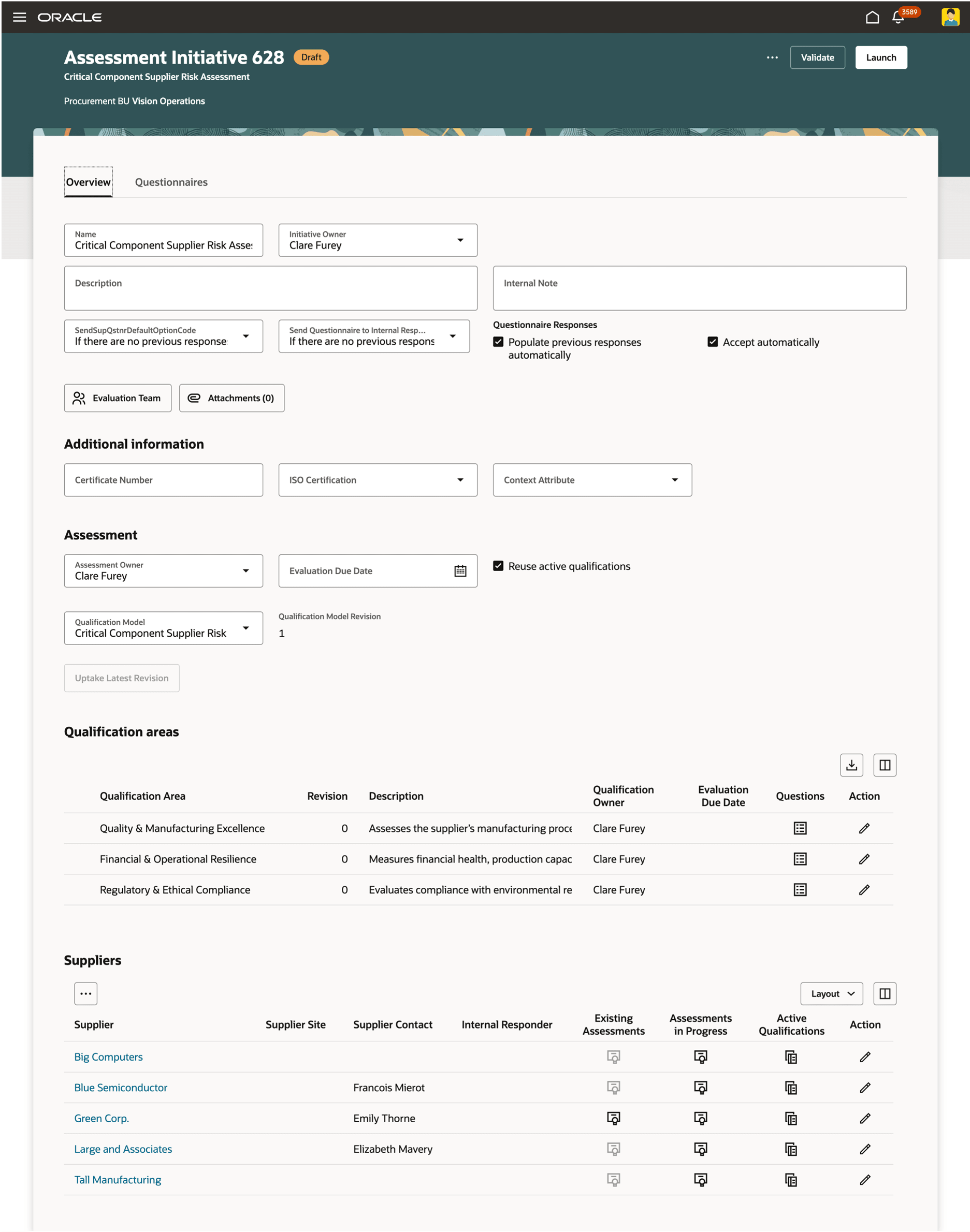
Assessment Initiatives - Overview and Questionnaire tabs
On the Overview tab:
- You can provide assessment-specific details such as the assessment owner, evaluation due date, qualification model, model revision, and whether to reuse active qualifications.
- The Qualification areas section shows the qualification areas included from the selected qualification model. You can review each area, its revision and description, and access the related questions. You can also update the qualification owner and evaluation due date where applicable.
- The Suppliers section shows the suppliers included in the assessment initiative. You can also see if they have related data such as existing assessments, assessments in progress, and active qualifications. If you have chosen to reuse active qualifications, the initiative can use existing active qualifications instead of creating everything from scratch.
On the Questionnaires tab, you can review the questionnaire, which includes all branching questions, to be sent to suppliers or internal responders.
Once all the information is filled in, you can save, validate, and launch the initiative.
After an initiative is created, you can access it from the search page by selecting the assessment number hyperlink. Initiatives other than those in Draft status will open in view mode.
Monitor Assessment Initiative
After you create and launch an initiative, you can monitor it from the Monitor Assessment Initiative page. You can access it from the Initiatives search page or View Initiative page.
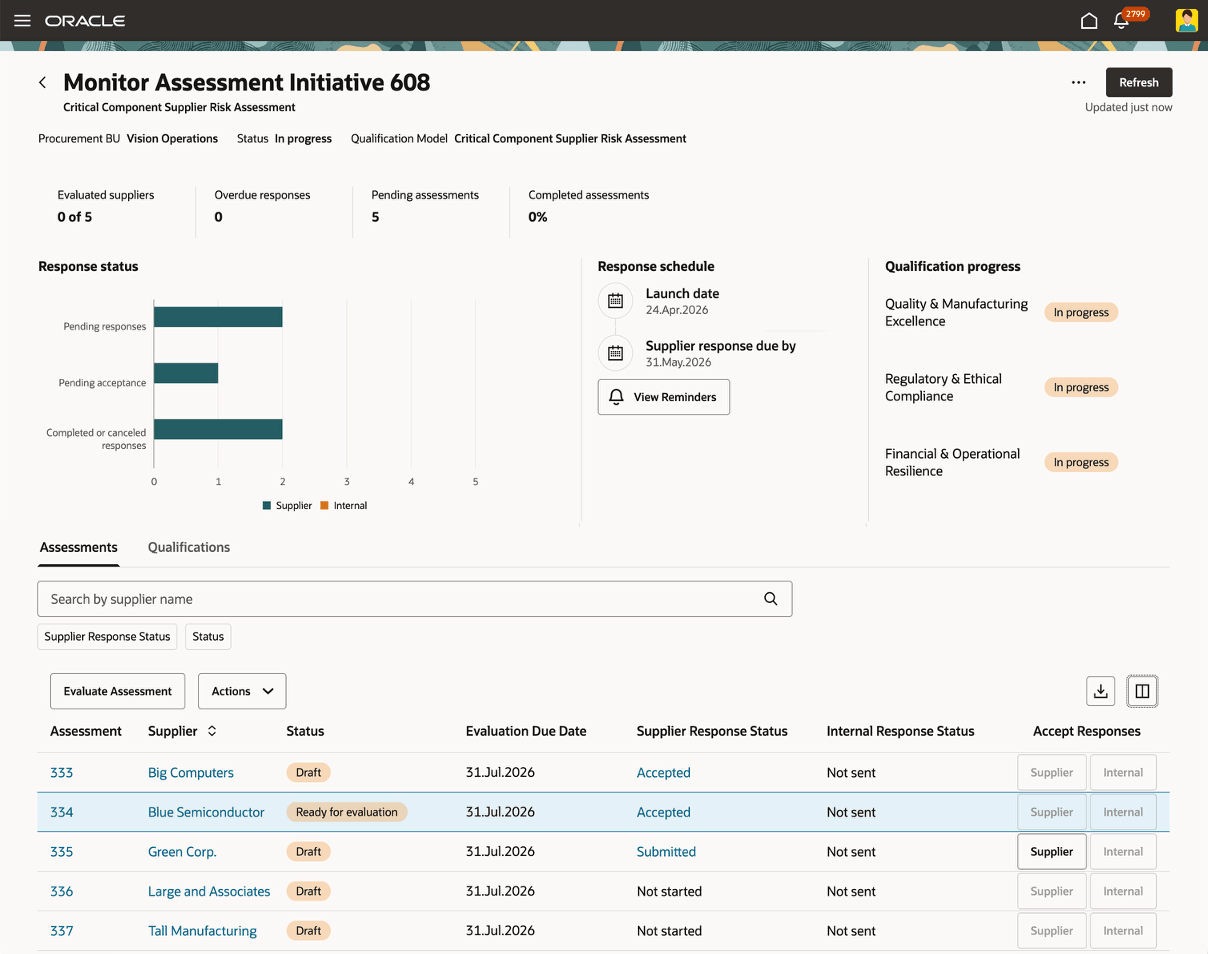
Monitor Assessment Initiative Page
The Monitor Assessment Initiative page gives initiative owners a centralized view of assessment progress. You also see key performance indicators (KPIs) for evaluated suppliers, overdue responses, pending assessments, and completed assessments. Questionnaire responses that were not sent are excluded from these calculations.
Track questionnaire progress in the Response status section by using status categories (pending responses, pending acceptance, completed/canceled) with filtering by supplier. In the Response Schedule section, you can view key dates and reminders, with an option to send ad hoc reminder notifications. Also you have quick visibility to the qualification progress across all suppliers.
Assessments Tab
The table in the Assessments tab gives you a consolidated view of all assessments in the initiative, their current status along with the questionnaire response status from supplier and internal responders. You can search for assessments by supplier and filter the results based on supplier or internal response status.
Review the responses by suppliers or internal responders in the Review Response page by clicking the response status hyperlink. Under the Accept Responses column select the Supplier or Internal button to accept the submitted responses from the respective responder.
If the responses are pending, then select View Reminders to review the reminder dates in the Reminders drawer. You can also select the Send Response Reminder button to instantly send reminder notifications for all questionnaires in the initiative that are pending or overdue.
To submit a surrogate response on behalf of a supplier or internal responder, select Respond to Questionnaire from the Actions menu for Supplier or Internal Responder depending on the type of questionnaire.
Evaluate Assessment: Initiative owners can evaluate an assessment by selecting an assessment and clicking Evaluate Assessment. This displays the Evaluate Assessment page, where the assessment can be finalized.
Cancel Assessment: You can cancel an assessment and its related questionnaires and qualifications by selecting Cancel Assessment from the Actions menu.
Qualifications Tab
The qualification table displays all qualifications created by the initiative. By default, the page shows qualifications that are in the Ready for Evaluation status. You can search for and filter the list by supplier or qualification name. Click the qualification number to view qualification details, or select the Evaluate action to proceed with evaluating qualifications that are ready for evaluation.
Steps to enable and configure
To use this feature, ensure you have the following profile options enabled:
- Redwood Supplier Qualification Page Enabled (ORA_POQ_SUPPLIER_QUALIFICATION_REDWOOD_ENABLED). Enable this existing profile option if you haven't already.
- Redwood Assessment Initiatives Pages Enabled (ORA_POQ_ASSESSMENT_INITIATIVES_REDWOOD_ENABLED). By default, this new profile option is enabled.
For instructions on enabling a profile option, refer to the Set Profile Option Values topic.
To search assessment initiatives, rebulid the elastic search index by running the ESS job to create index definition and perform initial ingest to OSCS scheduled process with the Index Name to Reingest parameter set to fa-prc-poq-initiatives.
Tips and considerations
- Modifying the sections and questions of a questionnaire is not supported. The questionnaire is rendered based on the order of the qualification areas within the qualification model and the order of questions within each area.
- A maximum of 10,000 initiatives can be shown in the initiative search results.
Key resources
- For information about using Oracle Visual Builder Studio to extend your Redwood application pages, see Oracle Fusion Cloud HCM and SCM: Extending Redwood Applications for HCM and SCM Using Visual Builder Studio.
- For information about adding your own KPIs and visualizations to your page, see Flexible Reporting in Redwood Dashboards.
- Refer to the What's new for Update 26B: Redwood: Create Qualification Initiatives and Redwood: Monitor Qualification Initiatives for more information on redwood initiatives.
Access requirements
Users who are assigned a configured job role that contains these existing privileges can access and manage this feature:
- View Supplier Assessment (POQ_VIEW_SUPPLIER_ASSESSMENT)
- Cancel Supplier Assessment (POQ_CANCEL_SUPPLIER_ASSESSMENT_PRIV)
- Evaluate Supplier Assessment (POQ_EVALUATE_SUPPLIER_ASSESSMENT_PRIV)
Note: Refer to the 26B Redwood: Create Qualification Initiatives and Redwood: Monitor Qualification Initiatives What's New for the list of privileges related to Initiatives, Questionnaires and Qualifications.