Redwood: Respond to Seller Auctions in Supplier Portal
Supplier bidders use seller auctions to compete for items that the buying organization wants to sell, such as excess inventory or retired assets. Unlike reverse negotiations, where suppliers compete to offer lower prices, seller auctions use a forward auction model where bidders increase their bid amounts over time until the auction closes.
Supplier bidder contacts can respond to seller auctions using a Redwood experience in Supplier Portal. The experience brings auction discovery, bid creation, bid submission, bid revision, and bid management into a streamlined flow for reviewing auction details and managing bid activity.
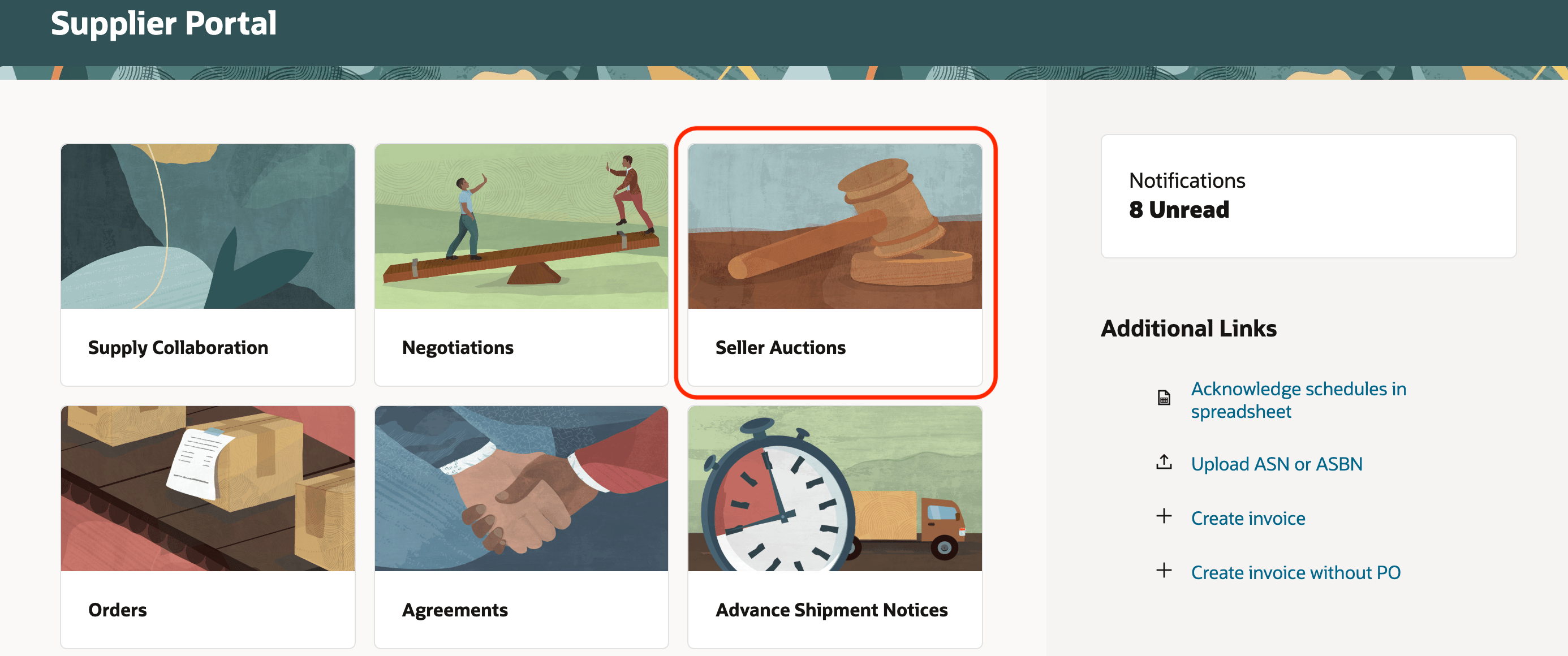
Seller Auctions Tile in Supplier Portal
These sections describe the key features available to bidders, from finding and reviewing seller auctions to creating, revising, submitting, and tracking bids.
Review active seller auctions
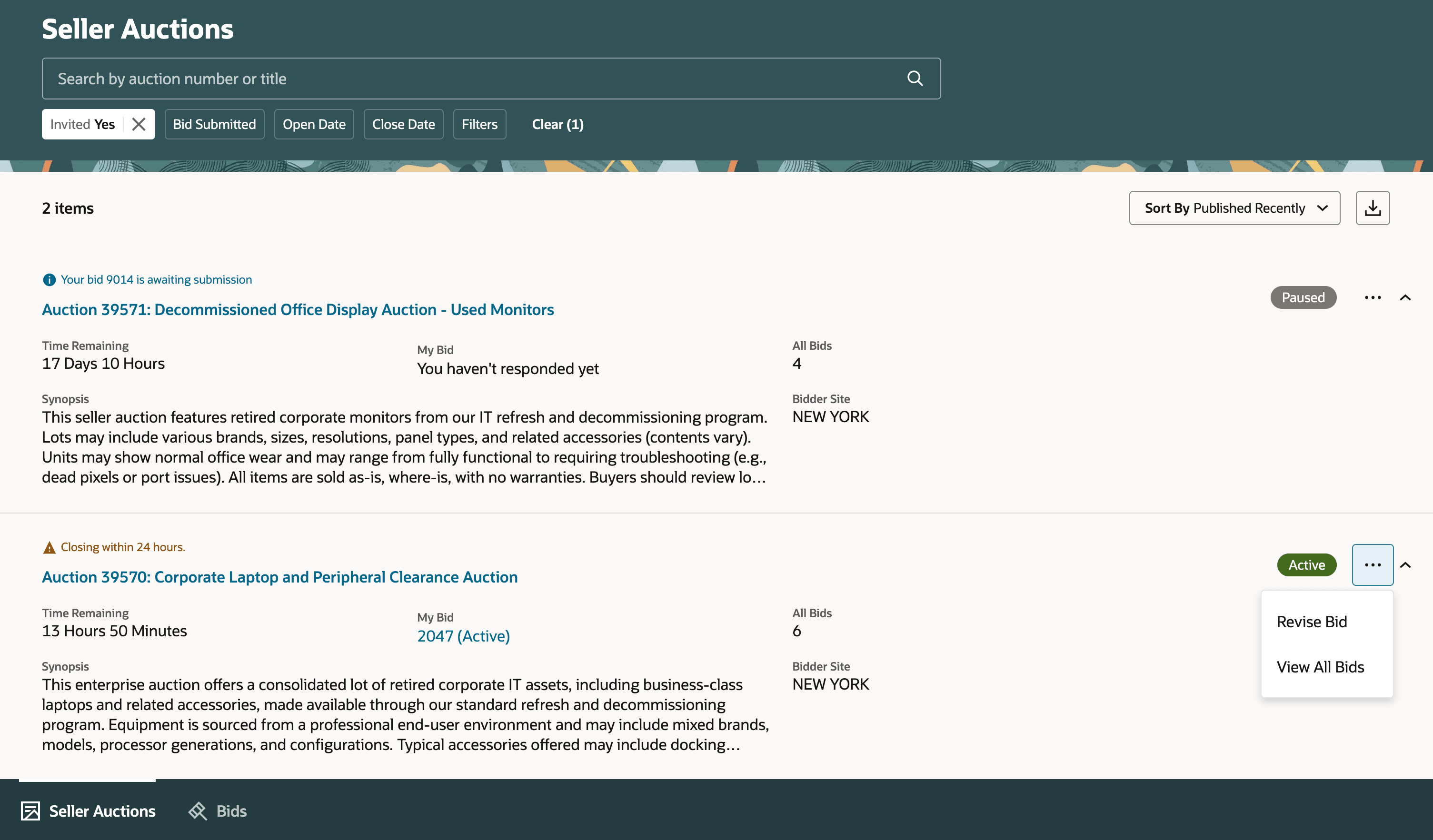
Seller Auctions Page with Search, Filters, Results, and Actions
Use the Seller Auctions page to find relevant auctions, review your latest bid and take action from a single Redwood page. Search, filters, sorting, and inline actions help you move from discovery to bid with fewer steps.
Unlike the Classic application, this page also shows status of your latest bid such as active or disqualified, or a draft bid still pending submission. Based on the auction and bid status, you can review auction details, create a new bid, continue editing a draft, revise an eligible bid, or view submitted bids directly from the list. This keeps more bid context and follow-up actions available in one place to respond faster and manage auctions more efficiently.
View seller auction details
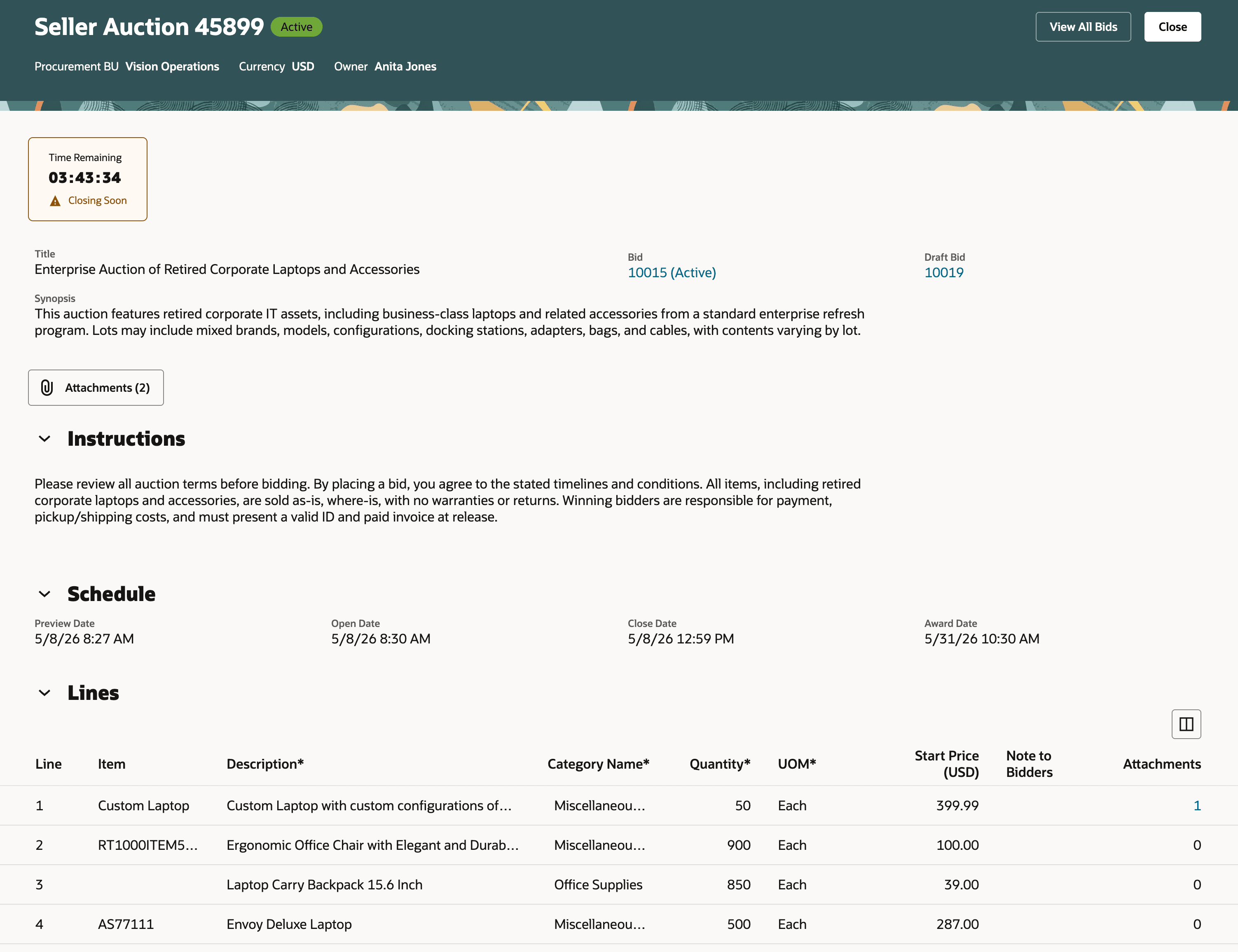
Seller Auction Details Page
Use the View Seller Auction page to review auction details, instructions, attachments, schedule, and line information. This consolidated view helps you understand bidding requirements.
You can also create, revise, or view bids from the same page when those actions are available, and track your latest submitted bid or any draft bid in progress.
Create bids
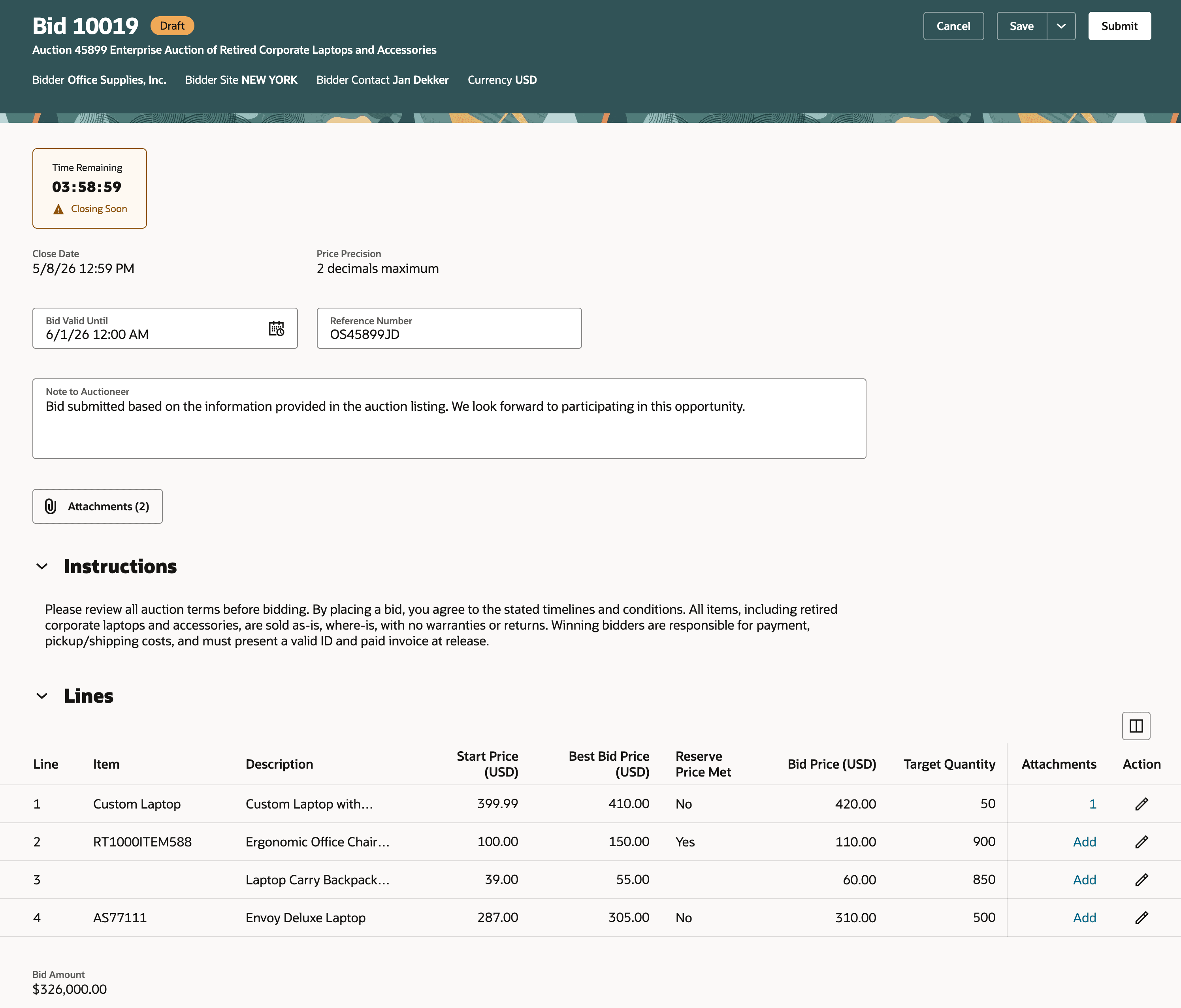
Create, Edit, and Submit a Bid
Create your bid from the seller auctions page actions and submit it in a one page experience. The page brings auction context, instructions, attachments, and line responses together so you can enter bid details, save a draft, or submit the response with fewer navigation steps.
If another contact from your company has already created a bid for the auction, the application warns you before creating an additional bid.
Auction rules set by the seller determine how you can enter bid details:
- If partial quantity bidding is allowed for a line, you can update the bid quantity. If partial quantity bidding isn’t allowed, the bid quantity is read-only and you bid for the full line quantity.
- If a reserve price is defined for a line, you can see whether the reserve price has been met during bidding.
Revise bids
Revise active or disqualified bids while the auction remains open using the same Edit Bid page. The application creates a new draft from your latest eligible bid so you can quickly update only the information you want to change, save the revision as a draft, or submit it when ready.
Auction rules continue to apply during revisions, including minimum price increment requirements when configured.
Manage bids
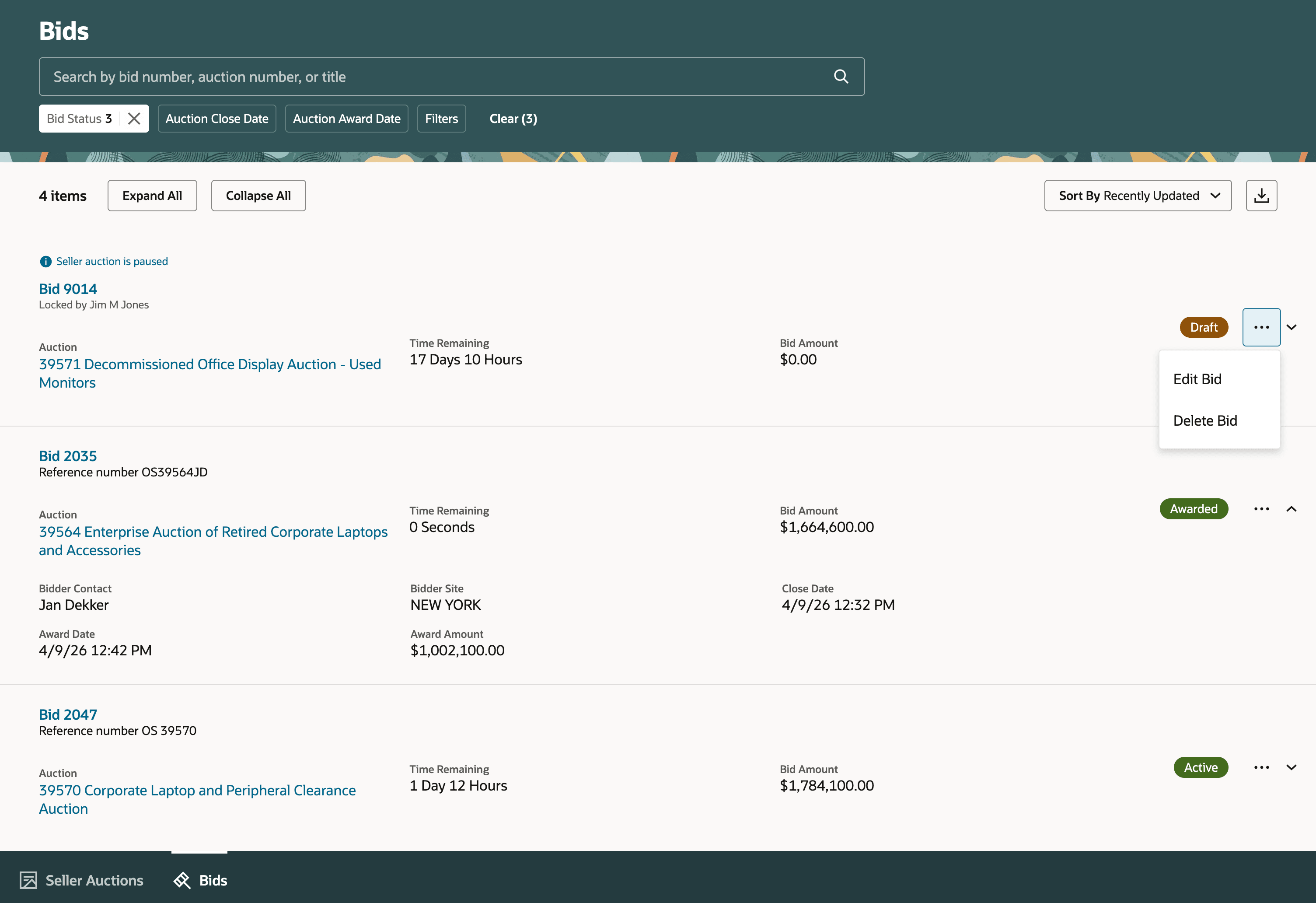
Manage Bids Across Auctions
Use the Bids page to track and manage auction responses across your supplier bidder company in one view. Search, filters, status badges, and inline actions help you focus on drafts, active bids, and completed bids without navigating across multiple pages.
You can edit, revise, delete, or review bids based on status. If a draft bid is locked by another contact and you have permission to unlock drafts owned by others, the application warns you before unlocking the bid and continuing with the selected Edit or Delete action.
You can also expand results for more details or export the current results to Excel.
View bid
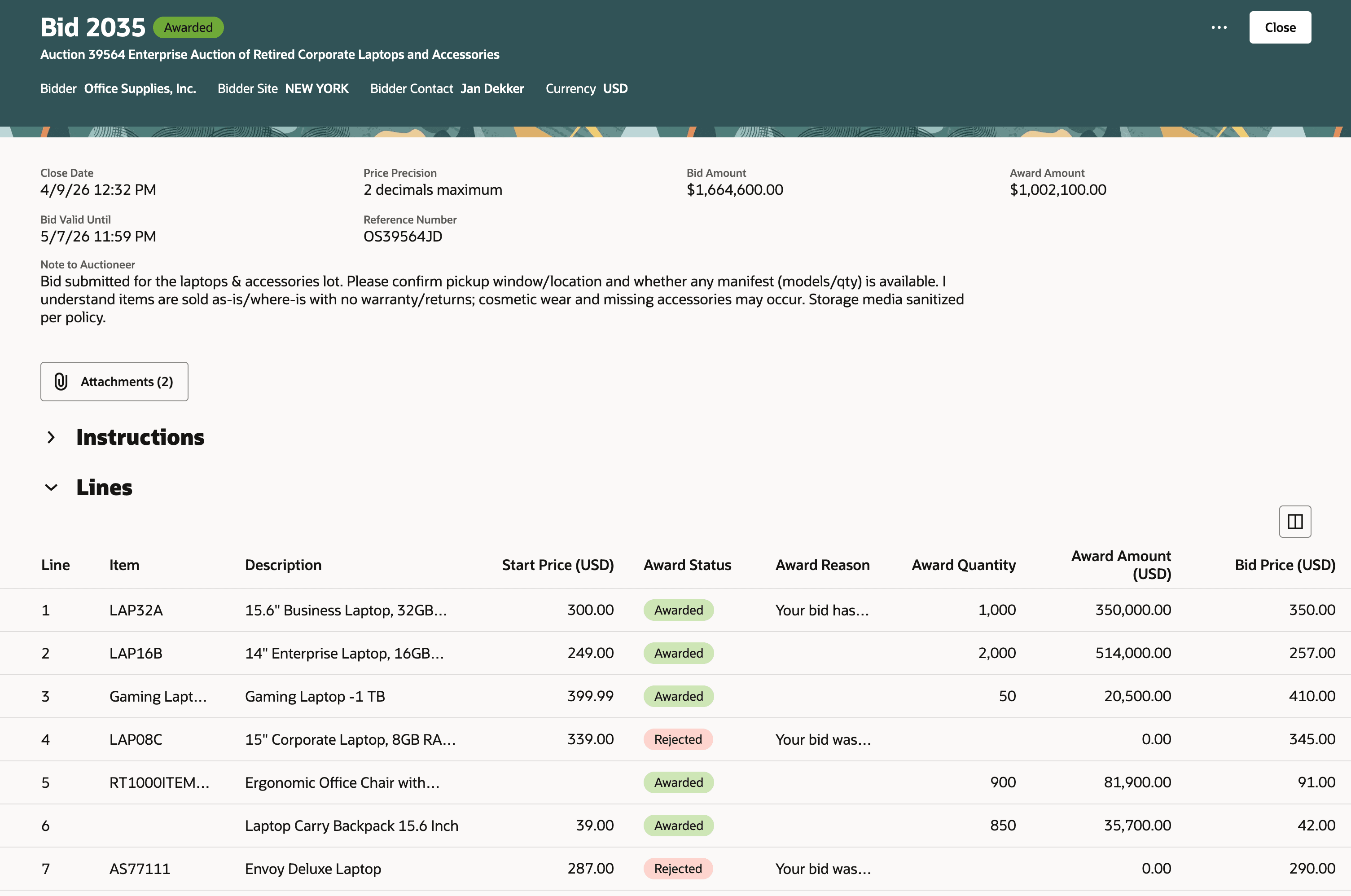
View Bid Details
Click the bid to review bid status, line responses, rankings, best bid prices, reserve indicators, and award outcomes in a streamlined Redwood layout. This helps you quickly understand how competitive your bid is and whether you need to revise your bid before the auction closes.
When award decisions are shared, you can review awarded amounts, quantities, and notes where available. From the same page, you can edit draft bids, revise eligible bids, or view all submitted bids for the auction.
View all bids for an auction
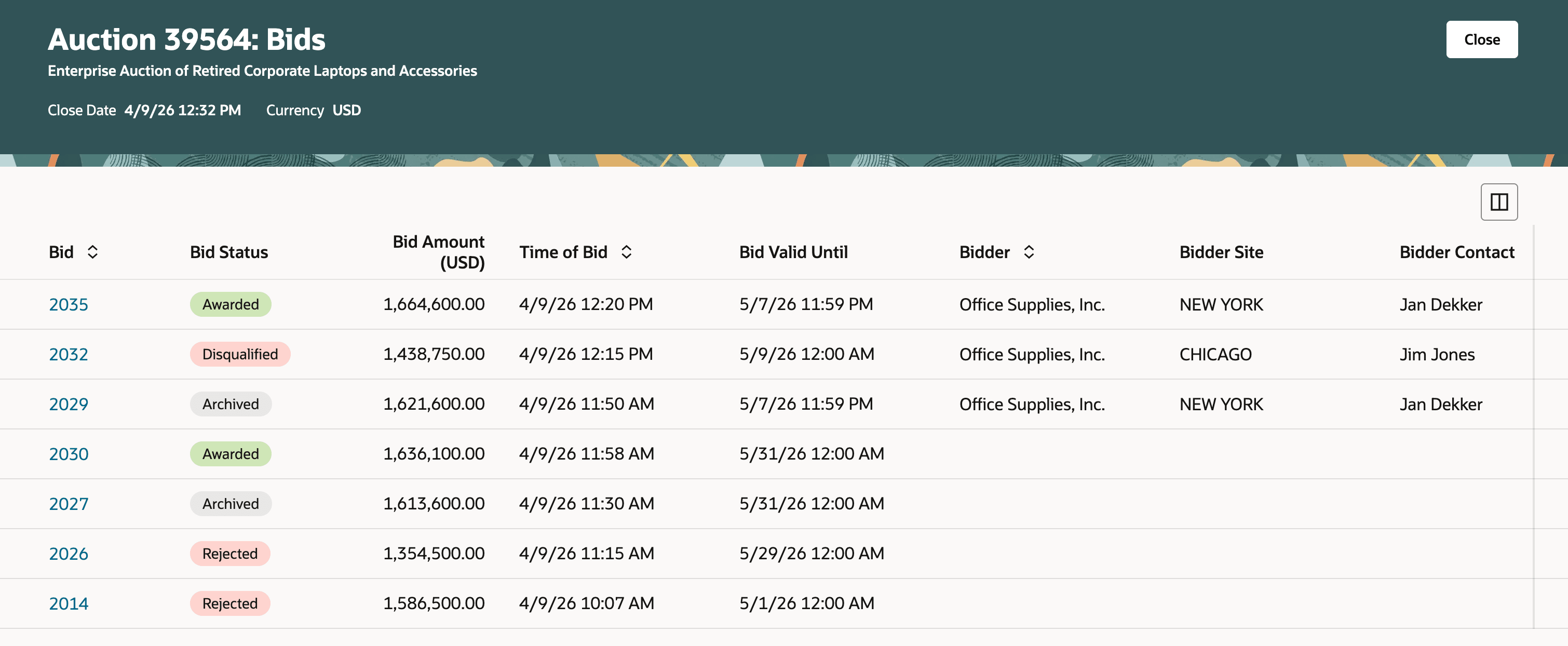
View All Submitted Bids for an Auction
Use the View All Bids page to review submitted auction bids, including competitor bids. Your company’s bids appear first, followed by bids from other participating bidders, helping you understand auction activity and competitive positioning without exposing the identity of other bidders.
You can drill down into bid details to review bid information, rankings, and competitive pricing. Award information isn’t displayed when you're reviewing bids from other bidders.
This Redwood experience helps bidders respond to seller auctions more efficiently by reducing navigation and keeping bid actions close to the auction or bid context.
Compared to the Classic experience, bidders get better visibility into draft and submitted bids, faster access to follow-up actions such as editing drafts and revising eligible bids, and a more centralized way to track bid activity across the seller auction lifecycle.
Steps to enable and configure
To use this feature, you must set the following:
- Opt in to the Sourcing feature Manage Seller Negotiations (if not already opted-in).
- Opt in to the Procurement feature Redwood: Enable the New Supplier Portal Home Page Experience (if not already opted-in).
Tips and considerations
- All Seller Auction Notifications open the Redwood View Seller Auction or View Bid pages when Redwood Supplier Portal is enabled.
- These include: auction invitation, lifecycle actions (paused, resumed, extended, closed, canceled, disqualified), and award-related notifications.
- You can revise only the latest bid you submitted, and only while the auction is open.
- Bids can be created, edited, or revised while an auction is paused but bids can’t be submitted until the auction resumes.
- If the seller defines a price increment for a line, your revised bid must increase by at least that amount.
- You can’t unbid a line during revisions. For a line you previously bid on, you can only adjust the bid price and quantity where allowed.
- Draft bids can be edited or deleted only while the auction is open.
Key resources
- For information about using Oracle Visual Builder Studio to extend your Redwood application pages, see Oracle Fusion Cloud HCM and SCM: Extending Redwood Applications for HCM and SCM Using Visual Builder Studio.
- Refer to Overview of Guided Journeys in the Oracle Fusion Cloud Human Resources: Implementing and Using Journeys guide, available on the Oracle Help Center.
- For details about how to add your own key performance indicators (KPIs) and visualizations to your page, see: Flexible Reporting in Redwood Dashboards.
Access requirements
Users who are assigned a configured job role that contains these privileges can drill down to pages or perform actions:
- View Seller Negotiation as Bidder (PON_VIEW_SELLER_NEGOTIATION_AS_BIDDER_PRIV) to view seller auctions.
- Create Seller Negotiation Response (PON_CREATE_SELLER_NEGOTIATION_RESPONSE_PRIV) to create a bid.
- Edit Seller Negotiation Response (PON_EDIT_SELLER_NEGOTIATION_RESPONSE_PRIV) to edit a bid.
- Submit Seller Negotiation Response (PON_SUBMIT_SELLER_NEGOTIATION_RESPONSE_PRIV) to submit a bid.
- View Seller Negotiation Response as Bidder (PON_VIEW_SELLER_NEGOTIATION_RESPONSE_AS_BIDDER_PRIV) to view a bid.
- Manage Seller Negotiation Response (PON_MANAGE_SELLER_NEGOTIATION_RESPONSE_PRIV) to manage bids in Bids page.
- Unlock Seller Negotiation Response Draft Owned by Others (PON_UNLOCK_SELLER_NEGOTIATION_RESPONSE_DRAFT_OWNED_BY_OTHERS_PRIV) to unlock a draft bid that's created or locked by other bidder contacts.
- Delete Draft Seller Negotiation Response (PON_DELETE_DRAFT_SELLER_NEGOTIATION_RESPONSE_PRIV) to delete a draft bid.
- View Seller Negotiation Response History (PON_VIEW_SELLER_NEGOTIATION_RESPONSE_HISTORY_PRIV) to view all bids submitted.
These privileges were available prior to this update.