Redwood: Save Column Filters and Measure Filters
You can now save, apply, and manage reusable sets of column filters in key Redwood planning visualizations so that frequently used column-based criteria can be reused across sessions and included in saved searches. In addition, you can save, apply, and manage reusable sets of member level and measure data filters in Redwood pivot table visualizations.
Column Filter Sets
You can save one or more of a table’s column filters into a new column filter set. Saved column filter sets can be included in saved searches and reused across sessions, providing the ability to persist complex filter criteria across sessions and across users. These column filter sets can be made public and available to other users or be made private so that they’re available only to you.
The following image shows several column filters applied to a table.
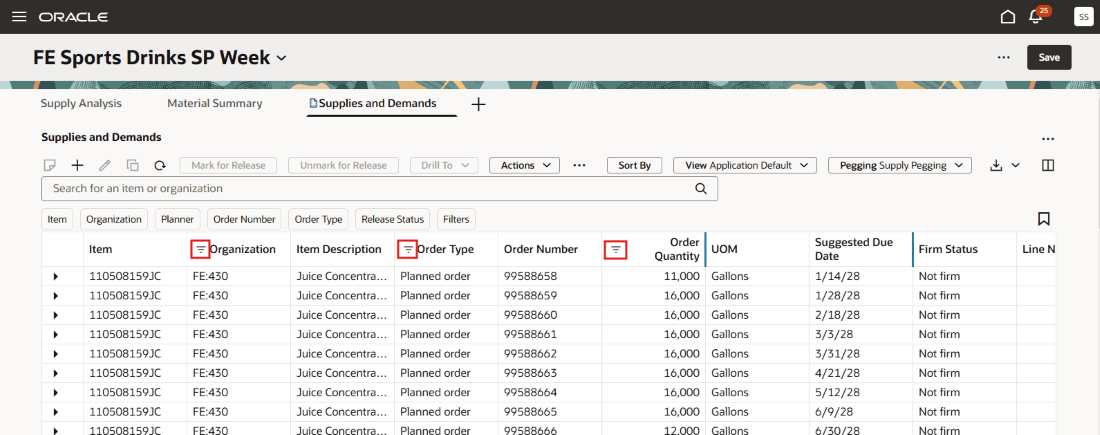
Column Filters Applied to the Supplies and Demands Page
To save your applied column filters, select Column Filters > Save from the Actions menu.
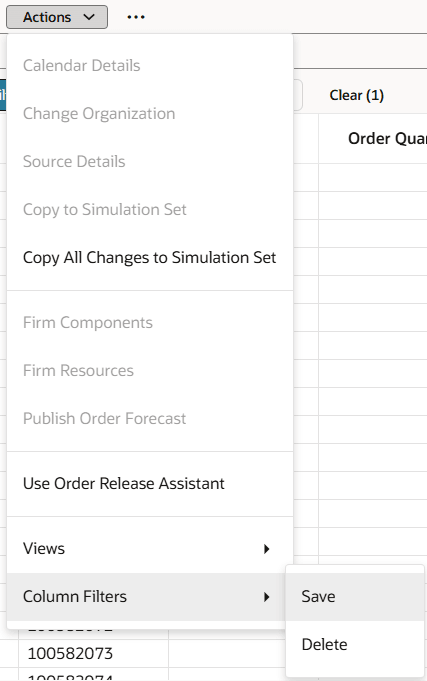
The Column Filters Save Action Available from the Actions Menu
The Save column filter set drawer opens. You can choose between creating a new filter set or updating an existing one that you’ve previously created. The number of the table’s active column filters is shown, along with a list of the column filters in the Currently Selected Column Filters field. Enter a unique name for the column filter set, add an optional description, and specify whether the column filter set access should be public or private.
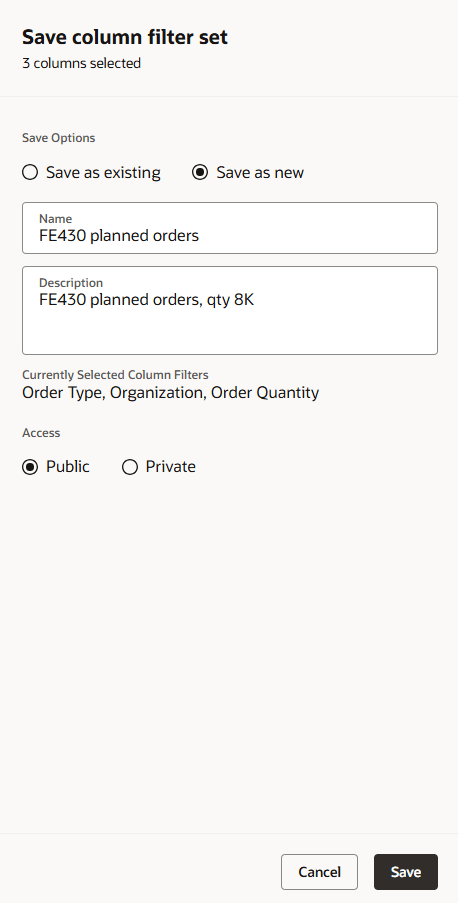
Save a New Column Filter Set
If you’re modifying an existing column filter set, the columns that were previously included are shown in the Previously Saved Column Filters field. Note that you can only modify an existing column filter set if you created it. Otherwise, only the Save as new option is allowed.
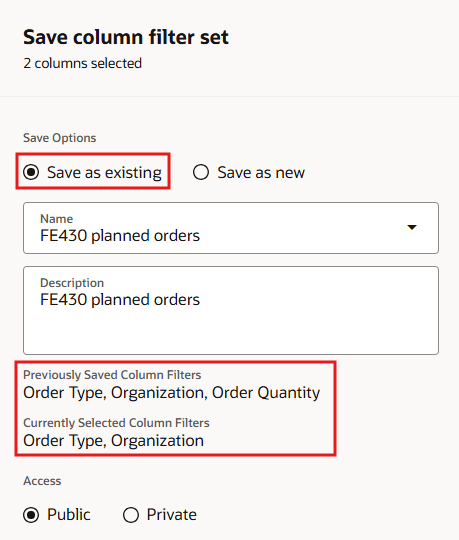
Save Changes to an Existing Column Filter Set
When done, select the Save button in the drawer.
After it’s saved, the column filter set will be applied to the table and shown in the Column Filter Set filter chip at the top of the table.
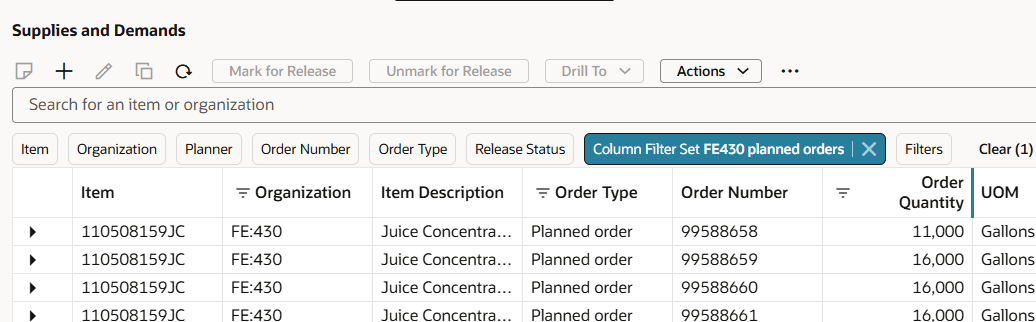
Column Filter Set Applied to Table and Shown in the Filter Chip
When a column filter set is applied to a table, you can select the Column Filter Set filter chip to show all available column filter sets in a drop-down list and choose a different one if desired.
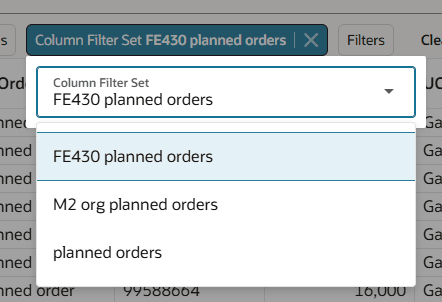
Choose a Different Column Filter Set
To remove the applied column filter set, select “X” on the filter chip.
To apply a column filter set to a table that doesn’t currently have the Column Filter Set filter chip displayed, select Filters. In the Filters drawer, expand the Column Filter Set section and select the desired column filter set. Then select See Results.
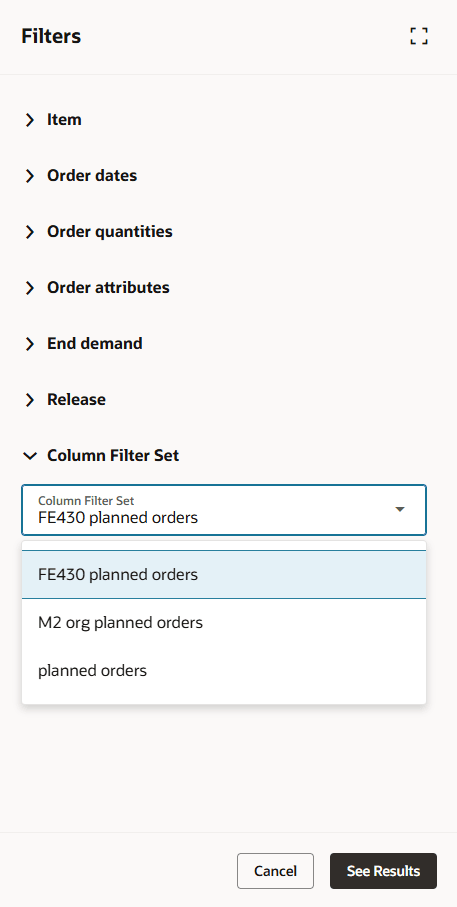
Selecting a Column Filter Set from the Filters Drawer
When you select a column filter set, any currently applied column filters will be cleared and the columns filtered in the selected set will be applied. Any additional filter changes made are treated as ad hoc until saved. Refreshing the page clears any ad hoc filters and reapplies the filters in the selected column filter set.
Combining page-level filters with a column filter set applies an AND operator to refine results further.
You can apply these named filter sets across multiple supply planning pages, including Supplies and Demands, Resource Requirements, Late Demand Analysis, Items, and Attribute-based Transfer Recommendations.
Pivot Table Data Filters
You can save one or more of a pivot table’s data filters into a new data filter set and reuse it in other pivot tables. For example, you can filter the Material Plan pivot table by different groups of items and save each set as a different data filter set to be used by different planners. You can then easily apply those data filter sets, instead of manually entering them each time for each relevant pivot table. These data filter sets can be made public and available to other users or be made private so that they’re available only to you. You can also specify whether a data filter set can be used in other pivot tables.
The following image shows the Material Plan pivot table with data filters specified for the Organization and the Period.
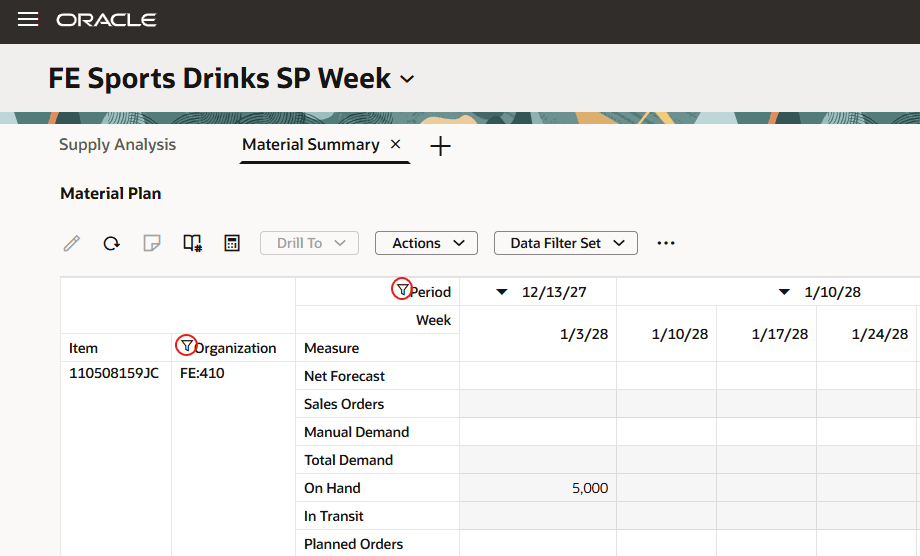
Material Summary Pivot Table with Two Filters Applied
To save your applied data filters into a data filter set, select Data Filters > Save from the Actions menu.
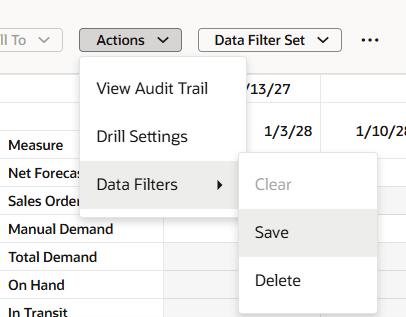
The Data Filters Save Action Available from the Actions Menu
The Save data filter set drawer opens. You can choose between creating a new filter set or updating an existing one that you’ve previously created. The list of the selected data filters is shown in the Currently Selected Data Filters field. Enter a unique name for the data filter set, add an optional description, and specify whether the data filter set access should be public or private. Select the Enable for use in other pivot tables checkbox if you want to make this data filter available in other pivot tables.
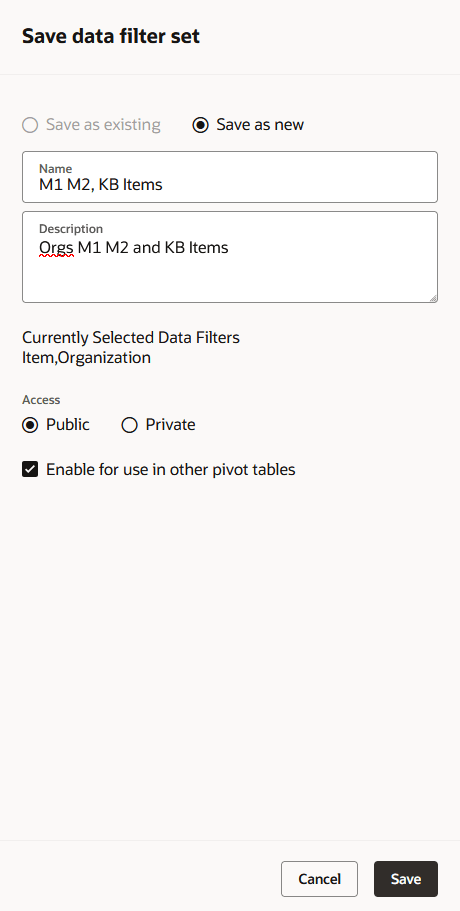
Save a New Data Filter Set
If you’re modifying an existing data filter set, the data filters that were previously included are shown in the Previously Saved Data Filters field. Note that you can only modify an existing data filter set if you created it. Otherwise, only the Save as new option is allowed.
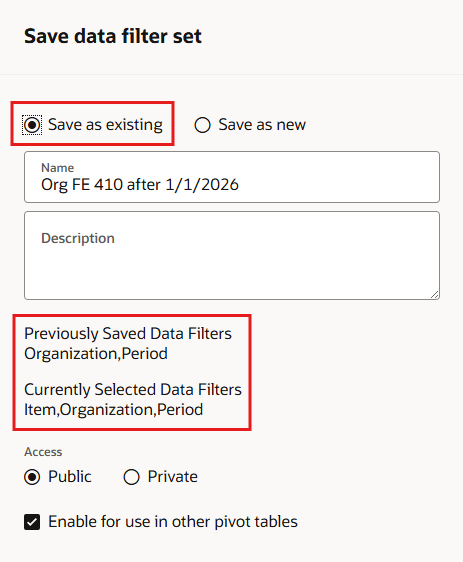
Save Changes to an Existing Data Filter Set
When done, select the Save button in the drawer.
After it’s saved, the data filter set will be applied to the pivot table and shown in the Data Filter Set filter chip at the top of the table.
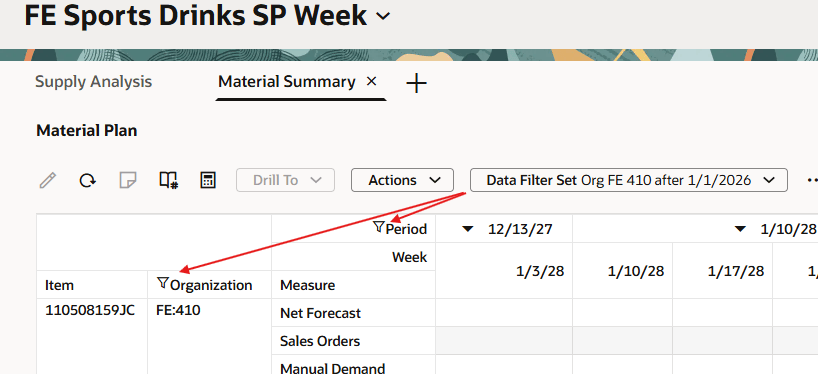
Material Plan Pivot Table Using a Data Filter Set
You can apply any of the available filter data sets by selecting from the Data Filter Set drop-down list.
To save the Data Filter Set as a default selection for the current pivot table, select the Save Layout action from the pivot table’s options menu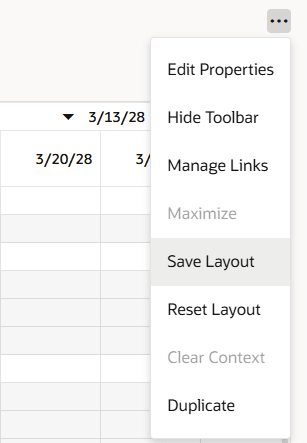
Pivot Table’s Save Layout Action
To delete a data filter set, select Data Filters > Delete from the Actions menu. A drawer opens and a list of the available data filter sets is shown. Select the delete icon for the filter sets that you want to remove and then select the Delete button.
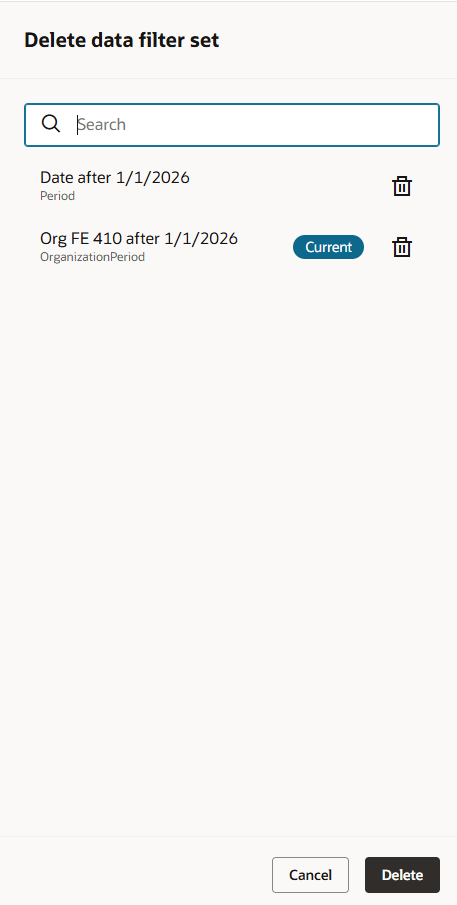
Delete a Data Filter Set
To clear an applied data filter set from a table, select Data Filters > Clear from the Actions menu.
Steps to enable and configure
You don't need to do anything to enable this feature.
Tips and considerations
Pivot table refresh: If you select the Refresh icon, the table is refreshed based on its last saved layout. If a data filter set was selected when the layout was saved, then that data filter set is saved as part of the layout and when Refresh is selected, the data filter set included in the saved layout is reapplied.
Page level search: When both page-level search and a data filter set are used, an AND condition is used to append the two types of criteria.
Interaction between data filter set and the filter bar: Users can drag member levels in and out of the filter bar, as shown in the following image.
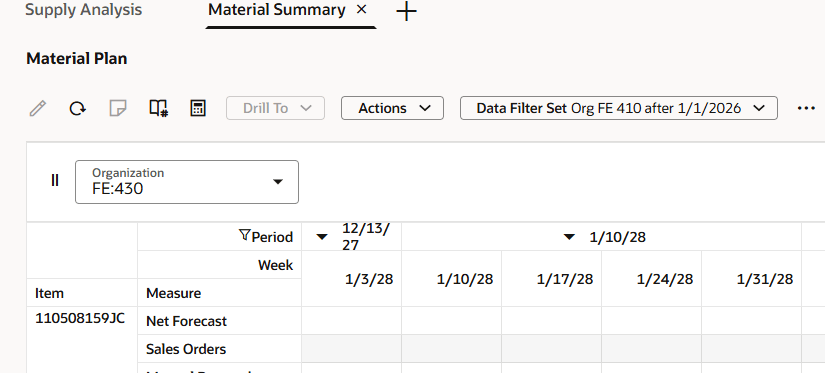
Organization Filter Moved Inside the Filter Bar
When data filters are applied, either manually or through selection of a data filter set, member levels that are in the filter bar won’t be filtered. For example, the Data Filter Set selected in the preceding image filters for organization FE:410, which would exclude organization FE:430. However, because the Organization was moved into the filter bar, both organizations are available in the Organization drop-down list. In other words, the organization is no longer being filtered by the selected data filter set.
Access requirements
No new or additional privileges required