Redwood: Compare a Plan to its Archived Versions Using a New User Experience
You can now use the Redwood interface to compare a plan to its archived versions. You can select a total of three plans and archived versions. You can view plans, archived versions, or both when selecting the comparison, with the default set to plans. The compared measure values are displayed in a table for the original plan alongside the measure values for the selected plans and archived versions, and separate graphs are displayed for each compared item for improved clarity over the previous single-graph view.
In the Redwood work area named Supply Chain Planning, to compare the current plan with archived versions of the plan, select More Actions > Compare Plans and Archives.
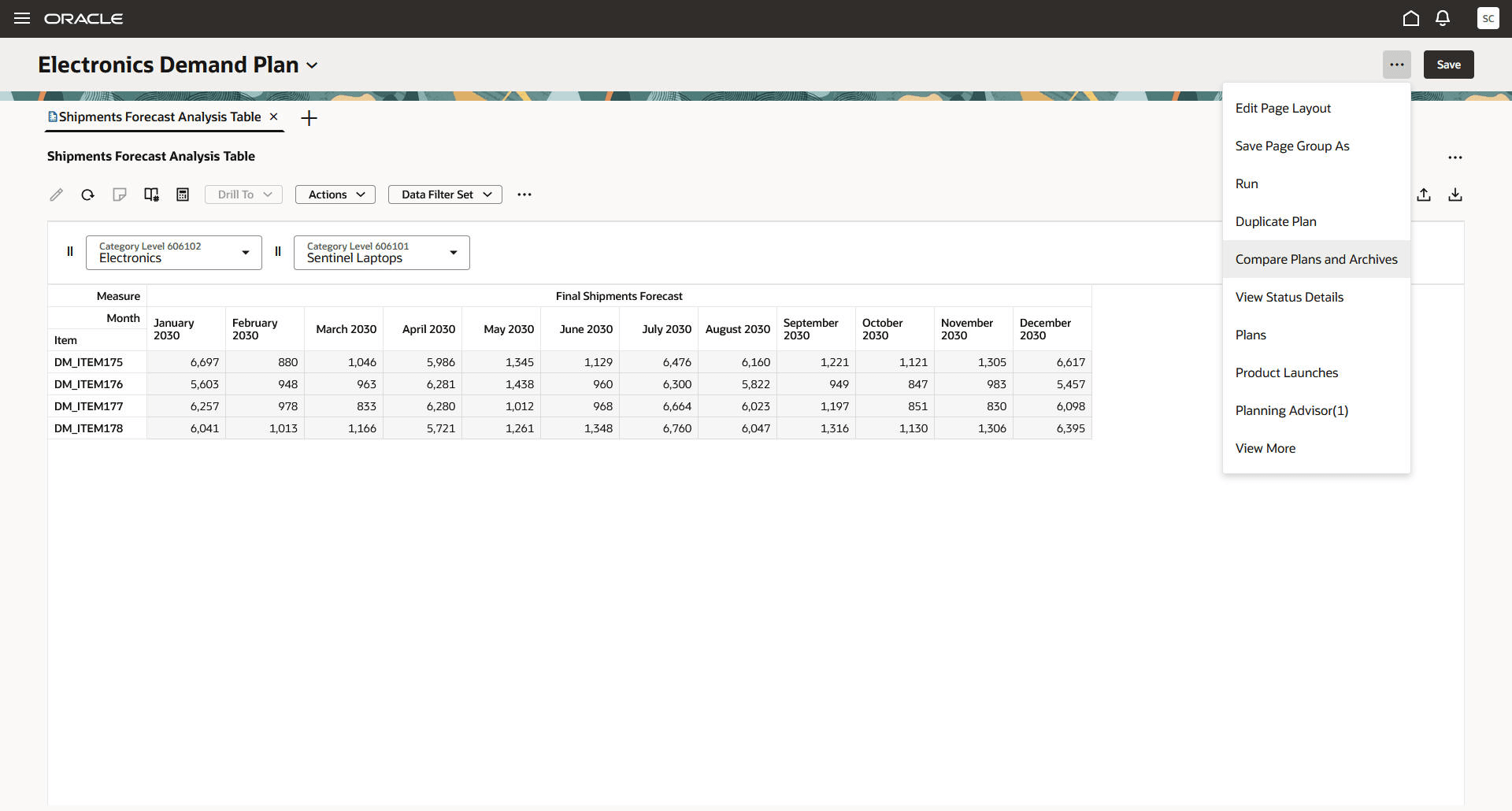
Menu Item Named Compare Plans and Archives
In the Compare plans and archives drawer, you can view a list of plans, list of archives, or combined list of plans and archives. You can select a total of three plans and archives to include in the comparison. After making your selections, select the Compare button.
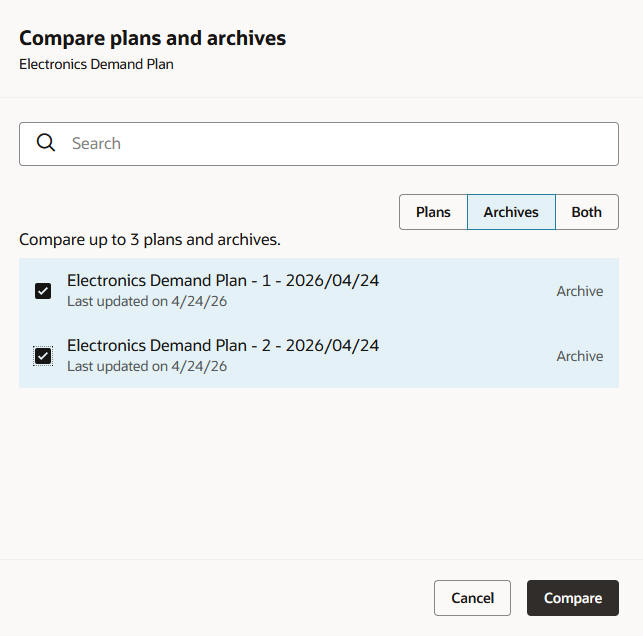
Drawer Named Compare Plans and Archives
Tables display a row for the base plan and a separate row for each plan or archive that you’ve selected for comparison.
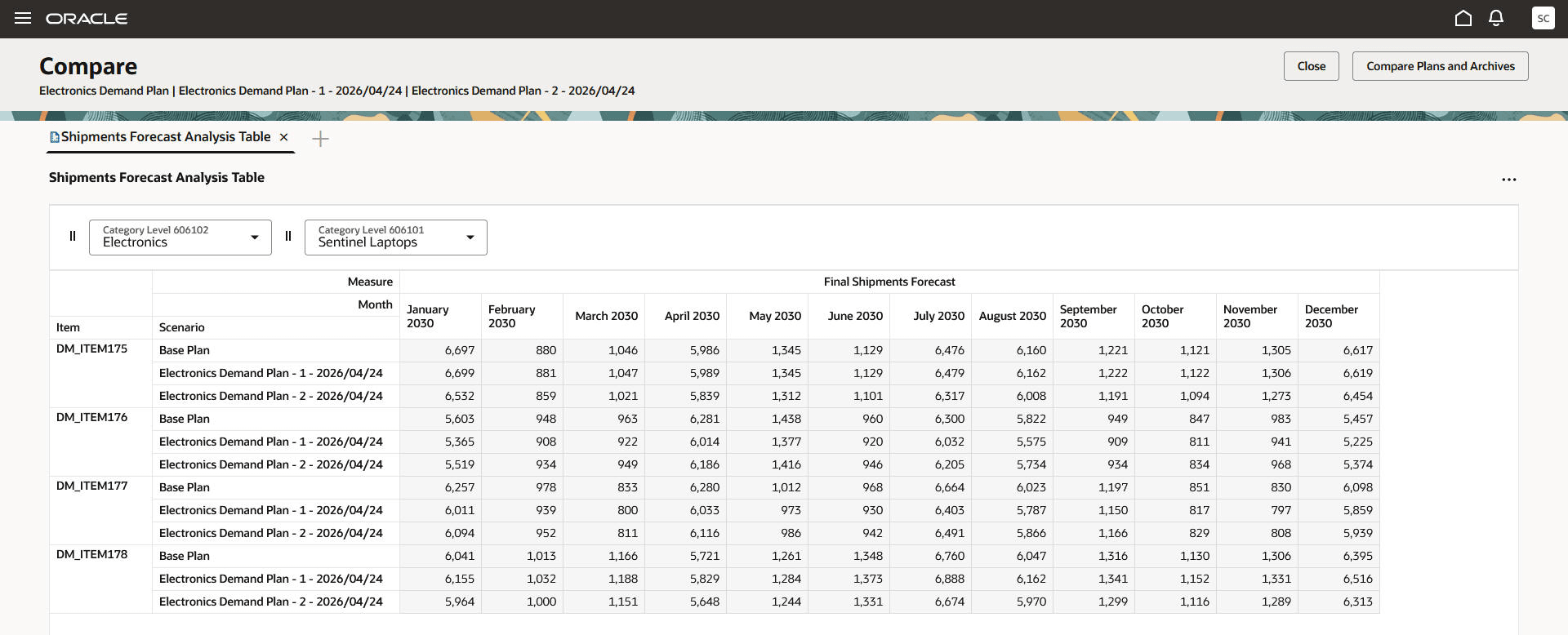
Layout of Table in Comparison Mode
Separate graphs are displayed for the base plan and each plan or archive that you’ve selected for comparison.
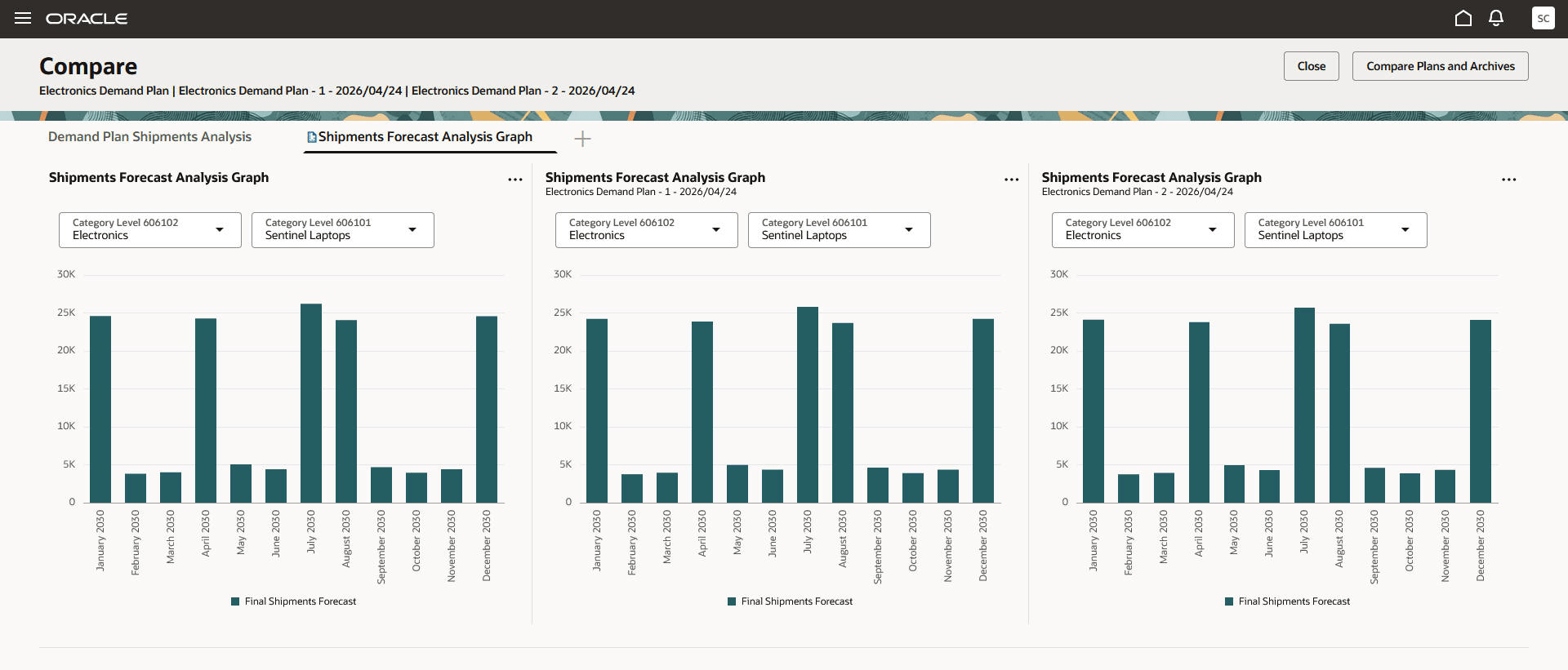
Layout of Graphs in Comparison Mode
Steps to enable and configure
You don't need to do anything to enable this feature.
Tips and considerations
You won’t be able to do the following in the comparison mode:
- Open additional pages, page groups, or visualizations.
- Open the Actions menu, properties drawer, or Links drawer for any visualization.
- Perform a drill.
Additionally, you won’t be able to do the following in a table in the comparison mode:
- Display the toolbar.
- Edit measure values.
- Create or view notes.
- View the audit trail.
- Simulate the demand in a demand or demand and supply plan.
Key resources
Visit https://redwood.oracle.com/ for more information about the Redwood experience.
Access requirements
Users who are assigned a configured job role that contains these privileges can access this feature:
- Edit Planning Analytics Configuration (MSC_EDIT_PLANNING_ANALYTICS_CONFIGURATION_PRIV)
- Maintain Planning Tables (MSC_MAINTAIN_PLANNING_TABLES_PRIV)
- View Planning Analytics Configuration (MSC_VIEW_PLANNING_ANALYTICS_CONFIGURATION_PRIV)
- View Planning Objects Using REST Service (MSC_VIEW_PLANNING_OBJECTS_REST_SERVICE_PRIV)
These privileges were available prior to this update.