Manage Public Shopping Lists
Catalog administrators can now manage public shopping lists using a Redwood experience. After opting into this feature, you can access the Redwood Public Shopping Lists page from the quick links under Catalogs.
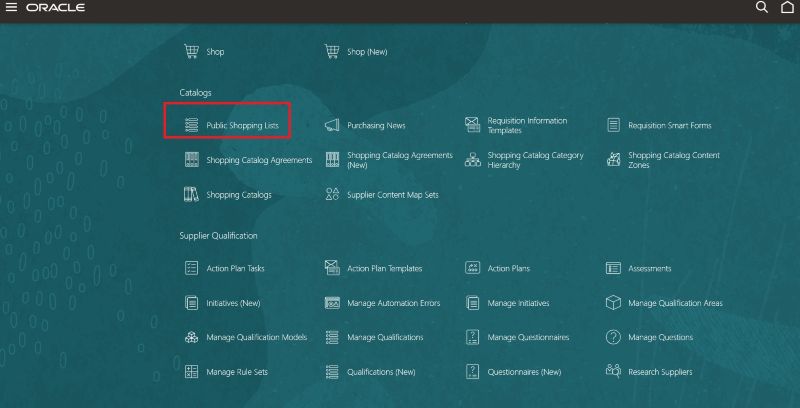
Navigation to Redwood Public Shopping Lists
You can create, edit, and delete lists that you manage. To find a specific list, you can search by name or refine search results using filters such as Procurement BU, Content Zone, and Agreement.
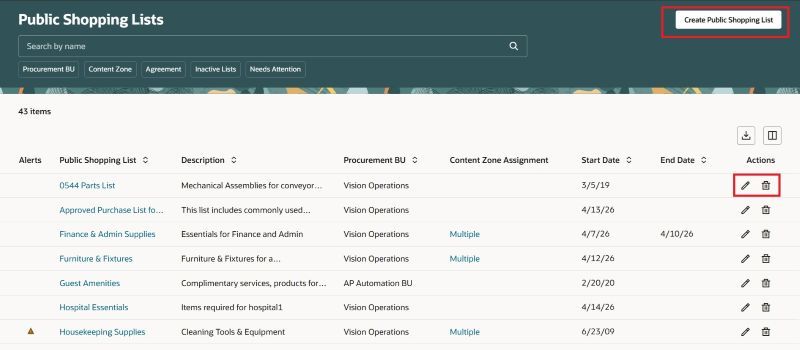
Public Shopping Lists
Create a New List
When creating a new list, select the procurement BU and accept the default start date or specify a different one. Enter a name and, optionally, add a description and image that preparers will see when shopping using the list.
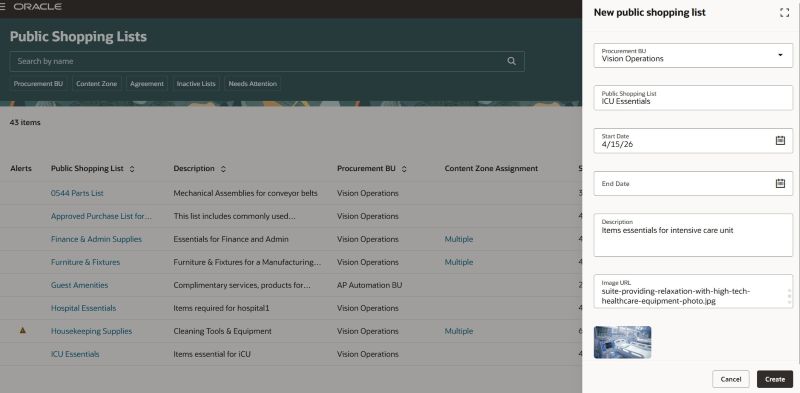
Create a New List
Edit a List
You can edit the list, including adding or removing items.
Note: If you've added at least one item from the catalog, you can't change the procurement BU for the list.
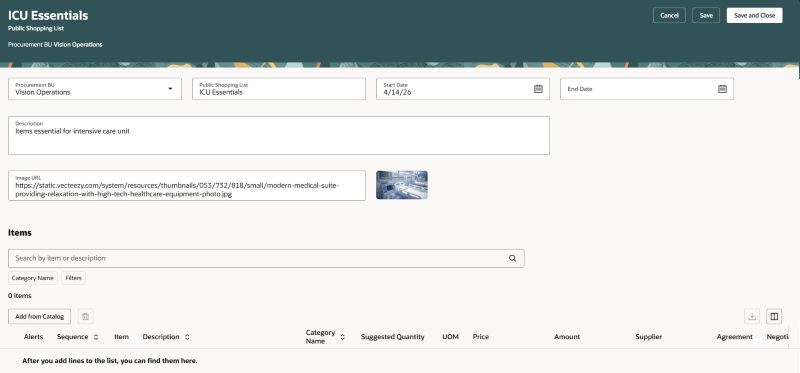
Edit a List
You can add these items to your list from the shopping catalog:
a) Master items
b) Agreement lines (item-based or description-based)
Use filters such as Category, Supplier, or Manufacturer to quickly find the items you need.
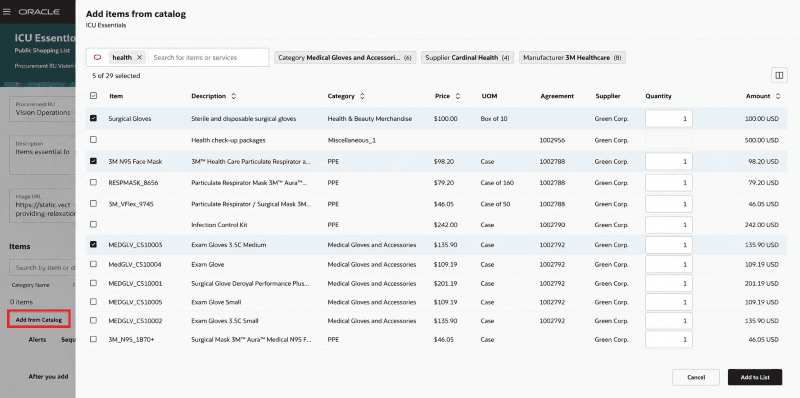
Add Lines from Catalog
You can edit the quantities as required and add one or more items to the list.
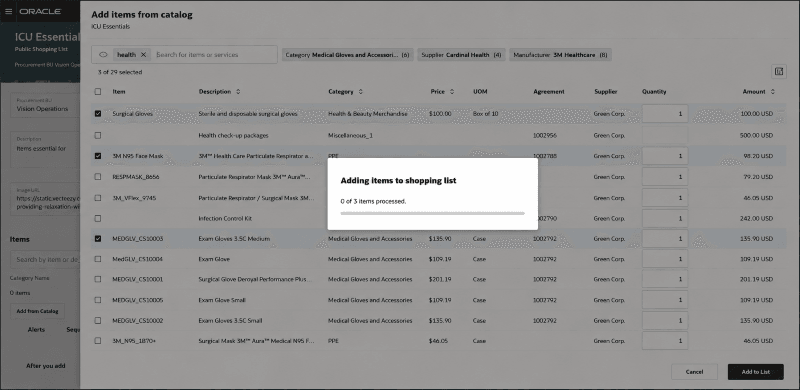
Items Getting Added to the List
You can also define the display sequence (the order in which items appears to preparers) or suggested quantities.
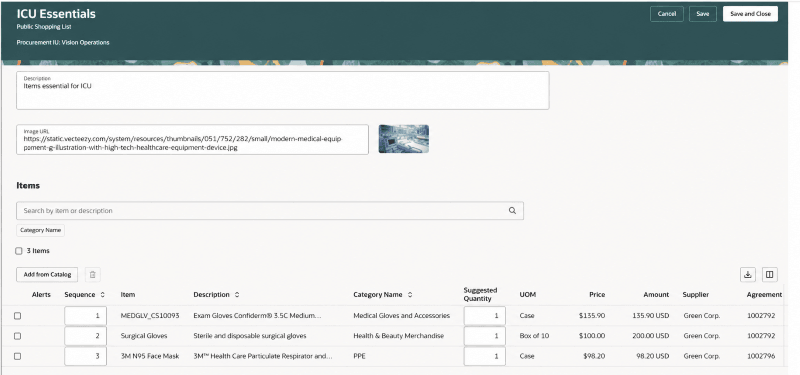
Edit Public Shopping List Lines
You can also delete entire list or individual items within a list.
Manage Your Lists
To help you manage your list more effectively:
1. Identify inactive public shopping lists or lists with inactive agreements using filters, and take corrective action.
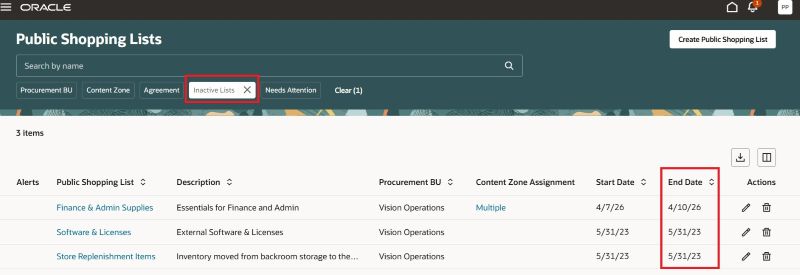
Inactive Public Shopping Lists
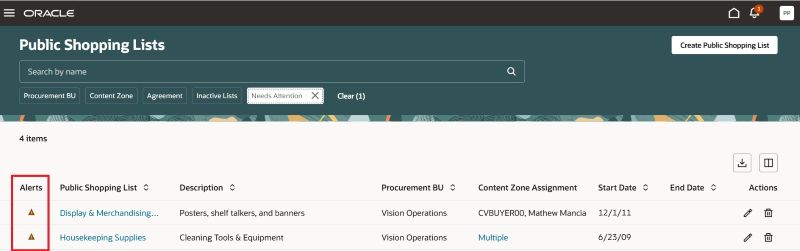
Lists That Need Attention
2. View all content zones associated with a list to assess the impact of changes or deletion.
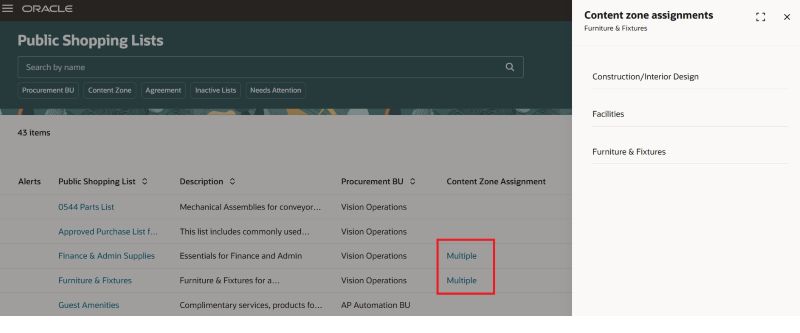
Review Assigned Content Zones
3. Access additional details about the buyer linked to agreements in your list.
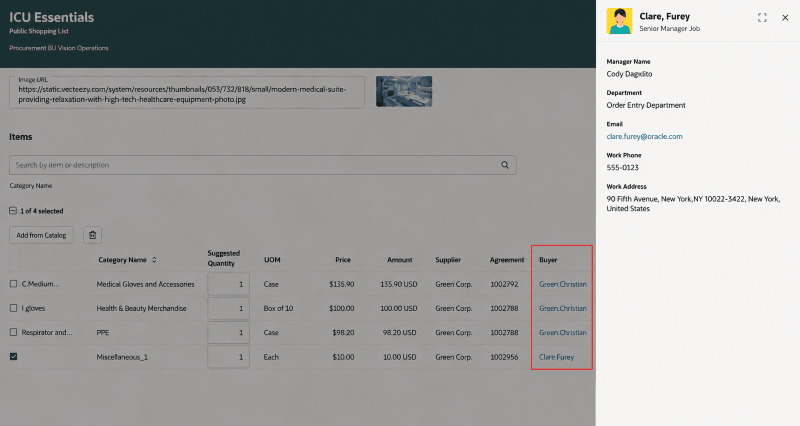
Buyer Contextual Information
Steps to enable and configure
You must enable this profile option to access the Manage Public Shopping Lists feature:
- Redwood Catalog Setup Pages Enabled (ORA_POR_REDWOOD_CATALOG_SETUP_ENABLED). By default, this profile option is set to No.
To enable the profile option, follow these steps:
- In the Setup and Maintenance work area, search and select the Manage Administrator Profile Values task.
- On the Manage Administrator Profile Values page, search for and select the profile option name or code, Redwood Catalog Setup Pages Enabled (ORA_POR_REDWOOD_CATALOG_SETUP_ENABLED).
- Set the Profile Value to Yes.
- Click Save and Close
- Changes in the profile value will affect users the next time they sign in.
Tips and considerations
- Searching for a list by name uses a “Starts With” search.
- Use additional attributes, such as Agreement Number, Supplier, or Supplier Site, to find agreements assigned to a shopping list.
- When you edit lines on a shopping list, such as updating quantity or sequence, your changes are saved automatically. Similarly, items added from the catalog are saved automatically.
- For an optimal user experience, use the available search and filters available to find specific items in lists with a large number of lines.
- Extensibility Capabilities
- You can configure the Manage Public Shopping Lists and Edit Lines tables by showing or hiding columns based on your needs. These personalizations are retained for future sessions.
- You can also personalize the Create and Edit Public Shopping List pages by showing or hiding fields.
Key resources
- For more information on how to enable a guided journey for Redwood pages, refer to the Enable a Guided Journey for Redwood Pages topic.
- For information about using Oracle Visual Builder Studio to extend your Redwood application pages, see Oracle Fusion Cloud HCM and SCM: Extending Redwood Applications for HCM and SCM Using Visual Builder Studio.
Access requirements
Users who are assigned a configured job role that contains these privileges can access this feature:
- Manage Procurement Catalog Content (POR_MANAGE_PROCUREMENT_CATALOG_CONTENT_PRIV)
- To access buyer contextual information
- Use REST Service - Public Workers Read Only (ORA_PER_REST_SERVICE_ACCESS_PUBLIC_WORKERS_RO)
These privileges were available prior to this update.