Launch Quote to Purchase Requisition Assistant from Menu
In update 25D, we introduced the AI Agent: Quote to Purchase Requisition Assistant feature, which parses emails containing supplier quotations and automatically converts them into purchase requisitions. In update 26B, we introduced the ability to initiate this automatic conversion directly from chat via the AI Agent: Quote to Purchase Requisition Chat Assistant feature.
Now, this automatic conversion can also be initiated directly from the menu on the Self Service Procurement application home page, providing faster access by end users and a simpler setup by administrators. There's no need to set up an internet account and configure a scheduled job to process emails regularly. In addition, there's no need to set up the guided journey, which was previously required to use a chat interface.
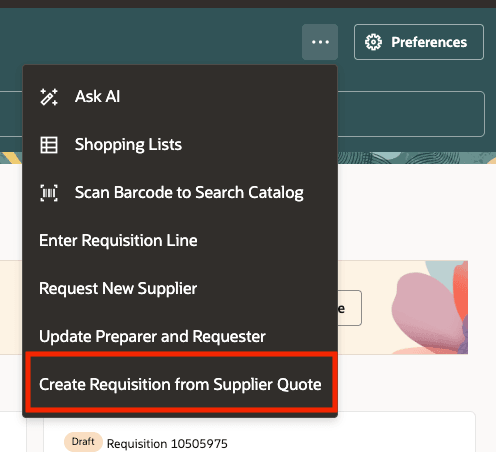
Menu Entry
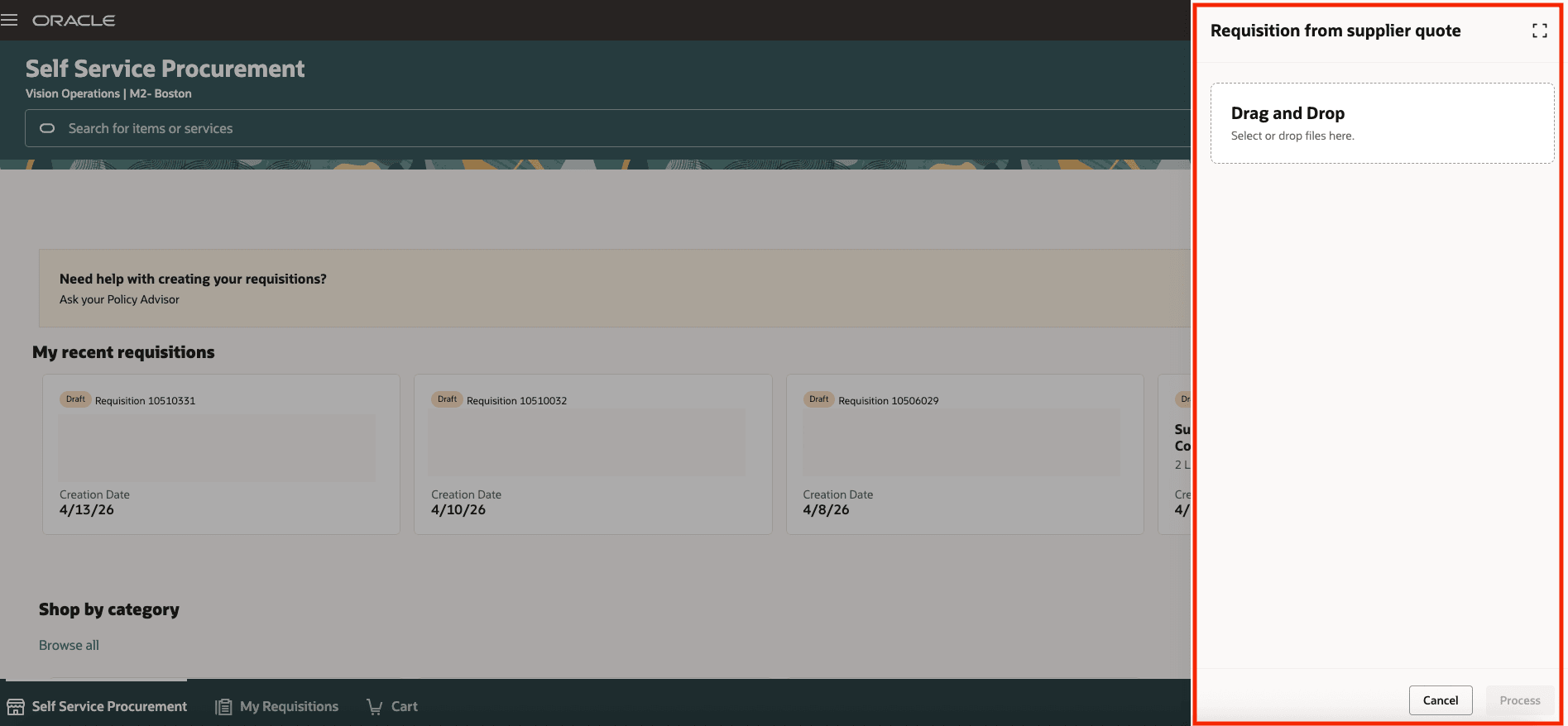
Displayed Drawer

Confirmation Message
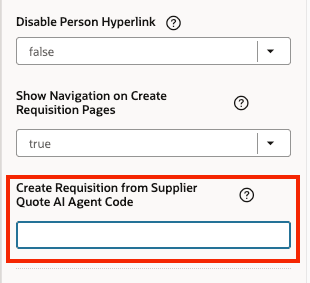
Oracle Visual Builder Studio Entry
Steps to enable and configure
- Create and publish an instance of the seeded agent,
Quote to Purchase Requisition Assistant.
Navigate to AI Agent Studio, create an instance of the seeded agent,Quote to Purchase Requisition Assistant. Note the instance code; you’ll need it later. Publish your instance.
There are two ways to create your instance:- Copy Template: Automatically copies all underlying artifacts from the seeded agent team and adds a suffix you specify. You can edit the agent team’s settings, agents, tools, and topics.
- Use Template: Takes you through a step-by-step configuration of each artifact in the agent team.
- Link your instance code (from the previous step) to the menu entry (i.e. specify the agent that will be initiated when you click the menu entry)
- Login to Fusion Apps, select
Procurementand click thePurchase Requisitions (New)tab on the springboard. - Click the user name or icon on the top right hand side of the page and select -
Edit Page in Visual Builder Studio. - Select a Project or create a new one.
- Click
Common Propertiesand look for theCreate Requisition from Supplier Quote AI Agent Codeentry.Enter your instance code (from step 1 above).
- Login to Fusion Apps, select
Tips and considerations
- The supplier quotation file size must not exceed 50 MB.
- Successful requisition creation is communicated to the user via email.
- Errors during requisition creation are communicated to the user via email.
- Once a valid value has been provided for the
Create Requisition from Supplier Quote AI Agent Codeattribute, all users will see an entry on the home page menu. - There's no way to conditionally hide the menu entry.
- If you don't want certain users to be initiate this agent or use this functionality, add a role to the LLM tab of the Agent Team and don't grant that role to those users. If they attempt to submit a quote for processing, they'll get an error indicating that they don't have access to the underlying agent.
Key resources
- Access Requirements for AI Agent Studio
- How can I give users access to AI agents?
- Create AI Agents
- For information about using Oracle Visual Builder Studio to extend your Redwood application pages, see Oracle Fusion Cloud HCM and SCM: Extending Redwood Applications for HCM and SCM Using Visual Builder Studio
Access requirements
To access the Oracle AI Agent Studio for Fusion Applications and manage PRC AI agents, users must be assigned a configured job role that contains these duty roles:
- PRC Intelligent Agent Management Duty (ORA_PO_PRC_AI_AGENT_MANAGEMENT_DUTY)
- PRC Intelligent Agent Management Duty (ORA_PO_PRC_AI_AGENT_MANAGEMENT_DUTY_HCM)
- Fai Genai Agent SCM Administrator Duty (ORA_DR_FAI_GENERATIVE_AI_AGENT_PRC_ADMINISTRATOR_DUTY)
To interact with AI agents in product pages, users must be assigned a configured job role that contains this duty role:
- Fai Genai Agent Runtime Duty (ORA_DR_FAI_GENERATIVE_AI_AGENT_RUNTIME_DUTY)
To interact with this Agent via the menu, users must be assigned a configured job role that contains the privilege
- Access Intelligent Agent Chat (HRC_ACCESS_AI_AGENT_CHAT_PRIV) - This grants access to AI Agents sending emails to users and this is needed since communication to the user on the status of the processed quote is done via email
In the Security Console, filter by Roles and Permission Groups to find this duty role.
To allow users to interact with agents, you must also enable permission groups in the Security Console on those users’ configured job roles that contain the Fai Genai Agent Runtime Duty role. You can enable permission groups when you manage the basic information of your configured job roles.
Users’ configured job roles must also contain privileges that allow access to the pages where AI agents are enabled.