AI Agent: Purchase Requisition Creation Guide – Additional Capabilities and Policy Compliance
The Purchase Requisition Creation Guide AI Agent provides enhanced guidance and purchasing support in this update. The agent can now evaluate applicable procurement policies and rules before performing a catalog search, provide relevant policy guidance, and return catalog results that align with your organization’s procurement rules.
This update also adds new capabilities across the guided requisition flow. You can launch noncatalog requests directly from starter questions, request internally sourced items, add amount-based catalog services, and open smart forms from search results. You can also create noncatalog requests for services billed by quantity or amount, default preferred suppliers from category-based procurement policies during noncatalog request creation, and update the requester in the cart before submission.
Here are key enhancements included in this update:
Apply procurement policies before catalog search
The Purchase Requisition Creation Guide agent can evaluate applicable procurement policies before searching the catalog. This helps tailor the search experience based on the requester’s requisitioning and delivery context before catalog results are returned.
When evaluating policies, the agent can use these attributes in the policy documents:
- Requisitioning business unit
- Requisitioning business unit ID
- Destination organization
- Destination organization code
- Deliver-to location
- Deliver-to location code
- Deliver-to address for the selected internal or external one-time location
- Destination type
- Destination type code
- Item or service details you enter in the agent chat
Based on the applicable policy, the agent can:
- Continue with catalog search
- Display relevant policy guidance and continue the search
- Apply policy-based restrictions before searching
- Stop the search when the requested purchase is blocked
- Ask follow-up questions when more information is required to determine whether the request can proceed, should be restricted, or must be blocked
The agent evaluates only published policy documents from the Purchase Requisition Creation Policy Document tool.
Example: Replacement Laptop Policy
A replacement laptop policy can include multiple conditions, such as current device age, operating system, business unit, RAM configuration, and approved supplier.
When you request for a replacement laptop, the agent asks follow-up questions if it needs more information before searching the catalog.
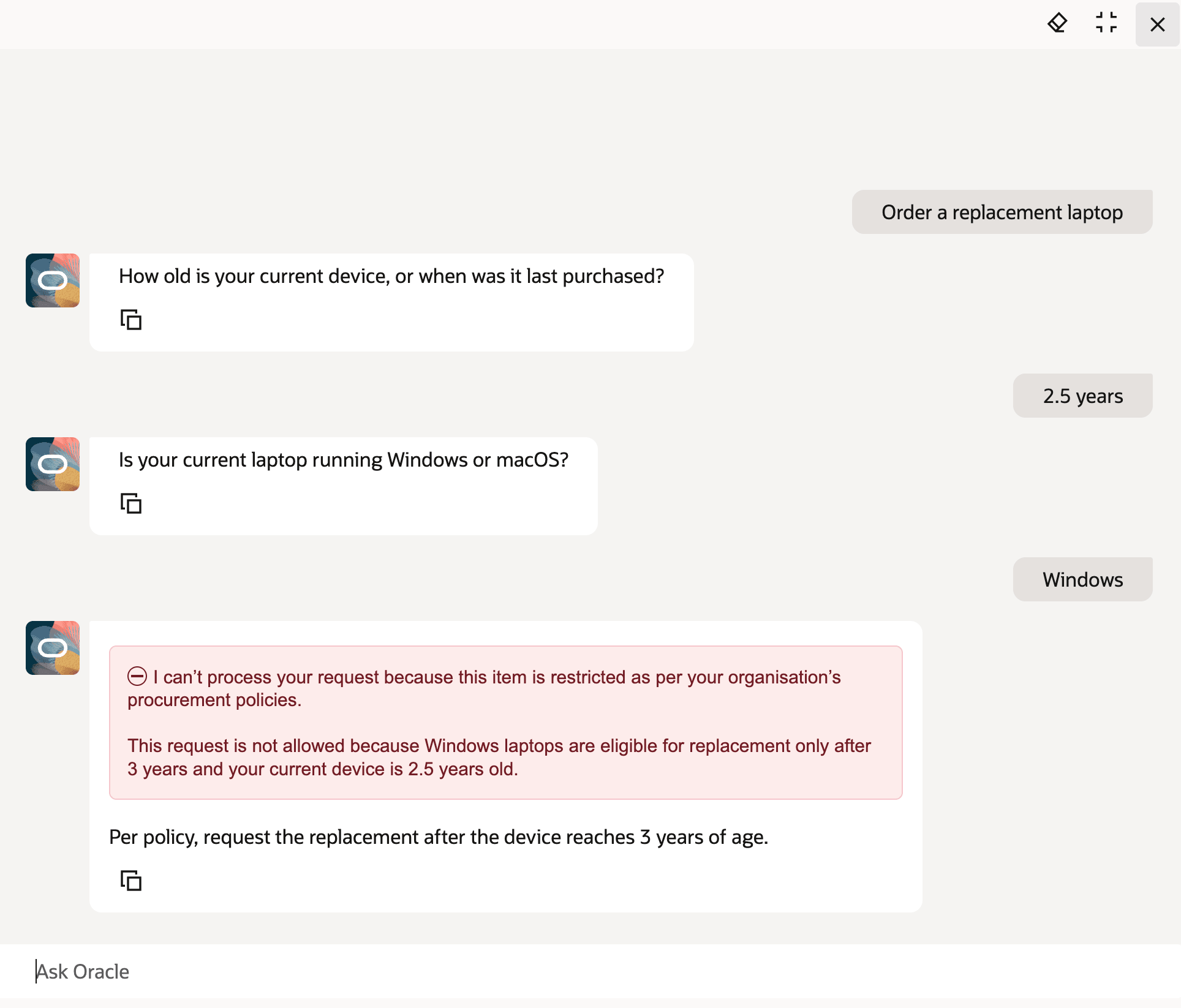
Replacement Request Blocked by Policy
If the policy allows Windows laptop replacement only after 3 years and your current device is 2.5 years old, the agent stops the catalog search and explains why the request can’t proceed.
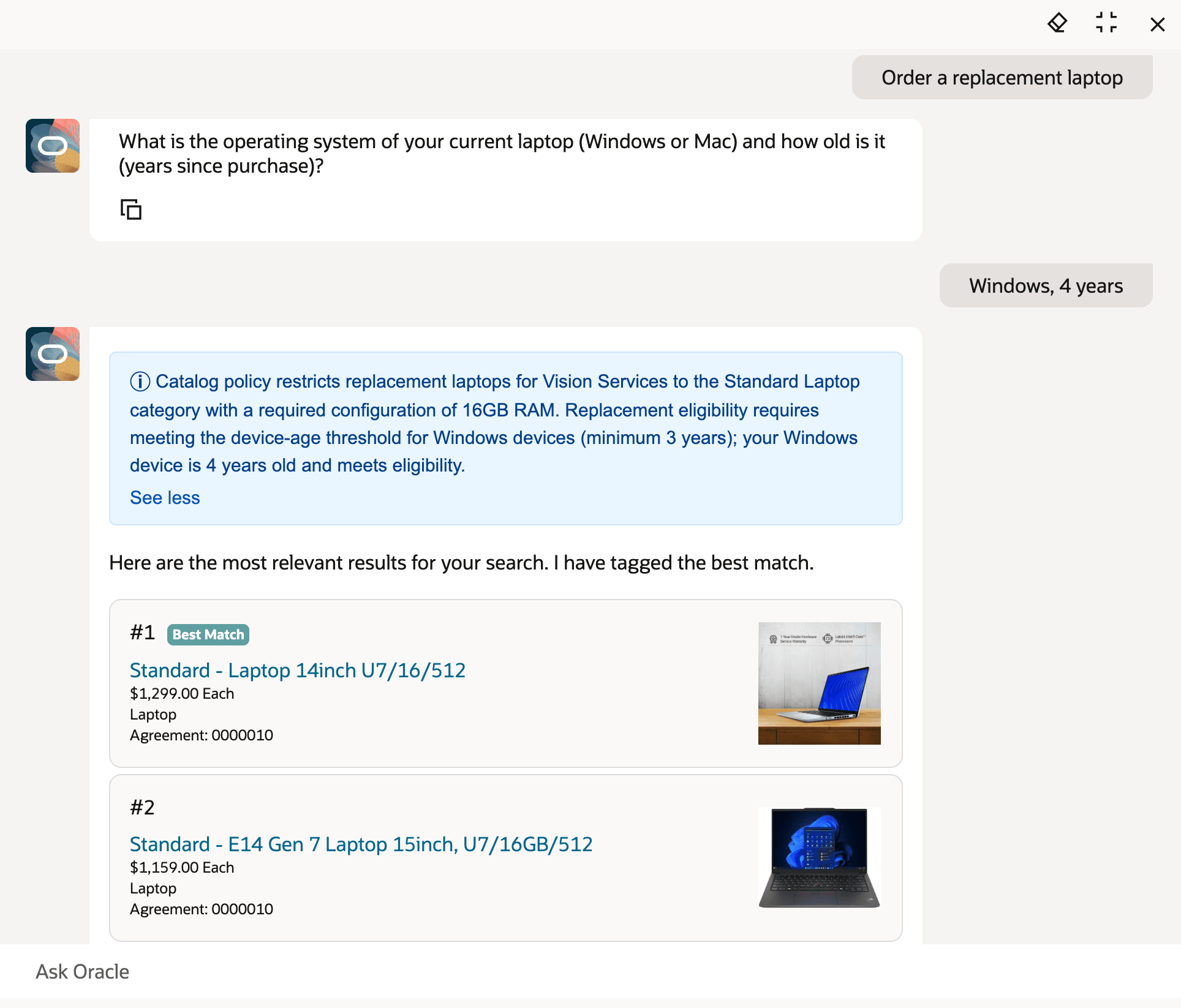
Policy-Compliant Replacement Laptop Results
If the request meets the replacement eligibility rules, the agent applies any remaining policy restrictions before searching the catalog. For example, it can limit search results to the approved laptop category, RAM configuration, and supplier for your business unit.
Example: Gloves Policy
A gloves policy can use delivery location, material type, and intended use to determine which products are allowed.
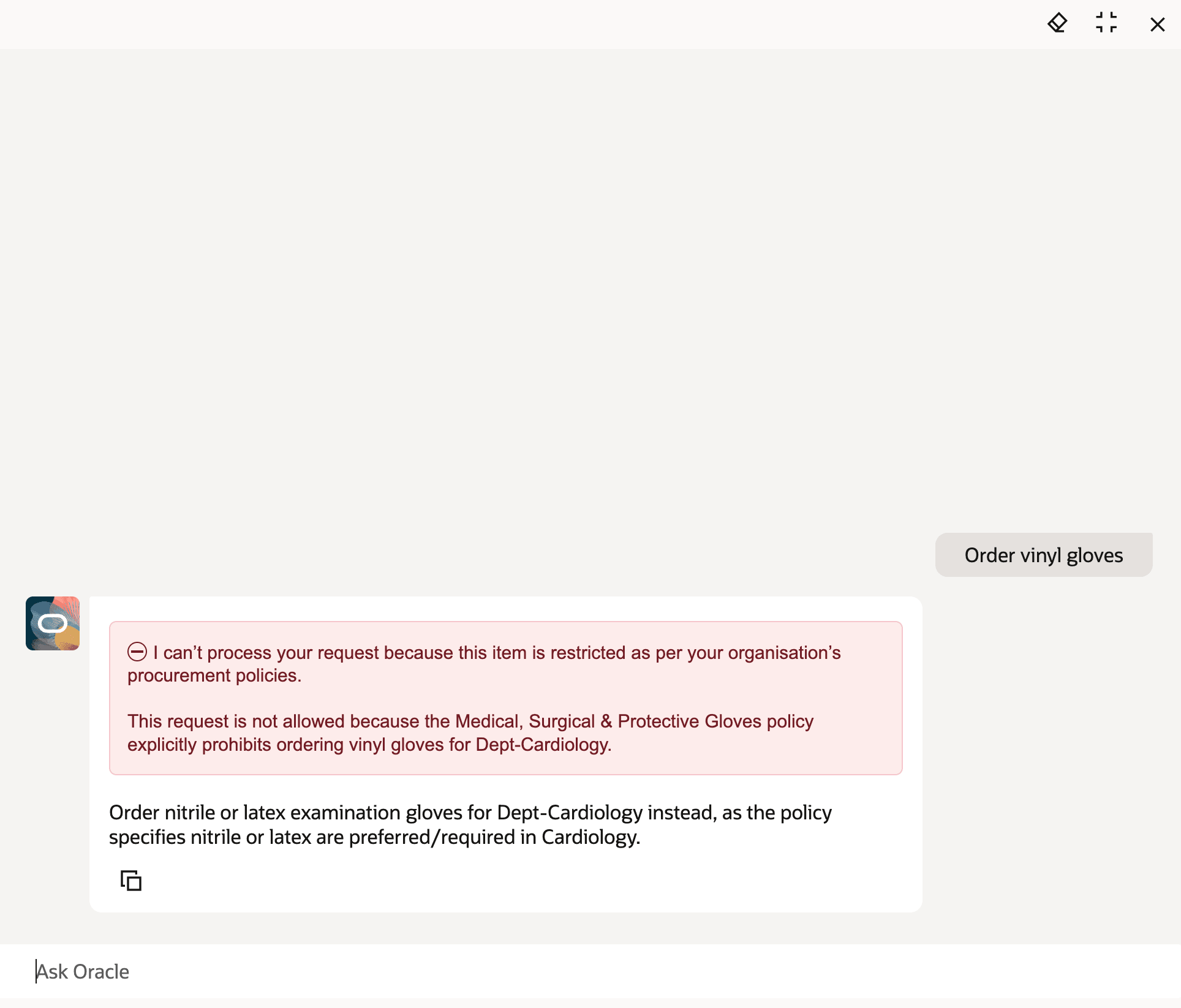
Restricted Glove Material Blocked for Delivery Location
For example, if vinyl gloves are restricted for a cardiology department, the agent stops the catalog search and explains why the request can’t proceed.
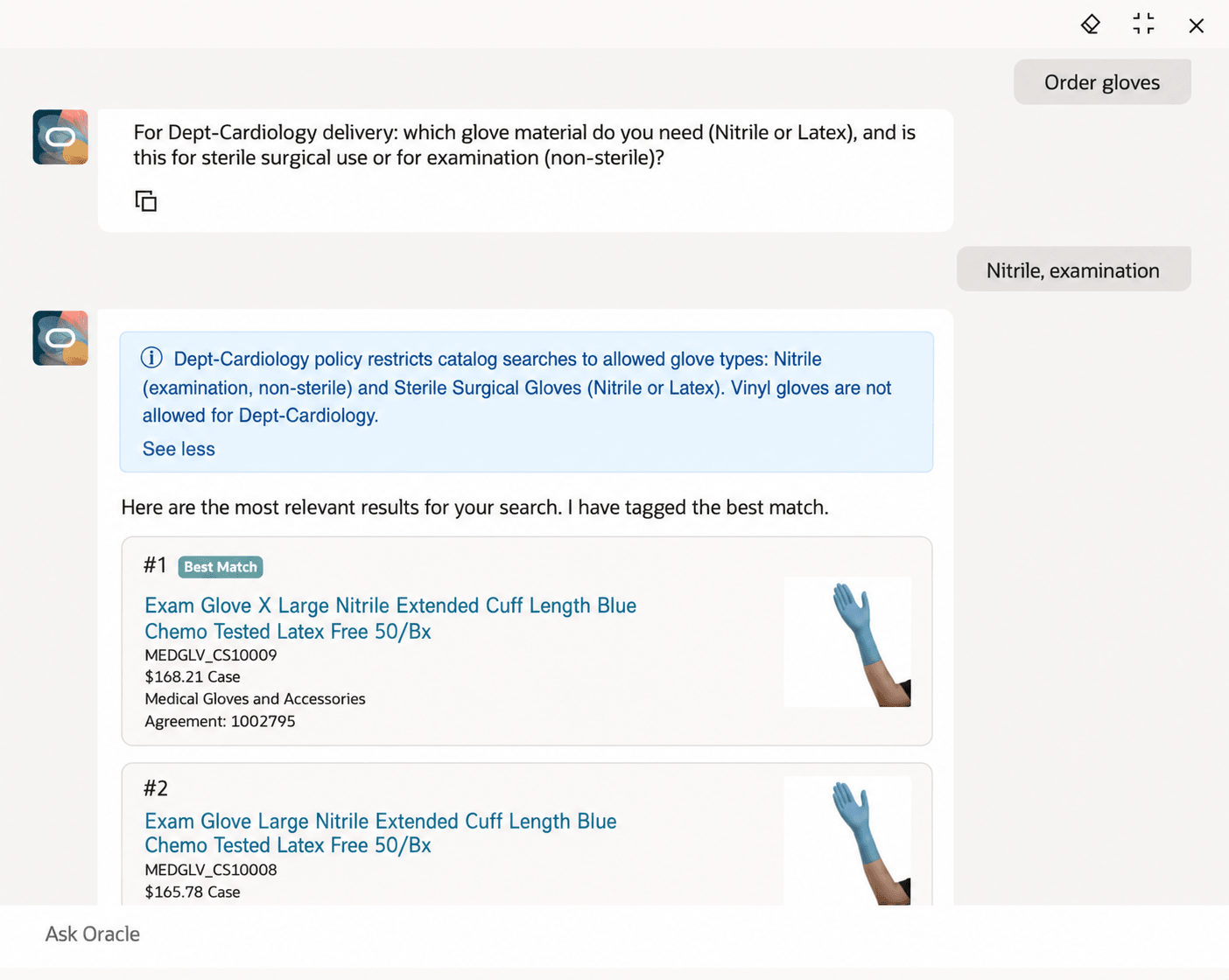
Broad Glove Request Guided to Allowed Results
If you request gloves without providing enough detail, the agent asks follow-up questions, such as the material type and intended use. After you provide the required details, the agent applies the location-based policy and returns catalog results that match the approved options.
Create a noncatalog request directly
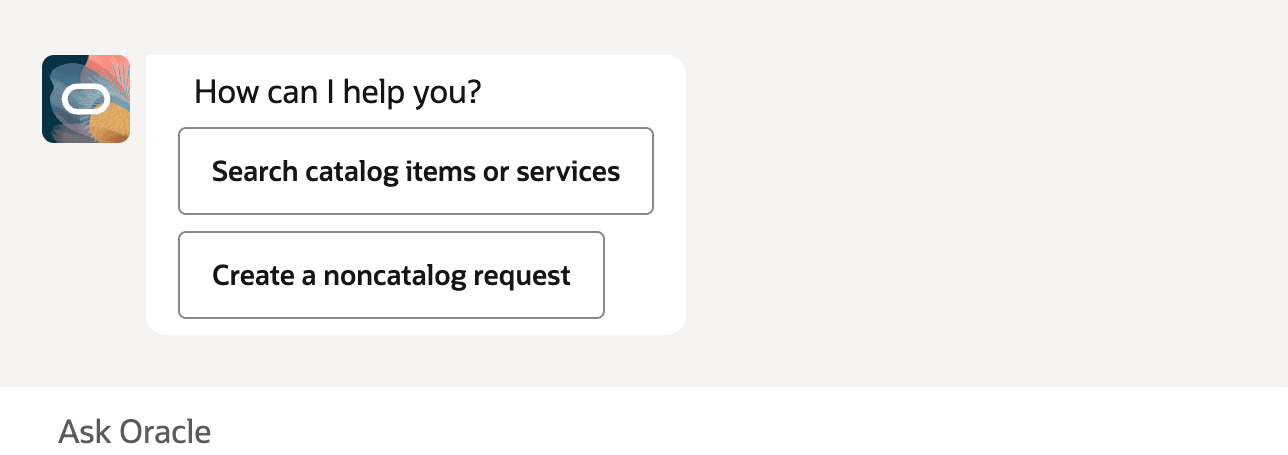
Agent Starter Questions
In this update, you can start a noncatalog request directly using the starter questions in the agent. Select Create a noncatalog request, then enter what you want to request when the agent asks What would you like to request?
This provides you a direct path to noncatalog request creation without requiring a catalog search first, unlike previous updates.
If you enter a request directly without selecting Create a noncatalog request, the agent continues to perform a catalog search, as it did in previous updates.
Defaults project information from requisition preferences
In this update, when you add an item to the cart through the agent, project information from your requisition preferences is automatically defaulted onto the requisition line, when available.
Request internally orderable items
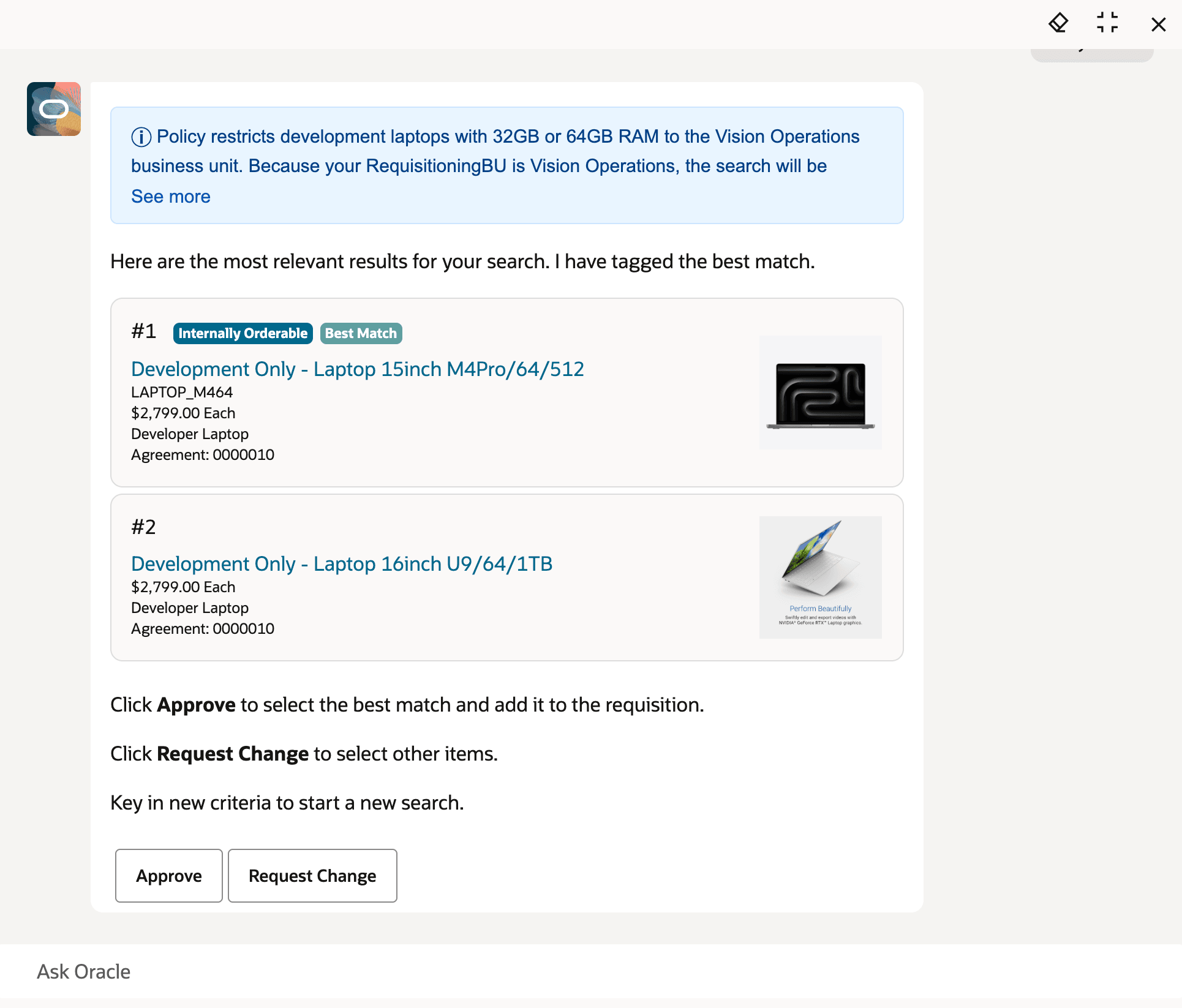
Internally Orderable Items
In previous updates, the agent didn’t return items that were only internally orderable. If an item was both purchasable and internally orderable, the agent sourced it from the supplier.
With this update, the agent supports internal material transfers and follows the same eligibility rules and sourcing logic used in standard catalog search. Eligible items appear in the search results with the Internally Orderable badge.
You can review the source organization and transfer price in the cart before submitting the requisition.
Request amount-based catalog services
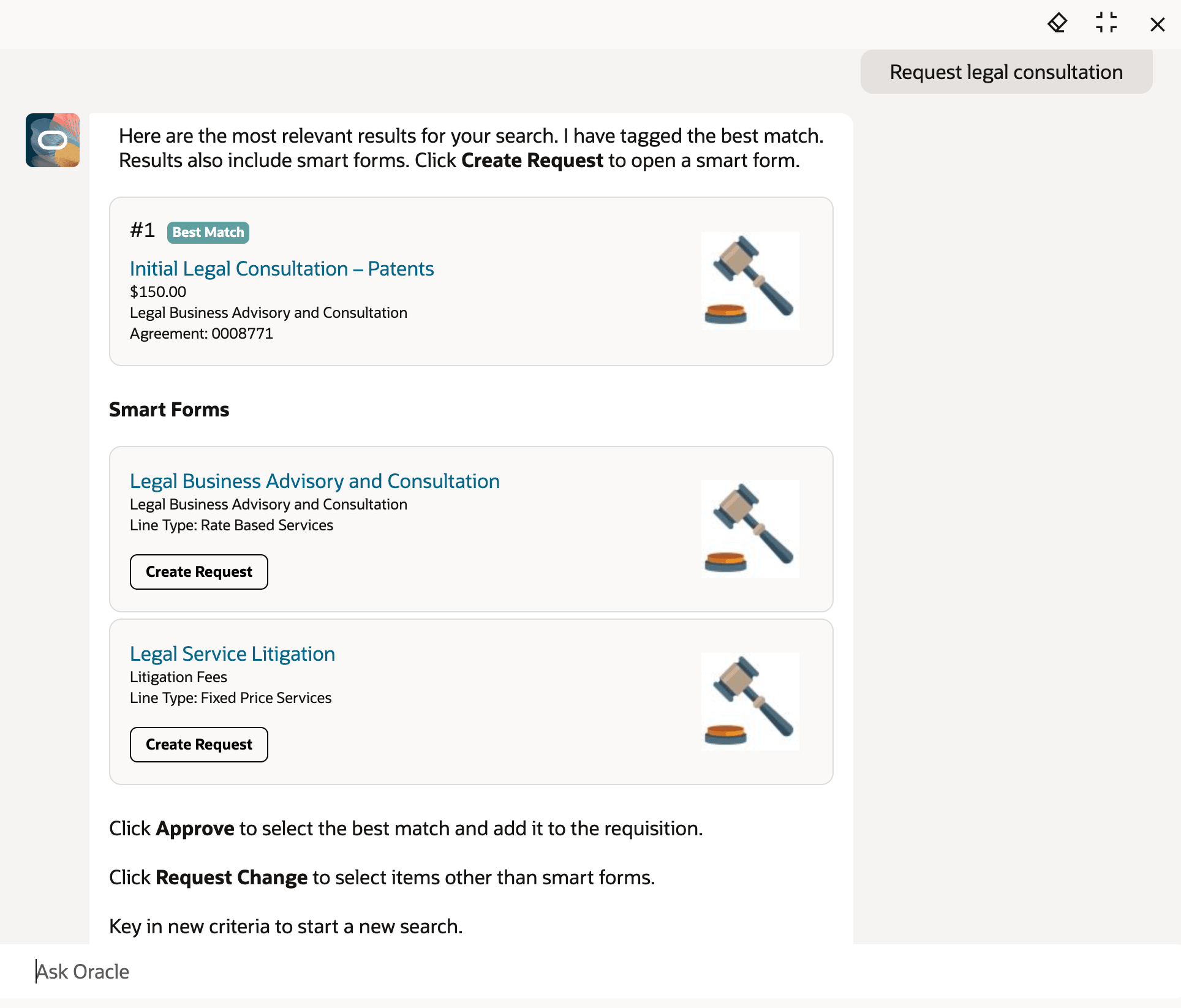
Amount-Based Agreement Lines and Smart Forms in Results
In previous updates, the agent returned only quantity-based catalog items and services and filtered out amount-based agreement lines.
With this update, catalog search results can include amount-based agreement lines when they match your request. You can review the amount, category, and agreement information in the search results, add the service to the cart, and review the amount-based line before submitting the requisition.
Access smart forms from search results
In previous updates, the agent returned only master items and agreement lines. With this update, search results can also include matching smart forms that are available to you.
When a smart form matches your request, the agent displays details such as the smart form name, category, line type, and agreement. Select the smart form description link or Create Request to open the smart form in a new tab.
You can enter the required details in the smart form and add the request to the cart. You can then return to the agent to search for more items or services.
Create service-based noncatalog requests
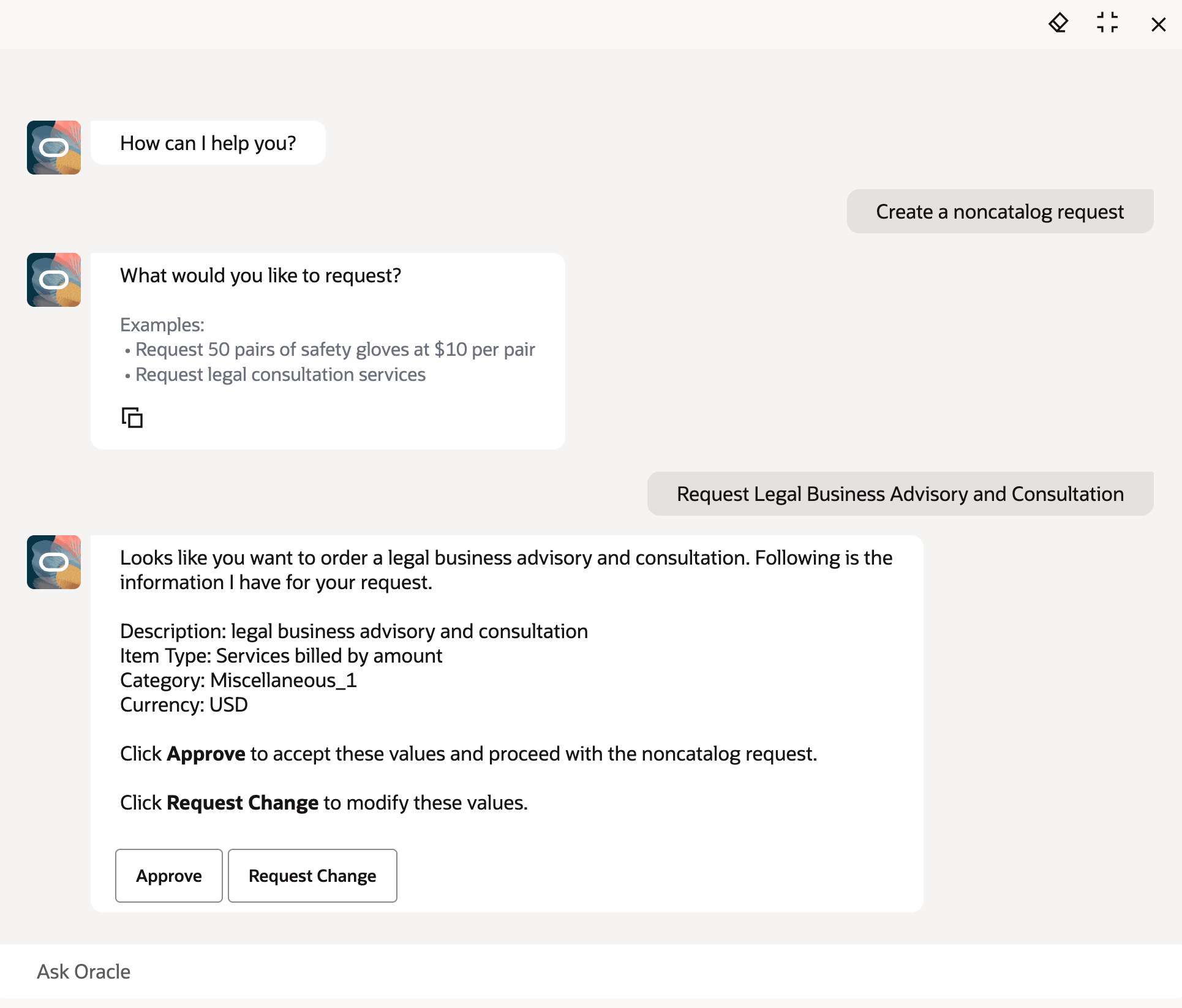
Noncatalog Request for Services Billed by Amount
In previous updates, the agent supported only goods billed by quantity in the noncatalog request flow. With this update, you can also create noncatalog requests for services billed by quantity or amount.
The agent determines the item type from the request details you provided and displays it with the other captured details. For services billed by amount, the agent captures the amount. For services billed by quantity, the agent captures the quantity, UOM, and price.
You can review the captured details, request changes as needed, and add the noncatalog request line to the cart.
Default preferred suppliers for noncatalog requests
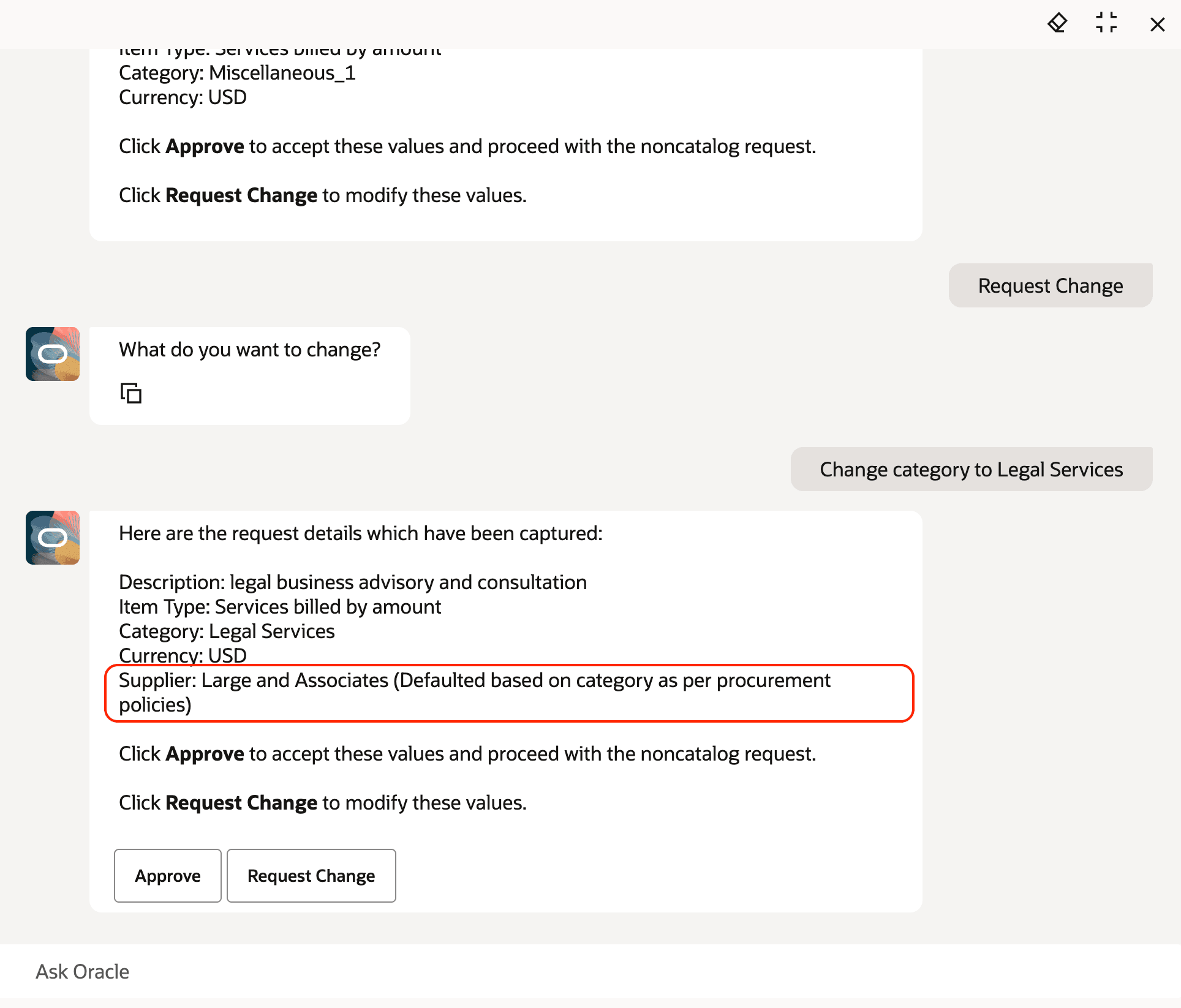
Preferred Supplier Defaulted from Category Policy
With this update, the agent can default a preferred supplier on a noncatalog request line based on the selected category.
When you create a noncatalog request, the agent checks published policy documents for a preferred supplier mapped to the defaulted or selected category. If a preferred supplier is found, the agent defaults that supplier before adding the line to the cart.
If you change the category before adding the line to the cart, the agent reevaluates the preferred supplier based on the updated category.
Update the requester on the cart
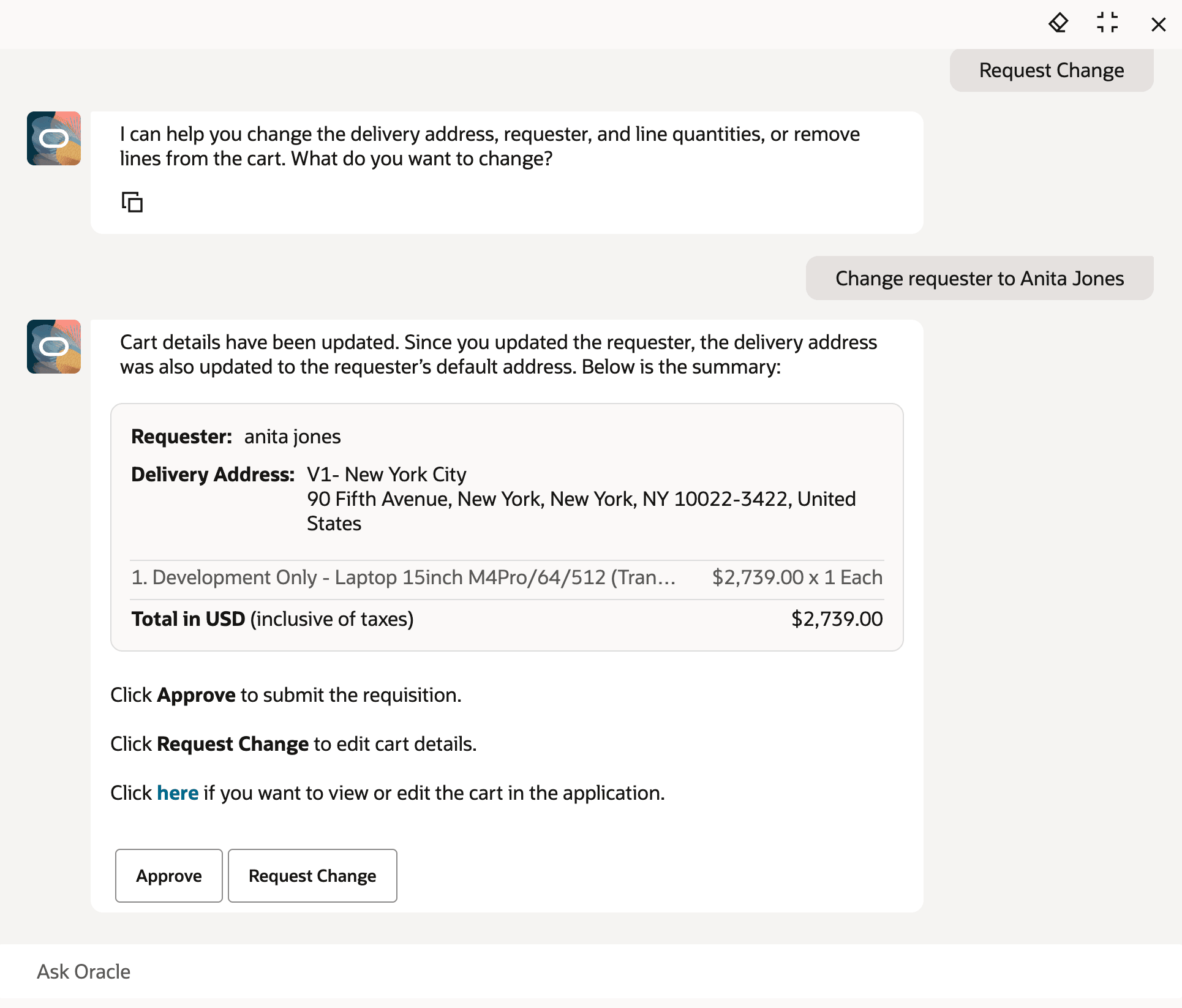
Requester Updated on Cart Summary
You can update the requester in the cart directly from the agent. The requester change applies to all lines in the cart.
If you update only the requester and the selected requester has a default deliver-to location, the deliver-to location is automatically updated to the requester’s default location. If you update both the requester and the deliver-to location together, the agent uses the deliver-to location you specify.
The cart summary displays the requester above the deliver-to location, allowing you to review the changes before submitting the requisition.
These additional agent capabilities help requesters and preparers complete guided requisition creation with improved policy guidance, clearer request options, and fewer manual edits. They also help organizations improve policy adherence before requisitions reach review or approval.
Steps to enable and configure
To enable the Requisition Creation Guide AI agent, follow these steps:
- In Oracle Virtual Builder Studio, navigate to Self Service Procurement - Home > Page Properties > Self Service Procurement AI Agent Code and specify the agent code as ORA_REQUISITION_CREATION_GUIDE.
To enable permission groups for roles, take these steps:
- In the Setup and Maintenance work area, search for the Manage Administrator Profile Values task using the search link in the Tasks panel tab.
- Search for the Enable Security Console External Application Integration (ORA_ASE_SAS_INTEGRATION_ENABLED) profile option and set the Site profile level to Yes.
To evaluate procurement policies during catalog search, take these steps:
- Upload policy documents to the Purchase Requisition Creation Policy Document tool in AI Agent Studio. Set the document status to Ready to Publish and save your changes.
- In the Scheduled Processes work area, click Schedule New Process. Search for and select the Process Agent Documents process, and then submit it.
- After the process completes, return to the Purchase Requisition Creation Policy Document tool and verify that the document status is Published.
Tips and considerations
- The agent evaluates only published policy documents.
- Policy evaluation quality depends on how clearly policy documents are written. Wherever possible, use exact values that exist in the application, such as manufacturer names, supplier names, requisitioning business units, destination organizations, categories, locations, item properties, and item characteristics.
- Write policy rules in a structured format, preferably as decision tables. Clearly identify the applicable context, restrictions, allowed values, alternatives, and expected agent actions.
- If no published policy documents are available, the agent behaves as though no policy applies and continues with a standard catalog search.
- Preferred supplier defaulting applies only when a preferred supplier is defined for the selected noncatalog request category in published policy documents. If multiple preferred suppliers are defined for the same category and context, the agent defaults the first supplier in the list.
- You can’t change the defaulted preferred supplier directly in the agent. To use a different supplier, update the supplier in the cart after the line is added.
- For the best experience, the policy assistant uses the GPT-5 Mini (Oracle Premium) model.
- To disable policy evaluation in the agent, In Oracle Visual Builder Studio, go to Self Service Procurement - Home > Page Properties > Self Service Procurement AI Agent Input Context and specify this value:
[[{
    "disablePRCreationPolicyAssistant": true
}]]- If you disable or hide the noncatalog request feature in the Self Service Procurement application using extensibility, noncatalog request creation won’t be available in the agent.
- To disable noncatalog request creation only in the agent, use Oracle Visual Builder Studio extensibility. In the application, go to Self Service Procurement - Home > Page Properties > Self Service Procurement AI Agent Input Context and specify this value:
[[{
    "isNCREnabled": false
}]]- Some features, such as noncatalog requests and internal material transfers, aren’t available when you use the agent through a guided journey. To access the full guided requisition creation experience, use the Ask AI action.
Key resources
- For more details about Purchase Requisition Creation Guide agent, refer to the AI Agent: Purchase Requisition Creation Guide feature, available in the Oracle Fusion Cloud Self Service Procurement What's New, update 26B.
- Access Requirements for AI Agent Studio.
- How can I give users access to AI agents?
- Create AI Agents.
- For information about using Oracle Visual Builder Studio to extend your Redwood application pages, see Oracle Fusion Cloud HCM and SCM: Extending Redwood Applications for HCM and SCM Using Visual Builder Studio.
- For more details about how to get the best-fit purchasing category recommendation for a noncatalog request, refer to the Get the Best-Fit Purchasing Category Recommendation for a Noncatalog feature, available in the Oracle Fusion Cloud Self Service Procurement What's New, update 26A.
- To know how to provide the required privileges to your requesters to use your own configured role instead of the Requisition Self Service User role, refer to the Privileges Required for a Predefined Role for a Requisition Self Service User topic.
Access requirements
To access the Oracle AI Agent Studio for Fusion Applications and manage PRC AI agents, users must be assigned a configured job role that contains these existing duty roles:
- PRC Intelligent Agent Management Duty (ORA_PO_PRC_AI_AGENT_MANAGEMENT_DUTY)
- PRC Intelligent Agent Management Duty (ORA_PO_PRC_AI_AGENT_MANAGEMENT_DUTY_HCM)
- Fai Genai Agent SCM Administrator Duty (ORA_DR_FAI_GENERATIVE_AI_AGENT_PRC_ADMINISTRATOR_DUTY)
To interact with AI agents in product pages, users must be assigned a configured job role that contains this duty role:
- Purchase Requisition Creation Workflow Duty (ORA_DR_POR_REQUISITION_SELF_SERVICE_USER_DUTY)
To allow users to interact with agents, you must also enable permission groups in the Security Console on those users’ configured job roles that contain the Purchase Requisition Creation Workflow Duty role. You can enable permission groups when you manage the basic information of your configured job roles.
In addition to assigning the duty role, users must also add data security policies to their configured job role with these details:
| Data Resource | AI Agent Workflow |
|---|---|
| Data Set | Select by instance set |
| Condition Name | Access the AI agent workflow for table FAI_WORKFLOWS_B for AI agent workflows associated to the relevant family |
| Parameter1 | PRC |
| Actions | View AI Agent Workflow |
Users’ configured job roles must also contain privileges that allow access to the pages where AI agents are enabled.
Users who are assigned a configured job role that contains this existing duty role can schedule agent teams to index purchasing categories data:
- Fai Batch Job Manager Duty (ORA_DR_FAI_BATCH_JOB_MANAGER_DUTY).
See Access Requirements for AI Agent Studio (for administrators) and How can I give users access to AI agents (for end-users) for more information.