View Punchout Cart and Additional Details During Shopping
You can now view punchout details (structured data returned by the supplier, typically in cXML or a similar format) when shopping from an external store. This data includes cart-level and line-level information, such as supplier item identifiers, descriptions, UOM, price, and any extended attributes.
To use this feature, after punching out and returning to the shopping cart page, select the View Punchout Cart action.
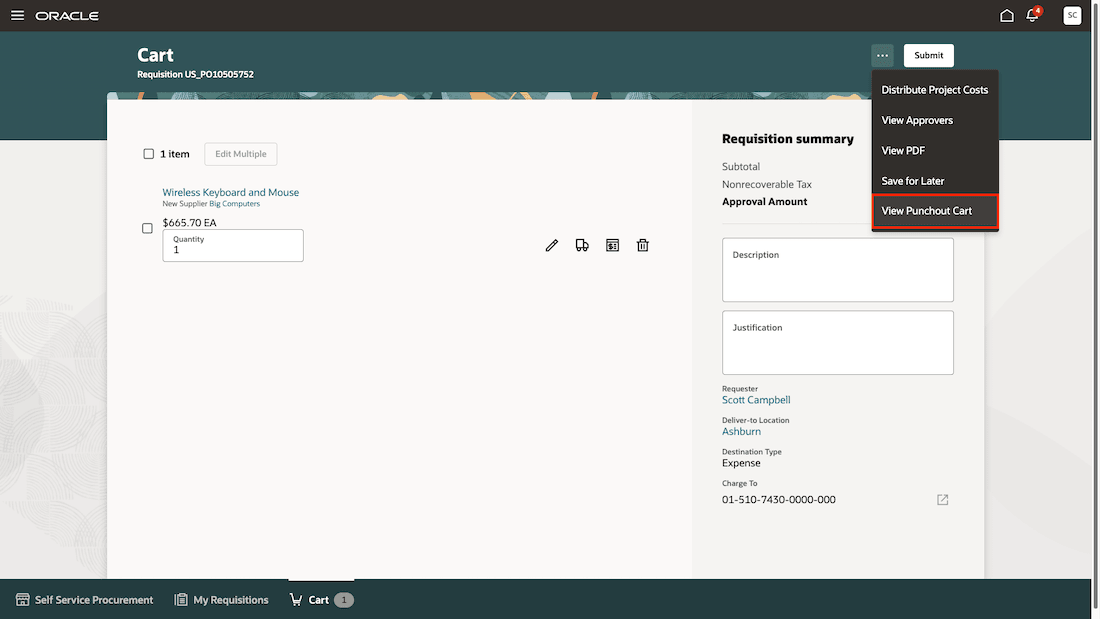
View Punchout Cart Payload on the Shopping Cart
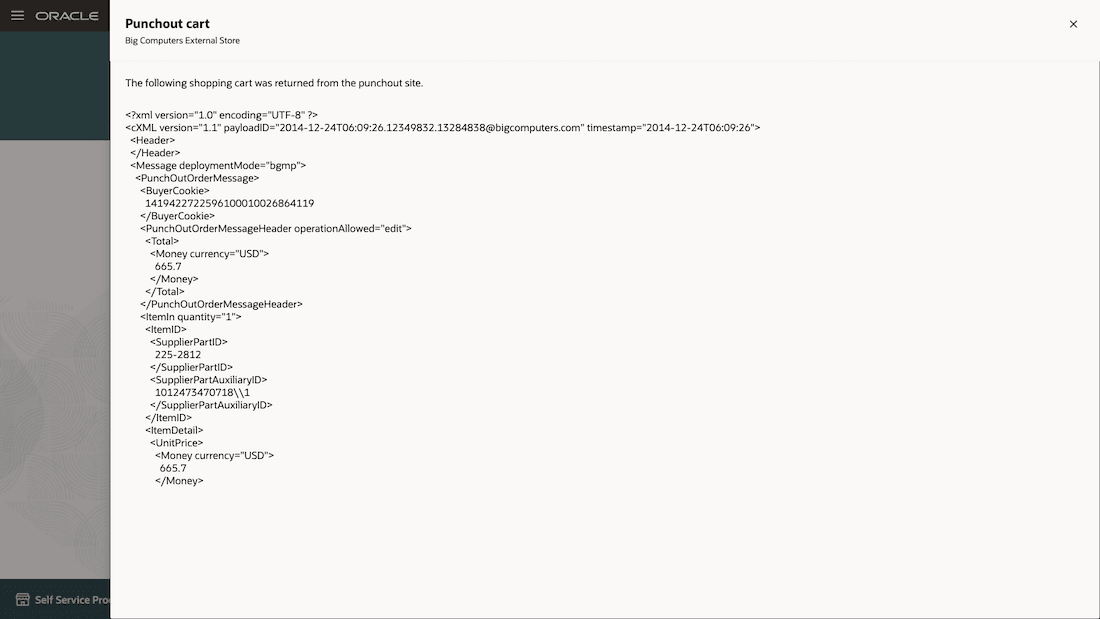
Review Punchout Cart Payload
In addition to the cart details, you can also view diagnostic log details whenever you are unable to connect to the external store, or whenever your shopping session from the external store fails and no item is added to the shopping cart. To do this, use the View log action on the error message to review and diagnose the issue further.
In addition to cart details, you can also view diagnostic logs when you’re unable to connect to the external store or when a shopping session fails and no items are added to the cart. To access these logs, use the View log link in the error message to review and diagnose the issue.
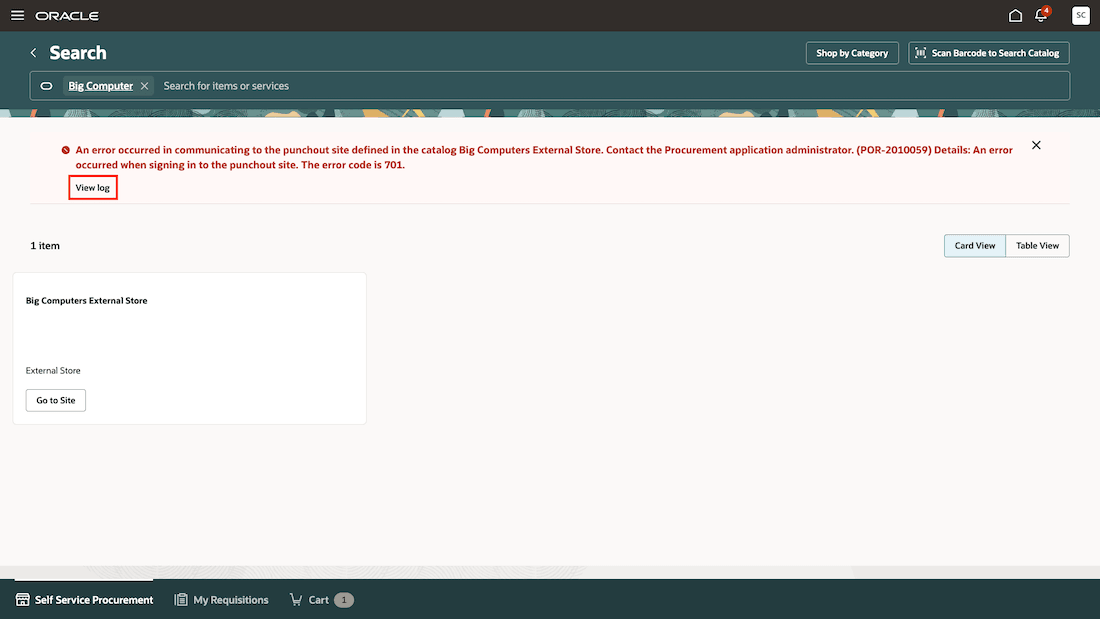
Use the View log Action in the Error Message to See Detailed Information While Shopping
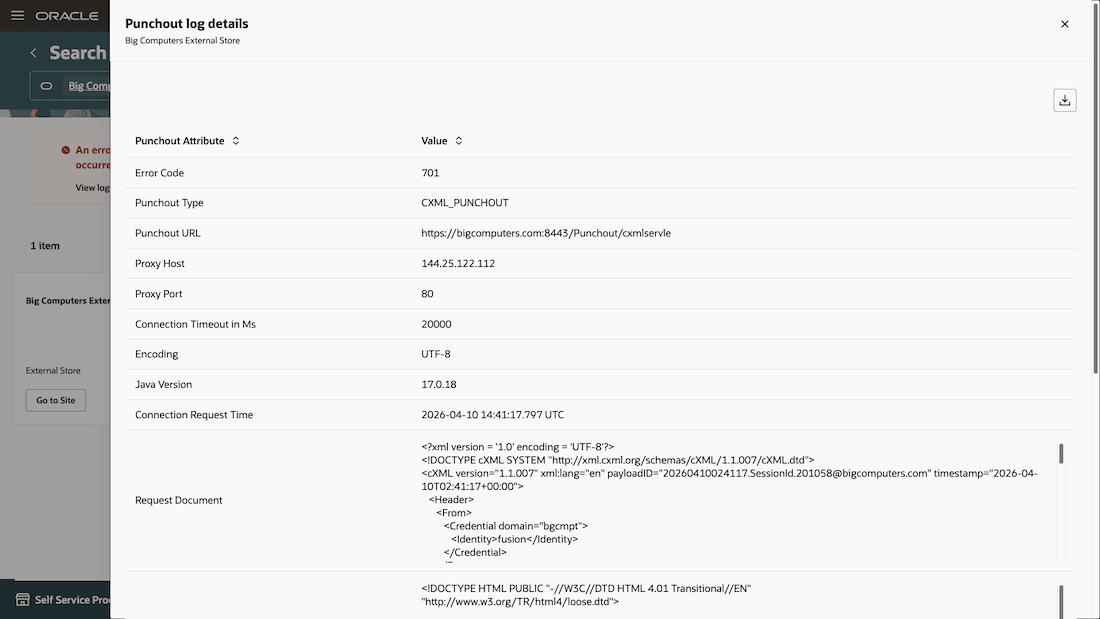
Review Punchout Log to Diagnose Connection Issues
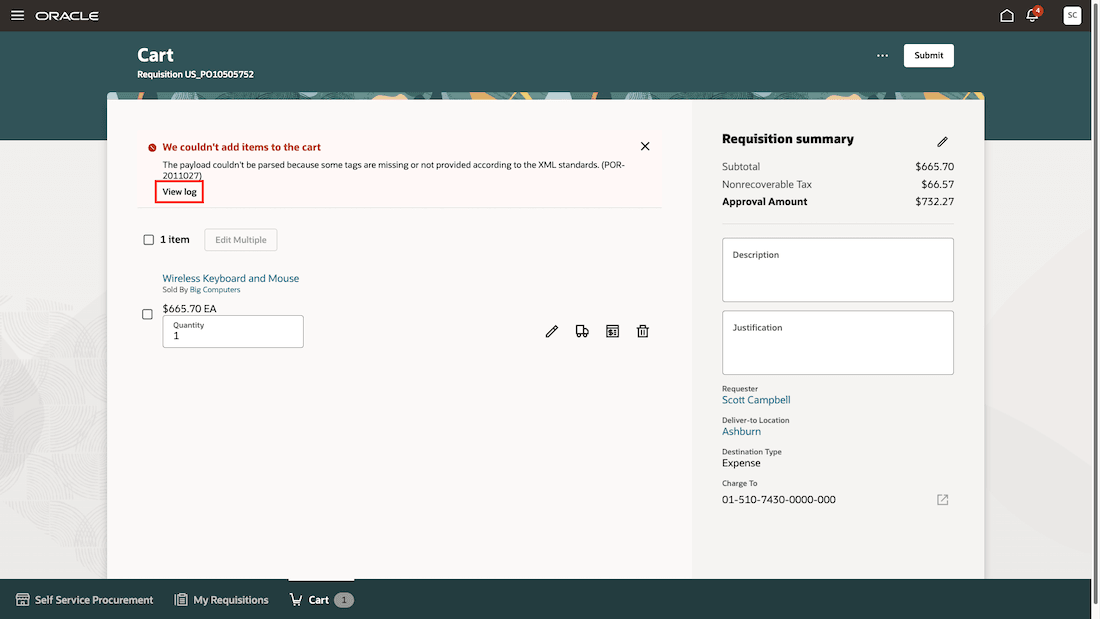
Use the View log Action in the Error Message to See Detailed Information After Punchout From External Store
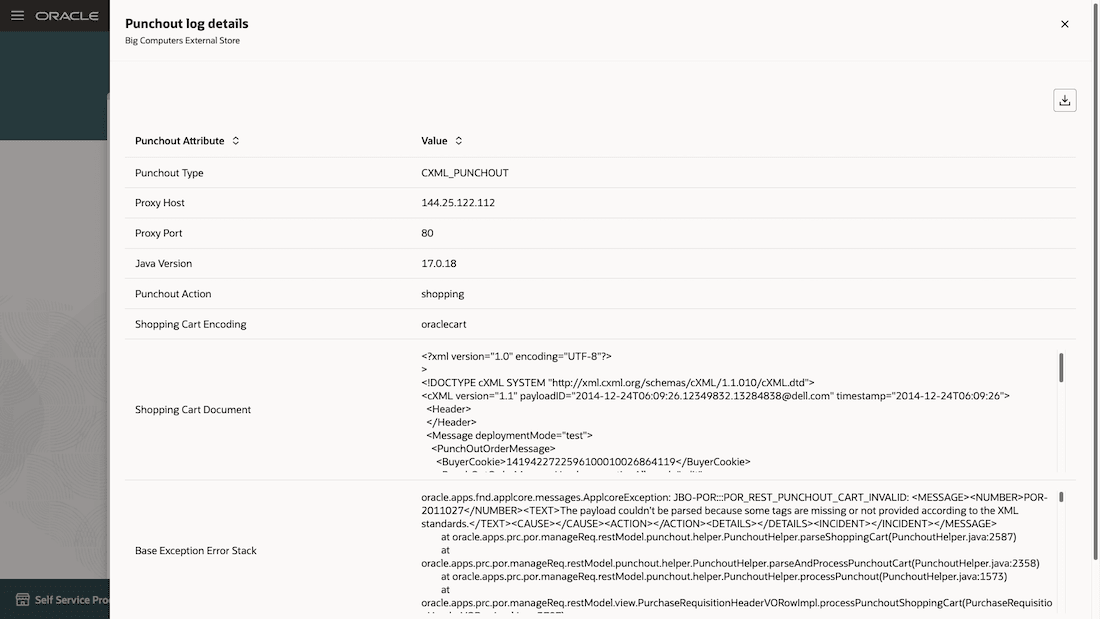
Review Incorrect Payload From External Store
Diagnostics typically highlight issues such as missing required fields, mapping or validation failures, unsupported values, or inconsistencies in the supplier payload that may prevent successful cart processing.
These details help reduce the time spent triaging issues and eliminate the need for additional diagnostic tools. You can self-diagnose issues or share the logs with an administrator to quickly identify inconsistencies, such as UOM mismatches or missing fields.
Steps to enable and configure
There are no steps to enable this feature.
Tips and considerations
- You can download and review punchout log details in a spreadsheet.
- Only the Punchout cart details from the most recent punchout interaction in the current session are available.
- This feature is also available:
- To buyers when they update lines from a catalog during requisition processing.
- To approvers while editing a requisition.
Key resources
- To know more about how to use the Redwood Self Service Procurement application, refer to the Procure Goods and Services Using the Redwood Self Service Procurement Application readiness training.
- To know how to provide the required privileges to your requesters to use your own configured role instead of the Requisition Self Service User role, refer to the Privileges Required for a Predefined Role for a Requisition Self Service User topic.
Access requirements
Users who are assigned a configured job role that contains this privilege can access this feature:
- View Requisition Diagnostics (POR_VIEW_REQUISITION_DIAGNOSTICS_PRIV)
This privilege was available prior to this update.