Sort Shopping Search Results and Shopping Lists by Item Number and Supplier Item
Sort shopping search results by item number and supplier item. This feature is also available for shopping lists. With this update, you can quickly find the catalog items you need.
You can sort the Supplier Item and Item columns in ascending or descending order in these table views:
- Catalog search results
- Shop by category search results
- Shopping list details
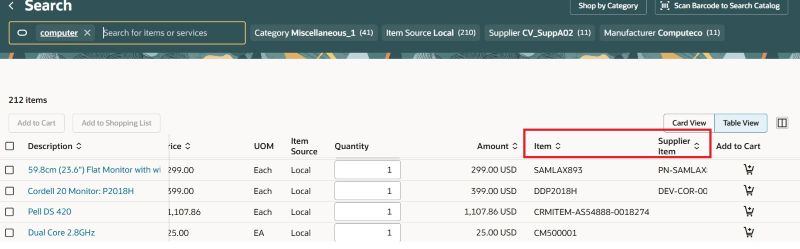
Sort Search Results by Item or Supplier Item
Steps to enable and configure
- To sort by supplier item, set the Enable Supplier Item Sorting in Search Results and Shopping Lists Lines tables extensibility constant to true.
Tips and considerations
- By default, search results and shop by category results continue to be sorted by relevance. Shopping list details continue to be sorted by sequence number.
- Sorting uses the standard alphanumeric character ordering for the Supplier Item and Item columns.
- If you sort by Supplier Item or Item and then apply filters to refine the search results, the sort is no longer applied, and the table returns to the default view.
- If you sort by Supplier Item or Item and then hide the sorted column, the sort is removed and the table refreshes.
- If you update editable fields and then sort the results, existing behavior is retained. Your changes remain after sorting.
Key resources
- To know how to provide the required privileges to your requesters to use your own configured role instead of the Requisition Self Service User role, refer to the Privileges Required for a Predefined Role for a Requisition Self Service User topic.
- For information about using Oracle Visual Builder Studio to extend your Redwood application pages, see Oracle Fusion Cloud HCM and SCM: Extending Redwood Applications for HCM and SCM Using Visual Builder Studio.