Create a Noncatalog Request Without Copying Supplier Details From a Previous Request
This enhancement improves the confirmation message you receive after creating a noncatalog or smart form request. You can select Create another request with the same supplier to create a new request with the same supplier information that was entered. New supplier information is also retained when you select this option. This helps when you need to create multiple requests for the same supplier without entering the details again.
Create a new request using an explicit action without copying supplier details from a previous request. After submitting a noncatalog or smart form request, the confirmation message now includes the Create another request option. This option lets you start a new request without retaining supplier information, which is useful when creating a request for a different supplier or when no supplier was selected in the previous request.
NOTE: The 'Create another request with the same supplier' option is available if supplier information was entered in the request added to cart. Otherwise, you will only see the option 'Create another request.'
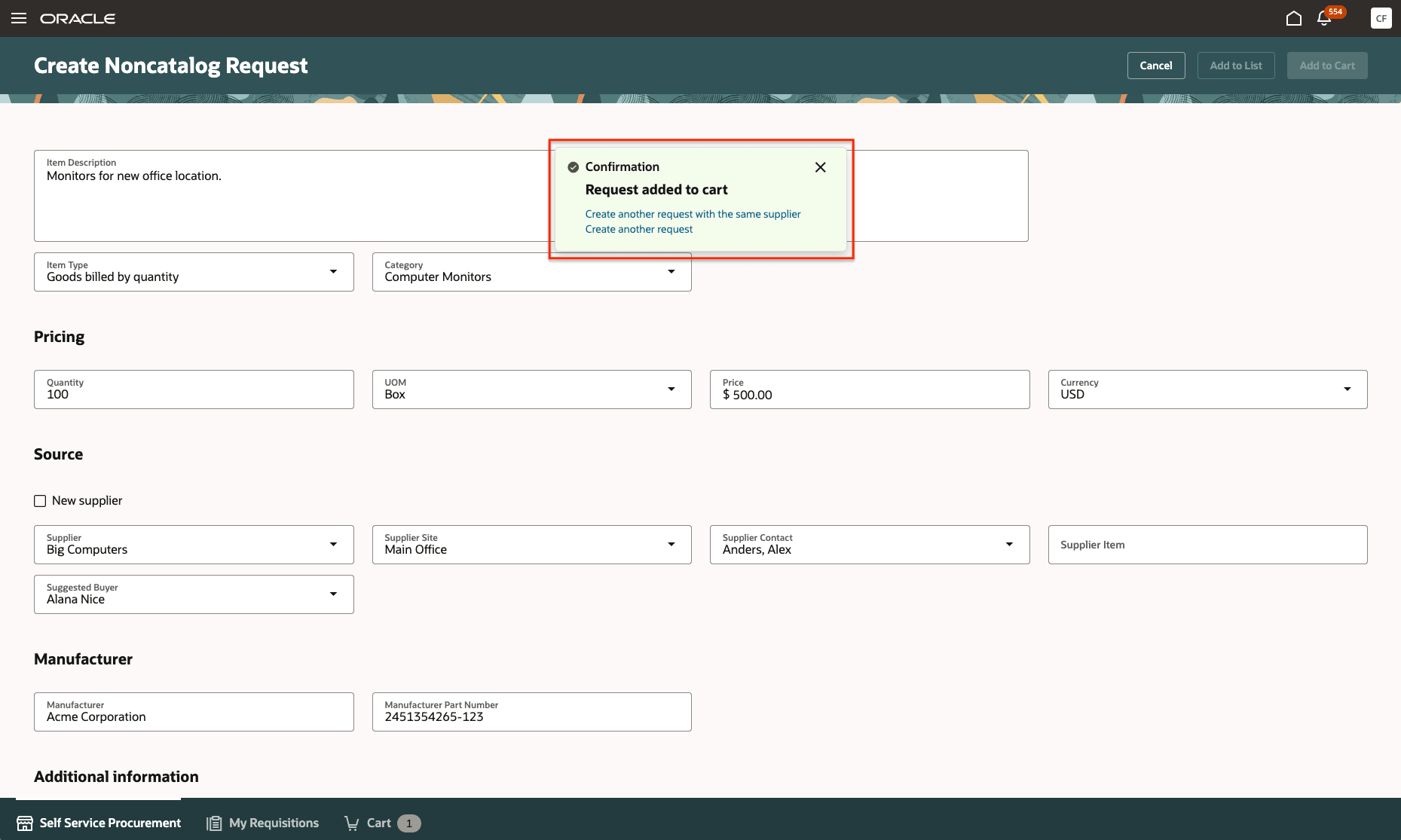
Enhanced Confirmation on Creating a Noncatalog Request
The existing Create another request with the same supplier option continues to let you create a new request using previously entered supplier information.
This enhancement improves efficiency for requesters who create multiple noncatalog or smart form requests by reducing unnecessary navigation and making it easier to start the next request directly from the confirmation message.
Steps to enable and configure
No steps are needed to enable this update.
Tips and considerations
- You can now view shopping cart details from the navigation at the bottom of the page, including the number of items in the cart. The View cart link has been removed from the confirmation message.
- If you exit the confirmation message, the application returns you to the Noncatalog Request or Smart Form page (depending on the originating page) and clears any previously entered information.
Key resources
For information about using Oracle Visual Builder Studio to extend your Redwood application pages, see Oracle Fusion Cloud HCM and SCM: Extending Redwood Applications for HCM and SCM Using Visual Builder Studio.