Use an Email Trigger with Quote to Purchase Requisition Assistant
In update 25D, we introduced the AI Agent: Quote to Purchase Requisition Assistant feature, which parses emails containing supplier quotations and automatically converts them into purchase requisitions. Using the assistant required setting up an internet account (email address) in a separate UI and scheduling the Process Emails for Procurement Transactions scheduled job to read and parse the emails forwarded to that email account.
With this release, we're introducing the ability to configure an email account directly within AI Studio and link it to an instance of your Quote to Purchase Requisition Assistant via an Email Trigger. This removes the need for a separate scheduled job to process emails forwarded to that email address. Now, there is no longer a need to schedule the Process Emails for Procurement Transactions scheduled job.
Using an email trigger provides these benefits:
- Single work area (AI Studio) for setup: There is no need to navigate to a different URL to configure email addresses.
- Reduced privilege requirements: Since email configuration is being done within AI Studio, users only need access to AI Studio work area. They no longer need access to another URL to set up the email or privileges to run the schedule job for email processing.
- No scheduled job required: The
Process Emails for Procurement Transactionsscheduled job is no longer required.
Steps to enable and configure
-
Navigate to
AI Agent Studio, select theCredentialstab in the footer andEmail Accountstab.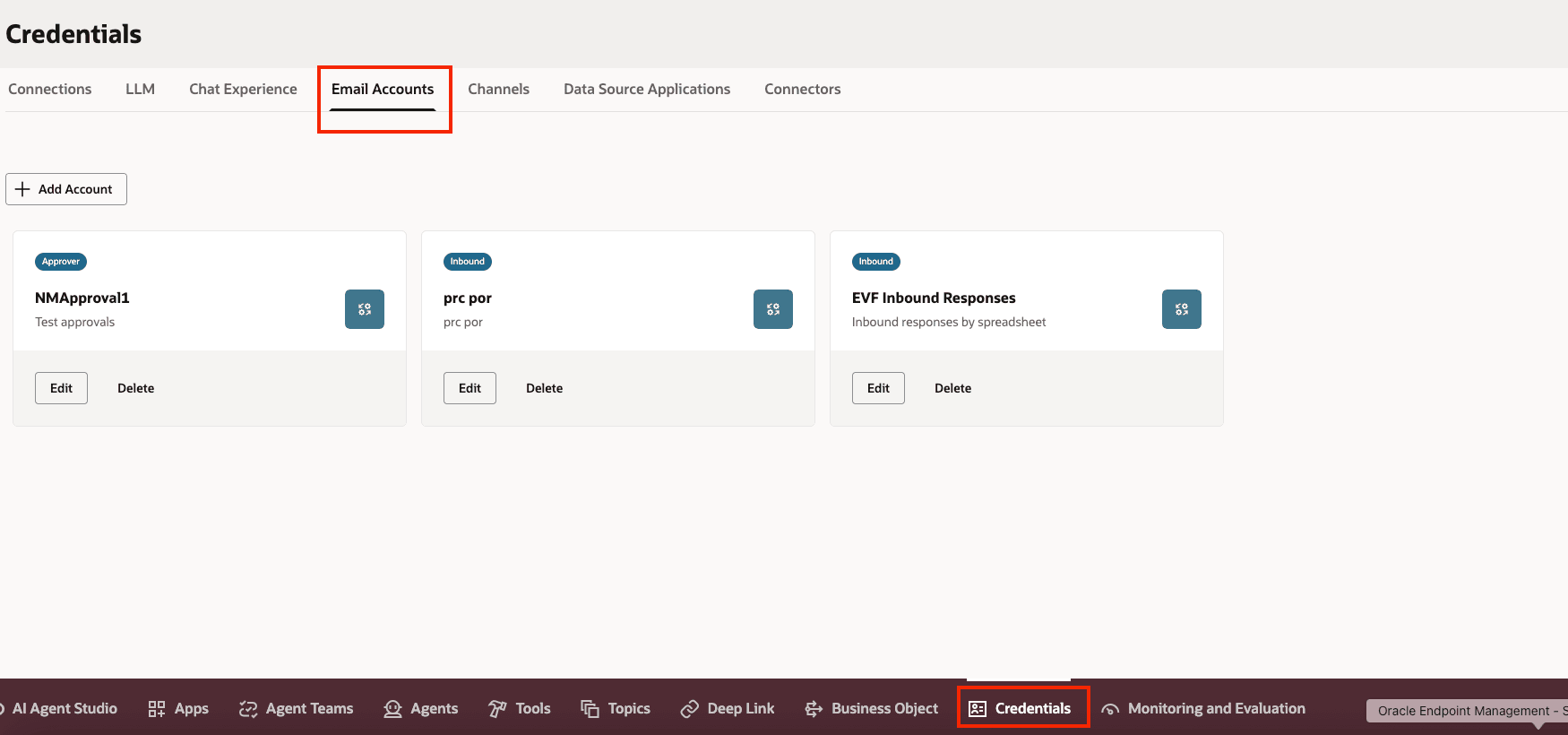
Credentials Page
- Click
Add Account. - Select your email host or provider.
- Choose
Inboundand fill out the necessary information. For instructions on how to obtain the values of the different fields, refer to this Customer Connect post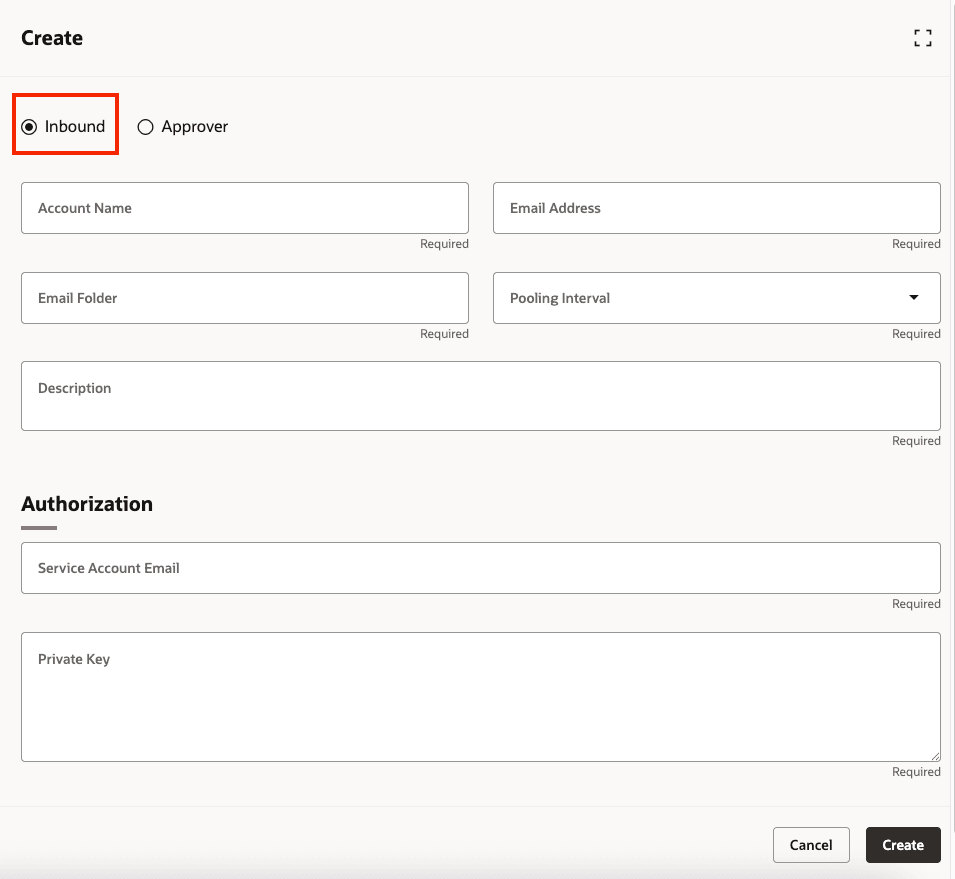
Email Account Configuration Page
- Click
- Create an instance of the seeded agent,
Quote to Purchase Requisition Assistant.
Navigate toAI Agent Studio, create an instance of the seeded agent,Quote to Purchase Requisition Assistant. Publish your instance.
There are two ways to create your instance:- Copy Template: Automatically copies all underlying artifacts from the seeded agent team and adds a suffix you specify. You can edit the agent team’s settings, agents, tools, and topics.
- Use Template: Takes you through a step-by-step configuration of each artifact in the agent team.
- Link the Email Account created in Step 1 to the instance of your
Quote to Purchase Requisition Assistant.- Click the
Triggerstab. - Select the
Emailsection and click the Add button. - Pick the email account you created in Step 1.
- Select the
Schedulessection and specify when you want the email account to be checked.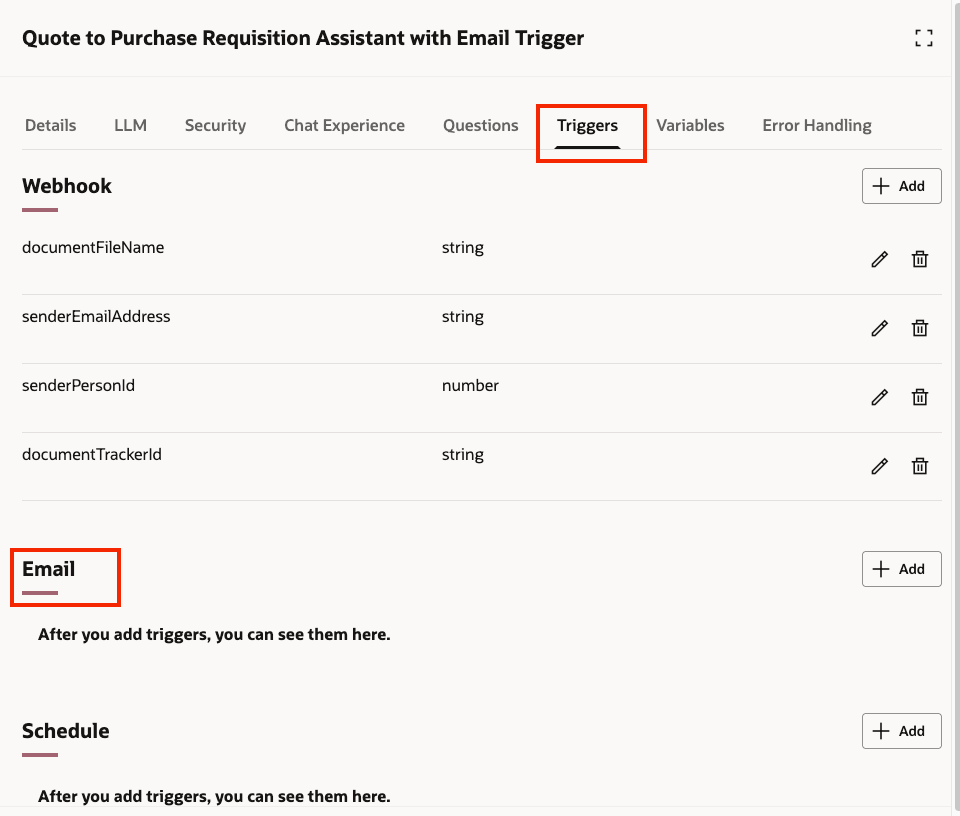
Link the Email Address to Quote to Purchase Requisition Assistant
- Click the
- Publish the instance of your
Quote to Purchase Requisition Assistant.
Tips and considerations
- Only emails with attachments are processed. Quotations included in the email body are ignored. Multiple attachments aren't supported.
- Only emails from users with an active requisition preference are considered. Emails identified as span or sent by nonemployees are ignored.
- Currently, only Google-hosted and Microsoft-hosted email accounts are supported.
- For information on using AI Agent Studio, see How do I use AI Agent Studio?
Key resources
- To know more about how to use the Redwood Self Service Procurement application, refer to the Procure Goods and Services Using the Redwood Self Service Procurement Application readiness training
Access requirements
- To access the Oracle AI Agent Studio for Fusion Applications and manage PRC AI agents, users must be assigned a configured job role that contains these duty roles:
- PRC Intelligent Agent Management Duty (ORA_PO_PRC_AI_AGENT_MANAGEMENT_DUTY and ORA_PO_PRC_AI_AGENT_MANAGEMENT_DUTY_HCM – both duty role codes are required)
- Fai Genai Agent PRC Administrator Duty (ORA_DR_FAI_GENERATIVE_AI_AGENT_PRC_ADMINISTRATOR_DUTY)
In the Security Console, filter by Roles and Privileges to find the PRC Intelligent Agent Management Duty role. Filter by Roles and Permission Groups to find the Fai Genai Agent PRC Administrator Duty role.
- The person setting up the email trigger must have the following
- Requisition Management Using REST Service aggregate privilege (ORA_POR_USE_REST_SERVICE_MANAGE) because it's required to create a requisition via REST and override (specify) another person as the preparer (this is essentially an App to App invocation).
Note: Because it's an aggregate privilege, it will be found under the "Role Hierarchy" tab when trying to add it to a duty or job role. - Fai Genai Agent Runtime Duty (ORA_DR_FAI_GENERATIVE_AI_AGENT_RUNTIME_DUTY)
- Requisition Management Using REST Service aggregate privilege (ORA_POR_USE_REST_SERVICE_MANAGE) because it's required to create a requisition via REST and override (specify) another person as the preparer (this is essentially an App to App invocation).
- To interact with AI agents in product pages, users must be assigned a configured job role that contains this duty role:
- Fai Genai Agent Runtime Duty (ORA_DR_FAI_GENERATIVE_AI_AGENT_RUNTIME_DUTY)
In the Security Console, filter by Roles and Permission Groups to find this duty role.
To allow users to interact with agents, you must also enable permission groups in the Security Console on those users’ configured job roles that contain the Fai Genai Agent Runtime Duty role. You can enable permission groups when you manage the basic information of your configured job roles.
Users’ configured job roles must also contain privileges that allow access to the pages where AI agents are enabled.
- Fai Genai Agent Runtime Duty (ORA_DR_FAI_GENERATIVE_AI_AGENT_RUNTIME_DUTY)