Search the audit trail for measure-value updates
You can open the audit trail from a table cell or the Actions drawer.
When opened from a cell, the audit trail keeps the cell context, including the measure name, selected levels, filter members, and filters. You can use filters and the Filters drawer to search audit entries by measure name, last updated dates, user, and dimension level from the plan's dimension catalog.
When opened from the Actions drawer, the audit trail opens with an empty search bar and all the audit entries for the plan, and you can apply filters and search the audit entries from scratch.
With this update, you can find relevant measure changes faster by searching audit entries using the same business context used in the planning table.
Audit trail for a cell
You can view the audit trail for an editable cell by right-clicking it and selecting View Audit Trail.
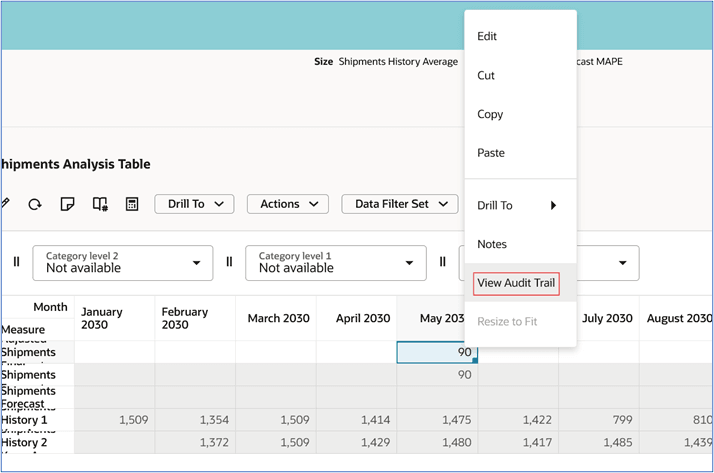
Menu item for audit trail in menu for editable cell
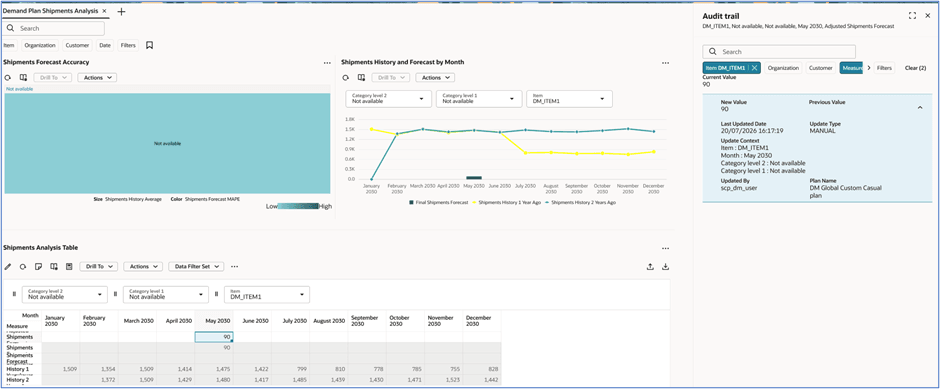
Audit trail drawer when opened from a cell
The Audit trail drawer displays the latest audit entry, along with audit entries from earlier updates. The following search and filtering enhancements are available:
- Search bar: Search for specific members at the Item, Organization, Customer Site, and Demand Class levels.
- Suggested filters: These suggested filters are available:
- Levels: By default, suggested filters are available for the levels related to the table from which the audit trail was opened and are set to selected level members and filters. User-defined hierarchies and levels are also supported.
- Measure name: By default, the suggested filter for the measure is set to the measure for which the audit trail was opened.
- Last updated by
- Last updated date
- Other filters: You can select Filters to open the Filters drawer that displays levels in the plan's dimension catalog, including levels for user-defined hierarchies.
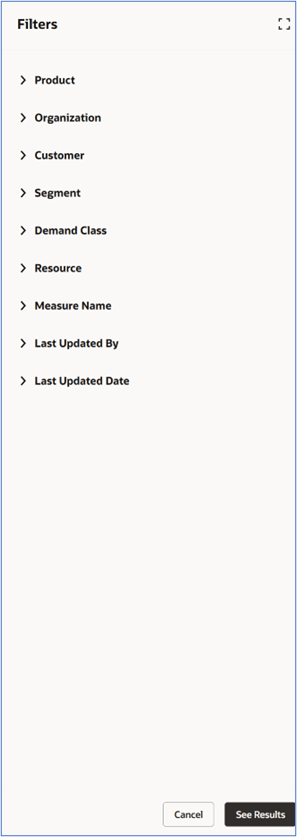
Filters drawer
You can change the selection for any suggested filter to change the scope of the displayed audit entries. For example, you can change the selected level members, measure, user, or last updated date. The audit trail will be based on your newly selected filters.
- Clear: After you select Clear, all inherited and applied filters are cleared, and all audit trail entries are displayed.
If no audit entries are available for the selected cell, an error message is displayed in the Audit trail drawer.
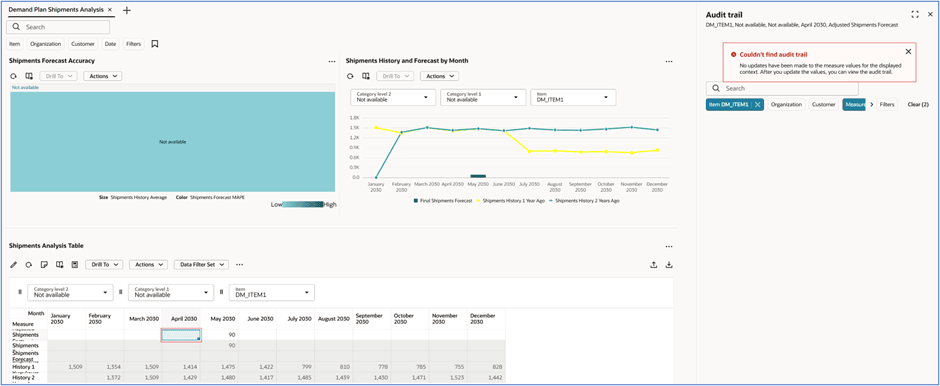
Error message when no audit data is available
Audit trail for a plan
When you select Audit trail in the Actions drawer, you can view audit entries in the context of the entire plan.
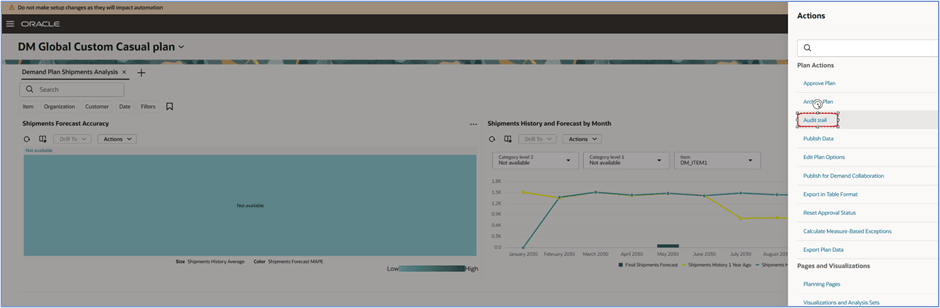
Link to audit trail in Actions drawer
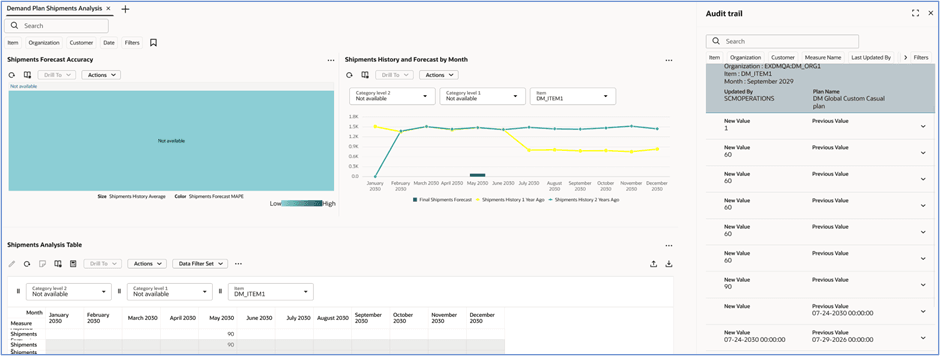
Audit trail drawer when opened for the entire plan
The Audit trail drawer opens without any filters applied and displays all available audit entries for the plan. The same search and filtering capabilities are available as when you open the audit trail from a cell.
Steps to enable and configure
You don't need to do anything to enable this feature.
Tips and considerations
- You can’t search and filter in the audit trail by levels of hierarchies for the Time dimension.
- For the Measure Name filter, you can select only a single measure. If you don't select a measure, then the entries for all measures will be displayed.
Key resources
Visit https://redwood.oracle.com/ for more information about the Redwood experience.
Access requirements
If you’re using user-defined job roles, then you need to add the privileges identified as new in this update as well as validate that you have the existing privileges that are listed.
| Privilege status | Privilege name and code |
|---|---|
| Existing |
Access FSCM Integration Rest Service FUN_FSCM_REST_SERVICE_ACCESS_INTEGRATION_PRIV |
| Existing |
Grant Search Framework Manager Permissions FND_SEARCH_FWK_MGR_PRIV |
| Existing |
Maintain Planning Tables MSC_MAINTAIN_PLANNING_TABLES_PRIV |
| Existing |
View Planning Objects Using REST Service MSC_VIEW_PLANNING_OBJECTS_REST_SERVICE_PRIV |