Configure default filters for page search
You can use the Dimension Catalog's Page Search tab to configure which hierarchy member levels appear as default page-level search facets per plan type. When you edit a plan type, a drawer displays a hierarchical tree of dimensions, hierarchies, and member levels from the Hierarchies tab, with the defaults preselected. You can select up to 8 member levels from the core dimensions, Item, Organization, Customer, Supplier, and Time range. Other dimensions such as exception type, order type, and segment aren't configurable here. Once saved, selected levels display as default search facets, while unselected levels appear in the More Filters drawer.
The capability improves page-level search relevance by tailoring default search facets to each plan type. This reduces clutter while preserving access to other hierarchy levels in More Filters.
You can now configure which hierarchy member levels appear by default as page-level search facets for each plan type. Organizations have more flexibility to tailor the most relevant search filters for different planning processes, while keeping all other available filters accessible from the More Filters drawer.
By configuring default search facets in the Dimension Catalog, you can simplify page-level searches, reduce visual clutter, and improve search efficiency across planning pages.
Configure default page-level search facets
A new Page Search tab is available in the Dimension Catalog where you can configure the default page-level search facets for each supported plan type.
To configure page-level search:
- In a plan, select More Actions > View More.
- From the Actions menu, select Dimension Catalogs.
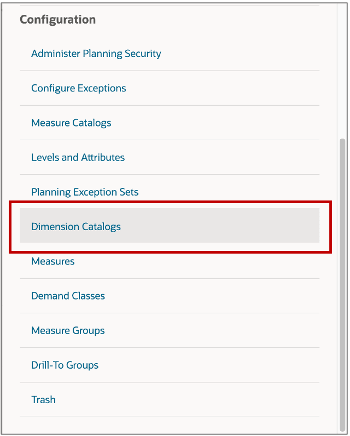
Dimension catalogs
3. On the Dimension Catalogs page, select Edit.
Navigating to page search
4. Select the Page Search tab.
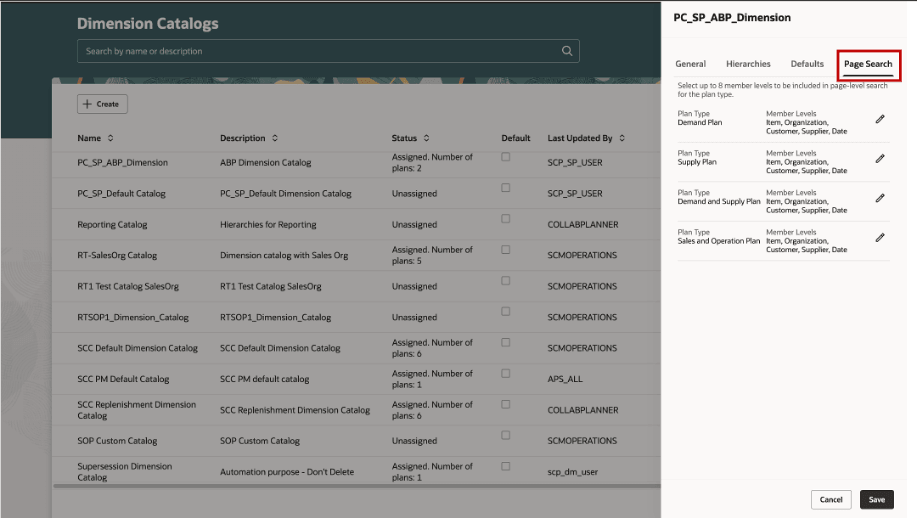
Page search tab
From the Page Search tab, you can:
- Configure default page-level search facets independently for each plan type.
- Select up to eight hierarchy member levels to display as search facets by default.
- Preview the default configuration for all plan types, including plans that haven't yet been customized.
- Edit and save configurations that are stored with the dimension catalog. You can discard any unsaved changes by selecting Cancel.
5. Select Edit for any plan type.
A configuration drawer displays the eligible hierarchies and member levels that were previously selected on the Hierarchies tab.
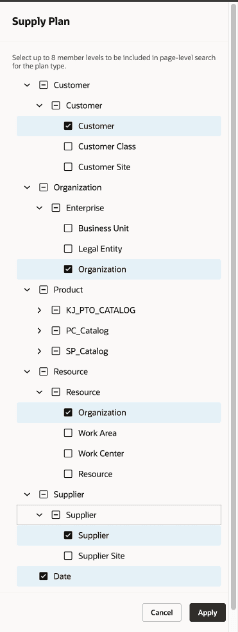
Configure members to display in page-level search
Some examples of the dimensions that are available for selection:
- Product
- Organization
- Customer
- Supplier
- Time (Date)
- Resources
Important
- Dimensions and hierarchies are displayed alphabetically, while member levels are displayed from the highest level to the lowest level within each hierarchy.
- If you select the lowest member level, such as an item or organization from multiple hierarchies, it counts as a single search facet toward the maximum limit of eight.
- For the Time dimension, there are no member level selections. Only a single Date selection for including the Date Range filter in the Page search.
Display Configured Search Facets
After configuration, planning pages automatically display the configured hierarchy member levels as the default page-level search facets, provided the page-level search is enabled for the page.Search facets continue to appear in the existing display order:
Page-level search filters after configuration
Observe that:
- Product hierarchy member levels from highest to lowest.
- Organization hierarchy member levels from highest to lowest.
- Customer hierarchy member levels from highest to lowest.
- Supplier hierarchy member levels from highest to lowest.
- Time Range
If fewer than eight member levels are configured, only the selected facets are displayed.
More Filters
Hierarchy member levels that aren't configured as default search facets are available in More Filters. The drawer displays all available levels for all the hierarchies.
Steps to enable and configure
Use the Opt In UI to enable this feature. For instructions, refer to the Optional Uptake of New Features section of this document.
Offering: Supply Chain Planning
Tips and considerations
If you want to use the Redwood: Configure Default Filters for Page Search feature, then you must opt in to its parent feature: Replenishment Planning. If you’ve already opted in to this parent feature, then you don’t have to opt in again
Access requirements
| Privilege | Title | Description |
|---|---|---|
| MSC_VIEW_PLANNING_OBJECTS_REST_SERVICE_PRIV | View Planning Objects Using REST Service | Lets a user retrieve/read Planning objects through Oracle Fusion REST APIs. It is view-only and does not grant create, update, or delete access. |
| FND_SEARCH_FWK_MGR_PRIV | Grant Search Framework Manager Permissions | Allows a user to assign Search Framework Manager access to other users or roles—enabling them to administer search-related setup and configuration. |
| FUN_FSCM_REST_SERVICE_ACCESS_INTEGRATION_PRIV | Access FSCM Integration Rest Service | Allows a user to access the Financials and Supply Chain Management (FSCM) Integration REST service, typically to retrieve integration-related data or invoke supported integration operations through REST APIs. |