View alternate unit of measure conversion quantities when recording cycle and physical counts
Warehouse operators frequently perform counts in a unit of measure that differs from an item’s primary unit of measure, such as cases, packs, or pallets. When recording cycle count sequences or physical inventory tags, users benefit from immediate visibility into converted quantities for different units of measures. Seeing this information allows them to validate that the entered count aligns with inventory expectations without leaving the transaction flow. Now you can view the unit of measure conversion quantities when recording cycle and physical counts on Redwood pages and the predefined spreadsheets configured using the Oracle Visual Builder plug-in for Excel.
A new collapsible UOM conversions section is available in the following flows:
- Record Cycle Count pages
- Mobile Cycle Count pages
- Mobile Physical Inventory pages
- Record Physical Inventory Tags in Spreadsheet
The section is hidden and collapsed by default. You can enable it using the UOM Conversions business rule. Once enabled, users can expand the section as needed to view UOM conversion details.
Here's the UOM conversions section on the Record Cycle Count page.
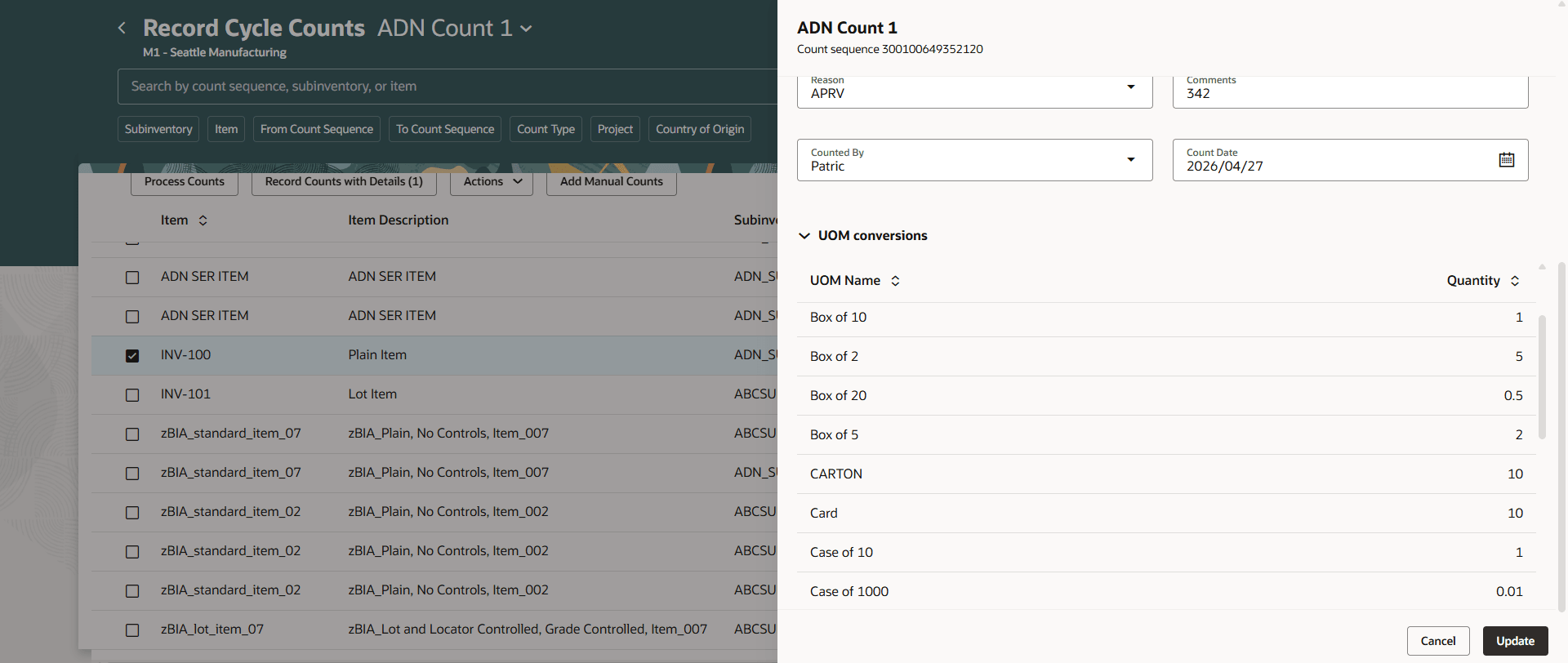
View UOM conversions on Record Cycle Counts page
Here's the UOM conversions section on the Mobile Cycle Count page.
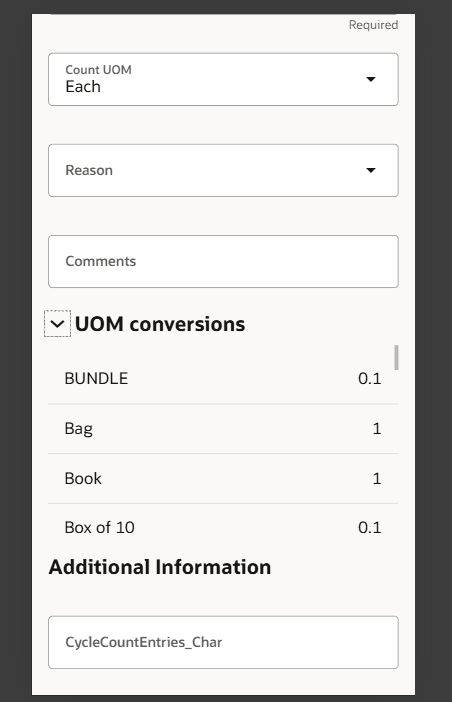
View UOM conversions on Mobile Cycle Count page
Here's the UOM conversions section on the Physical Inventory pages.
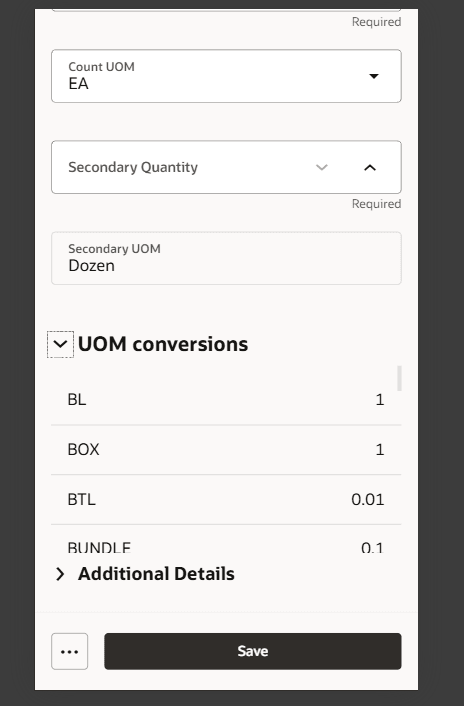
View UOM conversion on Mobile Physical Inventory pages
Here's the UOM conversions section in Record Physical Inventory Tags in Spreadsheet.
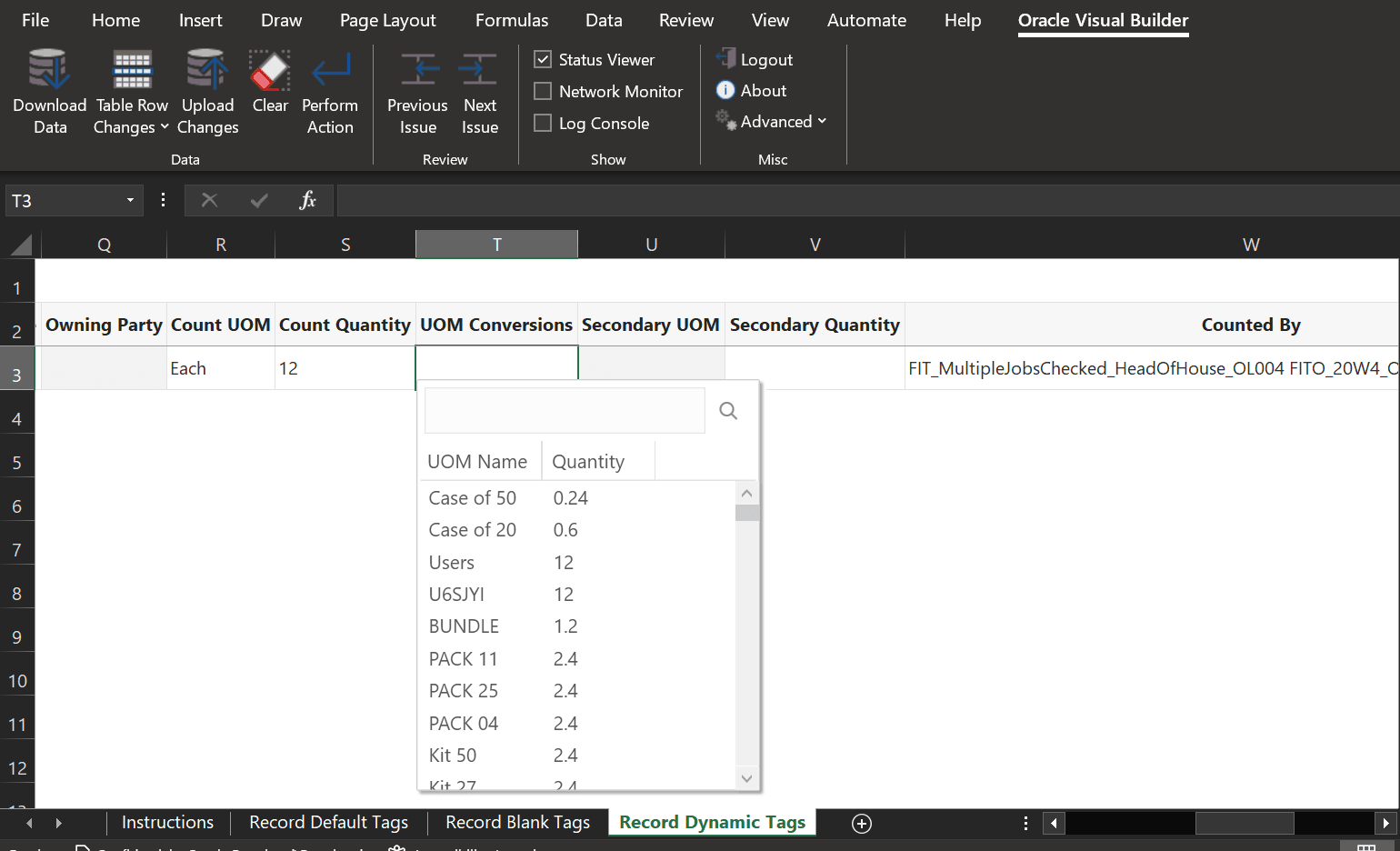
View UOM conversions in Record Physical Inventory Tags in Spreadsheet
This feature reduces reliance on external calculations, minimizes ambiguity, and streamlines the review and reconciliation process for inventory accuracy.
Steps to enable and configure
Leverage the Visual Builder Studio to expose your applications. To learn more about extending your application using Visual Builder, visit Oracle Help Center > your apps service area of interest > Books > Configuration and Extension.
Use business rules in Visual Builder Studio to control the visibility and behavior of the UOM Conversions section for these flows:
- Record Cycle Count pages
- Mobile Cycle Count pages
- Mobile Physical Inventory pages
- Record Physical Inventory Tags in Spreadsheet
To enable the section:
- Navigate to the page where you want to display the UOM Conversions section.
- Select the Edit Page in Visual Builder Studio task from the Settings and Actions menu.
- In Page Properties, locate the UOM Conversions section and set its visibility to Visible.
- Publish your changes.
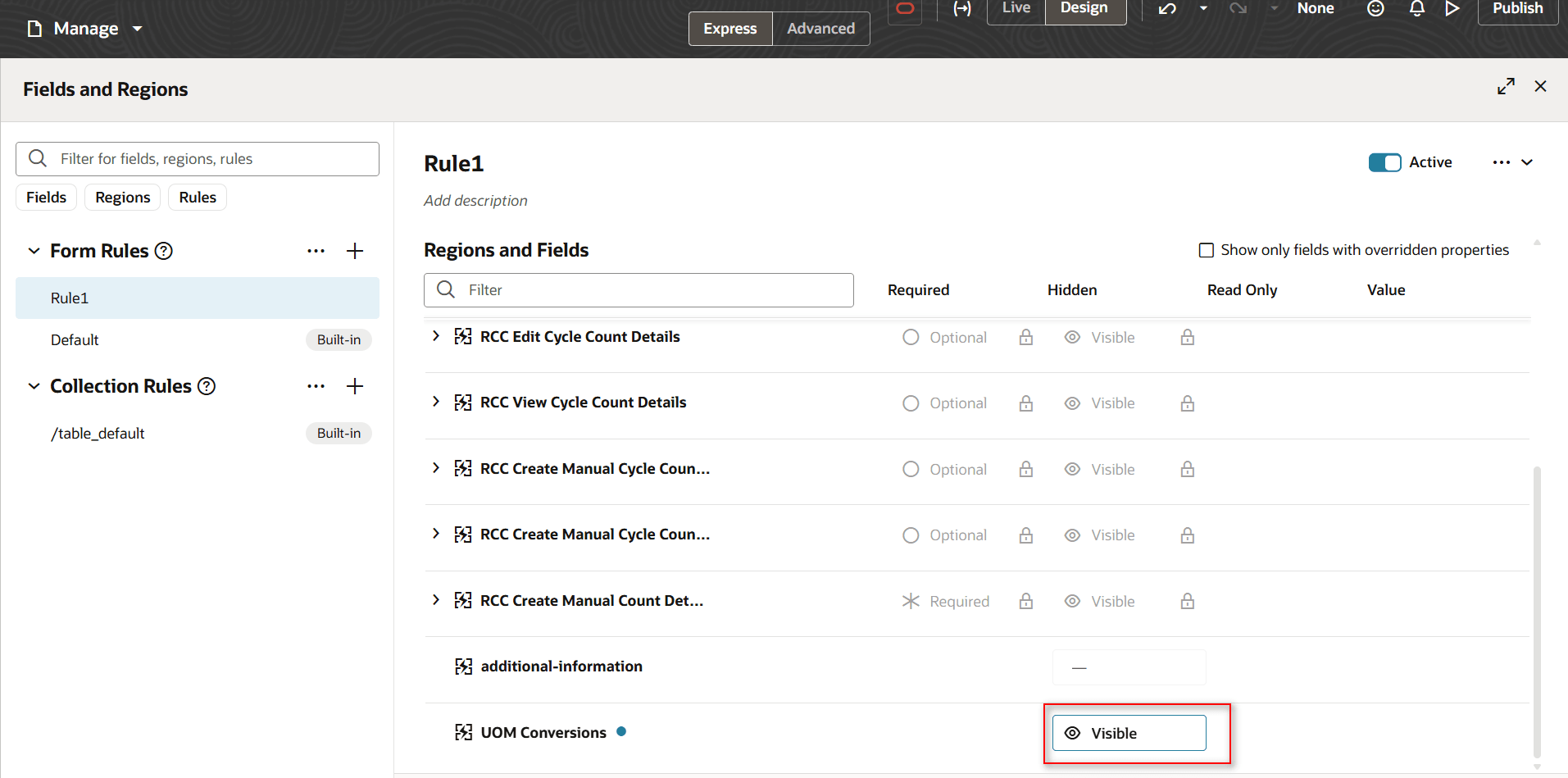
UOM conversions in business rule
Tips and considerations
- You can determine whether you can extend a specific page using Visual Builder Studio by using the Edit Page in Visual Builder Studio task from the Setting and Actions menu.
- Keep the Pages list closed while you work in Visual Builder Studio Express mode to get a cleaner view of the page you’re extending.
Key resources
- Follow the instructions here to Access Visual Builder Studio and start extending your application pages in Visual Builder Studio.
- Refer to these resources for additional information:
Access requirements
To extend application pages using Visual Builder Studio, you must be assigned a configured job role that contains this privilege:
| Privilege status | Privilege name and code |
|---|---|
| Existing | Administer Sandbox (FND_ADMINISTER_SANDBOX_PRIV) |