Assign travel order by subinventory and locator for sorting pick lines
In warehouse environments, the efficiency and safety of order picking are often influenced not only by travel distance but also by the physical characteristics of the items being handled and the equipment required to move them. Many organizations manage inventory that varies significantly in size, weight, handling requirements, or compatibility with other items. For example, certain goods may require specialized equipment such as forklifts or pallet jacks, while others must be picked in a specific sequence to prevent damage, ensure stability, or comply with handling restrictions. Without the ability to control the order in which items are picked, operators may be forced to backtrack, switch equipment mid-task, or risk improper handling, leading to inefficiencies, increased labor costs, and potential safety or quality issues.
To address these challenges, you need the ability to dictate picking sequences based on your specific operational constraints. Now you can assign a travel order to subinventories and locators to control the sequence of pick lines presented to warehouse operators.
Use this feature to:
- Assign a travel order to subinventories and locators.
- Sort pick lines by travel order when confirming picks on the Confirm Pick and Confirm Pick Slips Redwood pages.
- View the travel order for picking lines on the Confirm Pick Slips Redwood page.
- Sort pick lines by travel order when printing the Pick Slip report and Movement Request Pick Slip report.
- Include travel order information in the outputs for the Pick Slip report and Movement Request Pick Slip report.
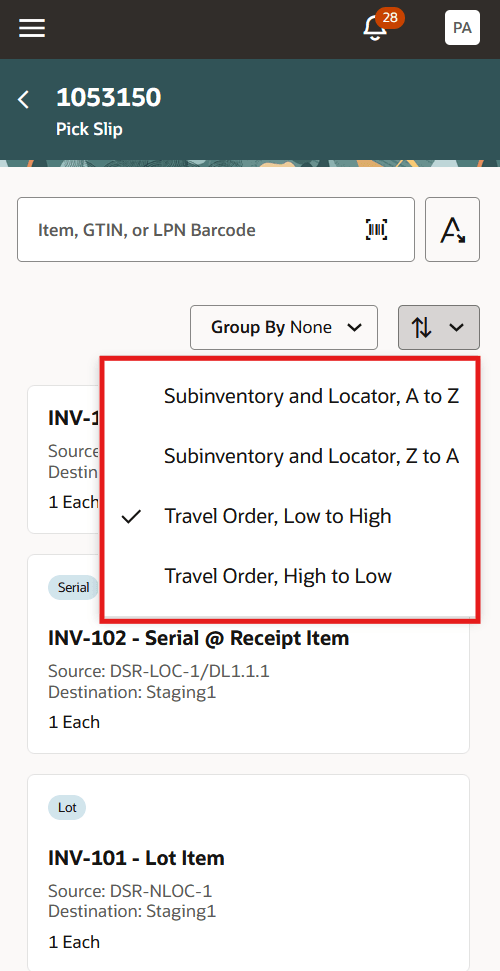
Sort options in Confirm Pick
This feature ensures that picks are performed in an order that aligns with equipment requirements, item dimensions, weight considerations, and handling rules to improve operational efficiency, reduce handling risks, optimize equipment usage, and ensure a safer and more consistent picking process across the warehouse.
Steps to enable and configure
Leverage the Visual Builder Studio to expose your applications. To learn more about extending your application using Visual Builder, visit Oracle Help Center > your apps service area of interest > Books > Configuration and Extension.
Prerequisite steps
To use this feature, enable the Confirm Pick and Confirm Pick Slips Redwood pages.
- To enable the Confirm Pick Slips Redwood page:
- In the Setup and Maintenance work area, search for and select the Manage Inventory Profile Options task.
- On the Manage Inventory Profile Options page, search for and select the Redwood Page for Confirm Pick Slips Enabled profile option (profile option code: ORA_INV_CONFIRM_PICK_SLIPS_REDWOOD_ENABLED).
- In the Profile Values section, set the Site level to Yes.
- To enable the Confirm Pick Redwood page:
- In the Setup and Maintenance work area, search for and select the Manage Inventory Profile Options task.
- On the Manage Inventory Profile Options page, search for and select the Enable the Redwood Page for Mobile Confirm Pick profile option (profile option code: ORA_INV_MOBILE_CONFIRM_PICK_REDWOOD_ENABLED).
- In the Profile Values section, set the Site level to Yes.
Assign travel order to subinventories and locators
In the Configure Subinventories task, assign travel order values to subinventories and locators.
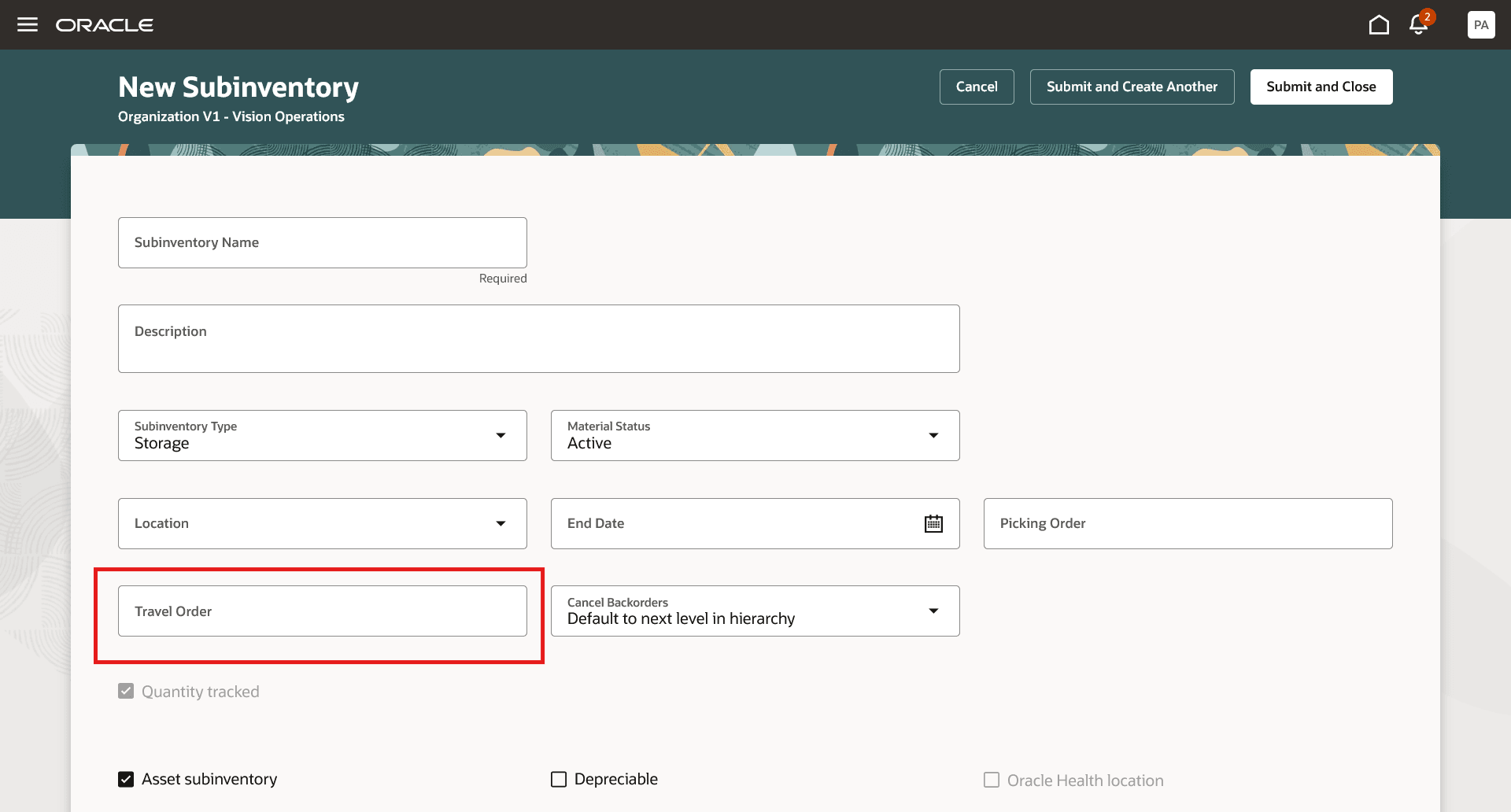
Travel Order field
Enable page properties in Visual Builder
In Visual Builder Studio Express mode, open Page Properties for Confirm Pick and Confirm Pick Slips.
- Set Allow Sorting All Items of a Pick Slip to enable sorting on the Confirm Pick mobile page.
- Set Default Pick Lines Sort Option to choose the default sort option.
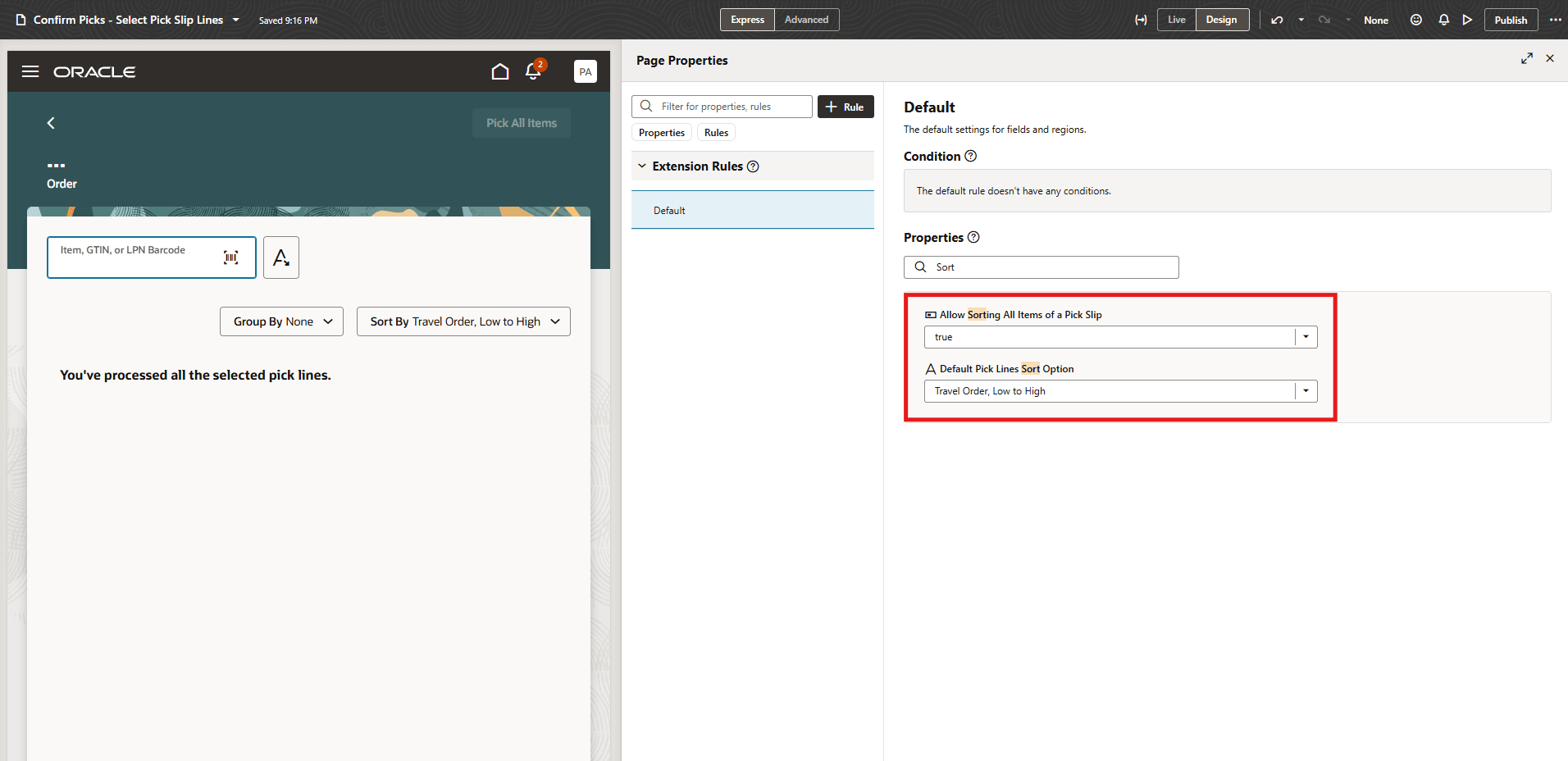
Page properties for enabling sorting and choosing the default sort option
Key resources
- Oracle Fusion Cloud SCM: Using Inventory Management guide, available on the Oracle Help Center.
- Oracle Fusion Cloud SCM: Implementing Manufacturing and Supply Chain Materials Management guide, available on the Oracle Help Center.
- For information about using Oracle Visual Builder Studio to extend your Redwood application pages, see Oracle Fusion Cloud HCM and SCM: Extending Redwood Applications for HCM and SCM Using Visual Builder Studio.
Access requirements
To confirm picks, assign users a configured job role that contains these privileges:
| Privilege status | Privilege name and code |
|---|---|
| Existing | Confirm Pick Using Responsive Inventory (INV_CONFIRM_PICK_PWA_PRIV) |
| Existing | Confirm Pick Slip (INV_CONFIRM_PICK_SLIP_PRIV) |
To configure subinventories, assign users a configured job role that contains this duty role:
| Duty role status | Duty role name and code |
|---|---|
| Existing | Confirm Subinventory Using Responsive Inventory (ORA_INV_CONFIGURE_SUBINVENTORY_PWA_DUTY) |