Control the status for requisitions created from PAR counts
Healthcare providers frequently use periodic automatic replenishment (PAR) counts to automatically replenish supplies when stock levels fall below predefined thresholds. In many cases, the replenishment source for supplies is a purchase requisition that must align with the organization's procurement policies and approval requirements. While some organizations prefer these system-generated requisitions to be approved immediately to ensure rapid replenishment of critical supplies, others require someone to review requisitions before submitting for approval. Still others want requisitions to automatically enter the approval workflow immediately after they're created. A single, fixed requisition creation process can't accommodate the varying governance, compliance, and operational requirements across different organizations.
Now you can configure the initial status of purchase requisitions generated from PAR count replenishment. Using the PAR Count Replenishment Reorder Approval profile option, you can create requisitions with one of the following statues:
- Preapproved: The requisition proceeds immediately without additional action.
- Incomplete: A user must review and submit the requisition.
- Approval Required: The requisition is automatically routed through Oracle Fusion Cloud Procurement's approval workflow when it's created.
You can view the requisition generated from PAR replenishment by navigating to the My Requisitions page.
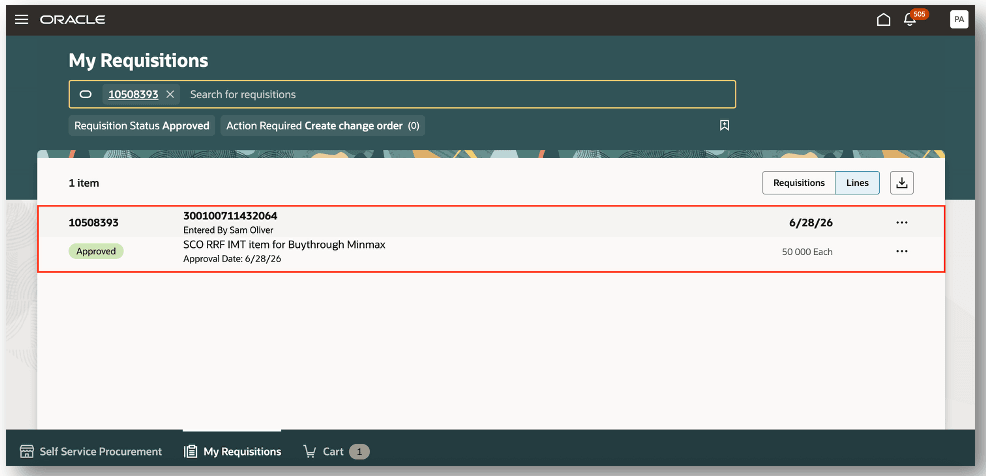
My Requisitions
Allowing replenishment processes to align with your organization's specific procurement controls, this feature helps balance operational efficiency with governance requirements, reduces manual intervention where appropriate, and ensures that automated replenishment supports established purchasing policies.
Steps to enable and configure
Follow these steps to enable the Inventory profile option:
- In the Setup and Maintenance work area, search for and select the Manage Inventory Profile Options task.
- On the Manage Inventory Profile Options page, search for and select the ORA_INV_PAR_COUNT_REORDER_APPROVAL profile option code.
- In the Profile Values section, set the Profile Value.
- Preapproved: requisition is created in Approved status
- Incomplete: requisition is created in Incomplete status
- Approval required: requisition is created in Pending approval status
- Click Save and Close. Changes in the profile value will affect users the next time they sign in.
You have the option to set the profile level to Site or User.
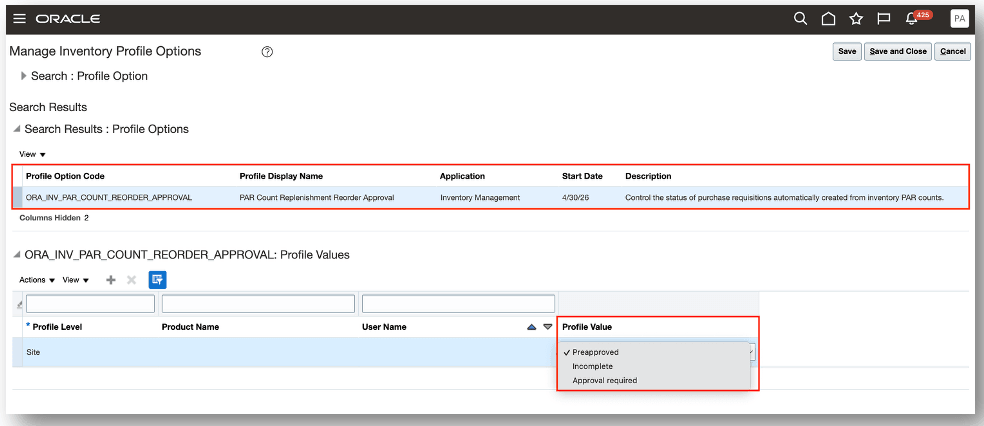
PAR count replenishment reorder approval
Tips and considerations
You can enable a profile option at the following levels:
- Site level (lowest): The entire site of deployment
- User level (highest): A specific user
Key resources
- Oracle Fusion Cloud SCM: Using Inventory Management guide, available on the Oracle Help Center.
- Oracle Fusion Cloud SCM: Implementing Manufacturing and Supply Chain Materials Management guide, available on the Oracle Help Center.
- Oracle Fusion Cloud SCM: Security Reference for Manufacturing and Supply Chain Materials Management guide, available on the Oracle Help Center.
Access requirements
Users who are assigned the Supply Application Administrator configured job role can access the Manage Inventory Profile Options page.