Enable electronic records and electronic signatures for material transactions
Electronic signatures (e-signatures) and electronic records (e-records) help organizations enforce controlled approval processes while maintaining compliance with regulatory and quality requirements. By securely capturing, storing, retrieving, and reproducing transaction records and approvals, e-signatures and e-records provide a trusted audit trail for critical inventory and material management activities. This capability is particularly valuable for organizations operating in highly regulated industries that require documented evidence of user actions and approvals.
Now you can extend e-signature and e-record support to additional inventory transactions, including returns to suppliers, simple receiving inspections, subinventory transfers, interorganization transfers, license plate number (LPN) packing and repacking, lot transactions, item translations, and project transfers.
Impact on desktop and mobile flows
- If the organization is configured for In-line mode:
- Desktop will follow the In-line mode.
- Mobile will follow the Deferred mode.
- If the organization is configured for Deferred mode:
- Desktop will follow the Deferred mode.
- Mobile will follow the Deferred mode.
Impacted flows and behavior for In-line and Deferred modes
This table shows the newly supported e-signature and e-record (ERES) flows:
| Redwood Inventory transaction | Desktop | Mobile | Signature type |
|---|---|---|---|
| Movement requests | Yes | N/A | In-line and Deferred |
| Subinventory transfer | Yes | Yes | In-line and Deferred |
| Interorganization transfer | Yes | Yes | In-line and Deferred |
| Project transfer | Yes | Yes | In-line and Deferred |
| Lot split | Yes | Yes | In-line and Deferred |
| Lot merge | Yes | Yes | In-line and Deferred |
| Item and lot translate | Yes | Yes | In-line and Deferred |
| Inventory repack LPN | Yes | Yes | In-line and Deferred |
| Return to supplier | Yes | N/A | In-line and Deferred |
| Receiving inspection | Yes | Yes | In-line and Deferred |
Please note:
-
Repack LPN: Inventory Repack LPN and Shipping Repack LPN are treated as separate transactions from the ERES perspective. ERES approval is supported only for Inventory Repack LPN transactions initiated from the desktop or mobile application. Repack LPN transactions initiated from Shipping flows don't trigger the ERES approval process.
-
ERES is applicable to return transactions only when the Return Type is set to Supplier.
-
For Receiving transactions, ERES applies only to transaction lines with an Inventory destination type.
1. In-line mode transactions: When an organization is configured to use e-signature with the In-line signature type, the transaction approval flow proceeds as follows:
Enter the transaction details and attach any relevant supporting documents.
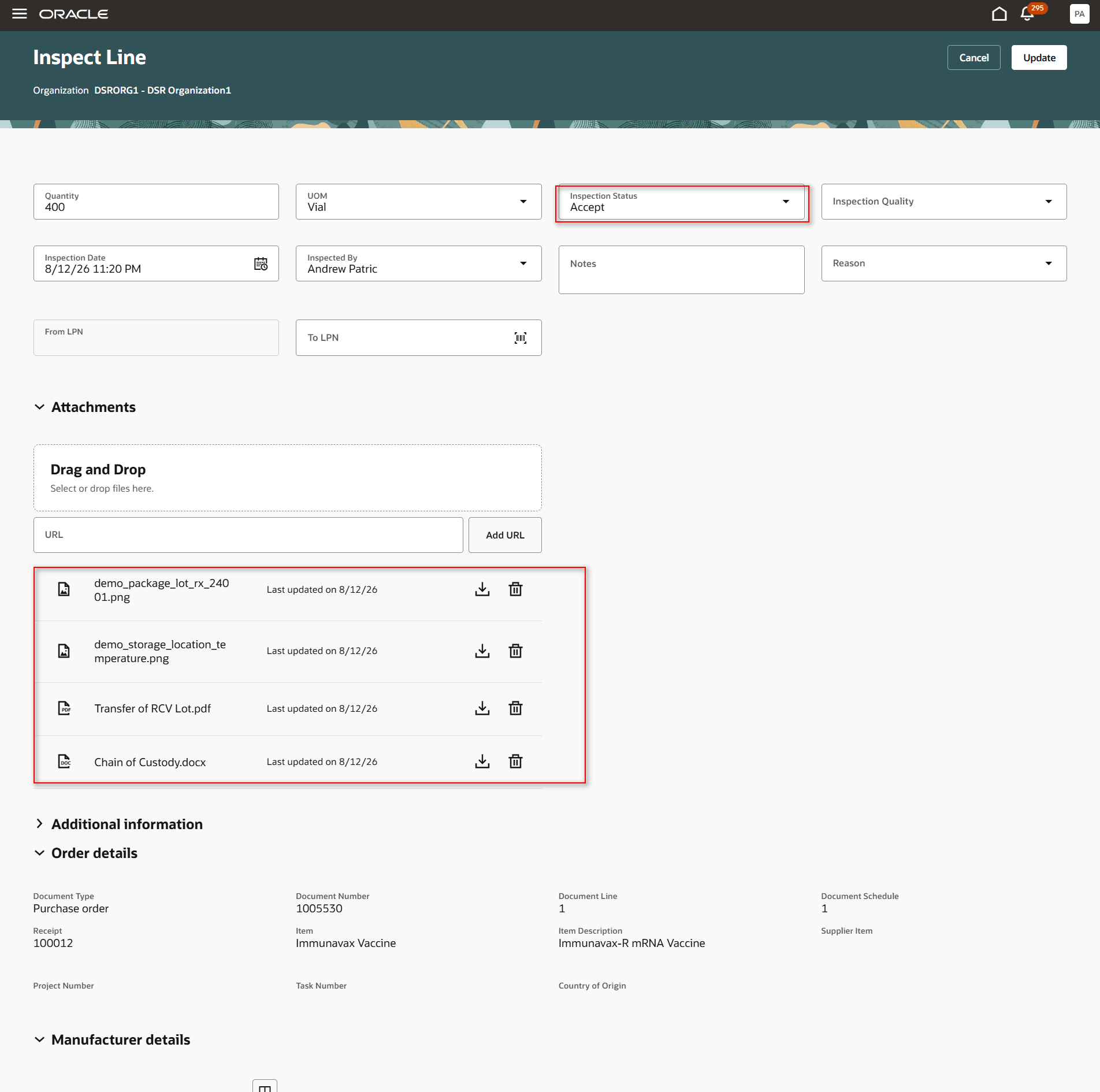
Transaction with attachments
The primary action button on the transaction page is relabeled to Submit for Approval.
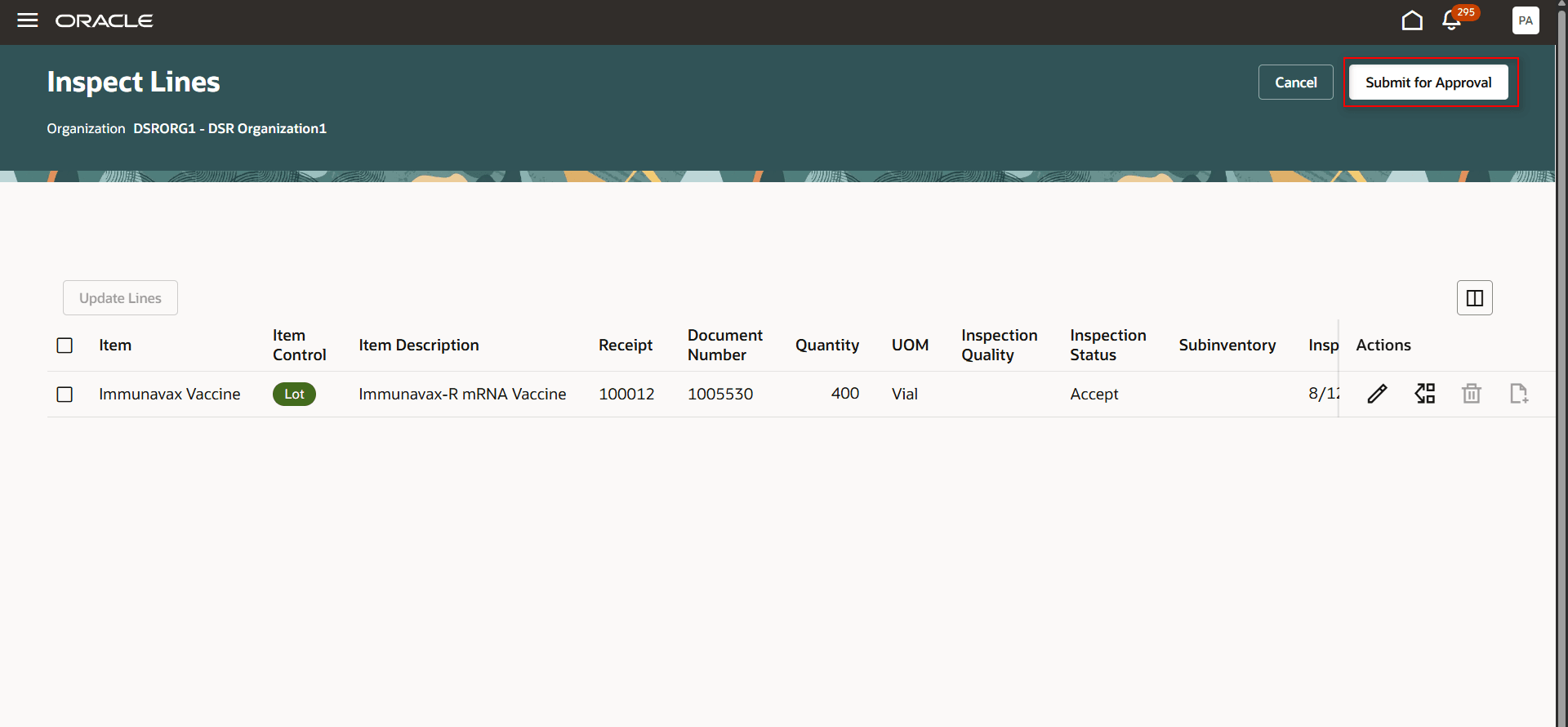
Submit for Approval button
When a user clicks Submit for Approval, a panel drawer appears. This panel drawer displays detailed information related to the transaction, including:
- E-signature details
- Source identifier
- A preview or link to the electronic PDF record
- Approver list and current status
- Other supporting transaction information
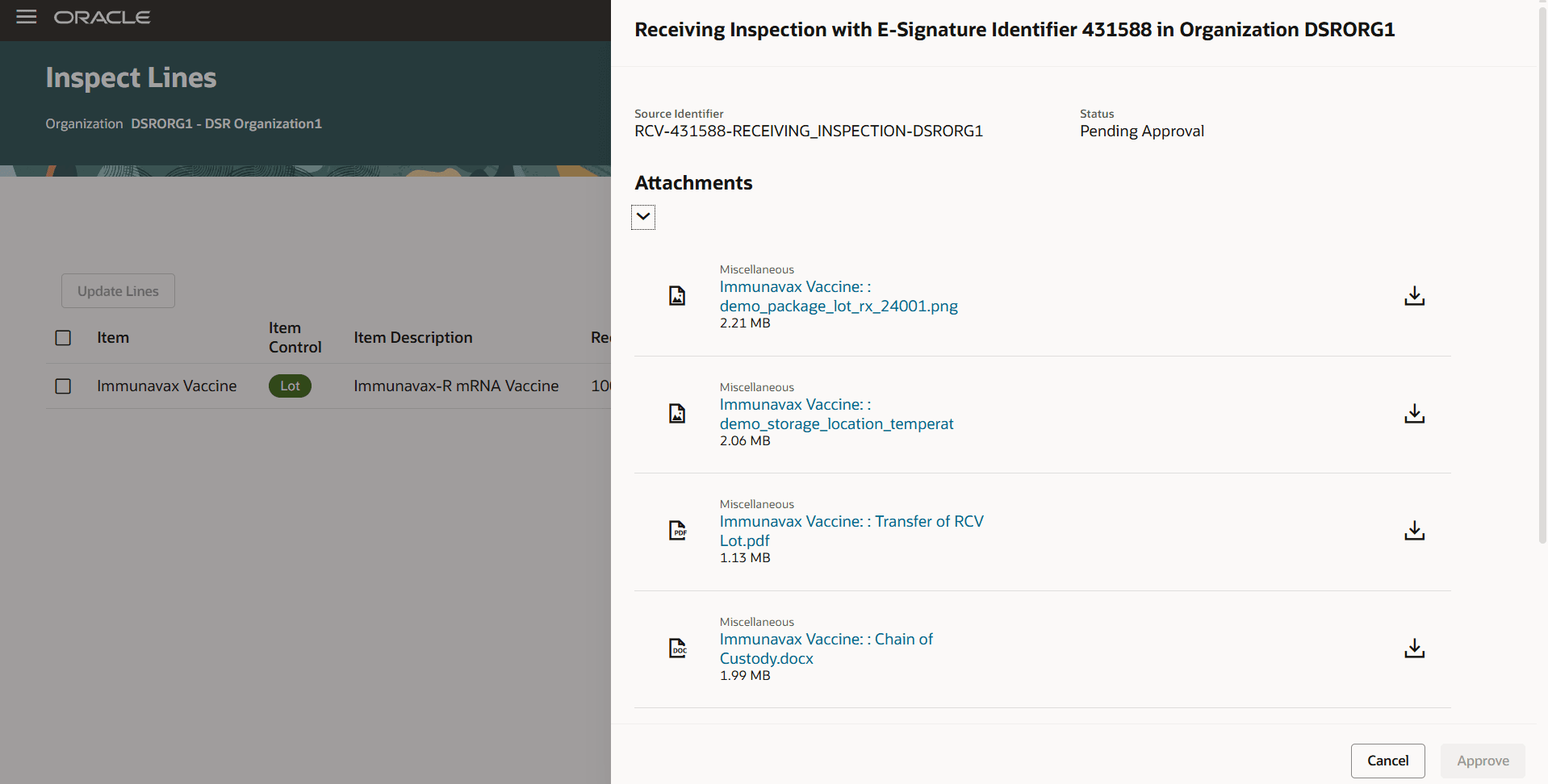
In-line panel drawer
Approval processing: The system sends an approval notification to the designated approvers. The user initiating the transaction can click Refresh on the panel drawer to update and view the latest status of the approval workflow in real time.
Once all required approvers have completed their approvals:
- The Submit and Close button is enabled.
- Click Submit and Close to:
- Commit the transaction to the system.
- Display a message confirming successful completion.
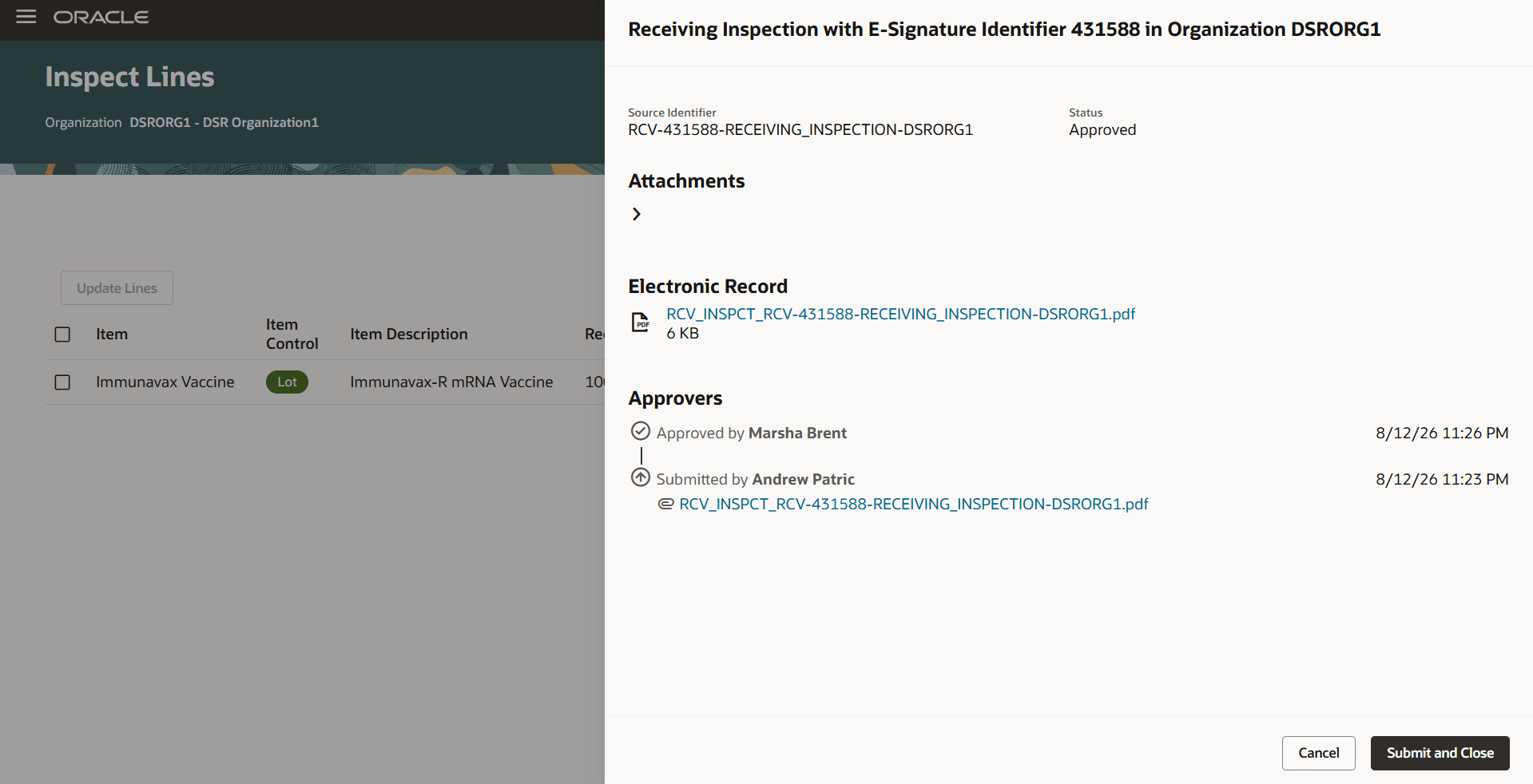
Submit and Close button
Initiator as approver: If the initiator of the transaction is also included as one of the approvers:
- A confirmation checkbox appears on the Approval panel drawer.
- The initiator must check this box to indicate they have reviewed and approved the transaction.
- The Approve button remains disabled until this checkbox is selected, enforcing an acknowledgement before providing approval.
2. Deferred mode transaction: When the signature type is configured as Deferred, the behavior differs in the following ways:
The main action button is labeled Submit for Approval.
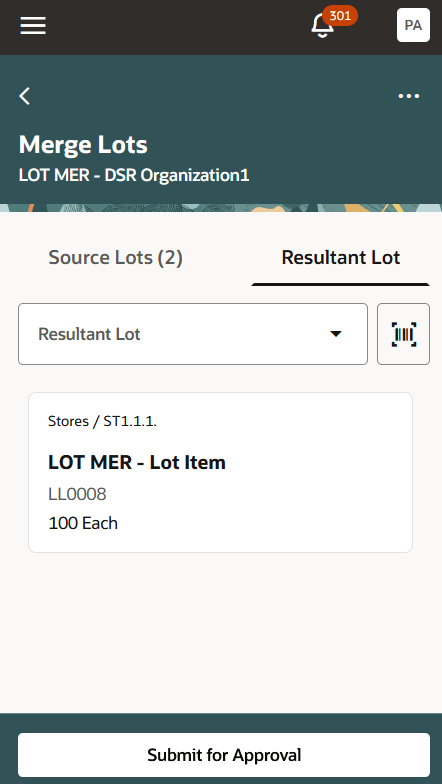
Submit for Approval button
Upon clicking Submit for Approval:
- A toast notification appears displaying the e-signature ID generated for the transaction.
- This ID can be referenced for tracking or audit purposes.
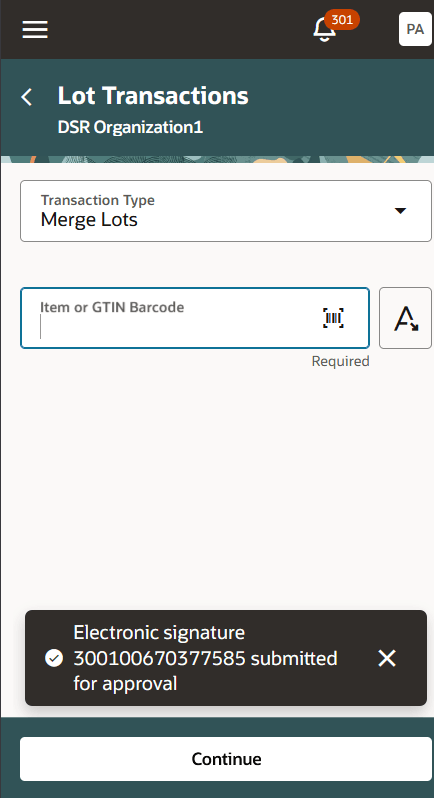
Deferred mode toast message
Approval and commitment
- The system sends an approval request to the assigned approvers.
- Once the approval is completed:
- The transaction is committed automatically without any further user action.
- The initiator is not required to perform additional steps after submission.
3. Approval notifications and actions: Approvers can access pending approval requests through their worklist. When an approval request is opened, the following information is displayed:
- E-signature details
- Source identifier
- Attachments
- A preview or link to the electronic PDF record
- Other supporting transaction information
Available actions: Approvers can choose to Approve or Reject the request directly from this interface. Their action updates the system status accordingly and triggers downstream workflows.
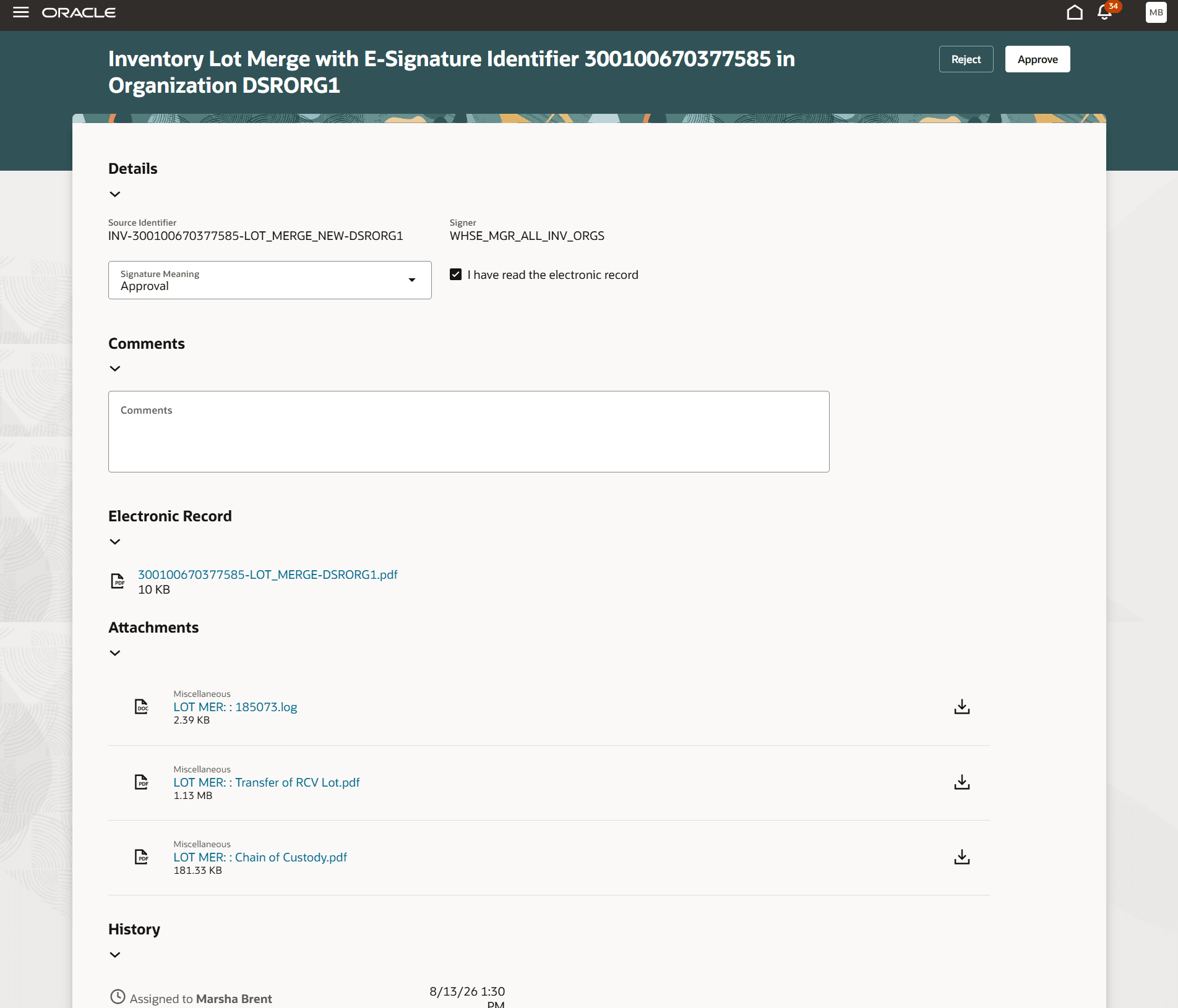
Approver notification
FYI notification to initiator (Deferred mode): After all approvals are completed in Deferred mode, an FYI (For Your Information) notification is automatically sent to the initiator. This informs the initiator that the transaction has been fully approved and committed.
4. Additional actions: Cancel and Reject
- Cancel action
- This action is available for transactions in both In-line and Deferred modes.
- If a transaction is in Awaiting Approval status,
- Clicking Cancel immediately discards the transaction.
- Any pending actions from approvers are nullified, and the approval flow is terminated.
- Reject action by initiator: In scenarios where the initiator is also an approver, the initiator has the option to:
- Click the Reject button if they don't approve of the transaction. This results in the electronic record being updated with a Rejected status.
- No further approvals will be processed after a rejection.
View attachments during electronic record approval:
You can now view transaction attachments in the Attachments section of the inline approval drawer and in approval notifications sent to approvers.
Attachments may take longer to appear when a transaction includes many or large files. You can continue the approval process while they're loading, including reviewing the electronic record, selecting the I have read the electronic record acknowledgment, and performing the available approval action.
Attachments are displayed with relevant transaction identifiers:
- Item-level attachments show the item number and attachment name as a hyperlink, for example, INV-100 | Certificate.pdf.
- Header-level attachments show the document number and attachment name as a hyperlink, for example, Shipment 100245 | BillOfLading.pdf.
For transactions with multiple lines for the same item, use the generated electronic record PDF to identify the attachment associated with each transaction line.
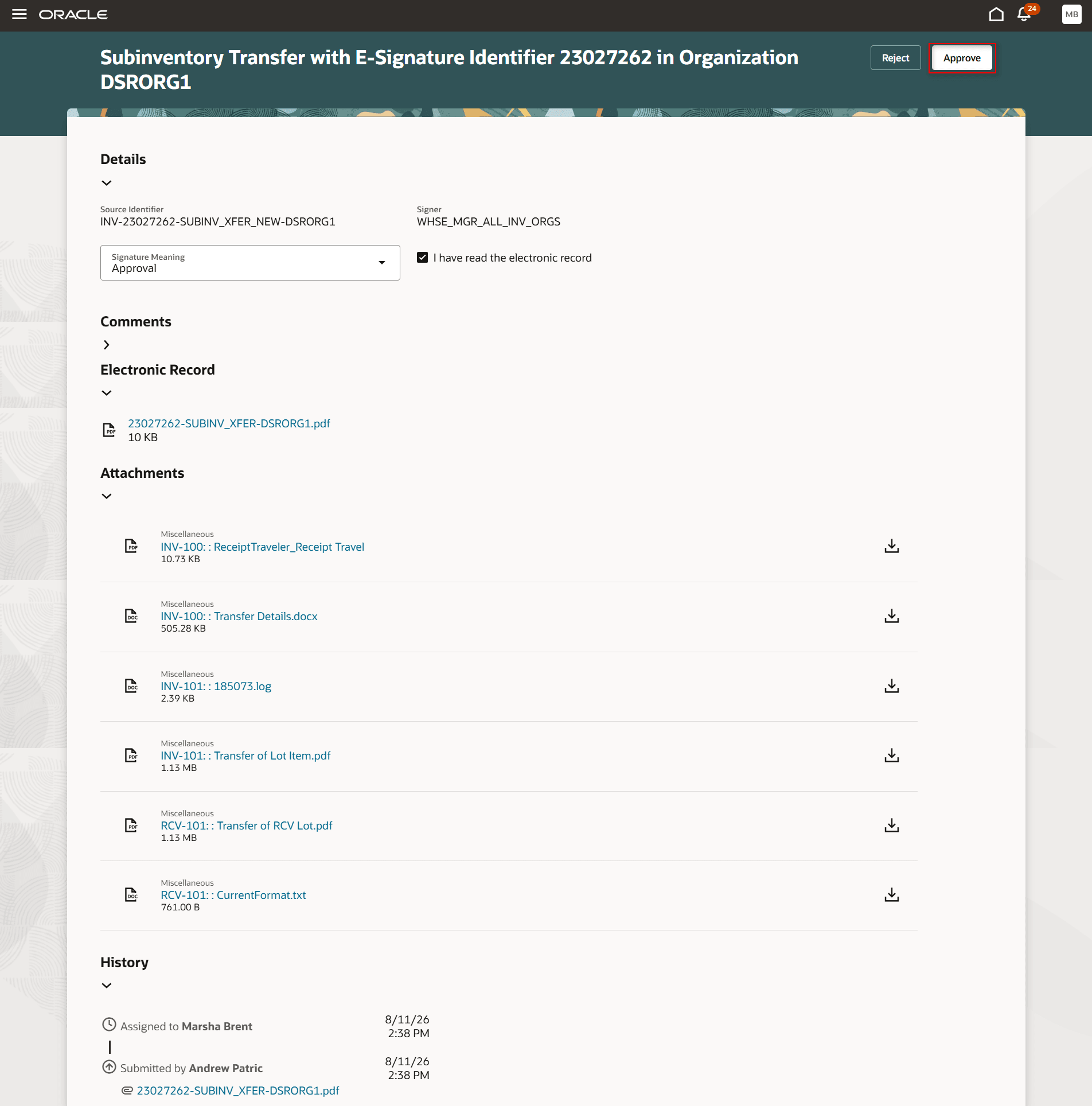
View attachments for multiple lines
DFF support in RTF templates
Descriptive flexfields (DFFs) are included only in the data model and won't be seeded in the delivered RTF template.
Users who wish to display DFF values in the approval notification or report output must update the RTF template through customization and include the required DFF attributes.
By broadening compliance coverage across more warehouse and inventory processes, you can strengthen governance controls, improve traceability, simplify audit readiness, and ensure that critical transactions are executed and documented in accordance with internal policies and regulatory requirements.
Here's the demo of these capabilities:
Steps to enable and configure
Configure electronic signature preferences
You can use the Configure Electronic Signature Preferences page to enable e-signatures for your organization.
Follow these steps to enable or disable this feature:
- In the Setup and Maintenance work area, search for and select the Configure Electronic Signature Preferences task.
- Add a new organization or select an existing one.
- Click the Edit icon, check the Signature Enabled box, and choose the appropriate Signature Type.
- Click the check mark icon to save your changes.
- To enable or disable electronic signatures for multiple or all transactions at once, use the Manage E-Signature action.
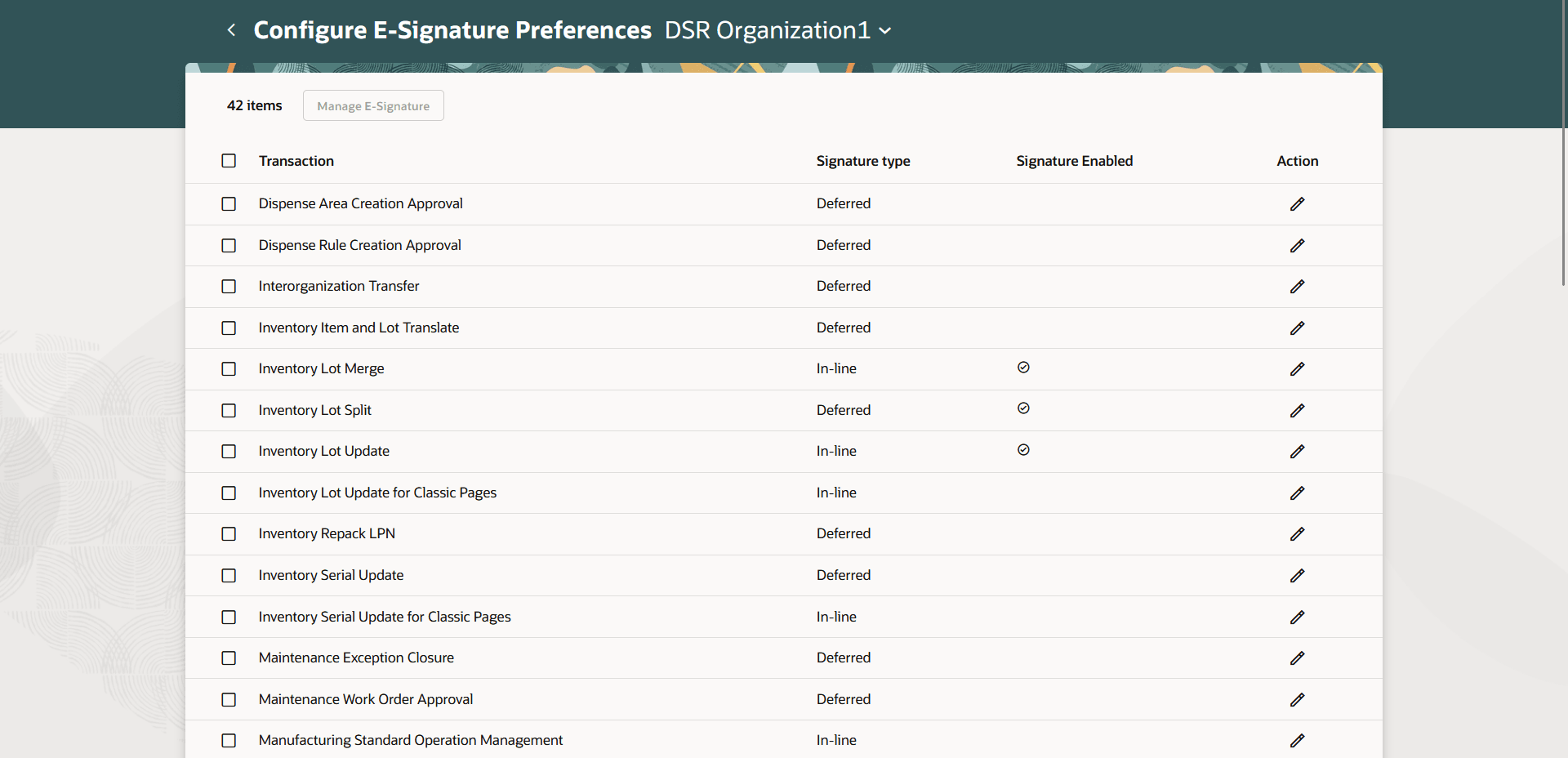
Configure e-signature preferences
Redwood page for e-signature notifications
The notification content for ADF Inventory flows is Redwood based when the relevant profile option is enabled. However, notifications initiated from Inventory Redwood pages will always display Redwood-based content regardless of the profile option setting.
Follow these steps to enable or disable the Redwood page for e-signature notifications:
- In the Setup and Maintenance work area, search for and select the Manage Administrator Profile Values task.
- On the Manage Administrator Profile Options page, search for and select the ORA_EDR_ENABLE_REDWOOD_NOTIFICATION profile option code.
- In the Profile Values section, set the Site Level to Yes or No. The default value of the profile option is No.
- Yes = enables the feature
- No = disables the feature
- Click Save and Close. Changes in the profile value will affect users the next time they sign in.
Redwood page for e-records
Follow these steps to enable or disable the Redwood page for e-record notifications:
- In the Setup and Maintenance work area, search for and select the Manage Administrator Profile Values task.
- On the Manage Administrator Profile Options page, search for and select the ORA_EDR_ELECTRONIC_RECORDS_REDWOOD_ENABLED profile option code.
- In the Profile Values section, set the Site Level to Y or N. The default value of the profile option is N.
- Y = enables the feature
- N = disables the feature
- Click Save and Close. Changes in the profile value will affect users the next time they sign in.
Approval setup for Redwood UI transactions: BPM Approval Configuration
Navigate to: Setup and Maintenance > Manage Task Configurations for Supply Chain Management
Configure approvals for the following tasks:
- InvManagementERESApprovalTask: Define the required approval rules for this task. This task is used for transactions initiated through Redwood pages.
- Mtlmanagementeresinlinetask is applicable only for transactions created from ADF pages.
For Redwood UI transactions, approvals should be configured using InvManagementERESApprovalTask.
Tips and considerations
- For transactions initiated from Redwood pages, approval rules must be configured using InvManagementERESApprovalTask.
- Descriptive flexfields (DFFs) are available in the data model but aren’t seeded in the delivered RTF template. To display DFF values in approval notifications or report output, modify the RTF template and add the required DFF attributes.
- Switching between In-line and Deferred modes is supported only on the Desktop pages. Mobile interfaces always operate in Deferred mode.
Key resources
- Oracle Fusion Cloud SCM: Redwood: Use Redwood Template for ERES Approval Notifications and Approve Using Deferred Mode, available on the Oracle Fusion Cloud Inventory Management 25C What's New.
- Oracle Fusion Cloud SCM: Reauthenticate E-Signature Users Using Oracle Access Manager, available on the Oracle Help Center.
- Oracle Fusion Cloud SCM: Overview of Oracle Electronic Signatures and Electronic Records, available on the Oracle Help Center.
- Oracle Fusion Cloud SCM: Sign for Inventory E-Records Using Single Sign-on Through an External Authentication System, available on the Oracle Help Center.
- Oracle Fusion Cloud SCM: Using Inventory Management guide, available on the Oracle Help Center.
- Oracle Fusion Cloud SCM: Implementing Manufacturing and Supply Chain Materials Management guide, available on the Oracle Help Center.
Access requirements
Users who are assigned a configured job role that contains these privileges can access this feature:
Inline e-signature approval mode:
| Privilege status | Privilege name and code |
|---|---|
| Existing | Add Electronic Signatures EDR_ADD_ESIGNATURES_TRANSACTIONS_PRIV |
Deferred e-signature approval mode:
| Privilege status | Privilege name and code |
|---|---|
| Existing |
Add Electronic Signature with Deferred Approval Using Redwood Inventory INV_ADD_ELECTRONIC_SIGNATURE_DEFERRED_PWA_PRIV |
Privileges to access ERES template:
For viewing Receipt, Put Away, Receiving Transaction Correction, Receiving Inspection, and Return to Supplier templates:
| Privilege status | Privilege name and code |
|---|---|
| Existing |
Print Receiving Receipt Traveler Report RCV_PRINT_RECEIVING_RECEIPT_TRAVELER_REPORT_PRIV |
For printing the Receiving Receipt Traveler report:
| Privilege status | Privilege name and code |
|---|---|
| Existing |
Print Receiving Receipt Traveler Report RCV_PRINT_RECEIVING_RECEIPT_TRAVELER_REPORT_PRIV |
For viewing Miscellaneous Transactions, Lot Updates, Serial Number Updates, Interorganization Transfer, Project Transfer, Movement Requests, Inventory Lot Split, Inventory Lot Merge, Inventory Item and Lot Translate and Inventory Repack LPN:
| Privilege status | Privilege name and code |
|---|---|
| Existing |
Print Material Status Where Used Report INV_PRINT_MATERIAL_STATUS_WHERE_USED_REPORT_PRIV |
For viewing Ship Confirm:
| Privilege status | Privilege name and code |
|---|---|
| Existing |
Print Shipping Reports WSH_PRINT_SHIPPING_REPORTS_PRIV |
OBI application roles to access ERES template:
Users who are assigned a configured job role that contains the OBI application roles can access this feature.