Receive goods using a mobile device using an optimized flow
Mobile receiving helps your organization to manage high-volume receiving more efficiently and accurately when receiving partial shipments, shipments containing items from multiple orders, or shipments that require immediate exceptions, such as receipt routing changes. Repetitive receiving workflows can introduce delays, increase rework, and raise the risk of receiving incorrect items or quantities when users need to exclude multiple receipt lines, begin receiving from a specific supply order, or resolve routing exceptions. Limited visibility into recently processed receipt lines can also require users to recheck lines individually.
With the optimized mobile Receive Goods flow, you can make the Order Number field optional, quickly exclude receipt lines, initiate receiving by scanning items regardless of order, override receipt routing when authorized, and clearly identify updated receipt lines.
You can use the Item field to search for order lines to receive. The Order Number field is now optional.
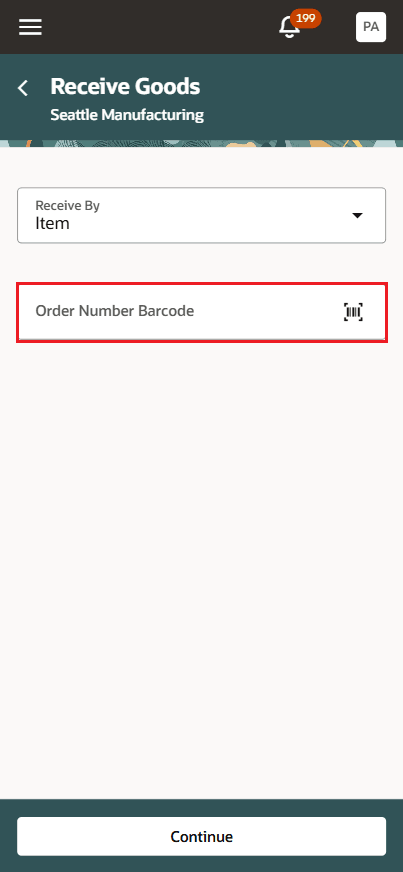
Receive Goods - Optional order number field
A new Remove from List action lets you exclude receipt lines. Select Remove from List, select the lines you want to remove, and then select Remove from List again to confirm. A confirmation message appears when the selected lines are removed from the receipt.
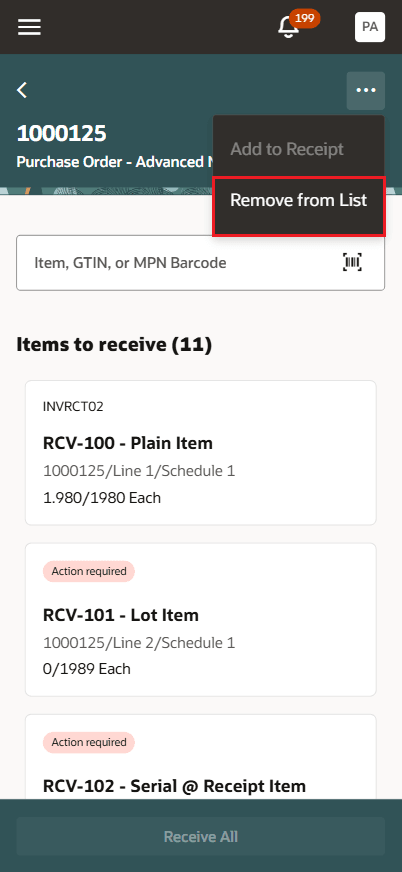
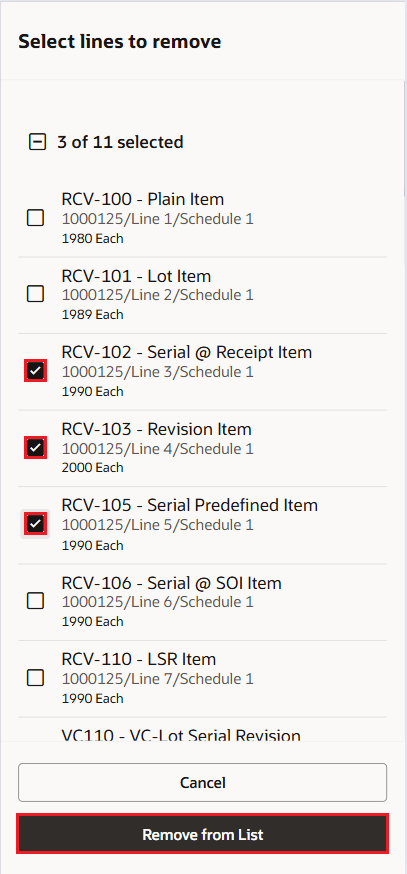
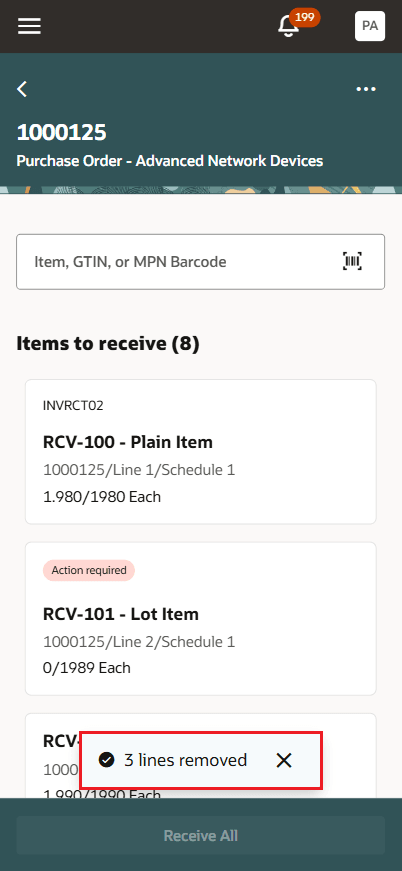
Items to receive - Remove from List
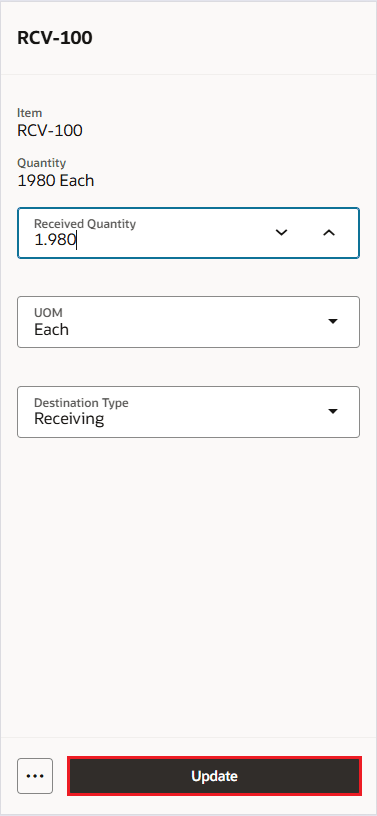
While entering receipt line details, you can override receipt routing by changing the destination type. In the receipt line details drawer, select the Destination Type, and then select a different value. This overrides the receipt routing for that line.
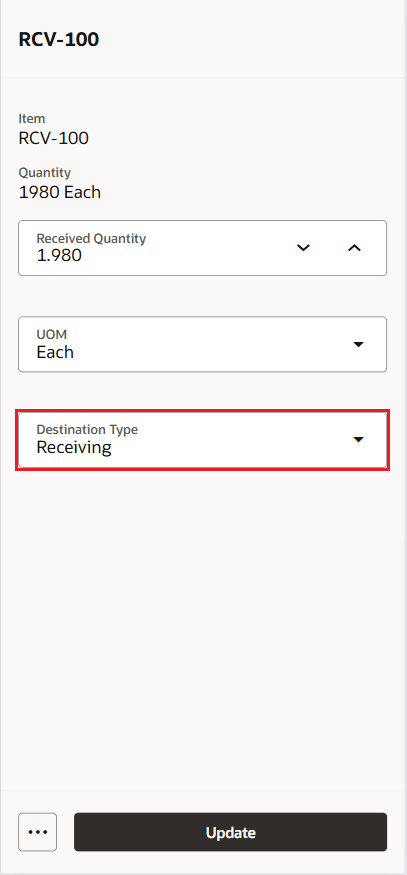
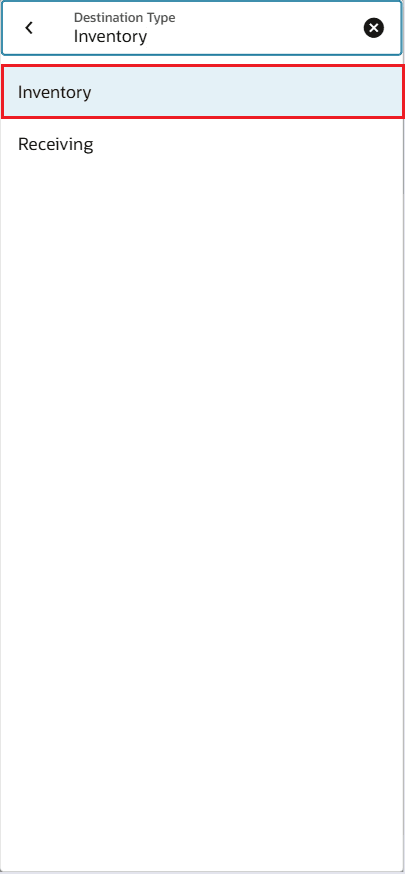
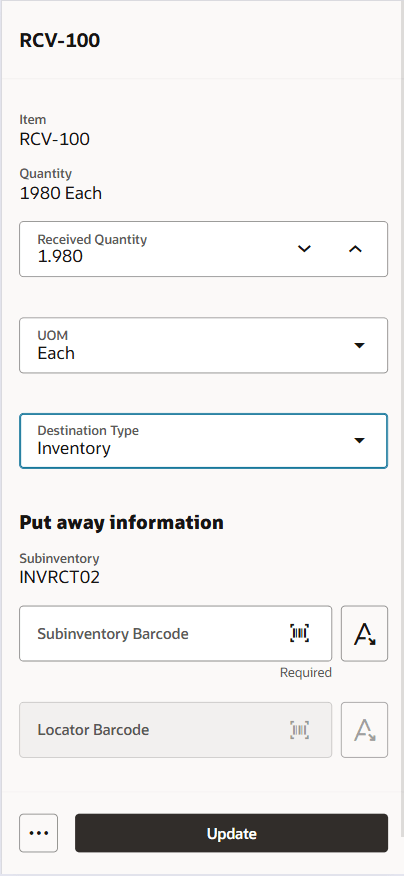
Receipt Line Details - Override receipt routing
An Updated badge on the receipt line card identifies the lines updated during receiving.
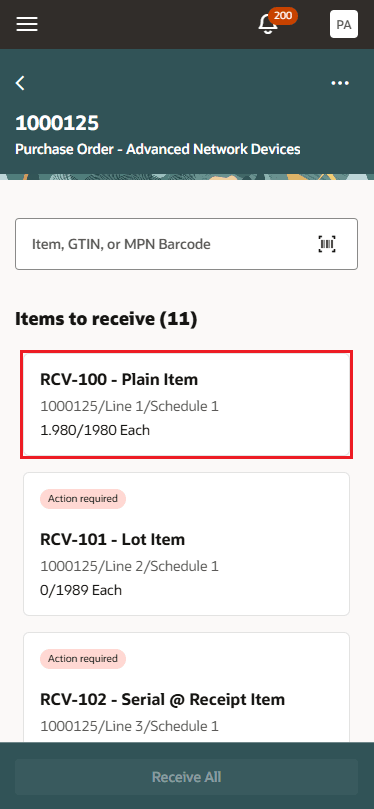
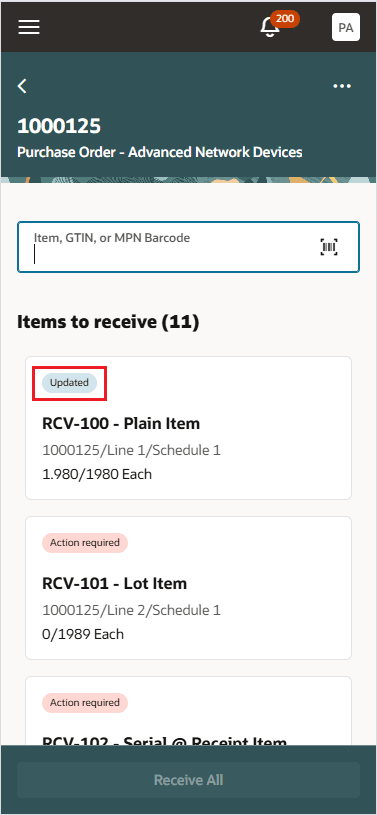
Updated Badge
These capabilities streamline receiving operations, reduce processing time and errors, improve inventory accuracy, support compliance requirements, and enable warehouse teams to keep pace with demanding operational workloads.
Steps to enable and configure
Leverage the Visual Builder Studio to expose your applications. To learn more about extending your application using Visual Builder, visit Oracle Help Center > your apps service area of interest > Books > Configuration and Extension.
Use the following business rules in Visual Builder Studio Express mode:
- To make the Order Number field optional in the Receive Goods flow, in the Receive Goods Mobile - Select Order section, set the Order Number field to Optional.
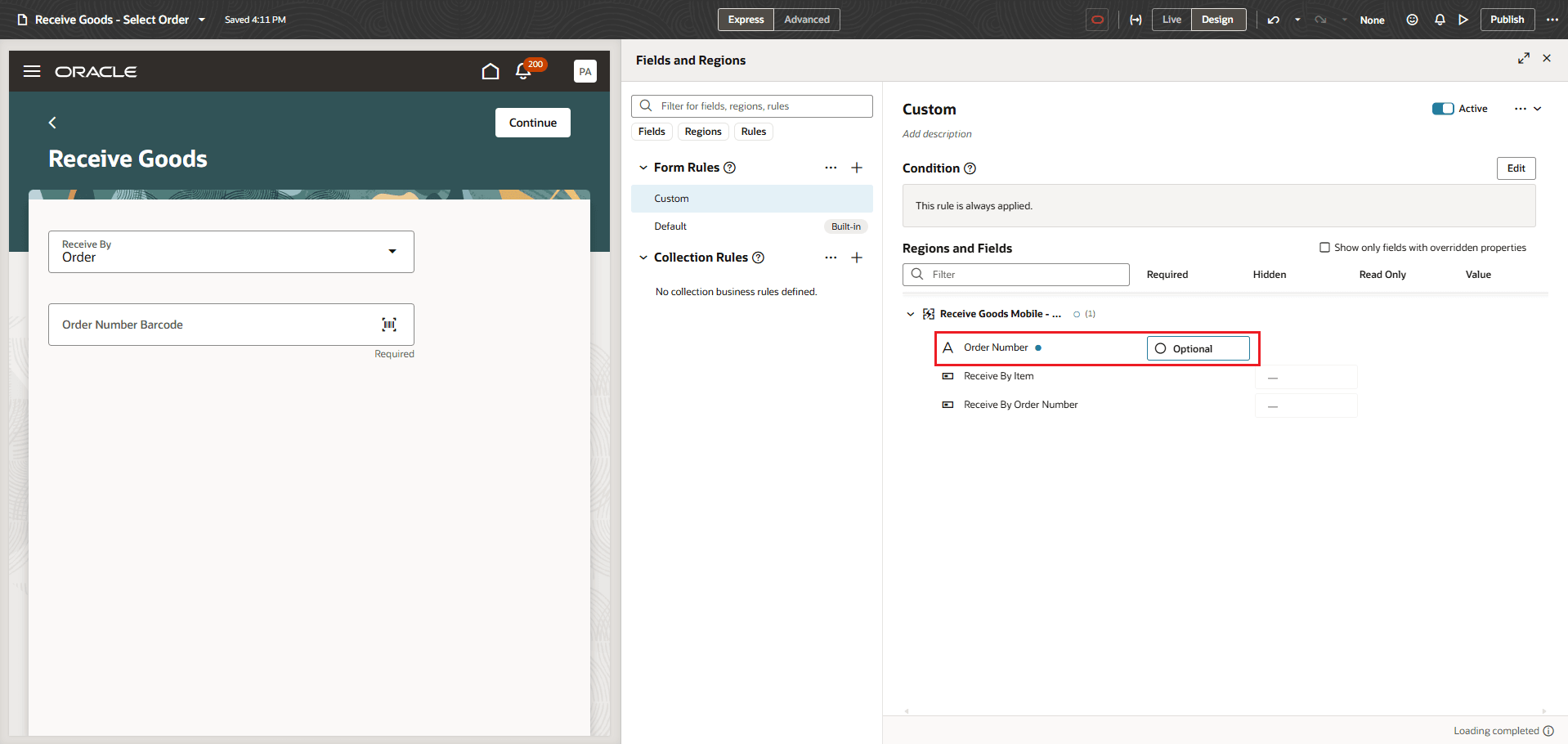
Receive Goods - Order Number field
- To make the Destination Type field visible in the Receive Goods flow, in the Item Additional Attributes in Drawer section, set the Destination Type field to Visible.
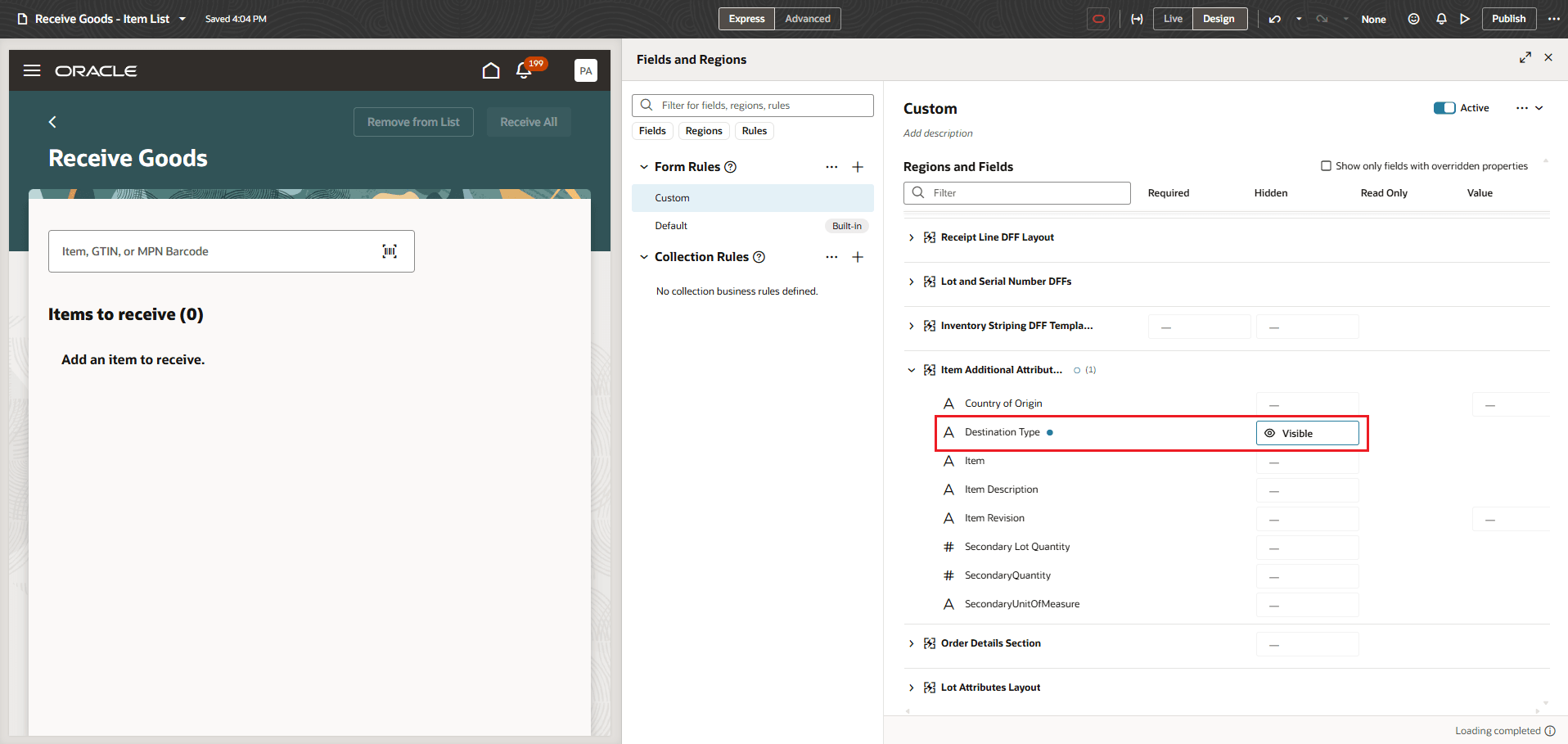
Receive Goods - Destination Type field
Tips and considerations
-
To view the Destination Type field in the mobile Receive Goods flow, make the field visible in Visual Builder Studio and enable the Allow Routing Override option in the Receiving parameters for the receiving organization.
Key resources
For more information, refer to these resources on the Oracle Help Center.
- Extending HCM and SCM Redwood Applications Using Visual Builder Studio guide.
- Oracle Fusion Cloud SCM: Using Receiving guide, available on the Oracle Help Center.
- Oracle Fusion Cloud SCM: Implementing Manufacturing and Supply Chain Materials Management, available on the Oracle Help Center.
Access requirements
To receive goods using a mobile device, assign users a configured job role that includes this duty role:
| Duty role status | Duty role name and code |
|---|---|
| Existing | Receive Goods Using Responsive Receiving Duty (ORA_RCV_RECEIVE_GOODS_PWA_DUTY) |