Use saved searches in the Redwood Self-Service Receiving application
When you receive orders using the Redwood Self-Service Receiving application, you need an efficient way to search your orders without repeating the same search criteria. As the receiving responsibilities in your organization differs, for example, as a normal receiver, you might want to exclude two-way match purchase because receipts aren’t required whereas the advanced receivers in your organization may need to focus on those orders where they are the requesters and want to search other requesters by exception.
Without having the ability to save and reuse preferred search criteria, you redefine filters manually that increases the transaction time and reduces the efficiency to retrieve correct orders.
Now, you can save and reuse preferred search criteria in the Redwood Self-Service Receiving application so that your search parameters are applied automatically.
To save and reuse preferred search criteria:
- Select the Saved Views icon in the top right corner of the Orders to Receive page to create a saved view.
- Enter the attributes in the search field that you commonly search. For example, Item or supplier.
- After you define the search criteria, select the Saved Views icon and provide a name. For example, Item_RCV-100.
- After you have entered the name, select the Save button to add it to the saved views.
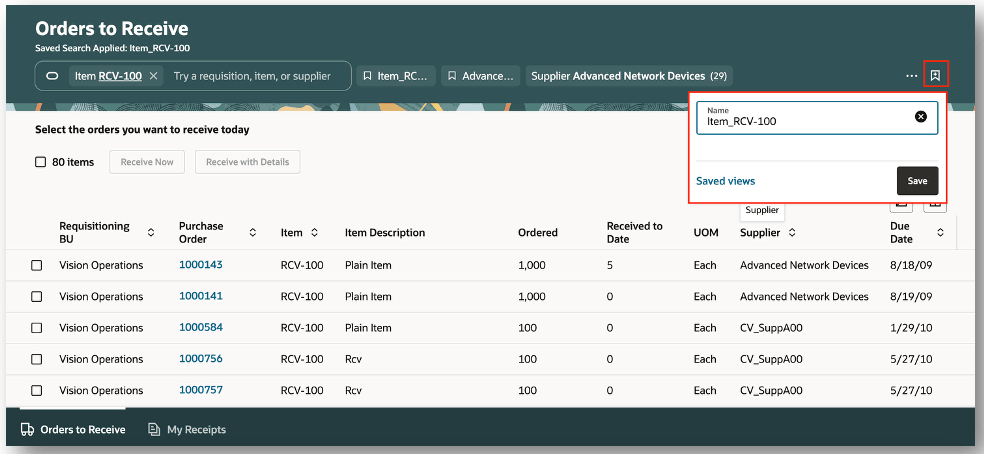
Saved views
After the view is saved, you can set it as the default view. When you open the Orders to Receive page, the default view is automatically applied.
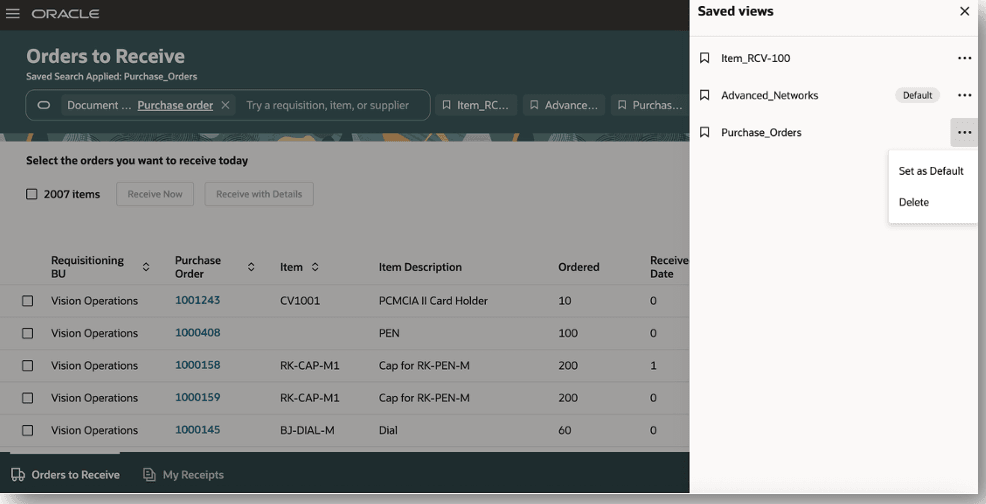
Set as default
The saved view name appears under the page title. You can select the other saved searches from the Saved view panel drawer.
The saved search functionality is available in both the Orders to Receive and My Receipts pages. You can enable the saved searches on both the pages individually.
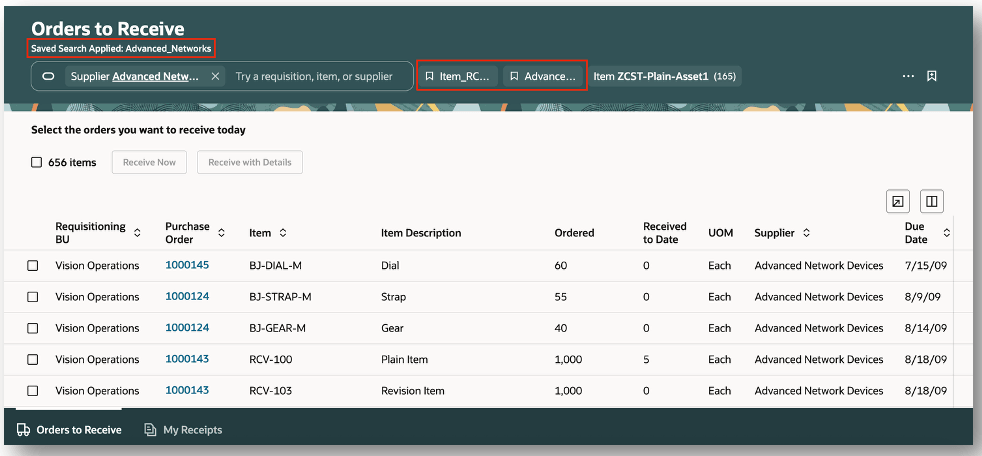
Saved search applied
Using saved searches reduces repetitive effort, improves productivity, and helps ensure you can quickly access the most relevant orders for your day-to-day receiving activities.
Steps to enable and configure
Leverage the Visual Builder Studio to expose your applications. To learn more about extending your application using Visual Builder, visit Oracle Help Center > your apps service area of interest > Books > Configuration and Extension.
Leverage the Visual Builder Studio to expose your applications. To learn more about extending your application using Visual Builder, visit Oracle Help Center > your apps service area of interest > Books > Configuration and Extension.
In VB Studio, under the page properties section, set the Enable Saved Search to true to enable the saved search functionality.
You can enable saved search on the Orders to Receive page.
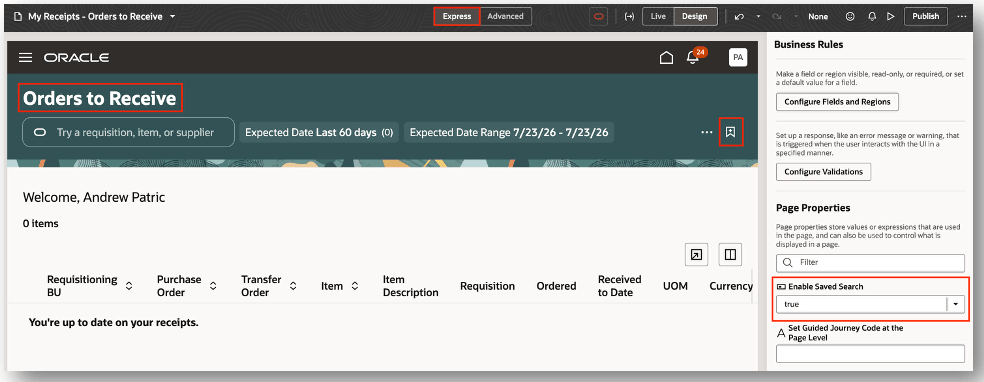
Enable saved. search on Orders to Receive page
You can enable saved search on the My Receipts page.
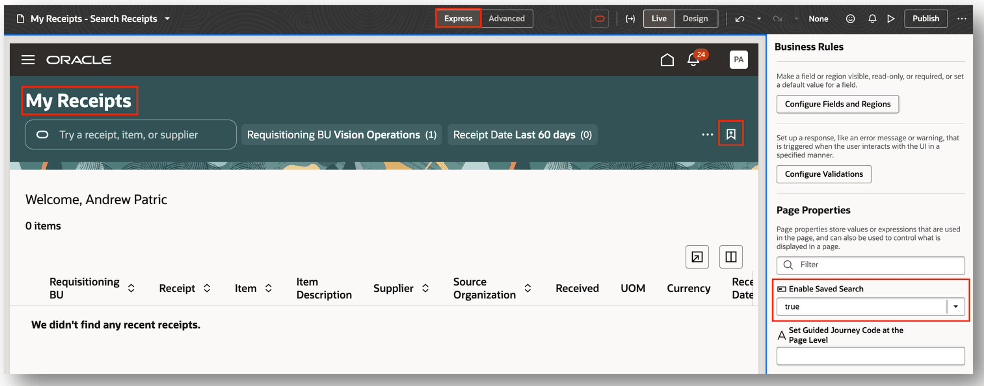
Enable saved search on My Receipts page
Tips and considerations
You can enable saved search on both the Orders to Receive and My Receipts pages together or you can enable saved search on both the pages separately.