Pack a single receiving line into multiple LPNs simultaneously
In many warehouse operations, an inbound shipment of a single item may come in large quantities that you subsequently distribute across multiple pallets, cartons, or containers. For example, a supplier has delivered a bulk shipment that first needs to be split into multiple portions and then stored across several locations where each portion is to be tracked under its own License Plate Number (LPN).
In these scenarios, warehouse teams must quickly and accurately divide the received quantity into manageable units that reflects an efficient inventory storage and management.
Now, you can split a single receipt line into multiple packed quantities and pack each quantity into a separate LPN in a single receiving flow. This capability is available on the Receive Goods, Inspect Goods, and Put Away Goods Redwood pages in the Inventory Execution work area.
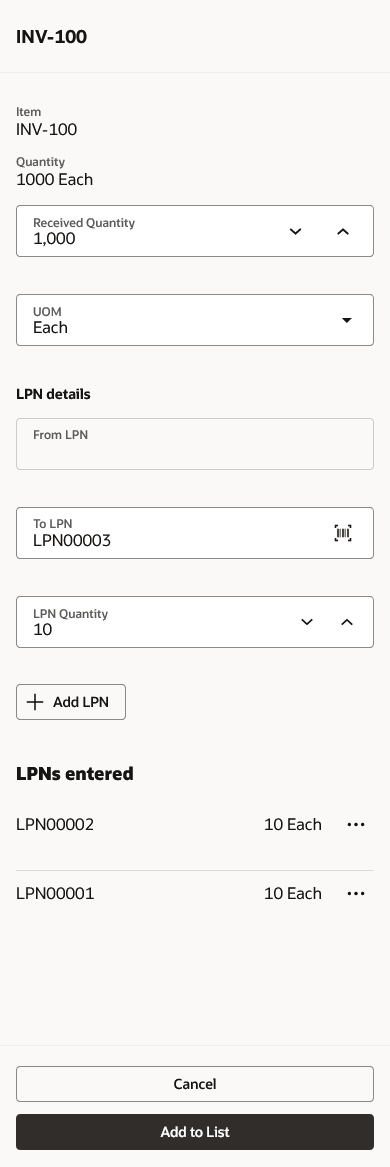
Packing a line into multiple LPNs in the Receive Goods page
This feature improves operational efficiency, reduces manual effort, and ensures that inventory is accurately represented from the moment it enters the warehouse.
Here's the demo of these capabilities:
Steps to enable and configure
Leverage the Visual Builder Studio to expose your applications. To learn more about extending your application using Visual Builder, visit Oracle Help Center > your apps service area of interest > Books > Configuration and Extension.
- In Visual Builder Studio Express mode, open Page Properties for Receive Goods - Item List, Inspect Goods - Items to Inspect, and Put Away Goods - Item List pages.
- Set the Enable Packing a Line into Multiple LPNs business rule to true.
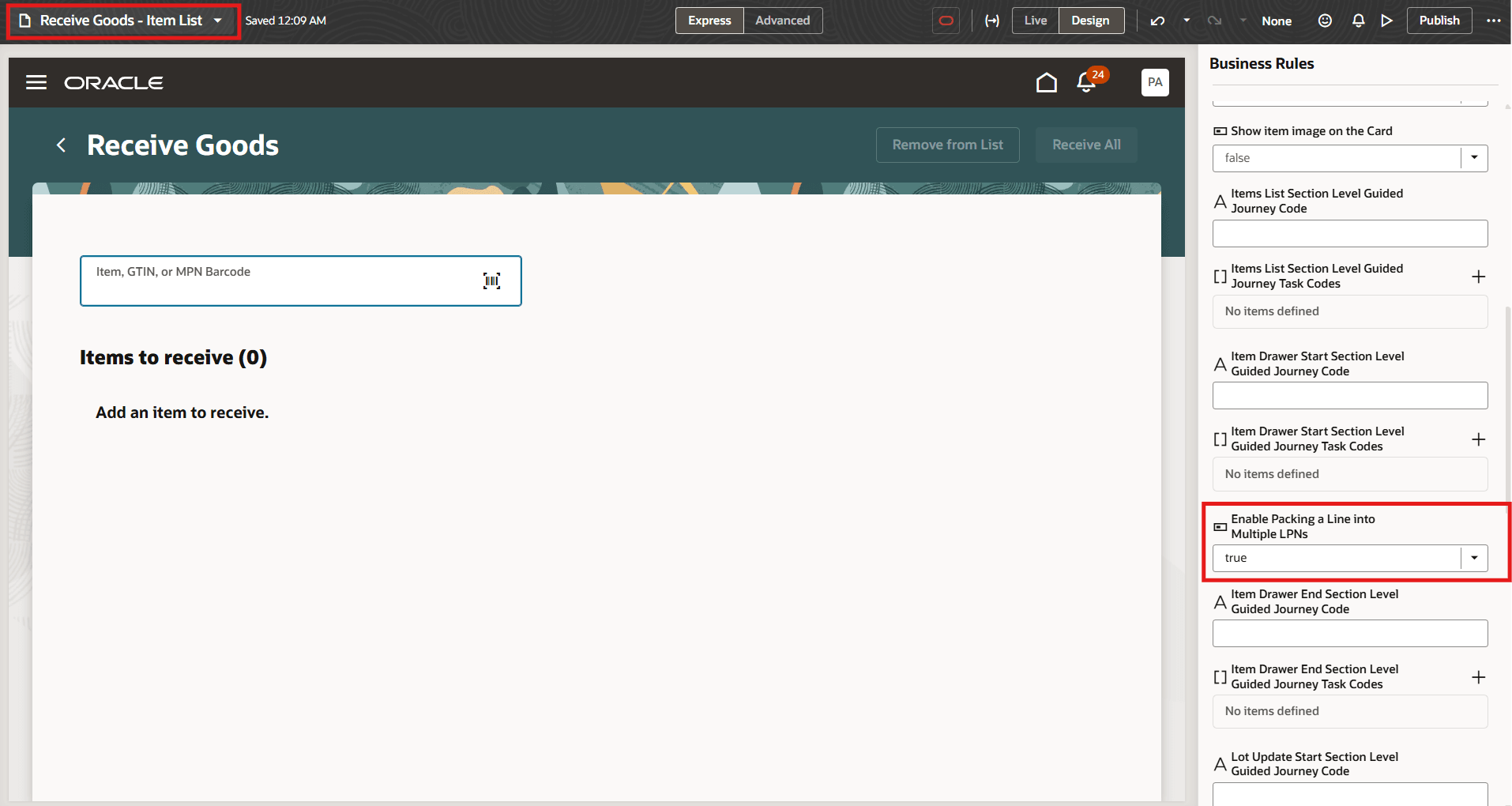
Page property for enabling packing a line into multiple LPNs in the Receive Goods page
Tips and considerations
This feature also simplifies capturing lot and serial information. For items that are both lot- and serial-controlled, enter the lot information, select Add Lot, and then enter the serial information.
Key resources
- Oracle Fusion Cloud SCM: Implementing Manufacturing and Supply Chain Materials Management
- Oracle Fusion Cloud SCM: Using Inventory Management
- For information about using Oracle Visual Builder Studio to extend your Redwood application pages, see
Access requirements
Users who are assigned a job role that includes these duty roles can access this feature:
| Duty role status | Duty role name and code |
|---|---|
| Existing |
Receive Goods Using Responsive Receiving (ORA_RCV_RECEIVE_GOODS_PWA_DUTY) |
| Existing |
Inspect Goods Using the Responsive Receiving Application (ORA_RCV_INSPECT_GOODS_PWA_DUTY) |
| Existing |
Put Away Goods Using Responsive Receiving (ORA_RCV_PUT_AWAY_GOODS_PWA_DUTY) |