Review costing transactions and distributions with enhanced search and filters
The Costing Transactions and Distributions page was introduced in update 25B with focused search by options for commonly performed transaction enquiries.
With this update, the page is enhanced with a classic search option to support enquiries that require a broader combination of transaction attributes. The page also provides a default search context, displays applicable filters upfront, and retains common filter values when you change the search context.
Select Classic Search from the search by menu to search for transactions using a broad combination of costing, accounting, item, organization, and transaction attributes. Use classic search when the required criteria aren't available together in a focused search by option.
When using classic search, specify a transaction date range of 90 days or less and at least one additional search criterion.
The primary filters include cost organization, cost book, primary book, item, and transaction type. You can refine the search using more filters, which includes attributes such as transaction number, reference number, costing status, accounting status, inventory organization, subinventory, cost profile, project number, costed date, item description, fiscal document information, and resource.
These filters support enquiries such as:
- Locate a specific transaction using its transaction number or reference number.
- Review transactions for an item across cost or inventory organizations.
- Analyze transactions using project, cost profile, subinventory, and other transaction attributes.
- Review transactions using criteria that aren't available together in a focused search by option.
The results are organized by transaction category under the Cost Transactions, Cost Adjustments, COGS Transactions, and Work Order Transactions tabs.
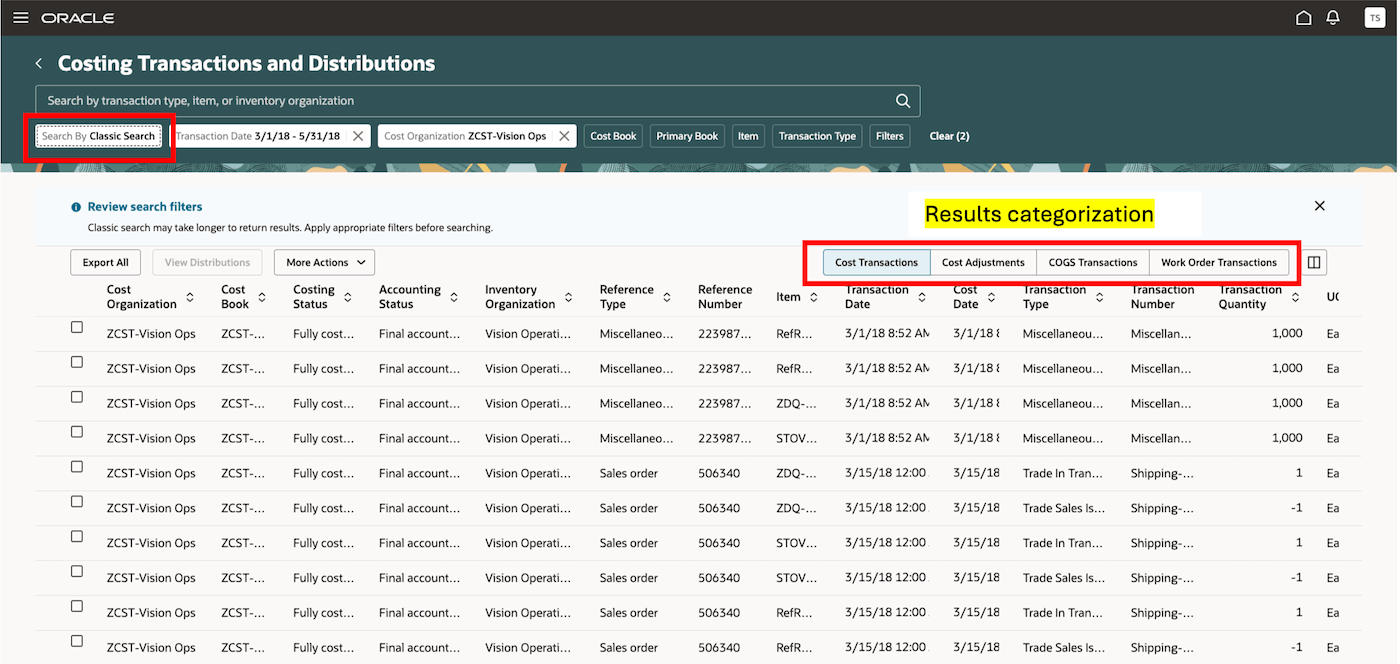
Classic search option on the Costing Transactions and Distributions page
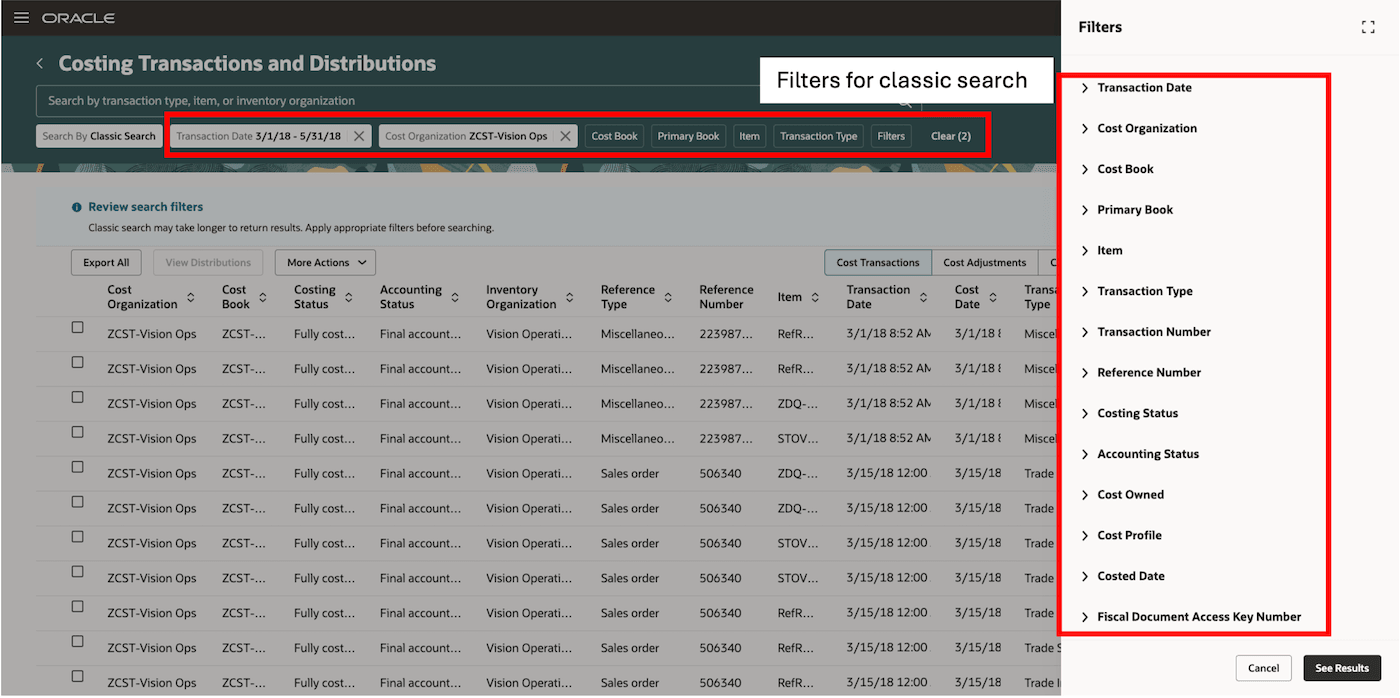
Filters for classic search option on the Costing Transactions and Distributions page
Default search context
When you navigate directly to the Costing Transactions and Distributions page, the default cost organization can be applied using the Define Default Cost Organization profile option. You can configure this profile option at the User or Site level. Based on the selected cost organization and navigation context, the page also sets the default primary cost book, the first open period after the last closed period, and the corresponding transaction dates.
To configure the default cost organization follow the below steps:
- In the Setup and Maintenance work area, search for and select the Manage Administrator Profile Values task.
- On the Manage Administrator Profile Values page, search for and select the ORA_CST_DEFAULT_COST_ORG profile option code.
- Configure the cost organization at one or both of the following levels:
- User: Specifies the default cost organization for an individual user.
- Site: Specifies the default cost organization for users who don't have a valid user-level value.
- Click Save and Close.
When both values are configured, the valid user-level value takes precedence over the site-level value.
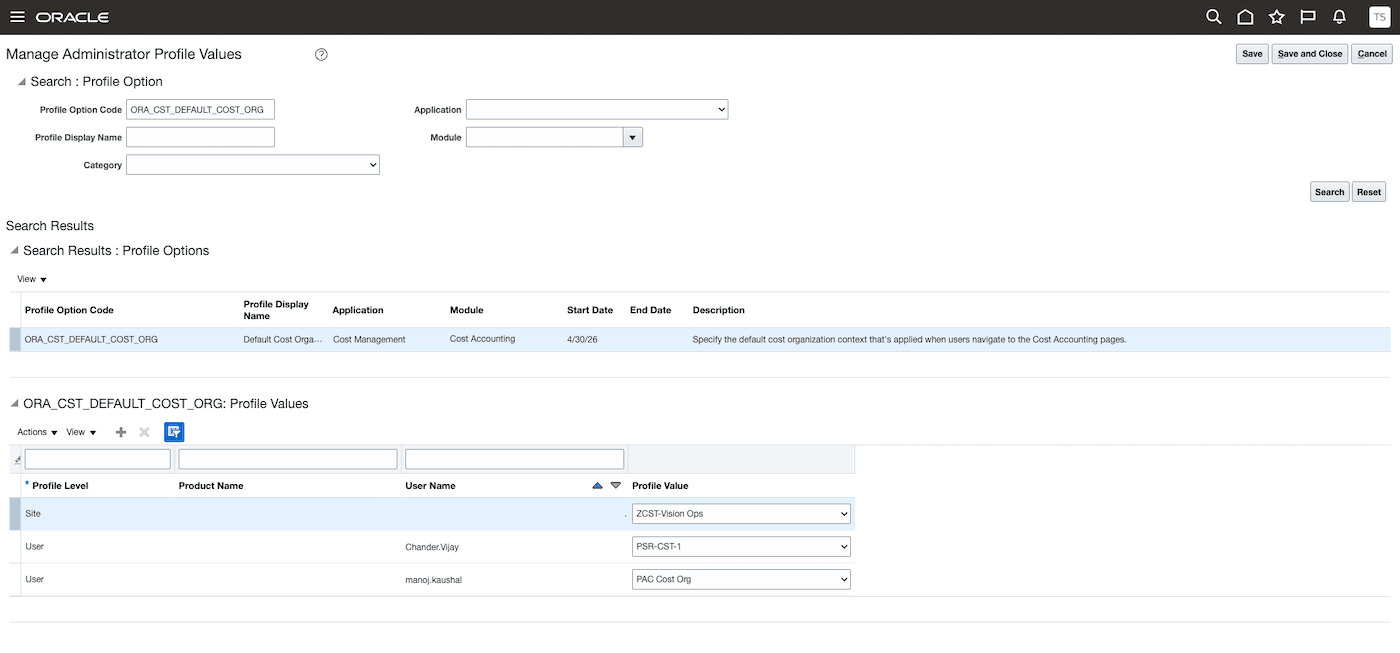
Profile option to set the default cost organization
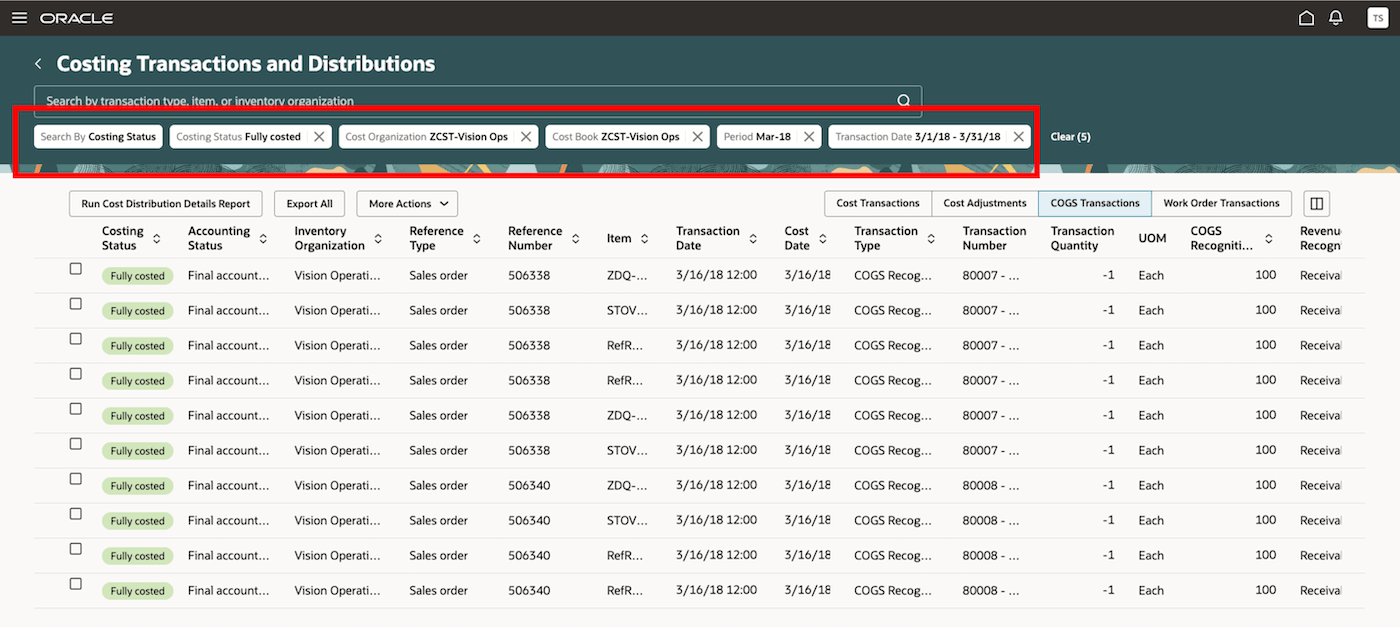
Default search criteria on the Costing Transactions and Distributions page
Improved usability when selecting filters and changing the search context
When you select a focused search by option, all filters supported for that option are displayed upfront. You no longer need to select one filter before additional or dependent filters become visible.
This enables you to review the complete set of available criteria, enter the required values, and refine the search before retrieving the results.
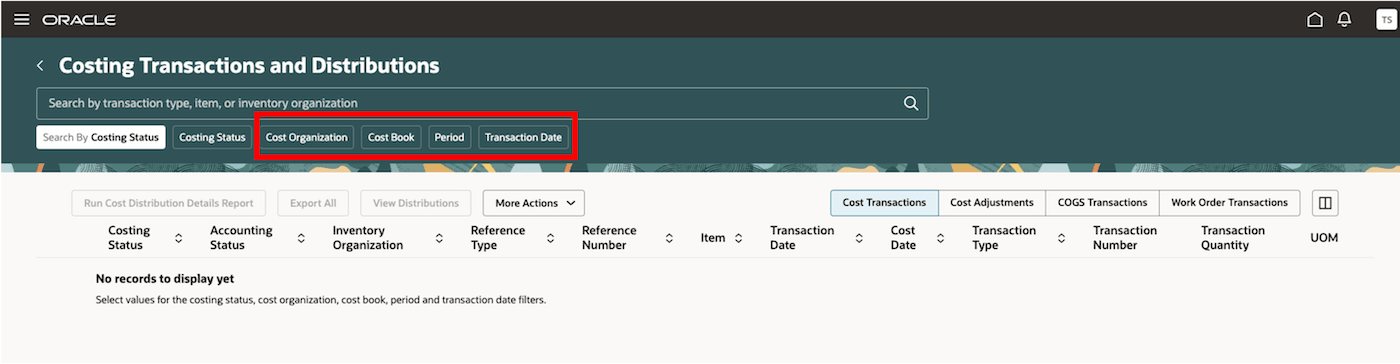
Filters displayed for the selected search by option
When you change from one focused search by option to another, the page retains the values entered for cost organization, cost book, period, and transaction date, where applicable. For example, after selecting a cost organization, cost book, and period, you can change the search by option without entering those values again. You need to provide only the additional criteria required for the new search context.
These usability improvements reduce repetitive data entry and make it easier to perform related searches using different search by options.
Steps to enable and configure
You don't need to do anything to enable this feature.
Tips and considerations
Choosing between classic search and focused search
- Classic search is useful when investigating transaction exceptions, reconciling transactions, or performing detailed analysis using transaction, costing, accounting, item, organization, project, or cost profile information.
- Focused search is recommended for targeted and frequently performed enquiries because it presents criteria specifically relevant to the selected search context.
Classic search criteria and performance
- The transaction date filter is required and must be 90 days or less when using classic search.
- Provide additional selective criteria whenever possible to reduce the volume of returned data and improve search performance.
- Classic search may take longer to return results because it supports a broader combination of transaction attributes.
Default search context and filter behavior
- Configure the Define Default Cost Organization profile option to reduce the need to select a cost organization each time you navigate directly to the page.
- When the page is opened from another cost accounting context, applicable values passed from that context are used to initialize the search.
- When you change between focused search by options, common values are retained only where they're applicable to the newly selected context.
Key resources
- Oracle Fusion Cloud SCM: Implementing Manufacturing and Supply Chain Materials Management guide, available on the Oracle Help Center.
- Oracle Fusion Cloud SCM: Using Supply Chain Cost Management guide, available on the Oracle Help Center.
Access requirements
If you are using custom job roles, then you need to validate that you have the previously delivered privileges listed.
| Privilege status | Privilege name and code |
|---|---|
| Existing |
Review Cost Distribution CST_REVIEW_COST_DISTRIBUTIONS |
| Existing |
Review Cost Distribution by Web Service CST_REVIEW_COST_DISTRIBUTIONS_WEB_SERVICE |