Exclude nonquantity tracked subinventory locations from inventory valuation
Healthcare organizations typically use periodic automatic replenishment (PAR) locations to keep supplies available at the point of care. These locations are commonly configured as nonasset and nonquantity-tracked because the supplies are consumed as expenses rather than held as inventory. Prior to this update, Cost Management didn't distinguish between quantity-tracked and nonquantity-tracked expense subinventories in the expense valuation unit. This could accumulate expense-layer balances and, when standard costs changed, unintentionally revalue expenses and require manual accounting adjustments.
With this feature, Cost Management distinguishes eligible nonquantity-tracked PAR subinventories from quantity-tracked expense subinventories. It processes their transactions in a separate valuation unit of the expense cost profile, recognizes receipts into these locations as expenses without tracking inventory value, and excludes them from revaluation when costs change.
The enhancement applies when Quantity Tracked isn't selected and asset subinventory isn't enabled for a PAR subinventory. Cost Management derives the expense cost profile for transactions in the subinventory and uses the new QUANTITY_TRACKED valuation segment to direct eligible transactions to the nonquantity-tracked valuation unit. For cost methods other than standard cost, receipt transactions created with use item cost in the nonquantity-tracked valuation unit are costed at zero cost. For the standard cost method, receipts continue to use the existing standard cost. If a transaction, such as a purchase order receipt or miscellaneous receipt, carries its own cost, Cost Management books the difference between that cost and the standard cost as a variance. For upgrades using the standard cost method, Cost Management adjusts the on-hand amount associated with non-quantity-tracked subinventories in the expense valuation unit so that Inventory Valuation reports show the actual expense value for quantity-tracked subinventories. The postupgrade correction is controlled through the CST_UPG_NQTY_ONHAND_CALC profile option.
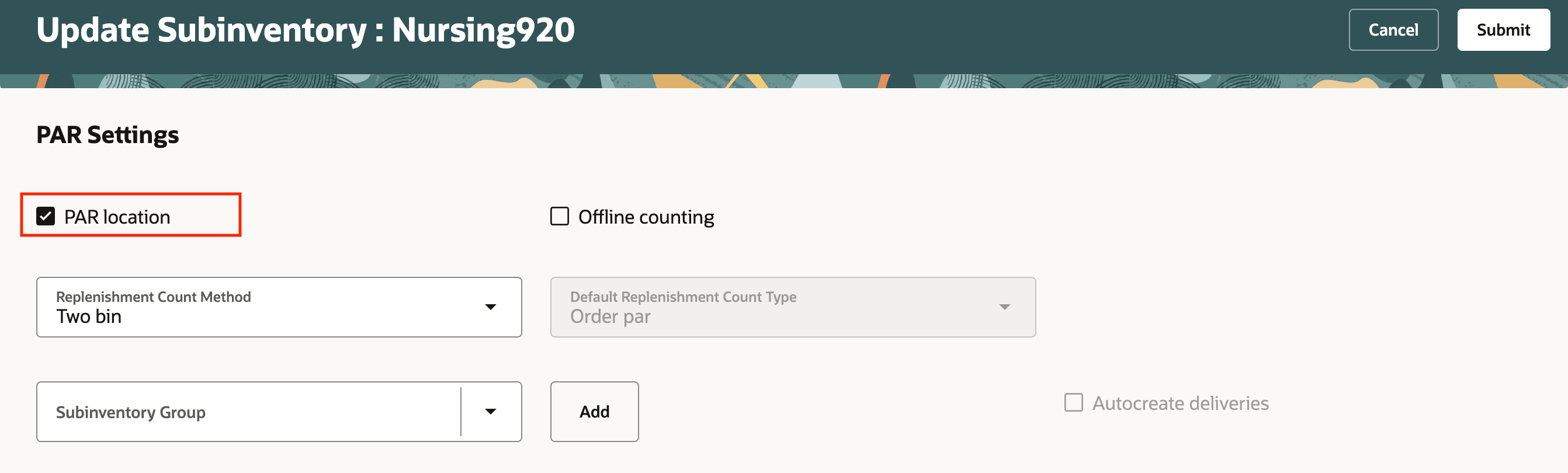
PAR subinventory setup
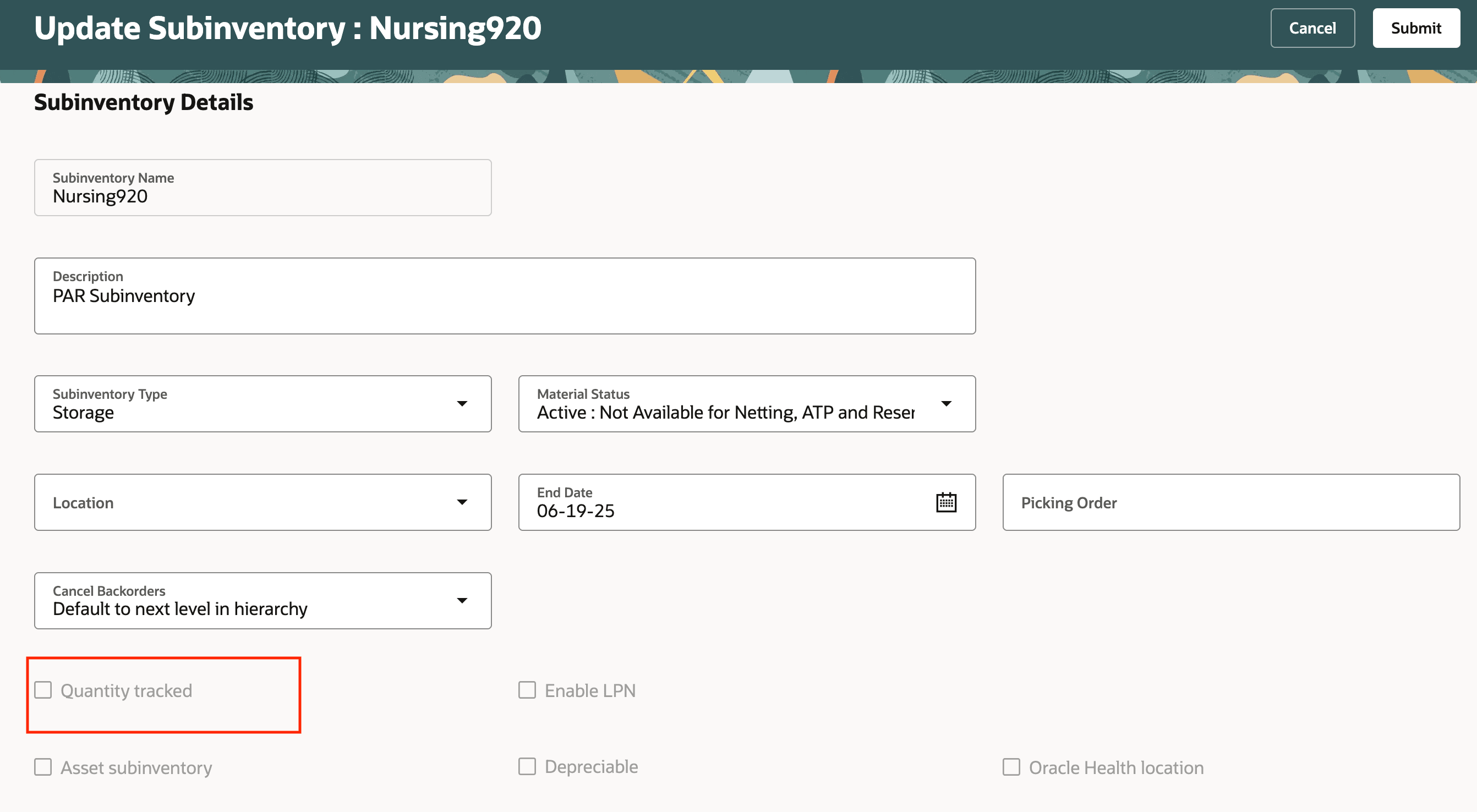
Quantity tracked segment configuration
Some of the benefits this feature provides include:
- Recognize receipts into eligible PAR locations as expenses without tracking inventory value in those locations.
- Exclude eligible PAR-location receipts from revaluation when costs change.
- Help avoid expense-layer balance accumulation and manual adjustments used to offset unintended revaluation entries.
Steps to enable and configure
Use the Opt In UI to enable this feature. For instructions, refer to the Optional Uptake of New Features section of this document.
Offering: Manufacturing and Supply Chain Materials Management
1. Opt in to the feature using option code ORA_CST_NONQTY_TRACKED_SUB_COSTING.
2. Navigate to Manage Costing Key Flexfields and select the VALU key flexfield code.
3. Open Manage Structures and search for the valuation structure to update or create a valuation structure that includes the required costing segments and the QUANTITY_TRACKED segment.
4. For an existing valuation structure, edit the structure. Always add QUANTITY_TRACKED as as the last segment and configure it as follows:
| Field | Value |
|---|---|
| Segment Code | QUANTITY_TRACKED |
| API Name | quantityTracked |
| Name | QUANTITY_TRACKED |
| Prompt | QUANTITY_TRACKED |
| Short Prompt | QUANTITY_TRACKED |
| Enabled | Yes |
| Display Width | 25 |
| Column Name | QUANTITY_TRACKED |
| Default Value Set Code | ORA_CST_QTY_TRACKED |
| Sequence Number | Next available or highest sequence number in the structure |
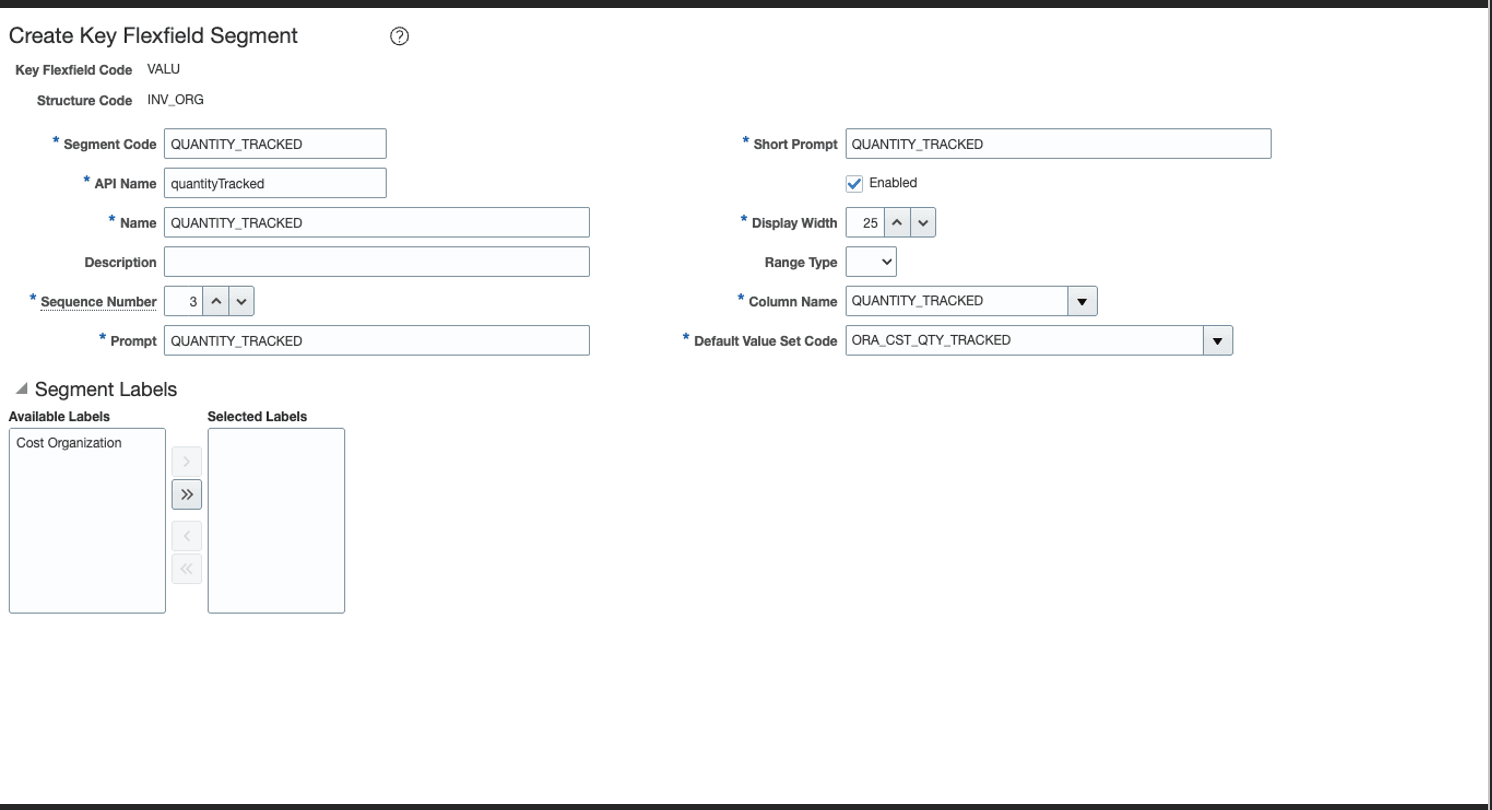
Example configuration for the QUANTITY_TRACKED segment.
5. Save the segment and valuation structure, then deploy the flexfield. Position the QUANTITY_TRACKED segment after the other costing segments in the valuation structure.
6. After upgrade for standard cost methods, navigate to Setup and Maintenance work area, search for the Manage Profile Options task, and verify that profile option CST_UPG_NQTY_ONHAND_CALC is available at the site or user level. On Manage Administrator Profile Values, set its site or user value to Yes and save and close. The change takes effect the next time that you sign in.
Tips and considerations
- This feature applies only when the PAR subinventory isn't quantity tracked and asset subinventory isn't enabled. PAR subinventories configured as quantity tracked continue to use existing logic.
- When asset subinventory isn't enabled, Cost Management derives the expense cost profile while processing transactions in the subinventory.
- For standard cost method only, use the profile option CST_UPG_NQTY_ONHAND_CALC with Yes for postupgrade correction on the inventory valuation page, the default value is No.
- Enabling the quantity tracked option for existing subinventories on the subinventory page won't be allowed after you opt in to this feature.
Key resources
- Oracle Fusion Cloud SCM: Using Supply Chain Cost Management guide, available on the Oracle Help Center.
- Oracle Fusion Cloud SCM: Implementing Manufacturing and Supply Chain Materials Management Guide, available on the Oracle Help Center.
- Oracle Fusion Cloud SCM: Security Reference for Manufacturing and Supply Chain Materials Management guide, available on the Oracle Help Center.
Access requirements
Users need the appropriate configured job roles and access to the related setup and maintenance, costing key flexfield, and profile option pages to enable and configure this feature.
|
Privilege status |
Privilege name and code |
|
Existing |
Manage Application Key Flexfield FND_APP_MANAGE_KEY_FLEXFIELD Manage Valuation Unit CST_MANAGE_VALUATION_UNIT Create Cost Distributions CST_CREATE_COST_DISTRIBUTIONS |