Configure additional fields for asset details
Extend Redwood asset pages with business-specific fields using Oracle Applications Composer and Visual Builder Studio. You can now configured create fields for the Installed Base Asset business object in Oracle Applications Composer and use Visual Builder Studio to display those fields on supported Redwood asset create and detail pages. With this, organizations can capture additional asset information based on their business requirements while continuing to use the standard Installed Base Asset business object.
Application Composer manages the configures fields and their data, while Visual Builder Studio controls where and how those fields are presented in the Redwood asset experience. You can configure context-aware layouts, arrange fields visually, adjust their presentation, and preview the resulting experience before publishing your changes.
Create configured fields
Create a publishable sandbox with Oracle Applications Composer enabled. In Application Composer, select ERP and SCM Cloud, expand Standard Objects, and select Installed Base Asset. Create the fields required for your business process and configure properties such as the display label, field type, applicable values, and updatability.
Configured fields are added to the existing Installed Base Asset business object rather than requiring a separate object. After you create the fields and publish the changes, the generated extension fields are available for use in Redwood asset layouts.
Arrange fields visually
Open the applicable asset page in your Visual Builder Studio extension project. From the Fields palette, select the generated extension fields and add them to the appropriate dynamic form or detail section. You can visually arrange fields and configure presentation properties such as label placement, label width, wrapping, column count, field templates, and read-only behavior.
Use rule sets to provide different layouts based on the asset context. For example, you can configure separate layouts for customer and enterprise assets while using the same page flow. Before configuring expressions that reference $base.variables, add Base to Variables to make the required base context available.
A configured field created in Application Composer isn't automatically displayed on every Redwood asset page. Add the field to each supported create or detail layout where users need to view or enter the information.
This screenshot shows the Visual Builder Studio where you define the rule sets required.
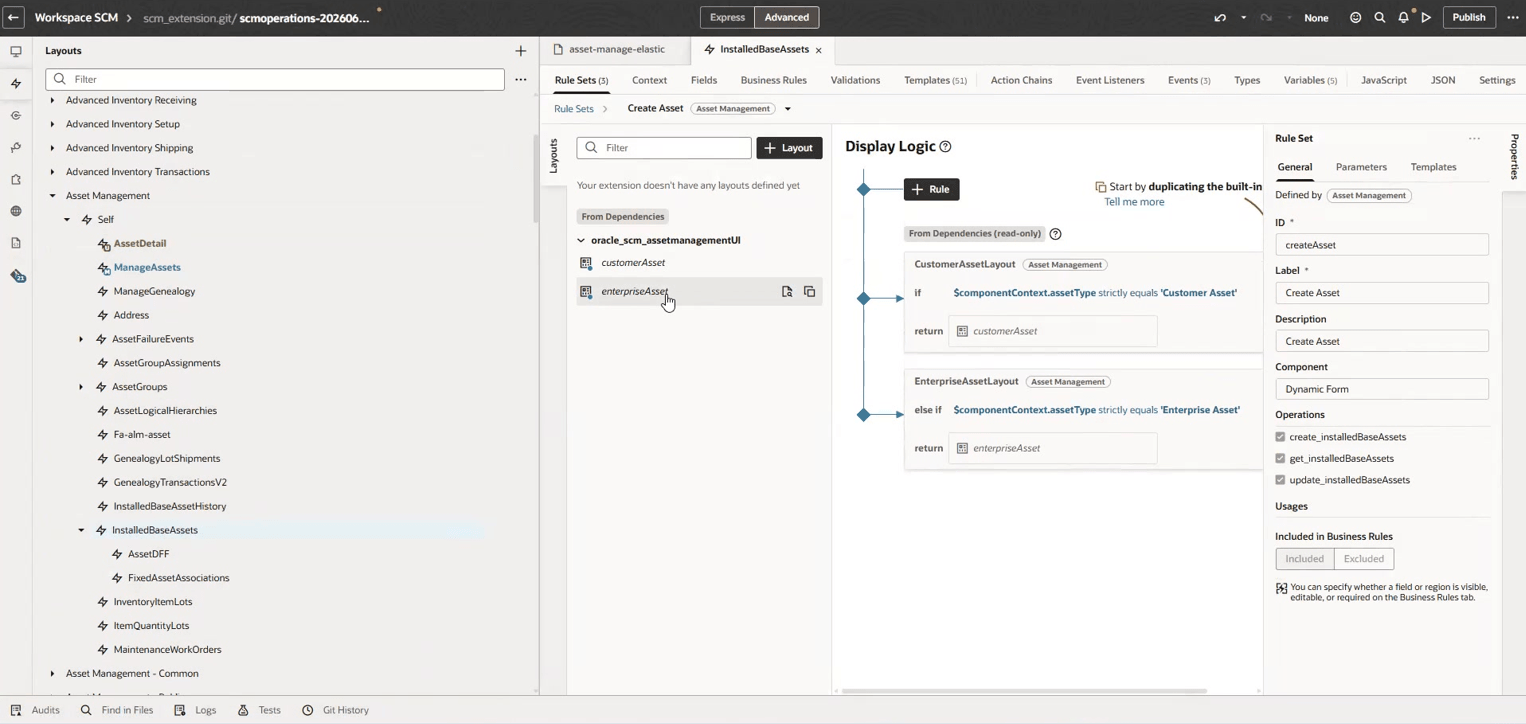
Rule set definition in Visual Builder Studio
Preview changes on Redwood pages
Use the Visual Builder Studio preview and live experience to validate your changes before publishing the extension. Verify that configured fields appear in the intended asset create and detail experiences and that configured field behavior, such as required or read-only settings, works as expected.
You can also move between the visual canvas and JSON or Git views to inspect the generated dynamic-layout configuration and review the underlying changes before publishing.
This screenshot shows the Visual Builder Studio preview experience.
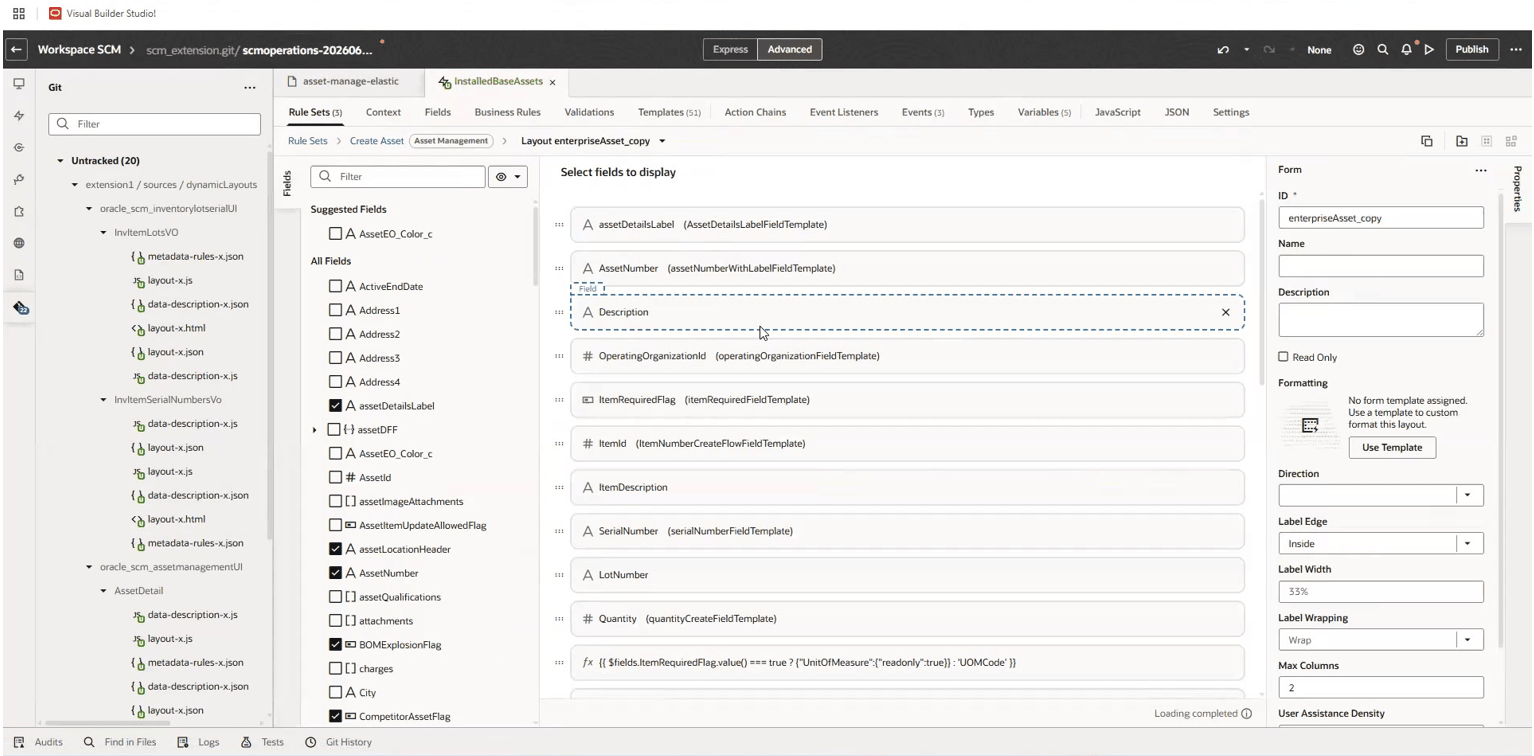
Visual Builder Studio layout
This screenshot shows configured fields displayed in the Redwood asset experience after the layout extension is applied.
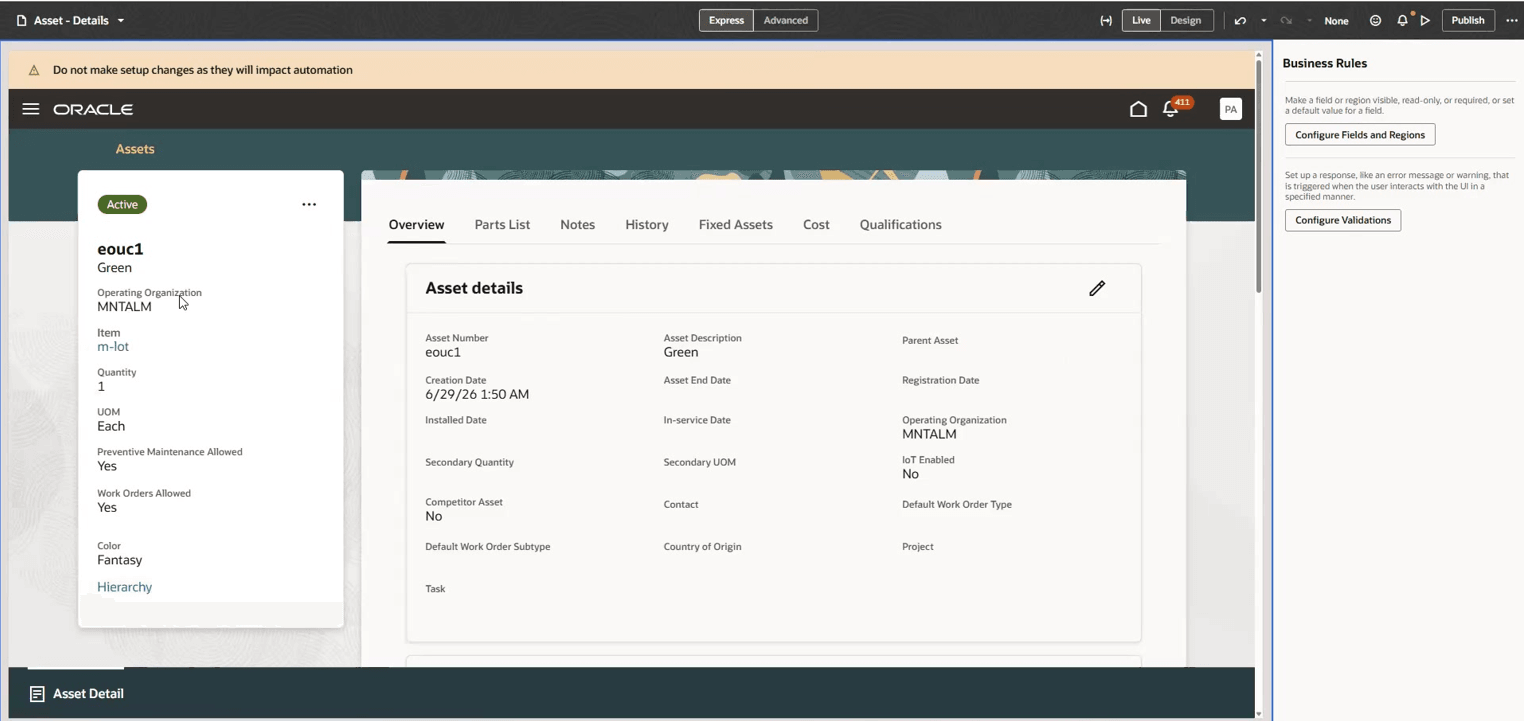
New configured fields on the Asset Details page
This feature helps organizations tailor Redwood asset experiences to their business requirements by extending the standard asset object with additional information and controlling where and how that information is presented to users.
Simplify Redwood page personalization by extending asset details with configured fields that support organization-specific business processes.
Steps to enable and configure
Leverage Application Composer to expose and adjust page layout and attributes. To learn more about extending your application using Application Composer, visit Oracle Help Center > your apps service area of interest > Books > Configuration and Extension.
Leverage the Visual Builder Studio to expose your applications. To learn more about extending your application using Visual Builder, visit Oracle Help Center > your apps service area of interest > Books > Configuration and Extension.
Key resources
- Follow the instructions here to Access Visual Builder Studio and start extending your application pages in Visual Builder Studio.
- Refer to these resources for additional information:
Access requirements
| Privilege status | Privilege name and code |
|---|---|
| Previously delivered |
Administer Sandbox FND_ADMINISTER_SANDBOX_PRIV |