Manage multiple work orders using mass actions in Maintenance Supervision
Maintenance supervisors often manage large volumes of work orders and need an efficient way to process common updates. You can now manage work orders more efficiently in Maintenance Supervision using a table-based work order view and mass actions.
Perform mass actions on multiple work orders
Select one or more work orders and perform bulk actions, including Release, Release and Pick Materials, Edit Status, Edit Priority, and Reserve Materials Automatically.
This screenshot shows the new actions for multiple work orders.
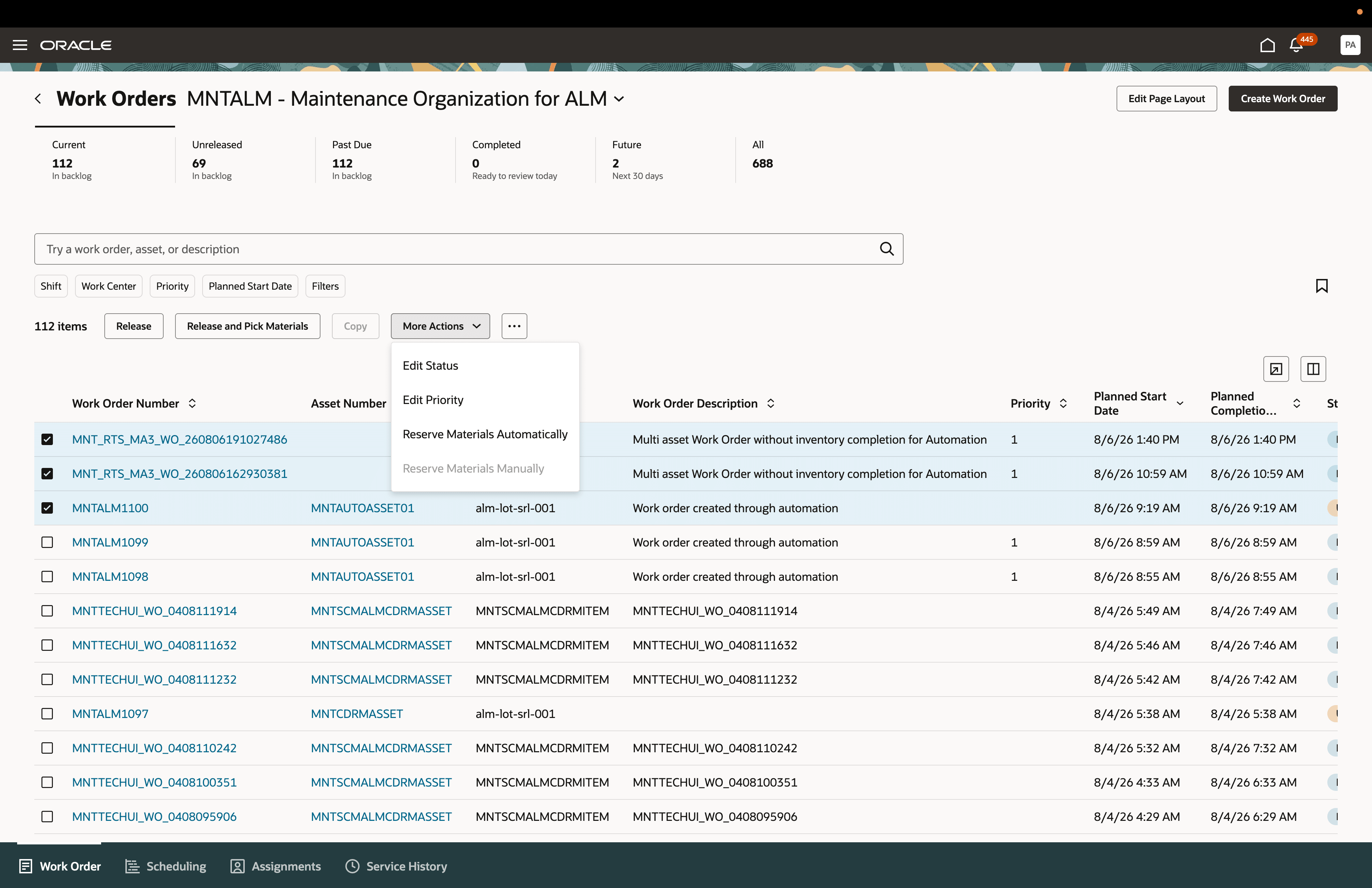
New actions for multiple work orders in Maintenance Supervision
Print material list and work order
Print from Maintenance Supervision for one work order.
Save and reuse work order searches
Create and run saved searches to quickly retrieve frequently accessed work orders. You can also configure searches as shared or default searches for faster access.
View and organize work orders
View key work order information in a table format and customize the layout by showing, hiding, and rearranging columns. You can also sort, download, and export the work order list to support reporting and analysis.
This screenshot shows how you can configure the page layout.
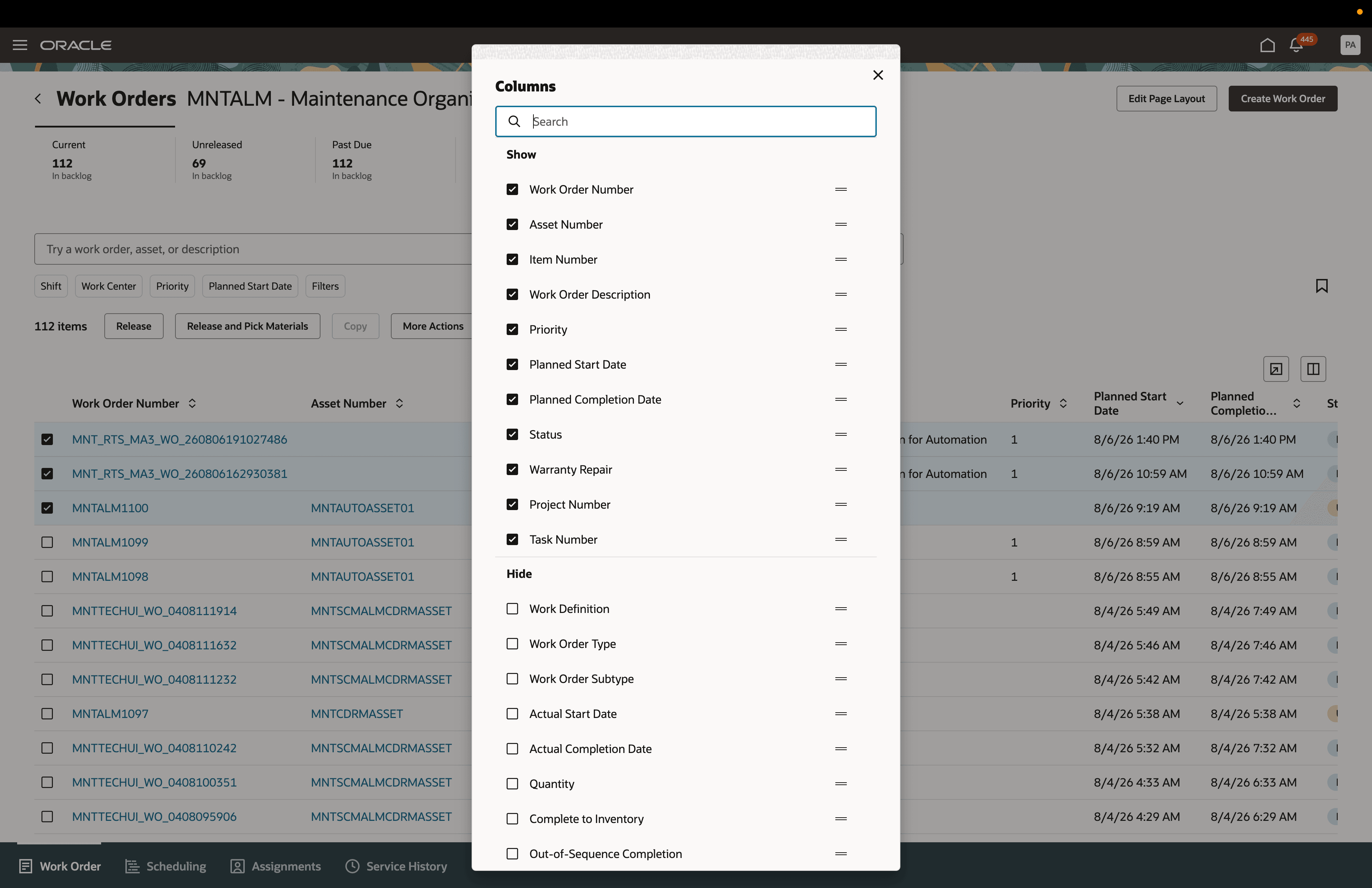
New column layout in Maintenance Supervision
Note: For advanced scheduling organizations you can perform Firm Schedule and Undo Firm Schedule actions.
This feature helps organizations process large volumes of work orders more efficiently by reducing administrative effort and improving operational responsiveness.
Reduce the time and effort required to manage large volumes of work orders by enabling supervisors to perform common actions on multiple work orders simultaneously.
Steps to enable and configure
You don't need to do anything to enable this feature.
Tips and considerations
-
Maximum number of work orders for mass actions
-
You can select up to 15 work orders for a mass action. Mass actions are available when you select between 1 and 15 work orders. These actions include Release, Release and Pick Components, Pick Components, Firm Schedule, Undo Firm Schedule, Firm Assignments, Undo Firm Assignments, Edit Status, Edit Priority, and Reserve Materials Automatically.
-
Actions such as Copy, Print, and Reserve Materials Manually are available only when you select a single work order.
-
-
KPI-level saved search aupport
-
Saved searches are maintained separately for each KPI tab using KPI-specific search contexts.
-
When you open the page, the default saved search for the selected KPI is applied.
-
When you select another KPI tab, the default saved search for that KPI is applied.
-
If a default saved search isn't defined for the selected KPI, the page loads without applying a saved search.
-
-
Table column personalization
-
You can show, hide, and reorder columns in the work order table.
-
Your column preferences are retained across sessions.
-
Table personalization applies to the overall work order table and isn't specific to individual KPI tabs.
-