Create and process coverages and subscriptions within pick-to-order models
Order Management users can configure coverage and subscription items within pick-to-order (PTO) models and associate those items with the applicable products. This supports optional warranties, maintenance agreements, and subscription services as part of a configurable product offering.
Get these benefits
- Include coverage and subscription items in a PTO model.
- Associate coverage items with multiple covered products and price each relationship separately.
- Associate a subscription with one product in the PTO model or leave the subscription standalone.
- View subscription associations at the child level in the order summary.
- Process configured coverage and subscription details, including contract dates and service duration.
How it works
Here is an example of how you configure coverage and subscription items within pick-to-order (PTO) models and associate those items with the applicable products.
- In Product Information Management, create the PTO model structure and add the applicable coverage or subscription items.
This image shows the applicable coverage and subscription items.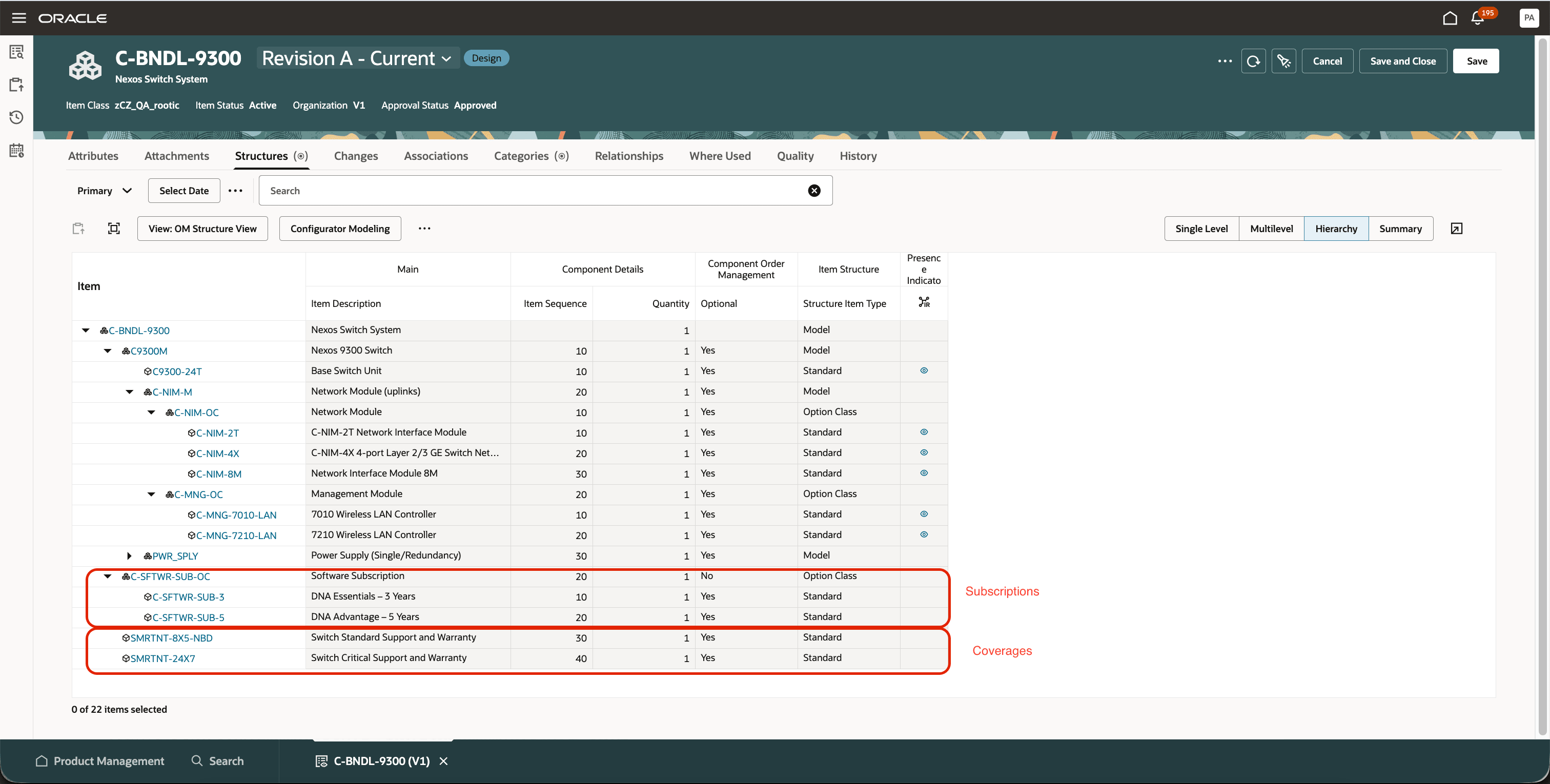
-
Define the related-item relationships between coverage or subscription items and the applicable products. Start with the item you want to cover or associate with a subscription as the From Item. Use the coverage or subscription as the To Item, and set the relationship type to Coverage or Subscription, respectively. Note: If a subscription has multiple associations, the highest-ranked association takes precedence.
This image shows related relationships from the structure.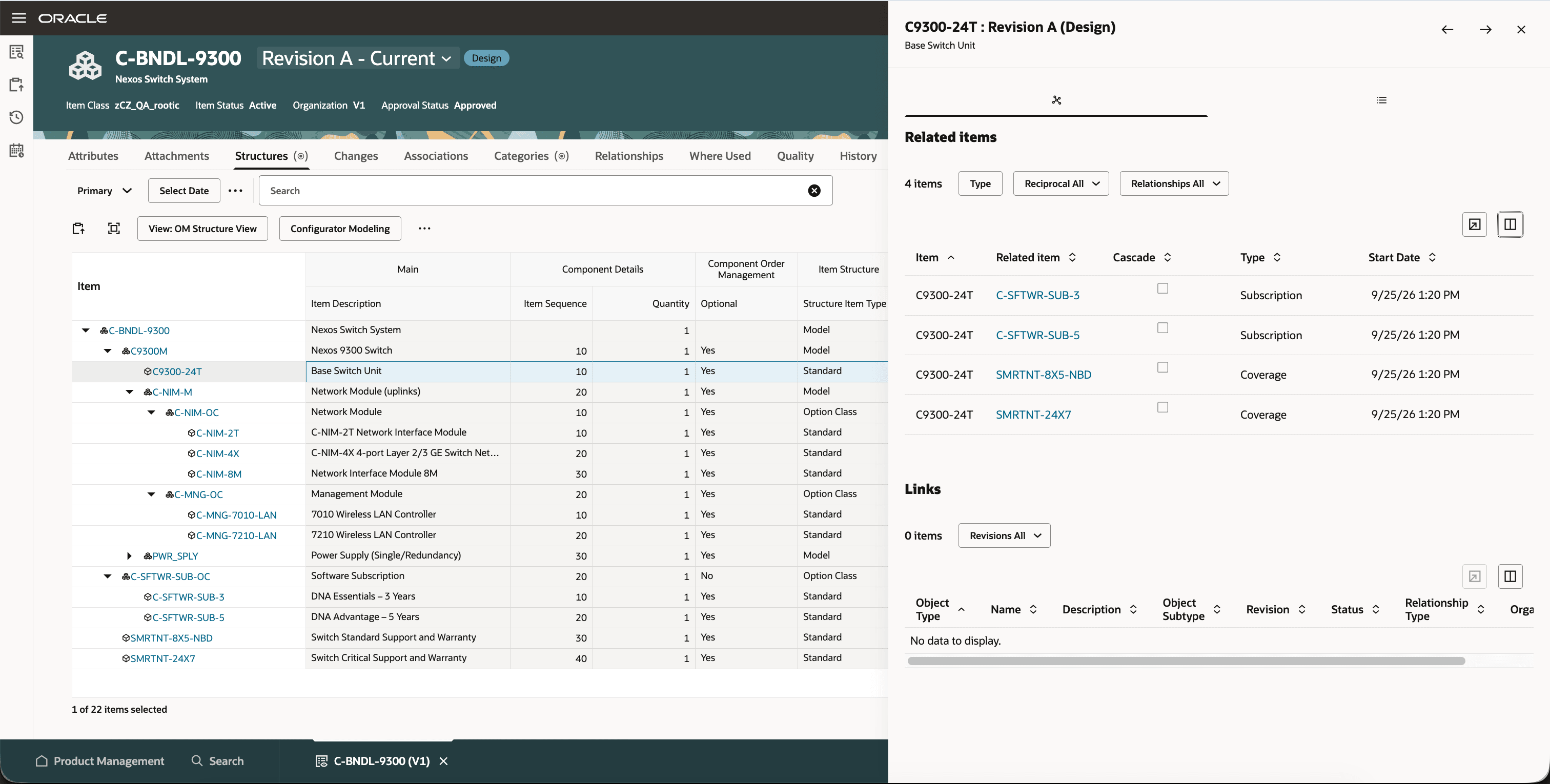
-
Identify coverable products and define whether the coverage cascades to child components.
-
Set up pricing for coverage items within the PTO model.
- Create an order and add a PTO model.
- Configure the PTO model and select the available coverage or subscription options.
- Review the coverage, subscription, and association details in the order summary.
This image shows the subscription details.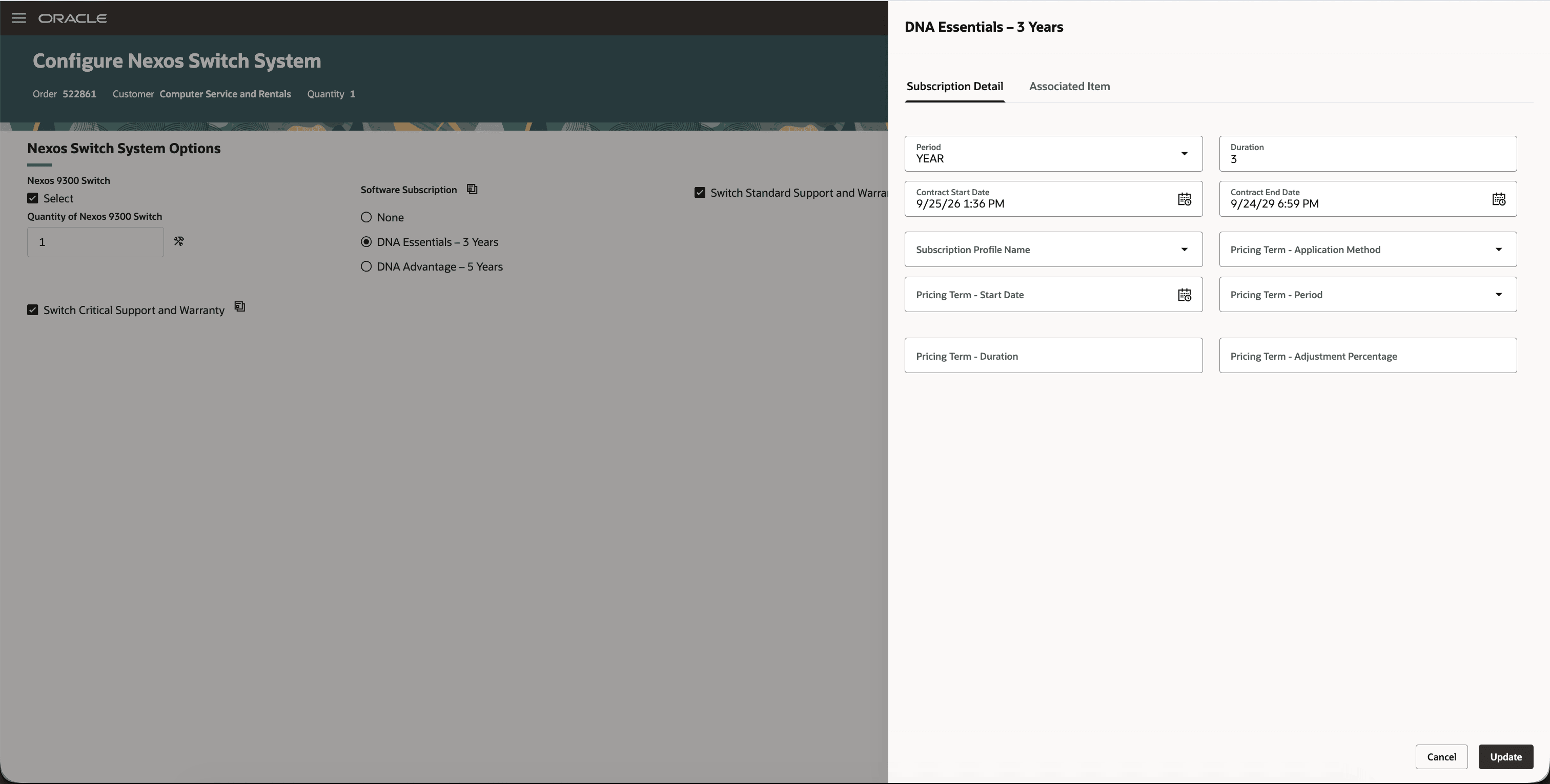
This image shows the associated items with the subscription.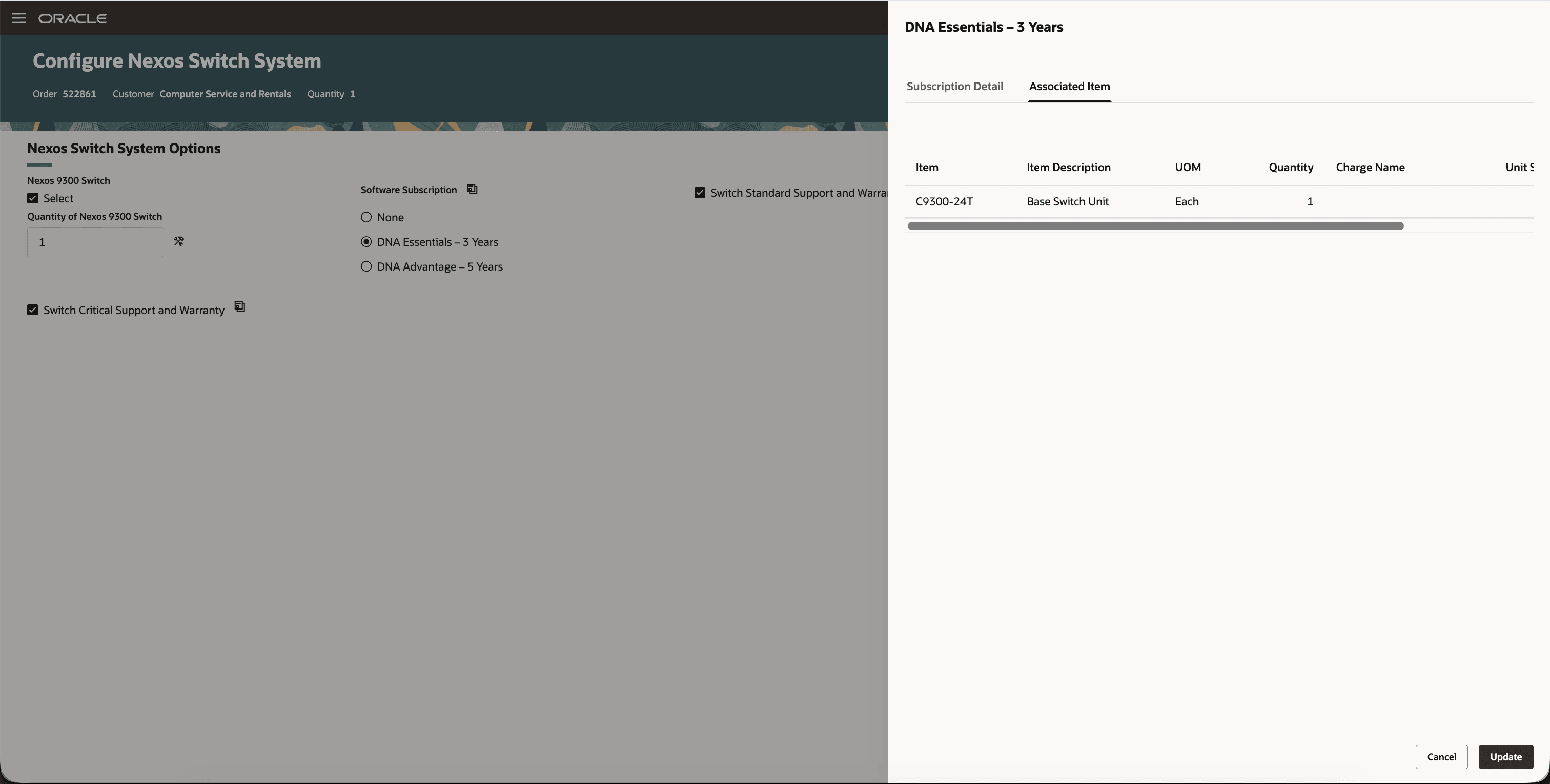
This image shows the associated items and details.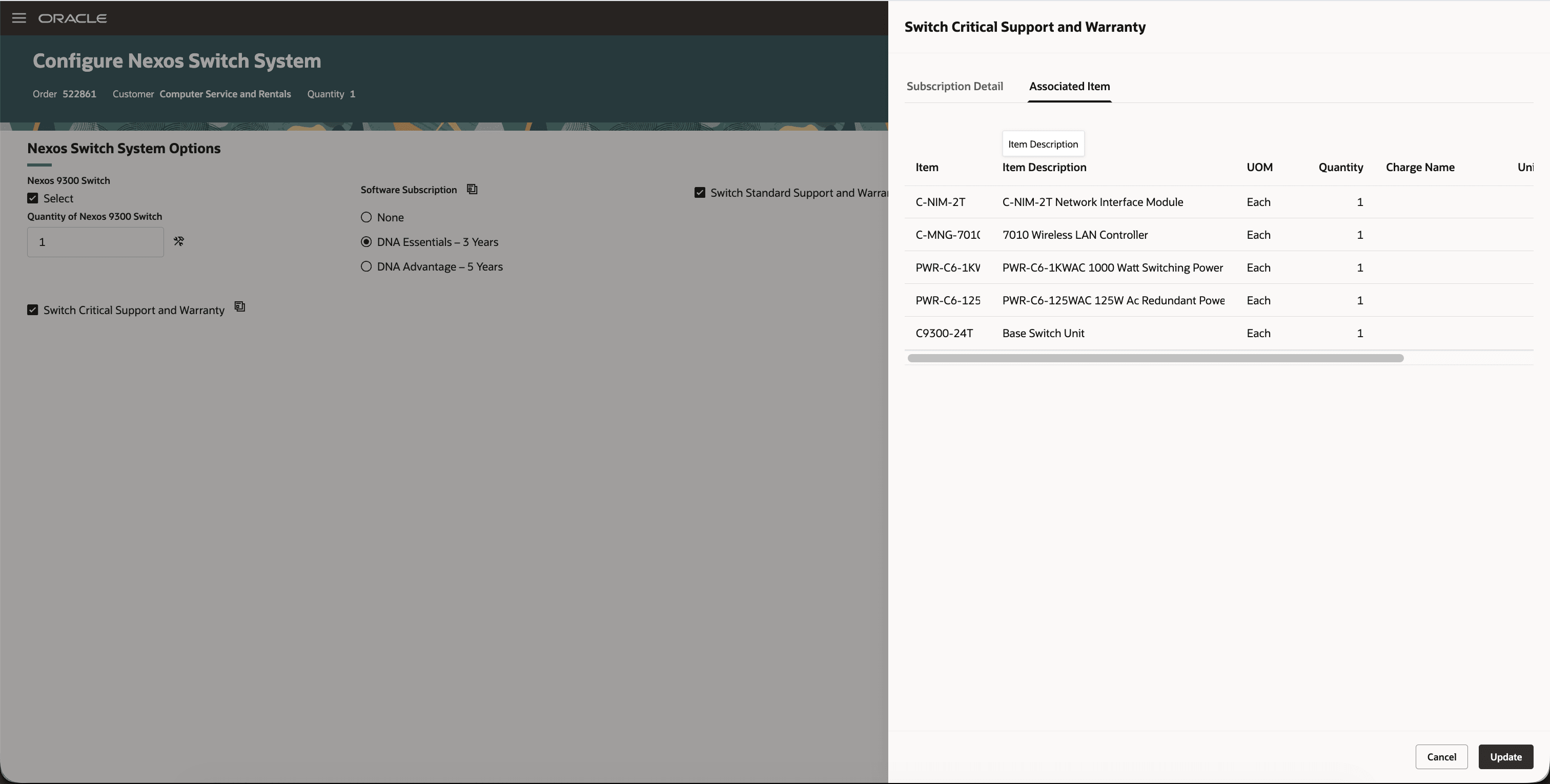
For REST integrations, include the required Configurator keys.
Steps to enable and configure
- Opt in to the applicable Subscription Management integration: for subscriptions, select Sales > Subscription > Integrate Order Management with Subscription Management for Subscriptions; for coverages, select Sales > Subscription > Integrate Order Management with Subscription Management for Coverages.
- Opt in to the Redwood Configurator experience: select Order Management > Redwood: Manage Configured Items on Sales Orders.
Tips and considerations
- Use Fusion Redwood Configurator for this feature.
- For REST integrations, include the required Configurator keys.
- Coverage items can exist at any level in a PTO model, but not in an ATO model or kit.
- Subscription items can exist at any level in a PTO model or within a kit.
- A coverage or subscription item must be at the same hierarchy level as, or above, the item it covers or is associated with.
- A coverage item can be related to multiple products; a subscription can be associated with only one product.
- Coverage and subscription items can’t be associated with other coverage items.
- Contract start date, end date, service duration, and service duration unit of measure are supplied during configuration for selected coverage or subscription items.
- A referenced return of the complete PTO model includes its coverage and subscription items.
Key resources
- Set Up Coverages and Subscriptions for Sales Orders
- Manage coverage and subscription relationships for model structures
- Price bundles with coverages and subscriptions
Access requirements
Users who are assigned a configured job role that contains these privileges can access this feature in the Order Management work area:
- Initiate Order (FOM_CREATE_ORDER_PRIV)
- Revise Order (FOM_REVISE_ORDER_PRIV)
- Monitor Sales Order (DOO_MONITOR_SALES_ORDER_PRIV)
- Update Order Pricing Details (FOM_UPDATE_PRICING_DETAILS_PRIV)