Manage coverage and subscription relationships for model structures
You can use the model BOM structure user interface to view the components with applied coverages and subscriptions.
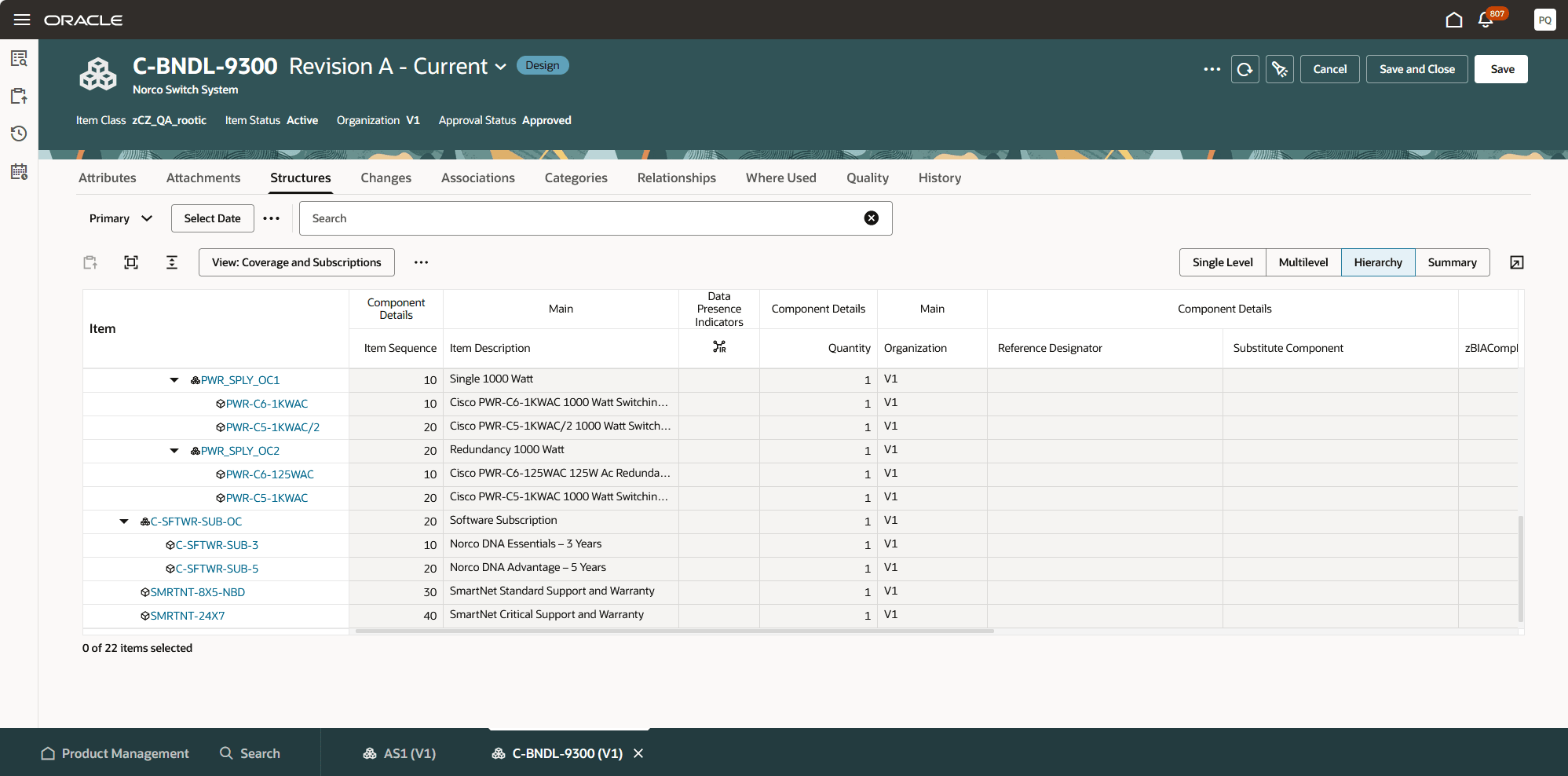
Model BOM with Coverage SMRTNT-8X5-NBD and SMRTNT-24x7
You can add coverage and subscription items to the model BOM as components and link to the components in the structure using the related item relationships. Use the Product Management In-App Navigator to view the model BOM in the structure user interface and quickly navigate to the components in the structure to add a coverage or subscription in the component’s Relationships tab. After you refresh the structure user interface, the Data Presence Indicator (DPI) indicates that a related item relationship exists for the component. Select the related item relationship DPI icon to open the DPI drawer and view the relationship details.
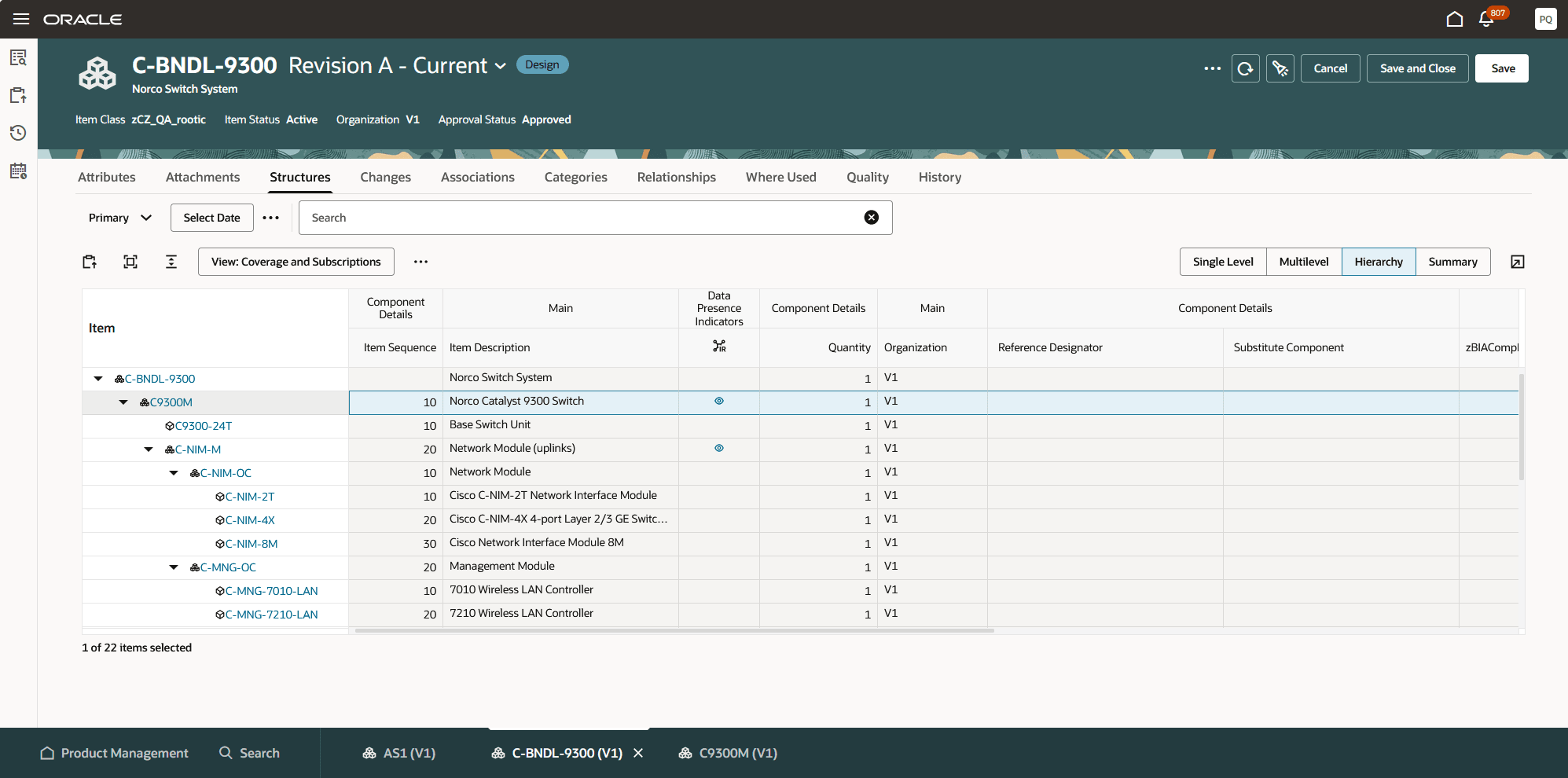
Has Related Item Relationship Data Presence Indicator
The following screenshot shows the related item relationship for ATO model item in the DPI drawer.
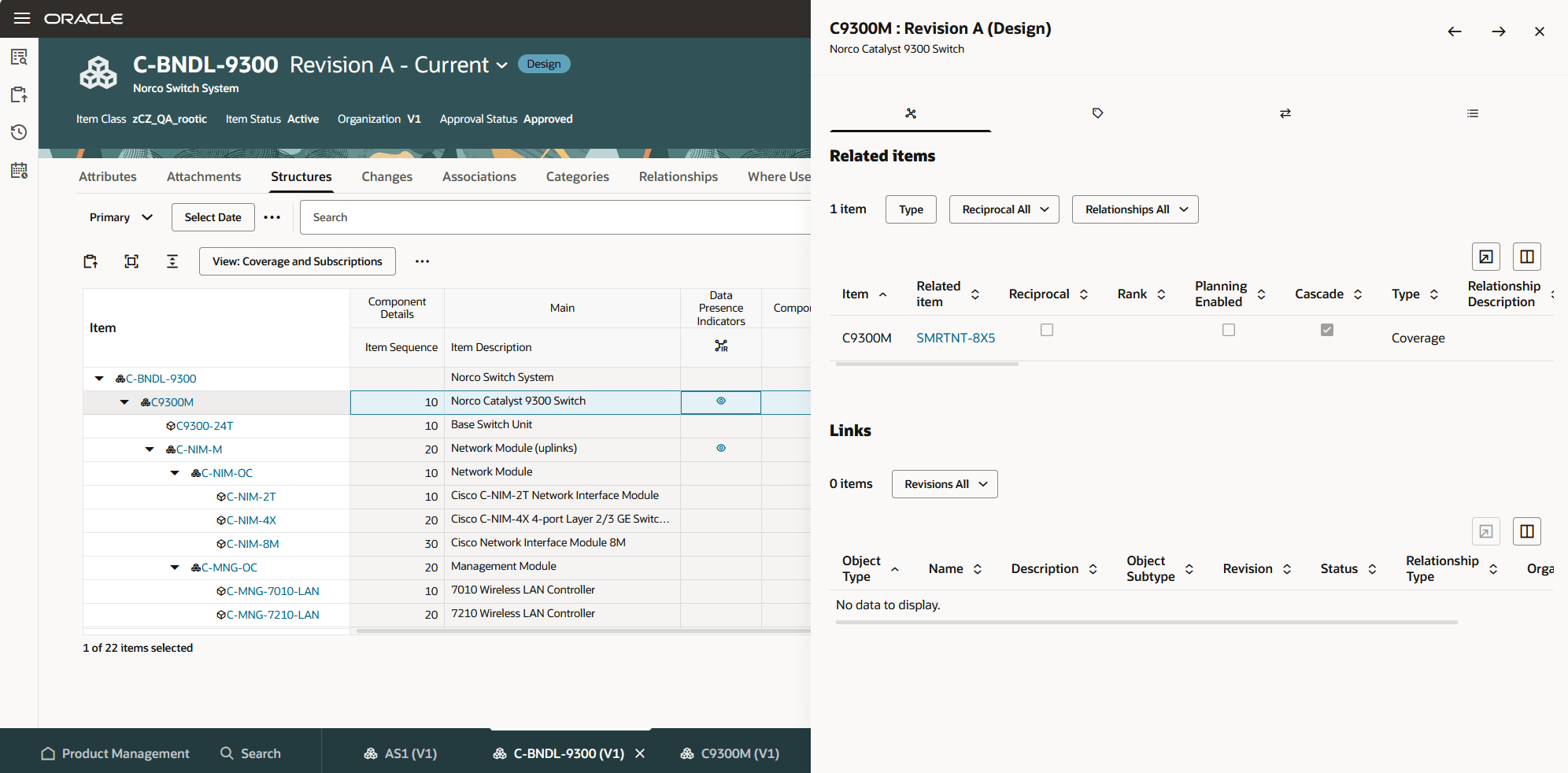
Related item relationship for ATO model item in DPI drawer
The Cascade attribute of the related item relationship allows you to apply a coverage to the parent level of an assembly such a ATO or PTO item in a structure and also apply to all the child components.
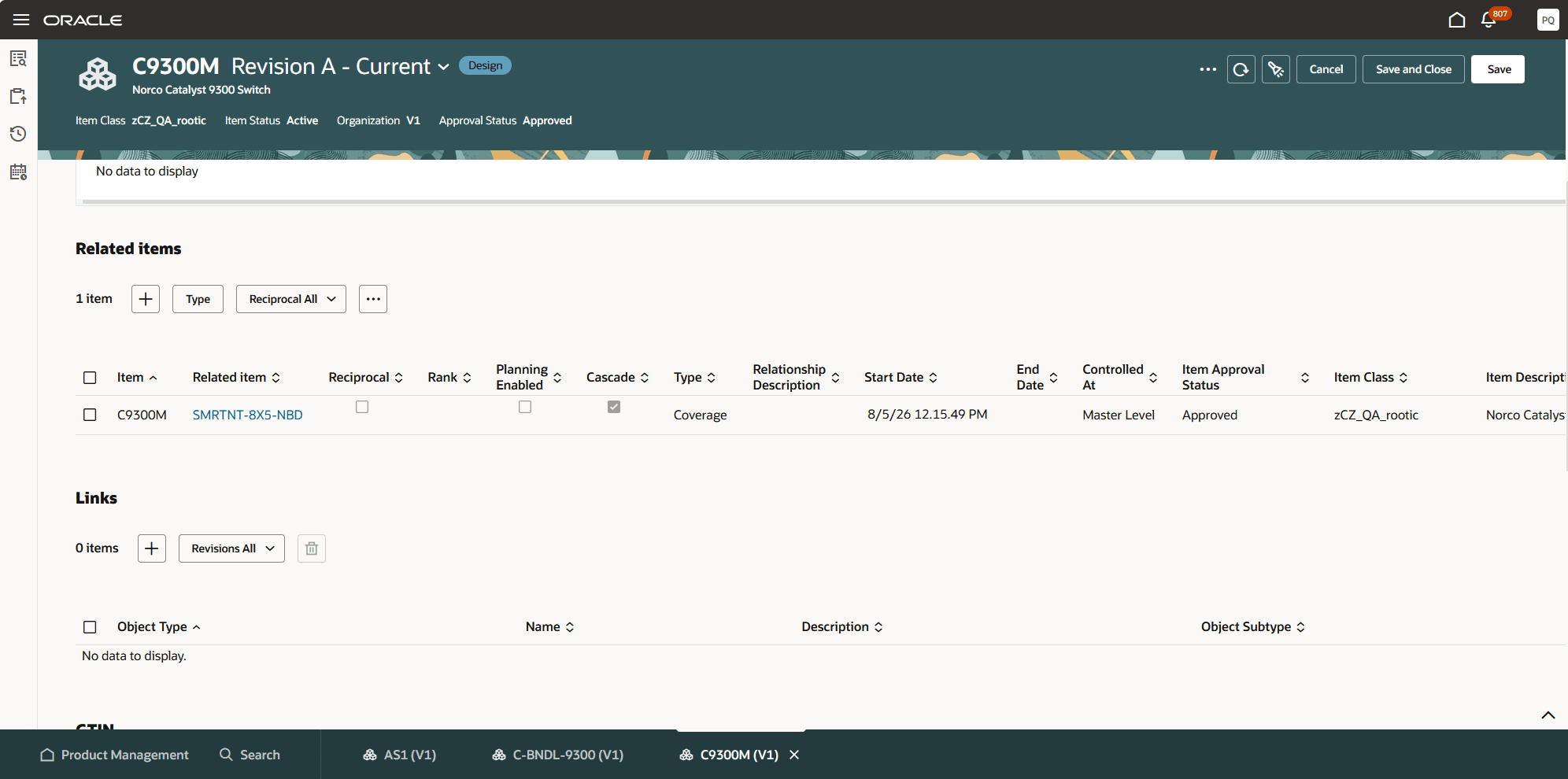
ATO item with related item relationship for a coverage with Cascade attribute enabled
You can analyze the model BOM to determine the components that aren’t covered by coverage or subscription using the Check Unassigned Coverage or Subscription Items action. It returns an error message indicating the components that aren’t covered by a coverage or subscriptions item. You can then select the uncovered components. The components are displayed in a dismissible tab where you can add a related item relationship for a coverage or subscription.
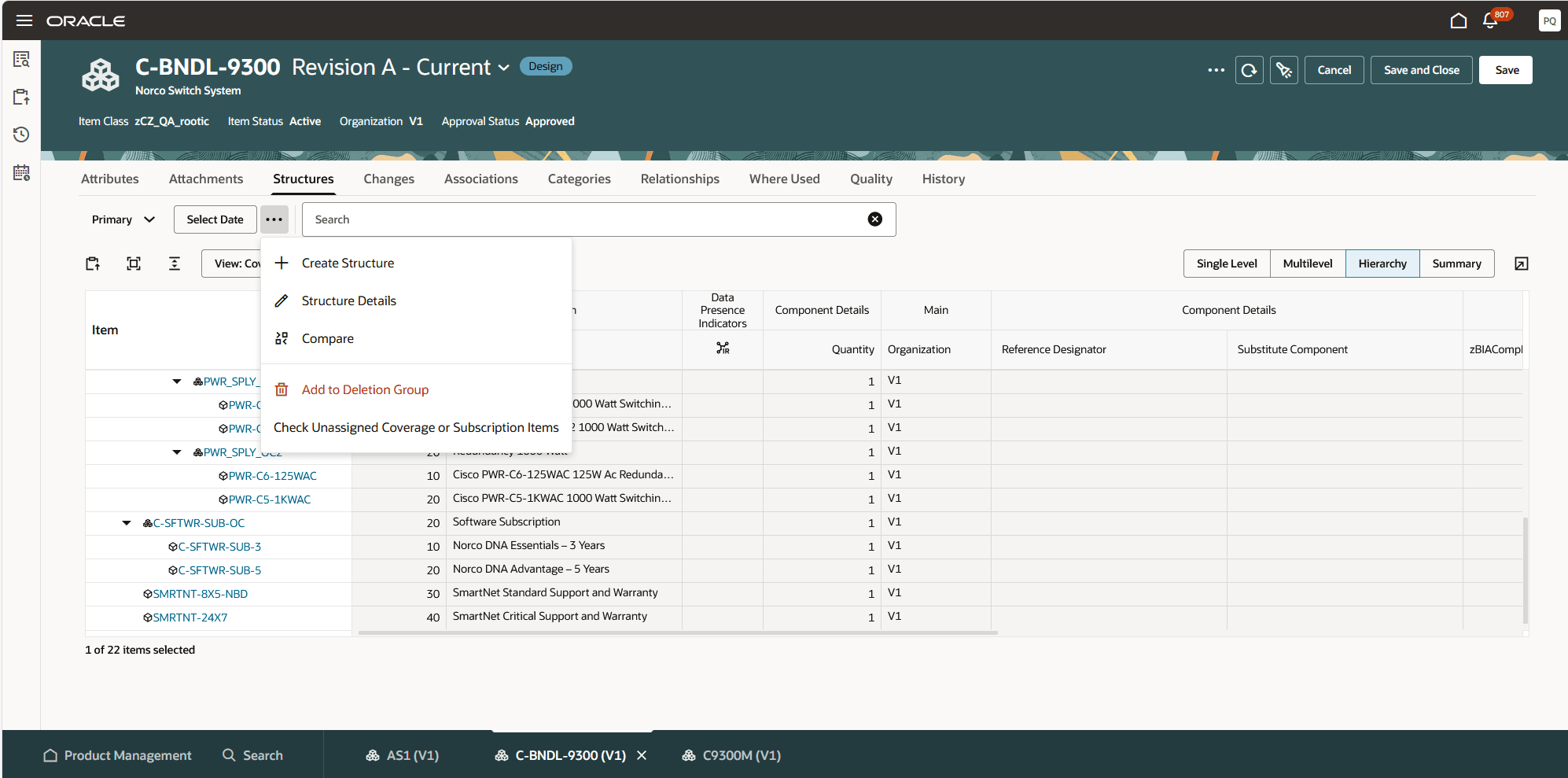
Check Unassigned Coverage or Subscription Items analysis report action
The following screenshot shows the coverage and subscription error report for components.
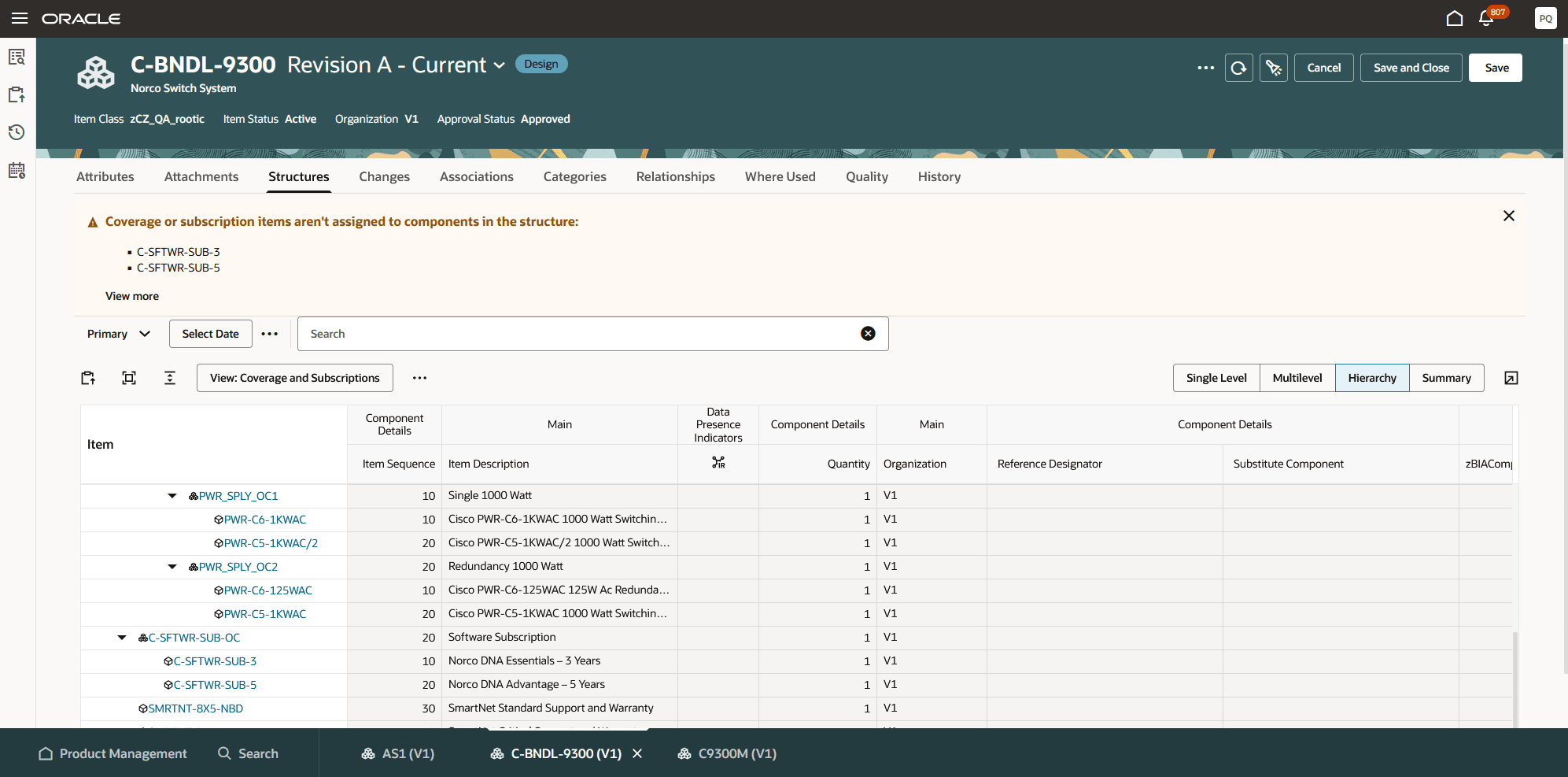
Coverage and subscription error report for components
This feature benefits your business by the following:
- Streamlined operations through a unified data model: By defining coverage and subscription relationships in a single source of truth, businesses reduce data fragmentation, improve accuracy, and simplify maintenance across systems.
- Improved selling and configuration experiences: Consistent, complete relationship data ensures CPQ and ordering processes have the right information at the right time, reducing errors and enabling faster, more reliable deal configuration.
- Enhanced cross-system visibility and alignment: Unified exposure across CPQ, Order, and Subscription Management creates end-to-end transparency, helping teams make better decisions and reducing operational silos.
- Faster product and service bundling: Catalog managers can easily link products with warranties, maintenance plans, and subscriptions, accelerating time-to-market for bundled offerings and increasing revenue opportunities.
- Better lifecycle tracking and customer coverage clarity: Clearly defined relationships make it easier to track which items are covered by subscriptions or warranties, improving customer support, renewals, and overall service management.
Steps to enable and configure
Use the Opt In UI to enable this feature. For instructions, refer to the Optional Uptake of New Features section of this document.
Offering: Product Management
After you opt in to this feature, enable data presence indicator attribute for Has Related Item Relationships for the Item and Structure index.
Tips and considerations
- You can define a coverage item for multiple components in a model structure and used in multiple model structures.
- A coverage can be defined with a related item relationship that covers all child components under a parent component.
- When the Cascade attribute value is set to Yes, it applies to child components under the parent component. However, in the structure, the Has Related Item Relationship DPI isn’t displayed for the child components in the model BOM.
Key resources
Oracle Supply Chain Management Cloud: Implementing Product Management guide, available on the Oracle Help Center.
Access requirements
Related Item Relationships are created and maintained at the item level. The user will need access to both items and related item relationships.
If you’re using custom job roles, then you need to add the duty roles identified as new in this update as well as validate that you’ve the previously delivered duty roles listed.
|
Duty role status |
Duty role name and code |
|
Previously delivered |
Manage Item Redwood (ORA_EGP_REDWOOD_MANAGE_ITEM_DUTY) |
|
Previously delivered |
Manage Item Redwood (ORA_EGP_REDWOOD_MANAGE_ITEM_DUTY_CRM) |
A data policy for the user configured job role must be created in the Security Console for the HZ_PARTIES resource to return the data to the Relationships tab:
- Sign in to Security Console.
- Search for the configured role for which you want to configure the data security policy. Select Actions> Edit Role.
- On the Edit Role page, select Data Security Policies.
- Select Create Data Security Policy.
- On the Create Data Security Policy dialog box, enter the following:
- Policy Name: <unique name>
- Data Resource: Search for and add the resource named EGO_HZ_PARTIES.
- Data Set: Select All Values.
- Actions: Select all the actions
- Select OK and select Next.