Asset-based ordering
Asset-based ordering enables organizations to create orders and manage changes by referencing what a customer already owns rather than starting from a blank, net-new order. It allows sellers, service agents, and customers to add, amend, renew, or terminate existing products, subscriptions, and services while maintaining alignment across assets, contracts, fulfillment, and billing.
Get these benefits
-
Full product lifecycle support — Manages product instances through the entire lifecycle i.e. from initial sale through changes, upgrades, suspension, resumption, returns, and termination.
-
Customer-site asset management — Treats products and services as a managed set at the customer site, enabling component-level changes without returning and reselling the full model.
-
Comprehensive coverage — Supports standalone subscriptions, product coverages, bundles, and product models with related services.
About this feature
ABO functionality is typically used in situations where customers are sold complex goods that can be upgraded such as a network storage device, or subscriptions with recurring charges that allow options and features to be added and removed over time such as telecommunications services. These options and features are set up initially and changed later in a configuration session.
The Asset Based Ordering process begins when a customer places an order for a standalone product associated to a service such as subscription or coverage, or a standalone subscription. An asset is created in Asset Management when the sales order is fulfilled.
Asset-Based Ordering operations, often referred to as Day 2 operations, are actions performed on previously created order lines for which corresponding assets exist in Asset Management.
Through the Asset Based Ordering feature, we provide comprehensive management of pure subscriptions, coverages associated to standalone products, bundles and product models with their related services.
The following are supported in this release:
- Non-serialised standalone subscriptions via import from Fusion CPQ or Order Management UI.
- Serialised standalone subscriptions via import from Fusion CPQ or Order Management UI.
- Coverages associated to standalone products via import from Fusion CPQ or Order Management UI.
How it works
Consider the case where a standalone subscription of quantity 10 has been bought on day 1. The order line is interfaced to asset management, and the corresponding asset is created. It is also interfaced to subscription management, and the subscription is created and active.
You can:
- Amend the subscription. i.e. change quantity, start and end dates, other subscription related attributes etc.
- Renew the subscription.
- End the subscription.
How to amend a standalone subscription or a coverage associated to a standalone product
- Create a new sales order. Choose your Business Unit and Customer.
- In the Actions menu, select Modify Assets to navigate to the Asset Picker.
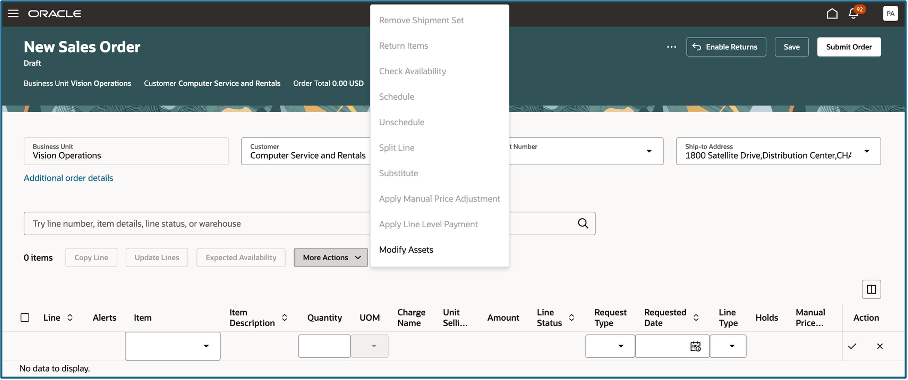
This action is enabled only if the Asset Based Operation feature is opted in.
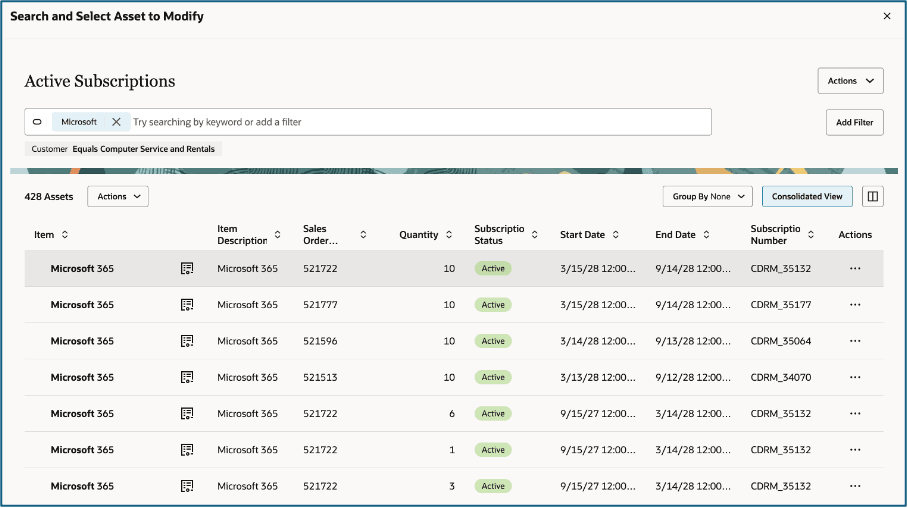
- On the asset picker screen, search for the asset. You can use serial number, asset number, order number, or item to search for the asset. A single asset can be selected on the Consolidated View for amendment by choosing Modify at the line level. The asset picker consists of a Consolidated View and an Asset View.
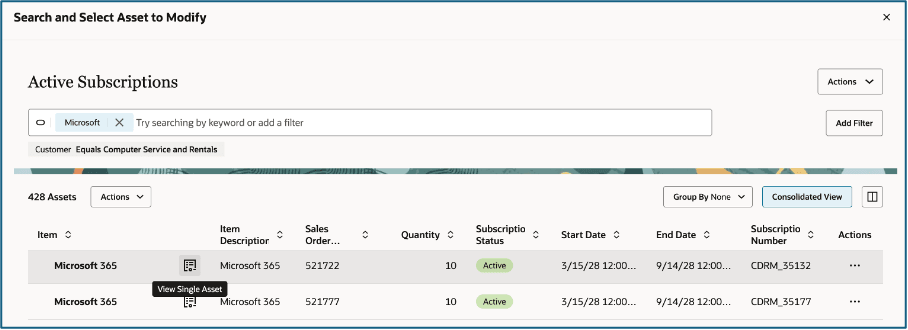
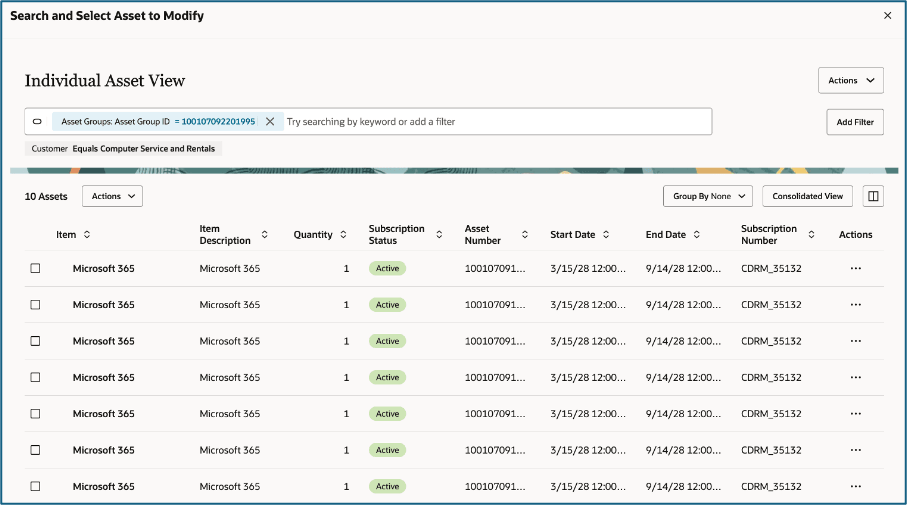
- If the asset is serialized, click View Single Asset to navigate to the asset view. On the Asset View, the Modify action can be performed on a single asset by choosing an action at the line level, or on multiple assets by selecting all the assets that need to be operated on, and then selecting the action at the header level.
- Choose Modify.
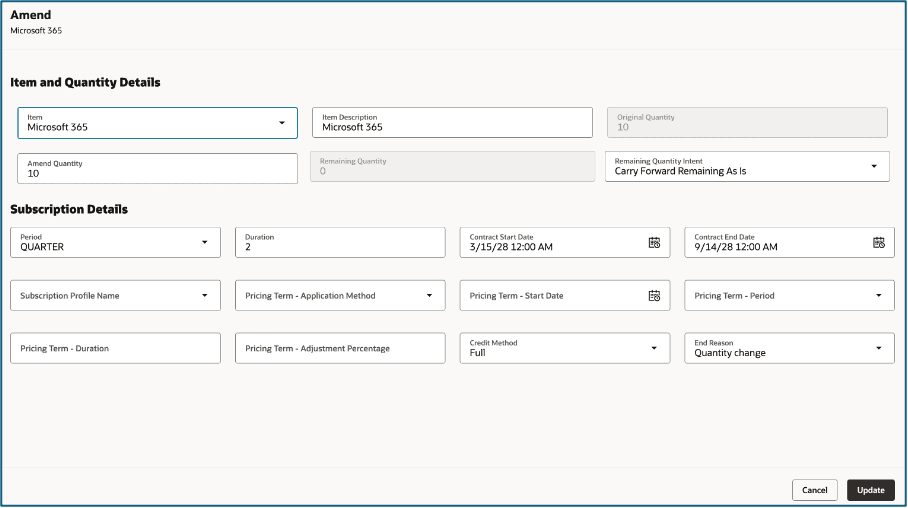
- On the Amend page modify the quantity and other subscription related attributes. If you choose a partial quantity, specify what you want to do with the remaining quantity using the remaining quantity intent attribute. Carry forward remaining as is means the unchanged quantity continues as is. End remaining ends the unchanged quantity.
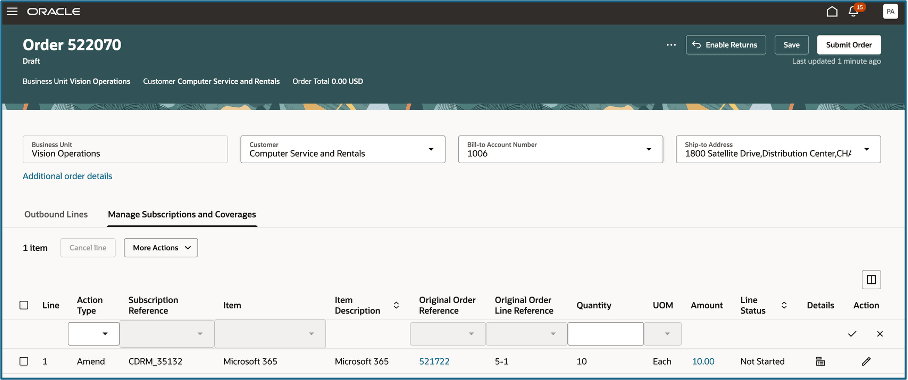
- Click Update. You are navigated back to the Order page. Navigate to the Manage Subscriptions and Coverages tab to view the amended subscription line.
- Submit your changes.
How to renew a standalone subscription or a coverage associated to a standalone product
- Create a new sales order. Choose your business unit and Customer.
- In the Actions menu, select Modify Assets to navigate to the Asset Picker.
This action is enabled only if the Asset Based Operation feature is opted in.
- On the asset picker screen, search for the asset.
- Choose Renew. A simple renewal involves changing the start and end dates. The subscription can also be amended during renewal in these ways:Upgrading or downgrading the item Changing the item quantity Changing other subscription related attributes such as duration. If you choose a partial quantity, specify what you want to do with the remaining quantity using the remaining quantity intent attribute. Carry forward remaining as is means the unchanged quantity continues as is. End remaining ends the unchanged quantity. .Renew the entire quantity from the consolidated view or renew partially from the asset view.
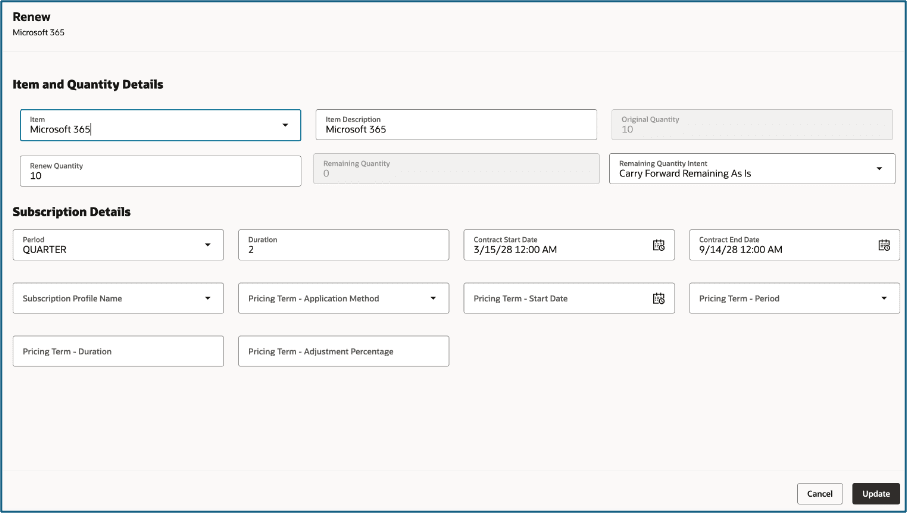
- Click Update when you're finished.
- You are navigated back to the Order View. Navigate to the Manage Subscriptions and Coverages tab to view the amended subscription line. Submit your order.
How to end a standalone subscription or a coverage associated to a standalone product
- Create a new sales order. Choose your business unit and Customer.
- In the Actions menu, select Modify Assets to navigate to the Asset Picker.
This action is enabled only if the Asset Based Operation feature is opted in.
- On the asset picker screen, search for the asset.
- Choose the Terminate action and click Update.You can terminate the entire quantity from the consolidated view or terminate partially from the asset view. If you choose a partial quantity, the unchanged quantity will continue as-is until its subscription end date.
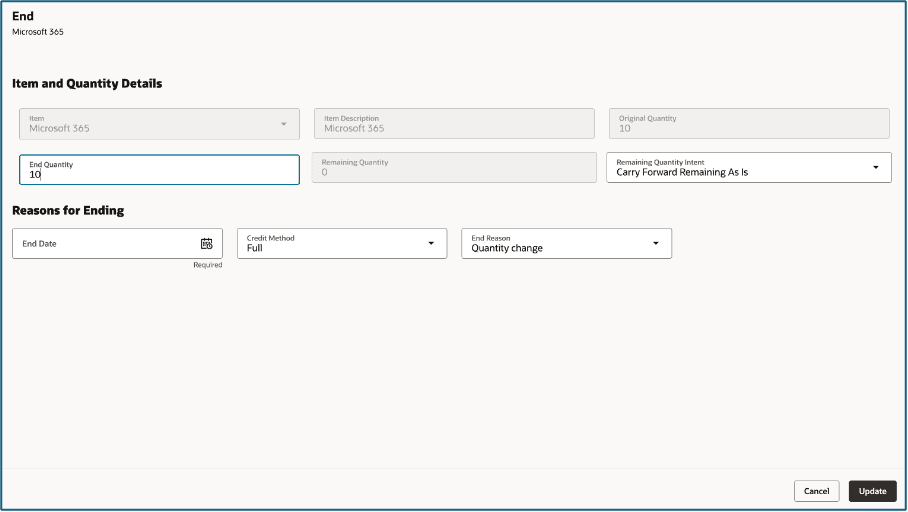
- You are navigated back to the Order page. Navigate to the Manage Subscriptions and Coverages tab to view the amended subscription line and submit your renewal.
Steps to enable and configure
Use the Opt In UI to enable this feature. For instructions, refer to the Optional Uptake of New Features section of this document.
Offering: Order Management
Tips and considerations
- The following are out of scope in this release:
- ABO operations on subscription bundles from the order management UI.
- Hybrid bundles.
- Solution bundles.
- Equipment as a service.
- Shippable products and subscriptions.
- A standalone subscription, coverage (and the standalone product associated to the coverage) should have the Enable Asset Tracked attribute in Fusion Product Information Management (PIM) set as Customer Asset for it to be eligible for Asset Based Ordering operations.
- With asset based ordering feature enabled, referenced return cannot be created for a standalone subscription. Use the Terminate action to end the subscription.
- With asset based ordering feature enabled, a referenced return can be created for a standalone product which has an associated coverage. This will return the standalone product and end the associated coverage. If an action such as amend, renew or end needs to be performed only on the coverage, use the Modify Assets action.
- ABO operations on subscription bundles cannot be initiated in order management in OM in this release. The operations can be initiated in CPQ only and orders imported into OM. These orders will be view only from the customer perspective in OM.
Key resources
Access requirements
There are no new privileges or access requirements created for this feature.