Import exceptions page
The Order Import Exceptions interface provides visibility for failed sales order imports from multiple channels. This update enhances visibility and efficiency by consolidating errors, enabling filtering and categorization, and providing self-service actions like resubmission and deletion. Use this enhancement to ensure more reliable order processing.
Get these benefits
- Address errors during sales order imports using one of the channels such as FBDI, Stage Order, Collaboration Messaging Framework which uses the Order interface tables and Import Sales Order ESS
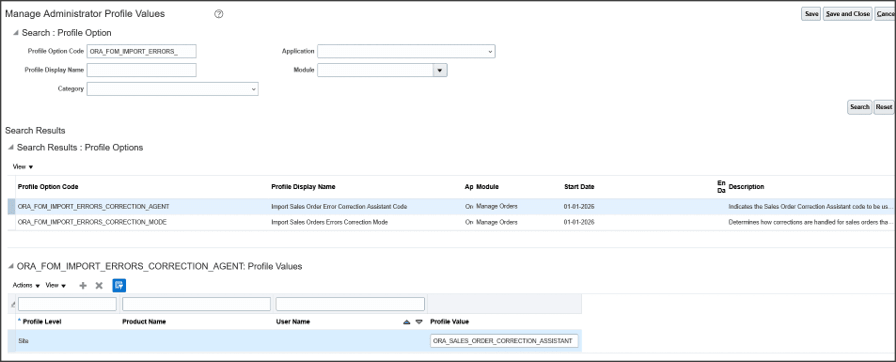
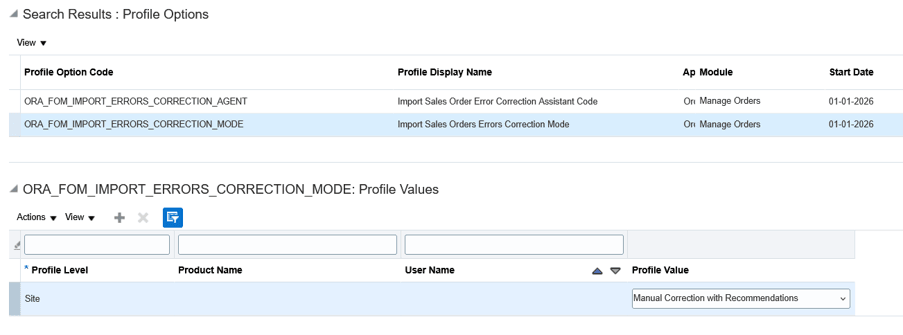
- Indicate if errors are auto corrected or available for manual review with recommendations by setting the profile (ORA_FOM_IMPORT_ERRORS_CORRECTION_MODE).
- Review the error categories and possible recommendations in the Import Exceptions UI. You can also drill down into details of the errors per source order.
- Accept the recommendation or provide a manual attribute value to update and re-import the source order.
- Delete the source order if it not needed any longer.
- Resubmit Order Import for scenarios which involve setup changes with no data updates.
How it works
- The agent identifies failed orders based on the Workflow Agent Parameter Schedule (by default it goes back seven days from the current date).
- Once the failed orders are identified, the agent analyzes error messages for the order header and order lines and identifies any errors.
- An action request gets created by the agent for the problem orders to enable tracking of corrections.
- The agent Invokes the Smart Match Service which performs fuzzy matching of the error values against the master data (like Customer, Address, Items, Shipment attributes, Billing attributes and so on). If the confidence percentage is over the value specified in the agent (80%) then it uses the value found to update the interface table value, or else it checks the previous 10 orders for the same customer and checks frequently used values for the error attribute.
- The agent updates the interface table data with the corrected values. The corrections done are logged as warning against the action request. During the reprocessing the order may get imported successfully or new errors may be logged. The status would be visible against the action request or the actual order if it was imported successfully.
- The agent triggers the Import Sales Order ESS job to process the corrected order.
Let's look at a specific use case
Let's say a create order request was sent using a file-based data import with the multiple orders with multiple errors. For this example, we'll say the customer was Computer Service Rentals. The correct name in the master data source should have been Computer Service and Rentals. In addition, the payment term in the inbound order is 30N instead of 30 Net. For this scenario the profile 'Import Sales Orders Errors Correction Mode' is set to Manual Correction with Recommendations.
Here's what happens:
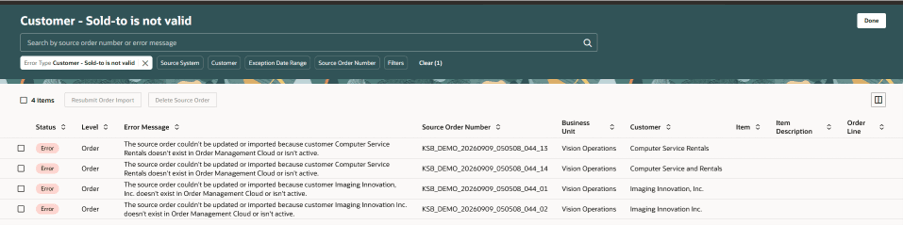
- The Order Import ESS runs and has an error that the source order couldn't be imported because customer Computer Service Rentals doesn't exist in Order Management Cloud or isn't active. There is also an error for the payment term.
- Based on the profile setting, the Sales Order Correction Assistant creates the recommendation for the attributes that have errors.
3. Review the errors and recommendations by navigating to Import Exceptions in the landing page.
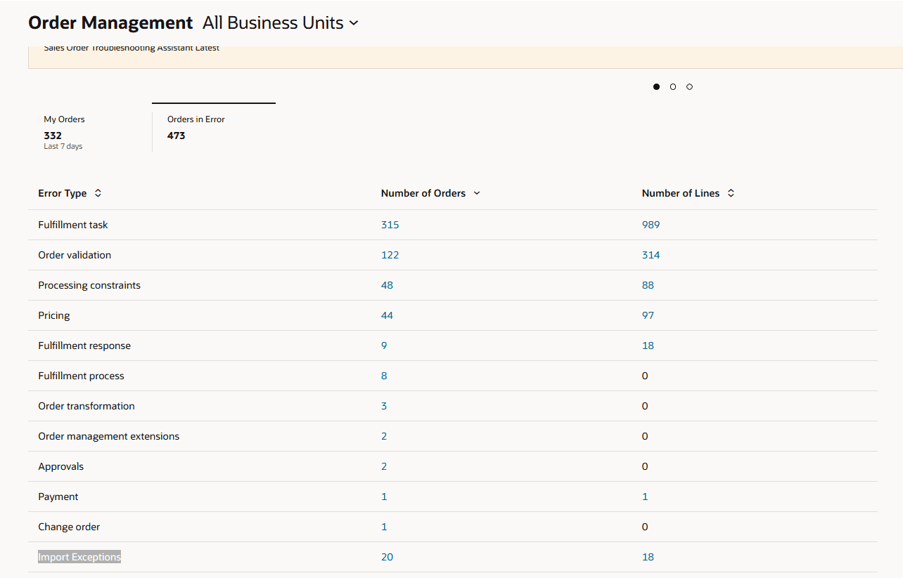
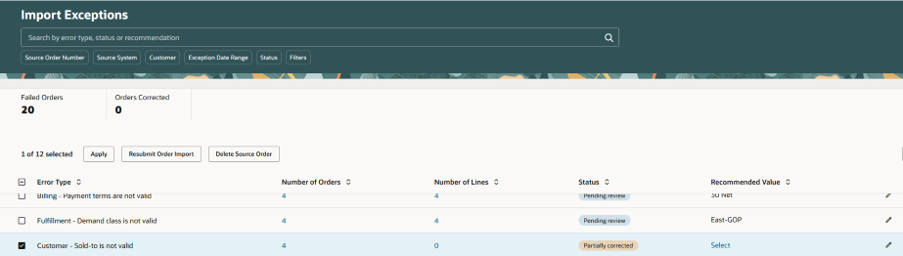
4. The categorized list of errors is displayed in the Import Exceptions page. There are different search options like customer, source order, source system, date range available. The count of orders and lines impacted is also visible. If an order has multiple categories of errors, then it is considered each time under different error category. The status column is currently pending review and can have other statuses like Data corrected, Partially corrected based on recommendation acceptance.
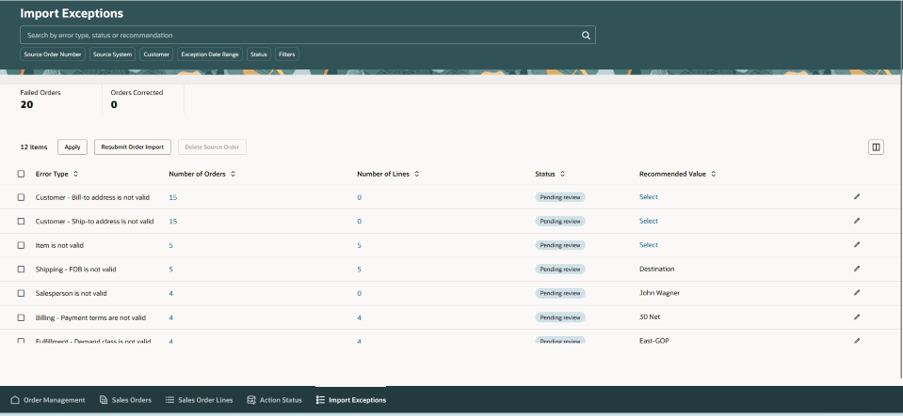
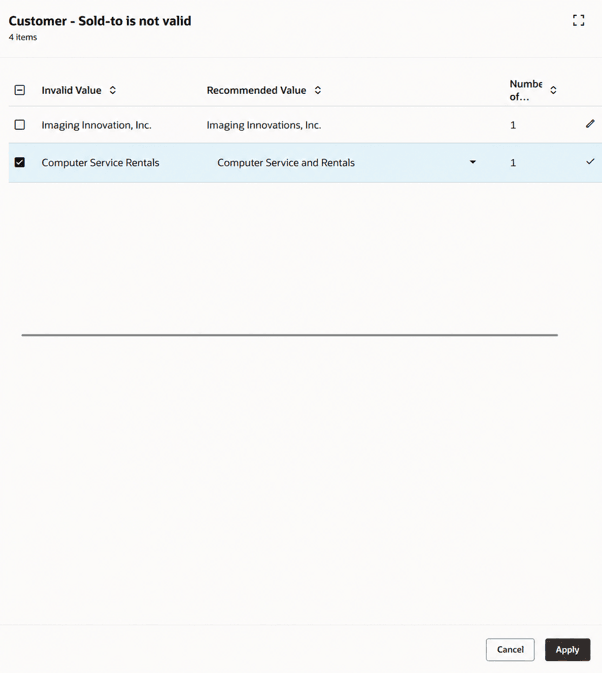
5. Scroll to the Customer sold to error type. Since there are multiple input customers and multiple recommendations, Select is displayed to review the values. The recommended value column displays the recommendation with the highest confidence score (say best match), but if you click the edit icon there could be cases where other probable values say frequently used could also be shown.
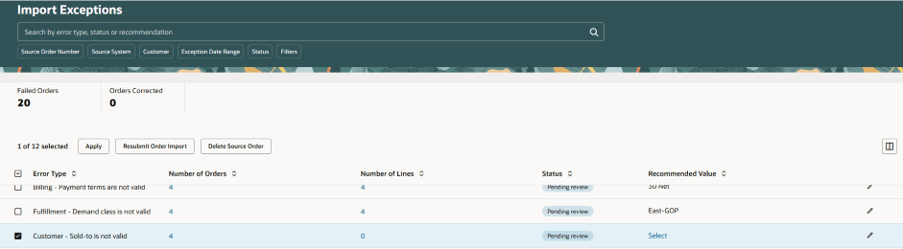
6. You can also review the detailed error by clicking the Number of Orders or Number of Lines hyperlink count. Click Done to navigate back to Import Exceptions summary page.
7. Select and open the 'Customer - Sold-to is not valid' drawer. Select the record for Computer Service Rentals and click Apply to accept the recommendation.
8. Since the recommendation was accepted for only of the customer the status changes to partially corrected.
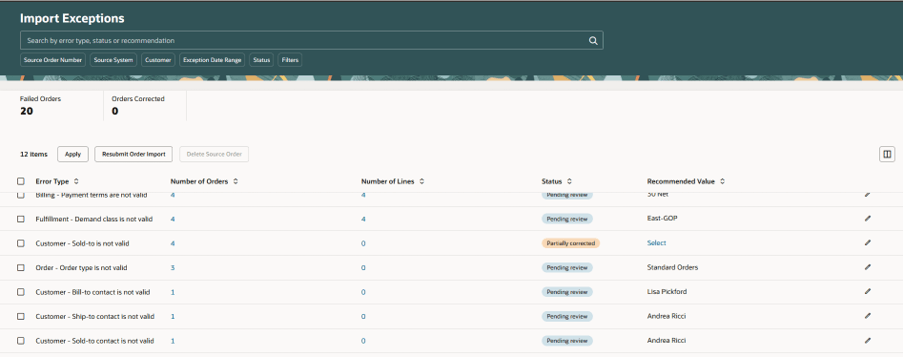
9. Once all errors are reviewed and corrected Resubmit the Order Import. You can also just Resubmit order import by selecting specific rows or all rows for cases which are setup related and do not need data update.
10. Resubmit the Order Import which submits a ESS.
11. Click the Action Status and review Action called 'Resubmit Order Import'. Refresh to see if the import processed successfully. The Process ID hyperlink provides import details.

Here's one more use case showing how to override the recommendations and specifically select a value
Let's say a create order request was sent using a file-based data import with multiple orders with multiple errors. For this example we'll say the payment term in the inbound order is 30N instead of 30 Net. There are other categories of errors. For this scenario the profile 'Import Sales Orders Errors Correction Mode' is set to Manual Correction with Recommendations.
Here's what happens:
1. The Order Import ESS runs and has an error that the source order couldn't be imported because customer 30N payment term doesn't exist in Order Management Cloud or isn't active.
2. Review the errors and recommendations by navigating to Import Exceptions in the landing page.
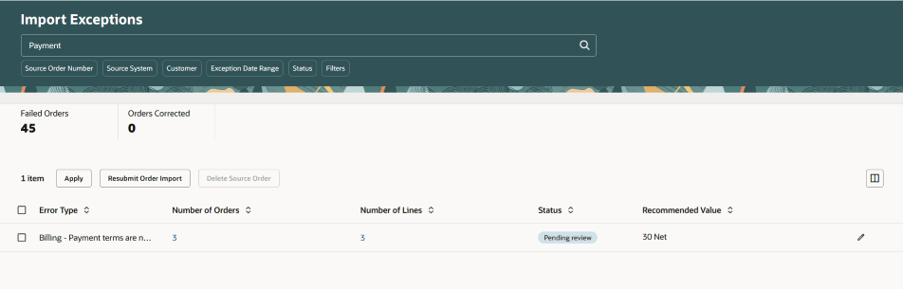
3. The categorized list of errors is displayed in the Import Exceptions page. Search for Payment to see only Payment term errors.
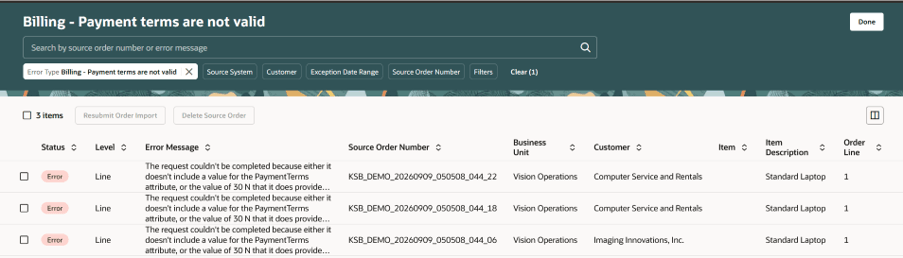
4. Click the Number of Orders hyperlink to see the detailed errors and click Done.
5. Click the recommendations edit link and check the drop down. Click Select to select a different value.
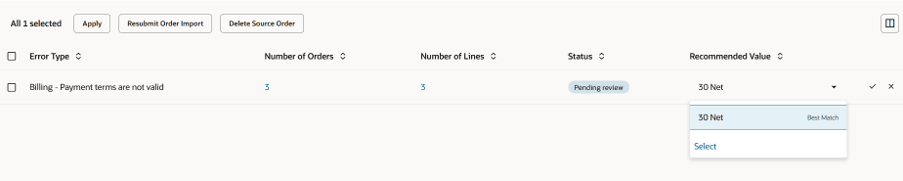
6. This opens the Select drawer. Click Edit.
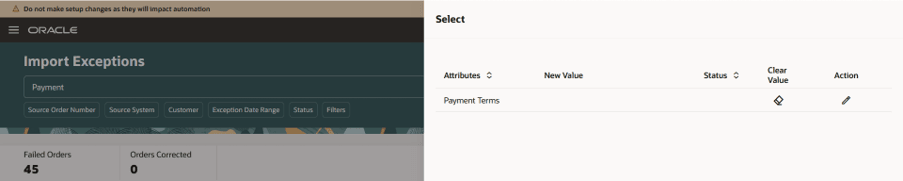
7. Click Edit and select a different value like 2/10 Net 30
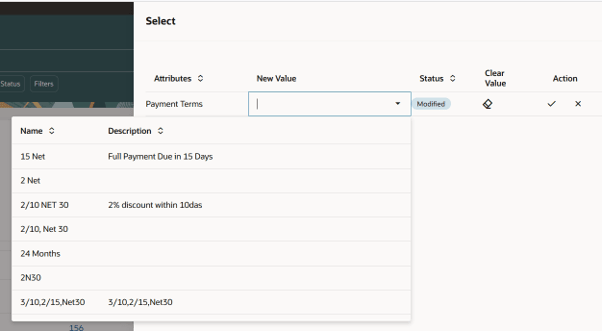
8. Review the updated values and proceed with resubmit as needed.
Steps to enable and configure
Step 1 - Setup the agent
- Go to the Setup and Maintenance work area, then use the Manage Administrator Profile Values task to set the Enable VBCS Progressive Web Application User Interface (ORA_HCM_VBCS_PWA_ENABLED) profile to Y at the site level.
- Go to Home > Tools > AI Agent Studio, then search for Sales Order Correction Assistant.
- Click Actions > Copy Template, enter a suffix, then click Continue. We recommend that you use the suffix to indicate versions, such as 1, 2, 3. For this example, assume you enter 1 for the suffix.
- Click Publish, then confirm that the agent's status is Published.
- Click Agent Teams, then query for Sales Order Correction Assistant 1.
- Copy the value that's in the Agent Team Code attribute. For this example, assume it's SALESORDERCORRECTIONASSISTANT_1.
- To view a similar procedure that has screen prints, see AI Agent: Data Access Advisor for Sales Orders.
Step 2 - Set the profiles
- Set the profile ORA_FOM_IMPORT_ERRORS_CORRECTION_AGENT (Import Sales Order Error Correction Assistant Code) to the agent code you created in the prior step
- Set the profile ORA_FOM_IMPORT_ERRORS_CORRECTION_MODE (Import Sales Orders Errors Correction Mode) to one of
- Auto Correct - Automatically applies corrections using an AI agent
- Manual Correction with Recommendations - Generates AI recommendations for eligible import errors. Users review and apply corrections manually
- None - Disables both AI recommendation generation and auto-correction
Tips and considerations
- The auto correction and recommendations are available for selected set of key attributes and each and every attribute is not covered
- The list of key attributes considered include: Customer, Bill-to and Ship-to address, Bill-to and Ship-to contact, Item, UOM, Description, Warehouse, Supplier/Supplier site, Shipping method, Shipping priority, Freight term, FOB, Payment term, Order type, Sales channel,
- The error category is a preset list currently and any error that is not mapped would be uncategorized
- Be sure you are using the Oracle redesigned pages for this feature
- Note that the corrections are done using the Smart match or fuzzy match feature. If there are matches with confidence score of more than 80 percent then the value is used as is.
- If there is history available, then the attributes are validated against these orders and the confidence score is enhanced in addition to the smart match confidence scores.
Key resources
Implementing Order Management
Using Order Management
Access requirements
Access requirements
To access the UI and actions:
- The Import Exceptions tab is visible with the privilege View Import Exceptions (Code- FOM_VIEW_IMPORT_EXCEPTIONS_PRIV)
- To run the Import Order ESS existing privilege Import Order (Code - FOM_IMPORT_ORDER_PRIV)
- Delete source order data needs Delete Stage Data (Code - FOM_DELETE_ORDERS_FROM_INTERFACE_TABLES_PRIV)
To access the agents:
- To access the Oracle AI Agent Studio for Fusion Applications and manage SCM AI agents, users must be assigned a configured job role that contains these duty roles:
- SCM Intelligent Agent Management Duty (ORA_RCS_SCM_AI_AGENT_MANAGEMENT_DUTY and ORA_RCS_SCM_AI_AGENT_MANAGEMENT_DUTY_HCM both duty role codes are required)
- Fai Genai Agent SCM Administrator Duty (ORA_DR_FAI_GENERATIVE_AI_AGENT_SCM_ADMINISTRATOR_DUTY)
In the Security Console, filter by Roles and Privileges to find the SCM Intelligent Agent Management Duty role. Filter by Roles and Permission Groups to find the Fai Genai Agent SCM Administrator Duty role.
- To interact with AI agents in product pages, users must be assigned a configured job role that contains this duty role:
- Fai Genai Agent Runtime Duty (ORA_DR_FAI_GENERATIVE_AI_AGENT_RUNTIME_DUTY)
- In the Security Console, filter by Roles and Permission Groups to find this duty role.
- To allow users to interact with agents, you must also enable permission groups in the Security Console on those users configured job roles that contain the Fai Genai Agent Runtime Duty role. You can enable permission groups when you manage details for your configured job roles.
Users' configured job roles must also contain privileges that allow access to the pages where AI agents are enabled.
- To View Orders (FOM_VIEW_ORDERS_PRIV)