Configurator runtime designer
The Configurator Runtime UI Designer lets administrators tailor the Configurator Runtime experience by arranging fields, grouping related content, and renaming labels to create a sales-focused view of configurable products. By showing guided selling questions up front and hiding the complexity of the manufacturing BOM, sellers can work in a cleaner, more intuitive interface that is easier to use without custom development.
Get these benefits
- Create a sales focused or unique configuration experience
- Organize fields and sections, move content across pages, and rename labels to present configurable products in a way that supports the sales and ordering process.
- Help order representatives focus on relevant configuration choices.
- Group related content and place guided selling questions up front to reduce the visible complexity of the manufacturing BOM.
- Preserve configuration accuracy while tailoring presentation
Publish layouts for runtime users while retaining model rules, defaults, validations, conflicts, quantities, pricing, and saved configuration data. - Support simple and complex configuration models with custom user interfaces and page layouts.
About this feature
The Redwood Configurator Runtime UI is generated from the configuration model and its UI metadata and reflects the effective model and bill of materials (BOM) when users launch it. Authorized administrators with design capabilities can tailor the runtime experience to match how a model is configured and presented, making it easier to surface relevant options and option classes.
Administrators can organize fields, sections, and pages without changing the underlying configuration model or its business behavior. The tailored experience continues to use the standard Redwood Configurator Runtime UI and configuration engine while allowing the layout to support different customers, roles, sales processes, devices, and business scenarios.
Customizations remain aligned with model changes. When the Configurator Runtime UI launches from Order Management, it reconciles the enabled layout with the effective model so newly effective content is available and outdated model definitions aren’t retained.
Customization capabilities
Authorized configuration designers and implementation administrators can use Design mode to organize pages and sections, move fields, and select supported presentation options. Salespeople, order managers, product specialists, and other runtime users work in Live mode, where they see the published layout without design controls.
- Customize the presentation, not the configuration. Layout changes don’t affect model rules, defaults, validations, quantities, pricing, or other configuration behavior.
- Return to the default layout when needed. The default experience remains available, and authorized administrators can reset a tailored layout.
- Use supported Redwood layouts and controls. Layout choices are based on the underlying model node and continue to support Redwood responsive design, accessibility, and translation.
- Work with the current model. The configuration model remains the source of truth, and saved customizations are reconciled with the effective model when the runtime UI launches.
To schedule model changes
Administrators can customize the Redwood Configurator Runtime UI when they launch it using Test Model from Configurator Modeling in Product Information Management. Customization isn’t available from within a change order, so administrators must schedule model changes before customizing the UI.
- To schedule model changes, first find your item and select the Structures tab.
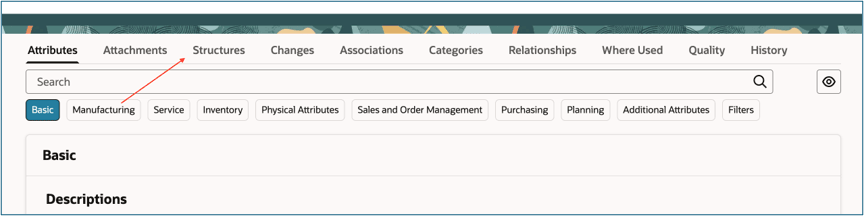
- Select Configurator Modeling.
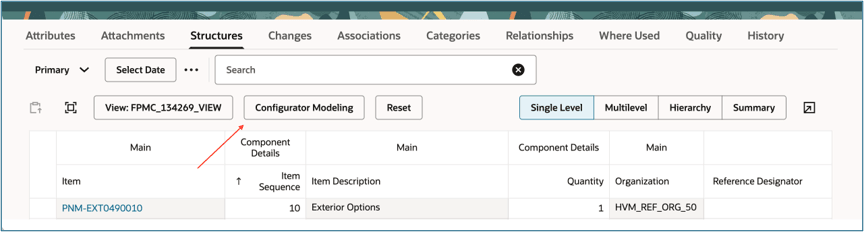
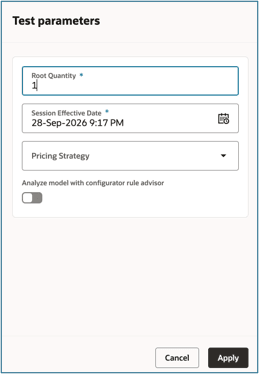
- Select the Test Configurator Model and apply the test parameters.

To use the model design toolbar
Your model opens with a design toolbar. Use the toolbar to create new user interfaces, select existing user interfaces, define user interface settings, save layout changes, reset the layout to the default generated experience, or to the last saved version or perform clipboard actions.
This is the design toolbar
Design toolbar functions:
- Live mode shows the published Order Management layout as runtime users experience it. Drag handles, edit actions, empty drop targets, and design-only navigation are hidden.
- Design mode provides the tools to customize the Order Management runtime experience. It is available only to users with the required administrator privilege.
- User Interfaces shows a list of saved user interfaces and the option to Create a New User Interface
- Settings provides the user interface name and description, layout enablement, and display settings for the layout type, column display, running summary, and excluded-option behavior.
- Save stores changes to the selected user interface.
- Reset Layout discards unsaved layout changes and restores the last saved version.
- Clipboard provides cut, copy, and paste actions for pages, sections, fields, and supported components. Keyboard shortcuts for copy/paste are also supported. Root regions cannot be deleted.
Switching between live mode and design mode changes whether the customization tools are visible and not the configuration selections. The published customization governs the Configurator Runtime UI launched from Order Management and doesn’t apply to every application that can launch Configurator.
To publish a configurator runtime layout
Administrators use design mode to create, organize, and publish a Configurator Runtime layout. Runtime users see the active published layout in live mode and can’t modify it while configuring an item. The Runtime UI opens with the default layout, which can’t be modified. If modifications are made, a new layout is automatically created and can be saved. Each user interface must have a unique name to save.
- Choose a layout or create a new one. Administrators can use the drop-down to select an existing layout or select create a new interface. You can also begin by modifying the default layout. When you make a change, the designer creates a new user interface so the original default layout remains available.
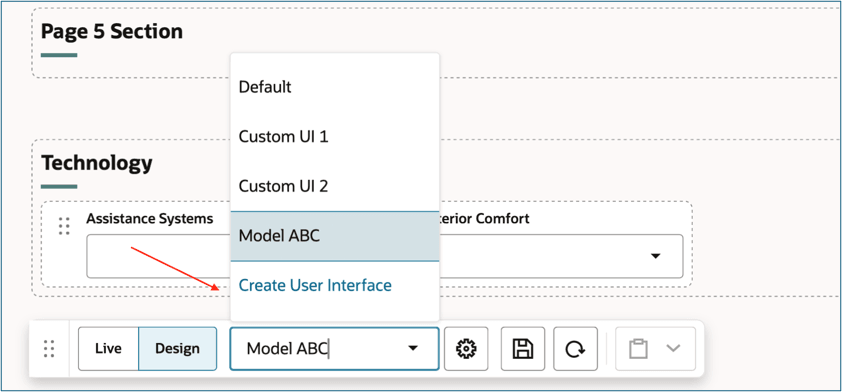
- Define the layout, running summary, and display settings Select the Settings icon to open the user interface settings.

- The User Interface drawer opens. Enter a unique name, add an optional description, and choose initial page-layout settings.
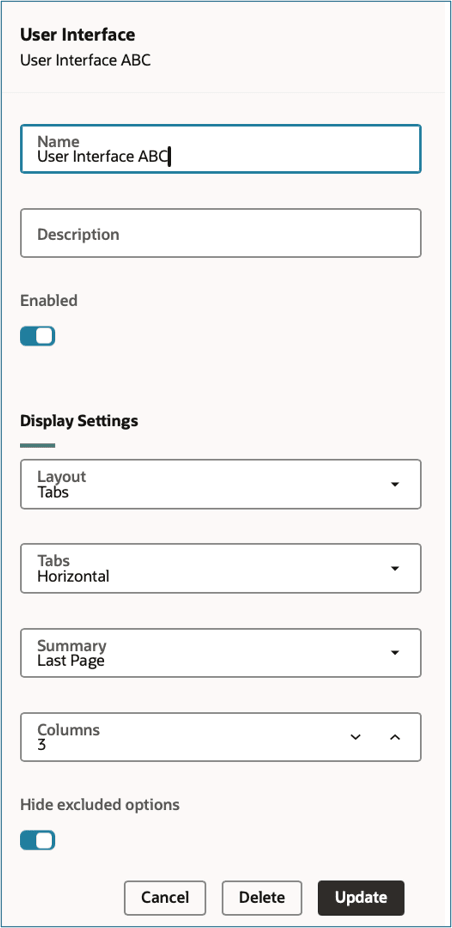
4. Use the layout settings to choose how configuration content is organized.
- Single page places all sections on one scrollable page.
- Multi-page divides configuration content across pages.
- Tabs represents each page as a horizontal or vertical tab
5. Use the column setting to select one to eight columns for the layout and define how excluded options appear:
- Select column display between 1 and 8.
- Show excluded options will display a conflict message if an excluded option is selected.
- Hide excluded options will hide excluded options from the user interface
6. Use the summary settings to choose where the running summary appears:
- In a side panel.
- On the last page of a multi-page or tabbed layout.
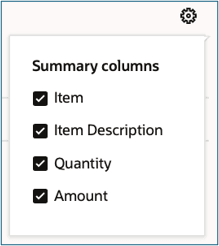
7. Within the Summary section of the user interface, select the Summary Columns gear icon to choose the summary columns that best support the configuration experience, including item name or description, quantity, amount, or no summary columns. If pricing is not enabled, the amount column will not be displayed or available for selection.
To manage pages
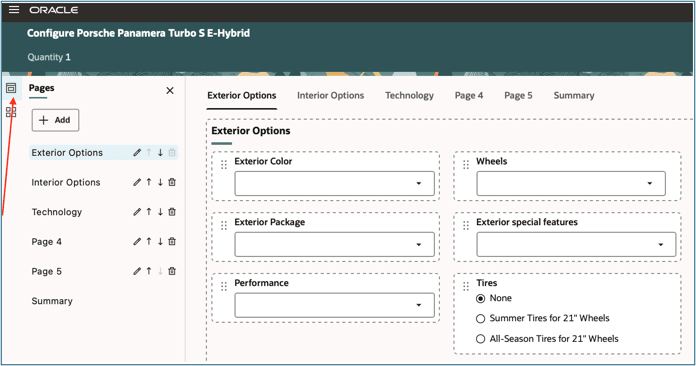
For multi-page and tabbed layouts, use the Pages panel to:
- Add, rename, reorder, select, or delete eligible pages.
- Move sections and fields to another page.
- Edit the title of a manually created page.
When you change from a single-page layout to a multi-page layout, existing sections initially appear on the first page. You can create pages and then redistribute sections or fields. When you return to a single-page layout, sections retain their relative order and are combined into one scrollable page.
To organize sections and fields
Within a page, you can:
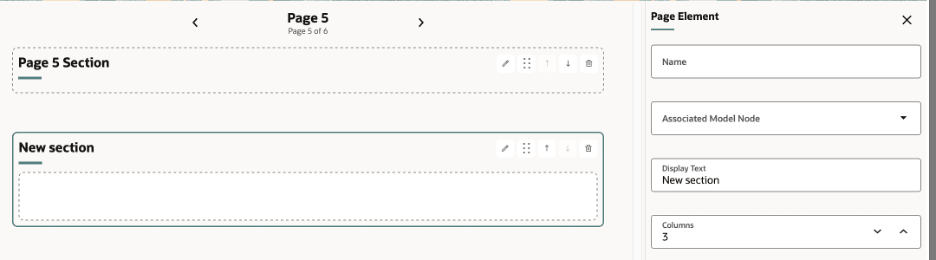
- Add a section and give it a meaningful title.
- Rename, reorder, move, or delete eligible sections.
- Move fields within a section or to another section or page.
- Use display conditions to hide or show sections
Drag-and-drop feedback shows where the item will be placed. Moving a field or page element changes only its placement. It doesn’t change the associated model node, rules, defaults, validations, conflicts, quantities, pricing, or saved configuration data. When using the drag and drop option, grab the drag handle to drag your selection, drag on top of the desired location and drop.

To add supporting components and page elements
Use the Components panel to add a variety of different page elements - formatted text, images, spacers and sections. You can move, copy, cut, paste, or delete supported components and optionally use display conditions to hide each component/page element.
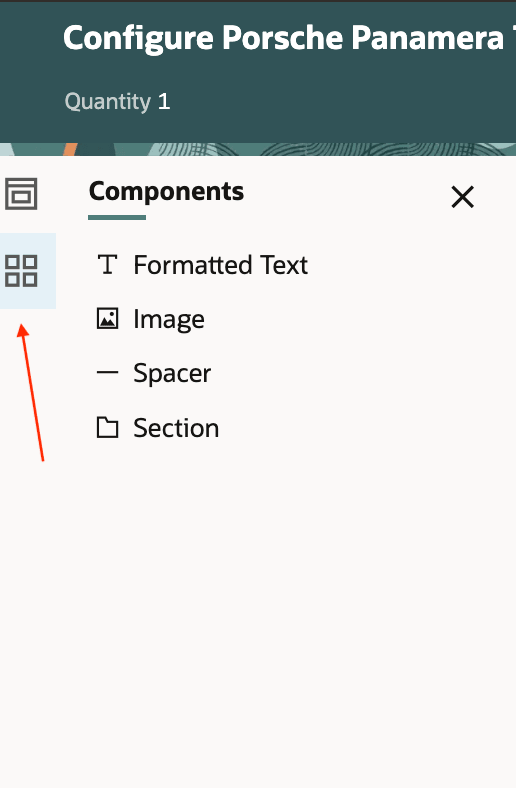
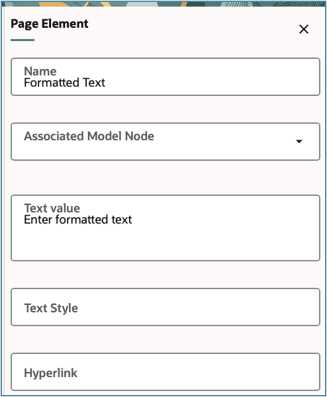
Formatted text can be used to display model-aware guidance or instructions for a configuration. Add the formatted text component, then select the formatted text page element to add the associated model node, text value, style or hyperlink. Use CSS styling to customize the appearance of formatted text, such as its font, size, color, alignment, and spacing. Adding the hyperlink will navigate the user to the associated web page when selected during runtime.
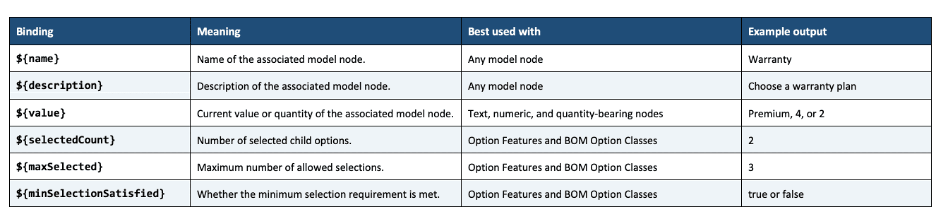
The formatted text component supports six binding tokens. Each token resolves against the component’s selected Associated Model Node. Using these options provides greater flexibility and allows the addition of dynamic guidance to the configuration experience.
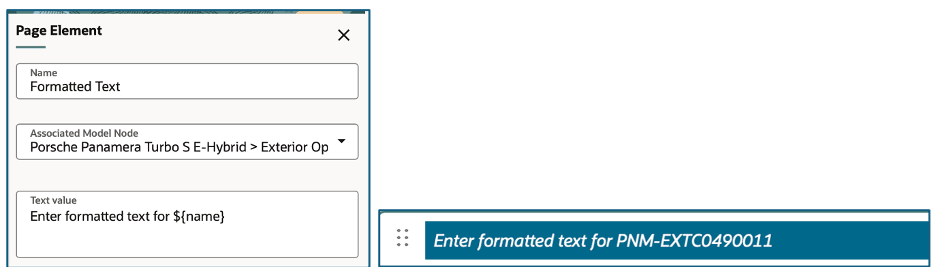
For example, the name of your associated model node can be appended to the formatted text and will dynamically change based upon the selection.
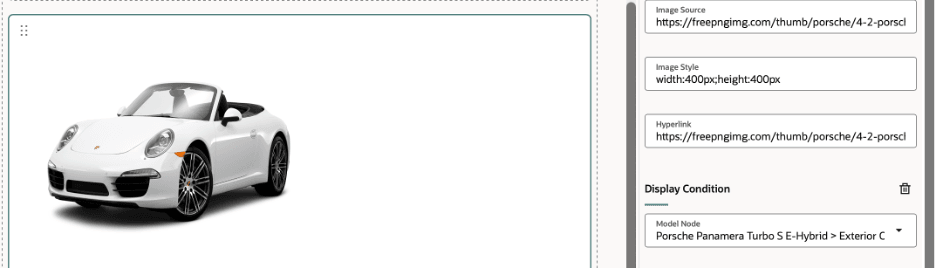
Images can be used to enhance and support the configuration experience. Add an image component, then select the image page element to add the associated model node, image source, image style or hyperlink. Adding the hyperlink will navigate the user to the associated web page when the image is selected during runtime.
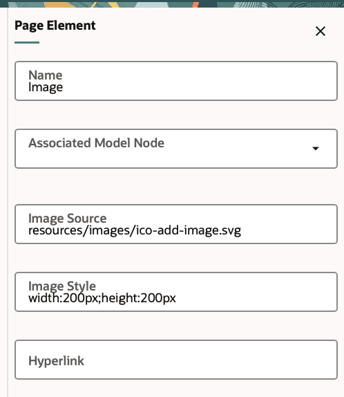
Spacers can be used to create visual separation. Select the spacer component and drag to the appropriate place on the layout,

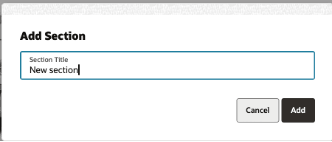
Sections can be added to group related content. Select the section component and provide a name for your new section.
To use display conditions to hide or show relevant content
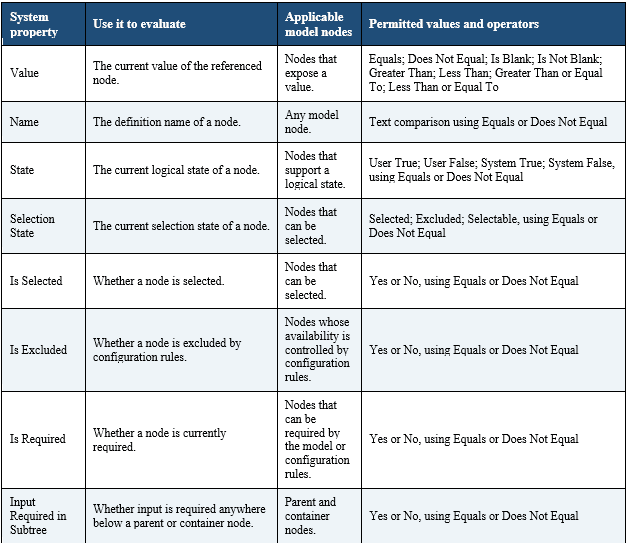
Conditions can use properties such as a node’s value, name, state, selection state, required status, or exclusion status. For example, you can show an image when a customer selects a particular option or hide content when a configuration condition isn’t met.
Use display conditions to control whether content appears in the Configurator Runtime UI. A display condition evaluates the state of a model node and shows or hides the selected content depending upon the option or option class selection. One display condition can be added for each page, section, page element, formatted-text component, image, or spacer.
In the runtime experience, content is hidden when its display condition evaluates to false. In Design mode, all content remains available so you can inspect and edit it.
A display condition combines these values:
- Model node — The configuration model node that the condition evaluates.
- System property — The attribute or state to evaluate for that node.
- Operator — The comparison to perform, such as Equals or Is Selected.
- Value — The expected value or state for the selected property.
For example, you can configure an image to appear only when a customer selects a specific exterior color. Select the black option and the black car image will show. You can also hide content when an option is excluded or display guidance when input is required in part of the configuration.
To add a display condition
- In Design mode, select the page, section, model field, formatted-text component, image, or spacer that you want to control.
- Open the display-condition settings and add a condition.
- Select the Model Node whose configuration state determines whether the selected content appears. You can select a node at any level in the item structure.
- Select a System Property to evaluate.
- Select a compatible Operator and Value.
- Save the layout and test the condition using the applicable configuration scenario.
System properties, values, and operators for Display Conditions
Use this table to select a system property, compatible model node, and permitted comparison value when defining a display condition.
Things to keep in mind when working with display conditions
- Use one condition per target. To support more complex behavior, create separate content components and apply the appropriate condition to each component.
- Choose a model node that directly represents the customer selection or configuration state you want to evaluate.
- Keep conditional content focused on helping users make the next configuration choice, such as showing relevant guidance, images, or supplemental information.
- Test both outcomes: the condition evaluating to true and the condition evaluating to false.
Administrators can customize the Redwood Configurator Runtime UI when they launch it using Test Model from Configurator Modeling in Product Information Management. Customization isn’t available from within a change order, so administrators must schedule model changes before customizing the UI.
Steps to enable and configure
In Configurator Modeling in Product Information Management, select Test Model to launch the Redwood Configurator Runtime UI.
Enter Design mode using the required Order Management administrator privilege.
Tips and considerations
- Customization changes presentation only.
- Moving fields, sections, and pages doesn’t change the associated model node, configuration rules, defaults, validations, conflicts, quantities, pricing, or saved configuration data.
- Keep one active layout.
- Only one custom user interface can be enabled at a time. Enabling a new layout prompts you before the currently active layout is disabled.
- Save before resetting or switching layouts.
- Layout changes remain local until you save them. Reset restores the last saved layout and discards unsaved changes. Editing the default layout requires you to create and save a custom user interface.
- Plan model changes before customization.
- UI customization isn’t available from within a Change Order. When the Configurator Runtime UI launches from Order Management, it reconciles the saved enabled layout with the effective model.
- Review reconciled changes before saving.
- New, removed, renamed, moved, or incompatible model content can be flagged for review. The system retains compatible layout choices where possible and uses a generated placement or compatible control when needed.
- Use display conditions carefully.
- Each page, section, model field, formatted-text component, image, or spacer can have one display condition. When a condition evaluates to false, the target is hidden in the runtime experience but remains available for review in Design mode.
- Respect protected model regions.
- Root and Supplemental sections are model-owned. Their associated model node can’t be changed, and supplemental content remains available when eligible pages or sections are reorganized.
- Transactional attributes are non-draggable, non-selectable, or non-customizable.
- Use responsive layout choices.
- Single-page, multi-page, and tabbed layouts adapt to available screen space. Keep navigation clear and accessible when organizing a large configuration experience.
Access requirements
If you're using custom job roles, then you need to add privileges identified as new in this update as well as validate that you've the previously delivered privileges listed.
Privilege status: Previously Delivered
Privilege name and code Access: Configurator Runtime CZ_CONFIGURATOR_RUNTIME_ACCESS_PRIV