Configurator runtime enhancements
This feature provides enabled new configurator runtime capabilities for configuration output formatting and representation. Order entry users can enter decimal quantities and sales structure values in Configurator Runtime. The runtime displays the controls defined by the underlying configuration model and Configurator Rules Engine, and updates selections, calculations, and validations to reflect product requirements and guided selling responses.
Get these benefits
- Improve order accuracy for products sold in fractional units
- Display eligible decimal quantity controls so order representatives can enter permitted fractional quantities for configurable options and decimal-enabled model fields.
- Help order representatives make valid quantity selections
- Display configured minimum and maximum guidance for decimal-capable fields while retaining familiar increment controls for whole-number quantities.
- Use guided selling inputs to focus configuration choices
- Render sales structure controls for choices, numeric values, yes or no responses, and text entries so users can provide the inputs that influence product selections.
- Reflect rules-engine decisions in the runtime experience
- Display selections, exclusions, and calculations that formula-based configurator rules derive from decimal values and sales structure responses.
About this Feature
The Redwood Configurator Runtime displays the effective configuration model and the results that the Configurator Rules Engine evaluates. Order representatives see the controls, choices, and quantities that apply to the product being ordered. This release adds runtime support for decimal quantities and sales structures while retaining the standard Redwood runtime experience.
Decimal support lets the runtime display direct-entry controls for eligible option quantities and decimal-enabled model fields. It displays configured quantity ranges and minimum and maximum guidance where applicable, while the rules engine evaluates valid decimal values in rules, contributions, bounds, and conflicts, and retains accurate quantities in runtime output.
Sales structures add guided-selling controls for choices, numbers, yes or no responses, and text entries. The runtime displays these inputs and reflects the selections, exclusions, and calculations that formula-based configurator rules derive from the responses.
How it works
In Product Management, modelers define sales structure components and use their values in formula-based configurator rules. When an order representative opens the product in Configurator Runtime, the runtime displays the applicable choices, numeric fields, yes or no questions, and text entries. As order representatives answer the guided selling selections and make selections, the Configurator Rules Engine evaluates the sales structure values and determines the resulting selections, exclusions, and calculations. The runtime refreshes the displayed configuration to reflect the rule-driven result.
To get started using this feature you need to add a sales structure to the model in PIM.
To add a sales structure
-
Open Configurator Modeling
In Product Management, open the model in an editable Commercial Change Order. From the Structures tab, select Configurator Modeling. -
Create sales structure components
On the Configurator Structure tab, select the Add Sales Structure Component icon. Select Sales Structure Type as Choice group, Integer number, Decimal number, Yes or no, or Text entry. If you’ve selected Choice group, then in the Add Choices section, add the choices. - Define the components
Enter the name, description, default values, and other settings for each component. -
Use the sales structure components in rules
On the Rules tab, create or edit a formula-based configurator rule. Add Sales Structure components by dragging them into the formula or by typing $ to search for them. Use their values to drive item selections, exclude incompatible items, and support other selections or calculations. -
Test and schedule the change order for release to production
Select More Actions on the top of the page and select Test Configurator Model. Set the Root Quantity, Session Effective Date, and Pricing Strategy for the test session, and then select Apply. Enter representative responses and verify the resulting selections, calculations, and model behavior. After testing and verification are complete, dschedule the change order containing the model changes for release to production.
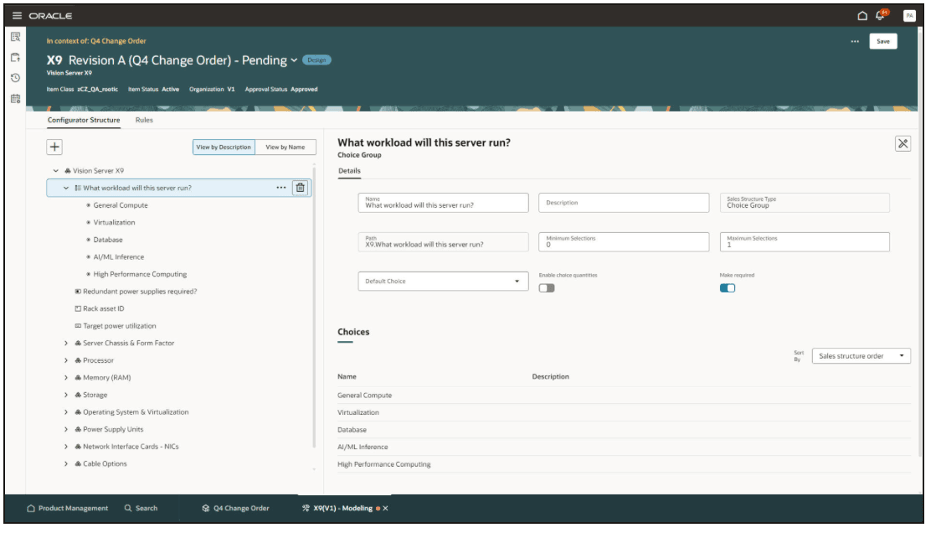
This is an example of a Choice Group Sales Structure component definition in Product Management.
To view sales structures at runtime
Once your sales structure is built then you can view it in action on the UI.
- In Product Information Management, select Configurator Modeling and select Test Model to launch the Redwood Configurator Runtime UI.
-
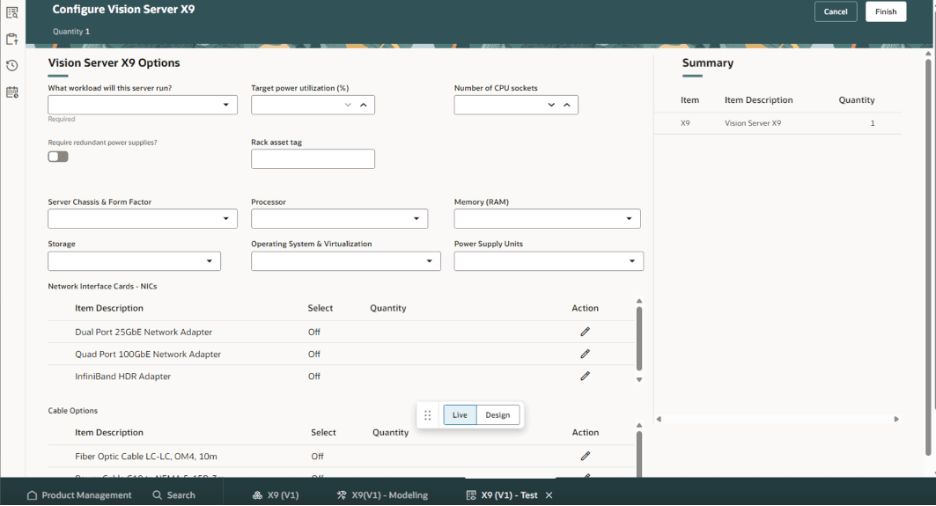
View the choice group sales structure in the Configurator Runtime UI in either live mode or design mode. The default user interface will be shown in the Runtime UI. Optionally, administrators or modelers can create a new user interface including any defined Sales Structures.
-
Using the configuration design toolbar on this page, administrators with the required Order Management privileges can optionally organize sales structures within pages and sections to present configurable products in a way that supports the sales and ordering process.
-
In live mode, complete the configuration of the model with the included Sales Structures components.
This shows the Choice Group Sales Structure component in the runtime user interface.
Decimals in the runtime user interface
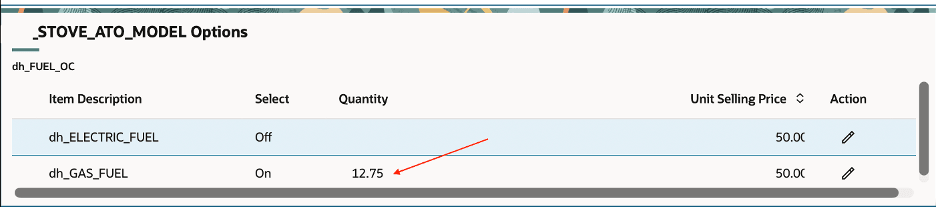
The Order Management indivisible setting determines whether an eligible option quantity can accept decimal values. Root and nested model item quantities remain whole-number quantities. Runtime displays direct decimal entry for decimal-capable fields and shows configured minimum and maximum guidance when it is available. The Configurator Rules Engine uses valid decimal values in rules, contributions, bounds, and conflict checks, and the runtime retains accurate Unit Quantity and Line Quantity output while the Configurator Runtime validates the entered value for numeric form, bounds, precision, and scale, then shows validation feedback along with configured minimum and maximum guidance appearing beneath the quantity field when needed.
To review decimals
- Open a configurable product in Configurator Runtime, enter a permitted fractional quantity, then review the rule-driven selections, calculations, and validation response.
- Review the decimal quantity controls and minimum and maximum guidance that the runtime displays for the product.
To set the decimal quantity
- In Product Management, set the Order Management Indivisible attribute for an item:
- Leave the attribute blank or set it to No to allow decimal quantities.
- Set it to Yes when the item must use whole-number quantities.
- In the configurator model, use supported components and rules with decimal quantities.
- For a Decimal Number supplemental structure component, define the minimum and maximum values.
- At runtime, provide the supported fractional quantity.
- The configurator evaluates the quantity and propagates it through the configuration hierarchy using decimal calculations.
Steps to enable and configure
To use the Redwood Decimal quantity support for the configurator feature, opt in to the Redwood: Manage Configured Items on Sales Orders feature. If you've already opted in to this feature, no further action is required.
Tips and considerations
- Decimal value sets aren't supported for transactional item attributes in this update.
-
Decimal quantity availability is determined by the item's Order Management Indivisible attribute set in Product Management. Validate this attribute before using fractional quantities in a configuration.
-
Mathematical functions such as Ceiling, Floor, Round and Truncate are supported for numbers.
- Decimal value sets aren't supported for transactional item attributes in this update.