Inspect work in process using industrial handheld devices
Production and quality teams need a fast, reliable way to record inspection results at the point of work to avoid production delays and transcription errors. Mobile handheld capture removes the need to walk to a workstation or computer and ensures inspection results are associated with the correct production record.
With this update, you can now do the following:
- Create ad hoc work in process (WIP) inspections using an industrial handheld device
- Scan barcodes for quick identification of the work order, operation, item, lot, and serial to inspect
- Manage a worklist of pending, in progress, or completed samples or serials before submitting the inspection
- Enter inspection results by sample, multiple samples, or inspection characteristic depending on the most efficient way for reporting
- Automatically trigger quality inspection plan actions through action rule execution
From the Supply Chain Execution home page, you can navigate to Production Reporting, expand the Inspection menu, and select the Inspect action.
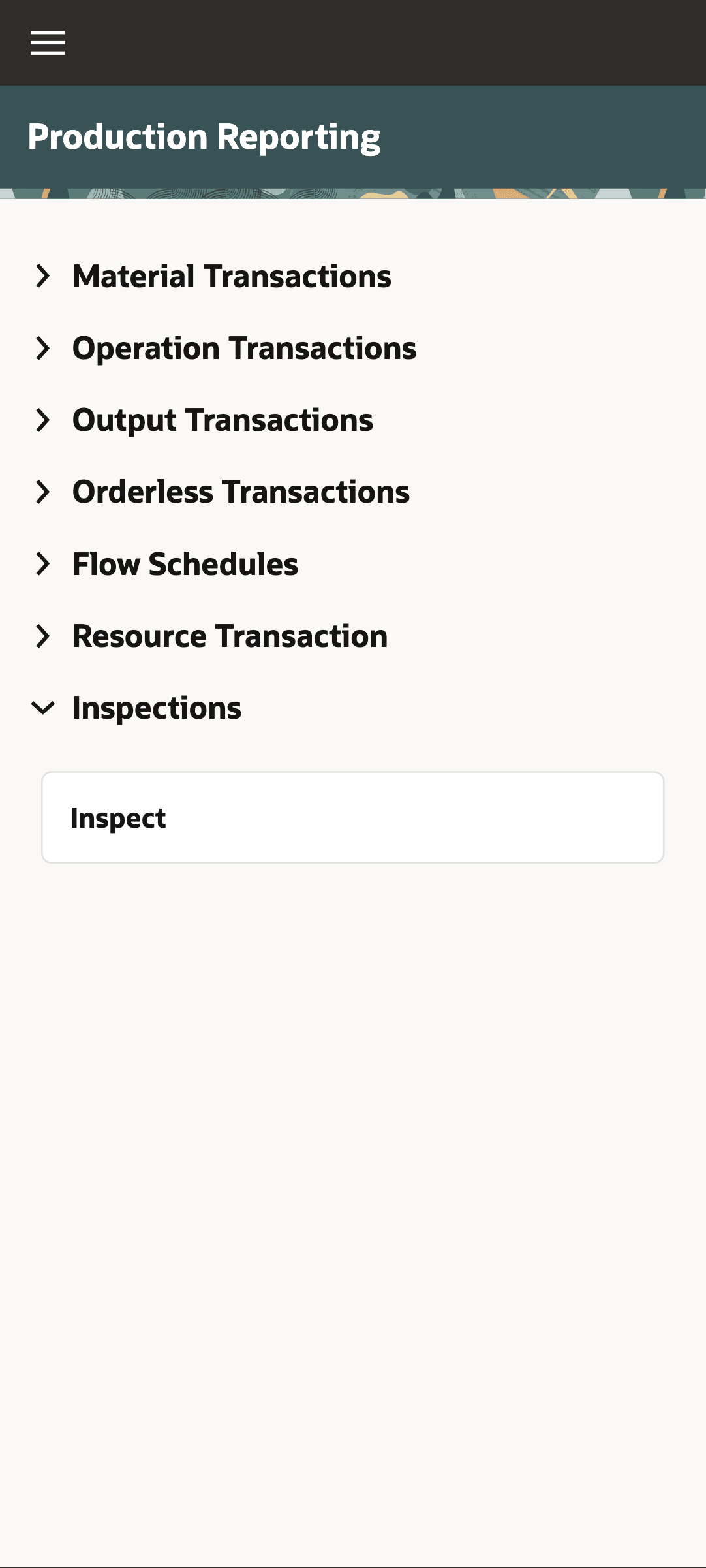
Access WIP Inspection through Mobile Production Reporting
When managing the list of WIP inspections, you can create and update inspection results until finished then submit all the inspection records at once.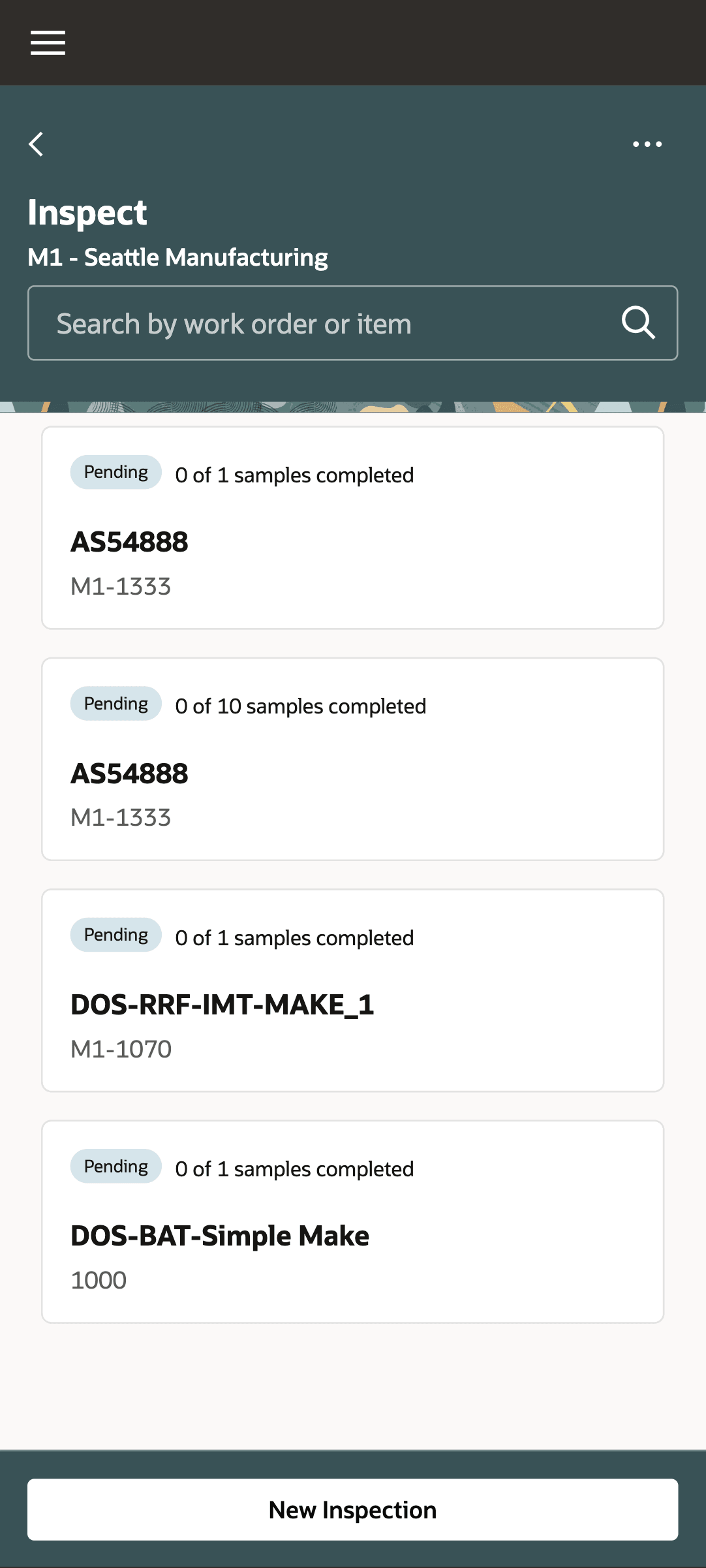
Manage Worklist of Inspections
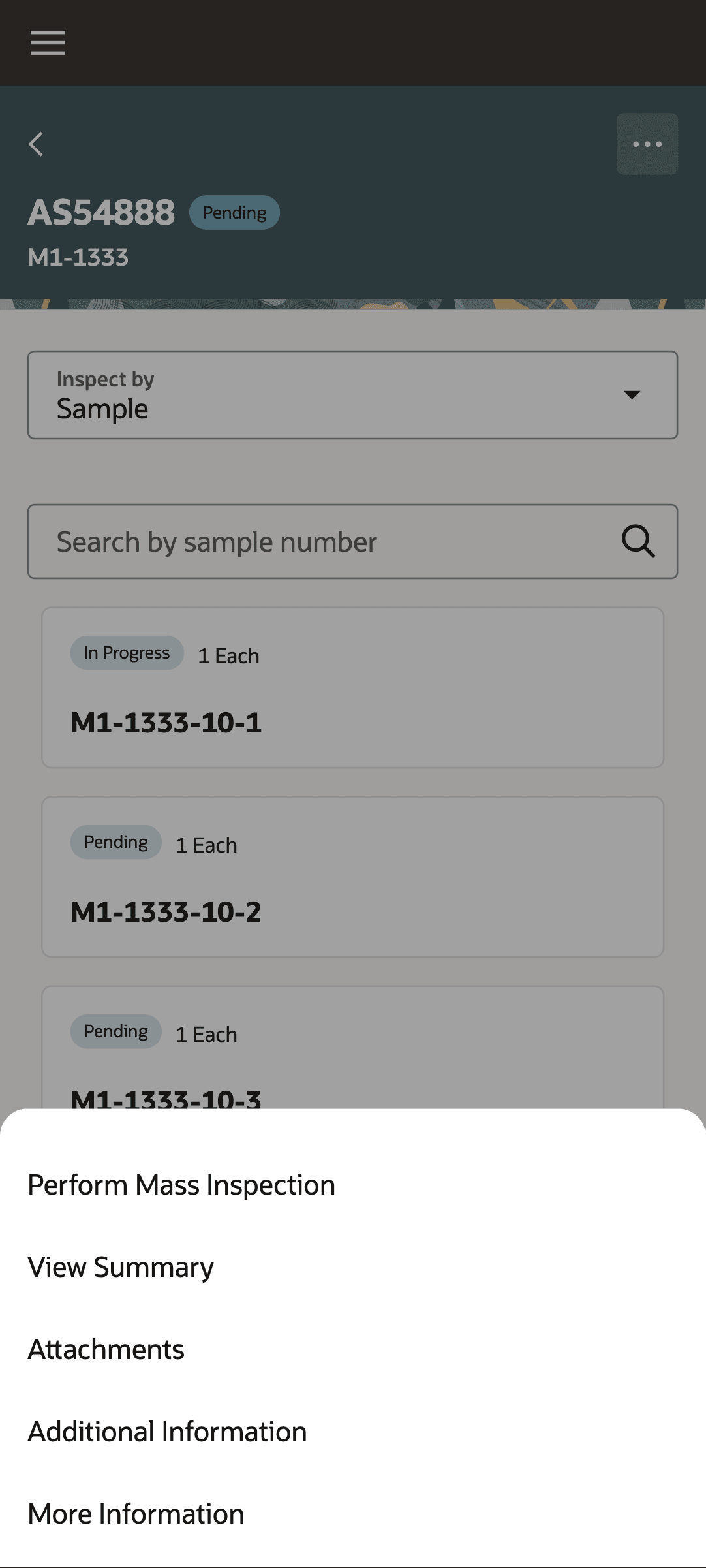
Inspect by Sample for Mass Inspection
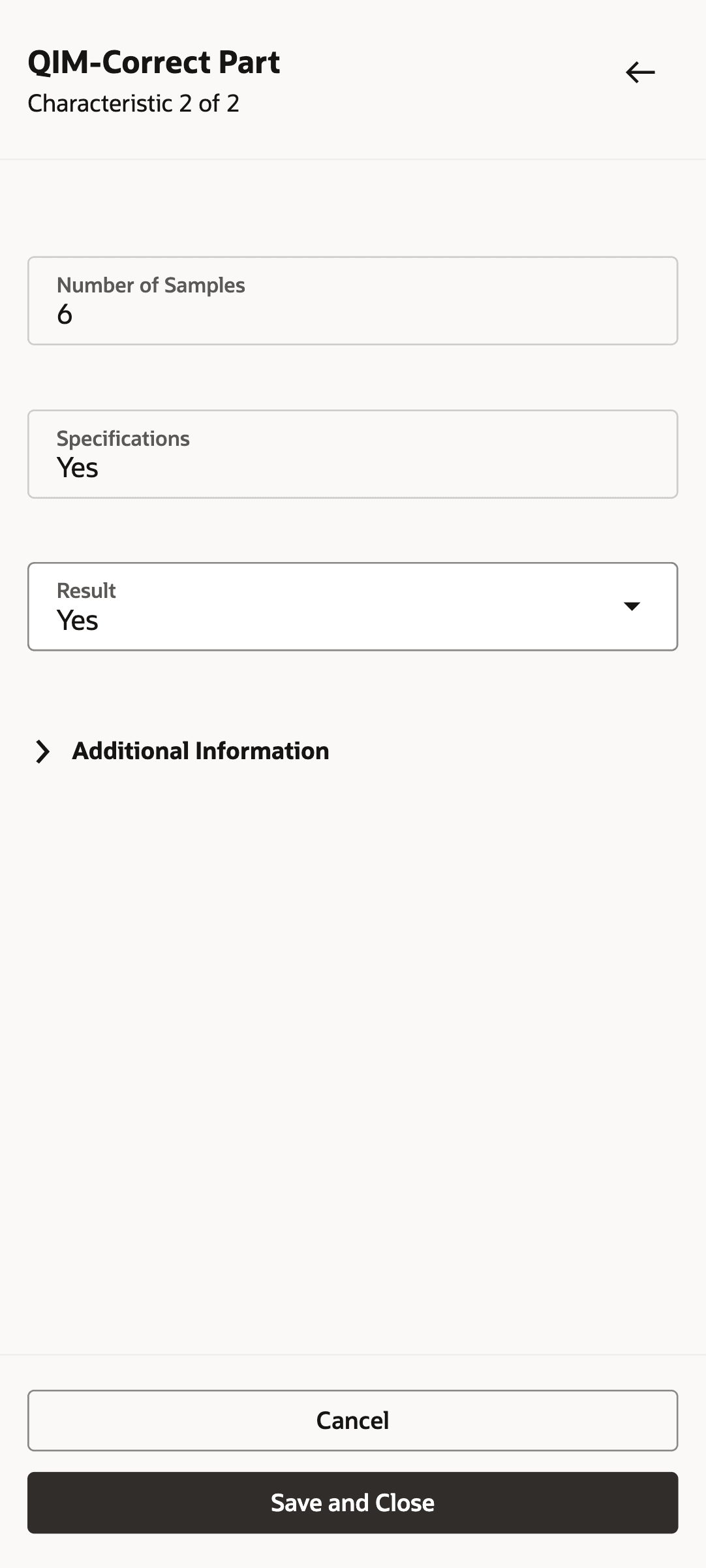
Apply Result to Multiple Samples
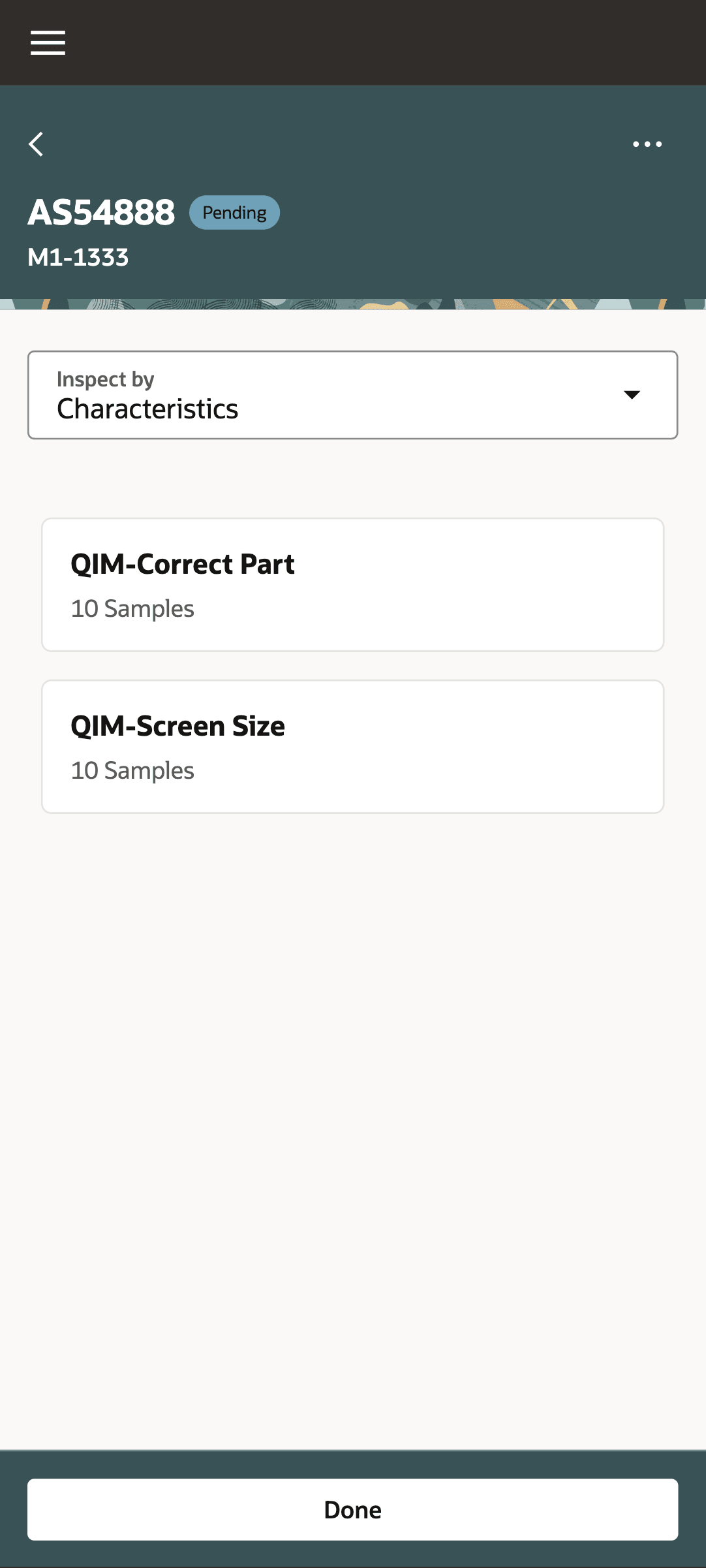
Inspect by Characteristic
With an ad hoc WIP inspection, you can perform mobile inspection against the WIP item, product, co-product, or by-product in a discrete work order or process manufacturing batch and operation independent of real-time production reporting. A production operator or quality engineer can also do the following as part of the inspection:
- Capture additional information for the inspection through flexfields
- Add comments to inspection results
- Attach supporting files including photos using the device camera
- Reference the gauge or measuring device used for each result (if enabled)
Barcode-driven, handheld inspections support high-throughput environments where inspectors and operators must continue production tasks while meeting quality and traceability requirements. They reduce rework, improve defect detection at the source, and maintain a digital audit trail tied to work orders and serial or lot traceability.
Here's the demo of these capabilities:
Steps to enable and configure
You don't need to do anything to enable this feature.
Tips and considerations
- Work in Process inspections using an industrial handheld device supports discrete work orders and process manufacturing batches.
- Only ad hoc WIP inspections are supported. Inline inspections are not supported, nor is the feature “Enforce Inspections for Work in Process Items from Intermediate Operations” supported.
- As a best practice, use ad hoc WIP inspections to validate and capture inspection results after operation completion and before the next operation, or after production has finished. If you want to inspect WIP and control operation completion, you can use the inline WIP inspection that is embedded in the Production Execution experience.
- WIP inspection results captured through an industrial handheld device automatically initiates inspection plan actions.
- You can't use the Redwood pages for mobile WIP inspection in disconnected mode. Data is automatically validated and synchronized in the cloud.
- For an enhanced mobile experience in Redwood, you can also use the Mobile Manufacturing UIs for production reporting of materials, operations, outputs, resources, orderless completions, and flow schedules. Refer to the What's New in Manufacturing 25D, 26A, and 26B.
- For a consistent process manufacturing user experience, you can enable the Process Manufacturing terminology profile option, which applies to the Redwood pages for quality management.
Key resources
- Oracle Fusion Cloud SCM: Refer to the Using Manufacturing guide and Using Quality Management guide, available on the Oracle Help Center.
- Oracle Fusion Cloud SCM: Refer to the Implementing Manufacturing and Supply Chain Materials Management guide, available on the Oracle Help Center.
Access requirements
Users who are assigned a configured job role that contains these privileges and codes can access this feature.
| Privilege status | Privilege name and code |
|---|---|
| Existing |
Manage Production Reporting Work Area WIP_MANAGE_PRODUCTION_REPORTING_ WORK_AREA |
| Existing |
Edit Inspection Results QA_EDIT_INSPECTION_RESULTS |