Search and filter requisition lines, purchase orders, and purchase agreements using descriptive flexfields
Search and filter results using descriptive flexfield segments on Process Requisitions, Purchase Orders and Purchase Agreements pages for buyers and suppliers using the new user experience.
You can now use keyword search and filters on flexfield values to quickly find requisition lines, purchase orders, and purchase agreements using the additional business information you capture for your organization.
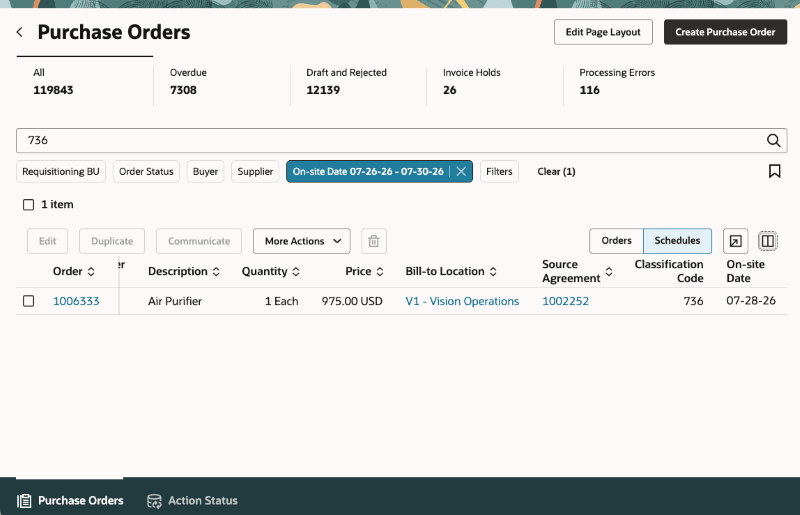
Search and filter on flexfield values
Steps to enable and configure
-
In the Manage Search Indexes setup task, add the descriptive flexfield segments to the applicable search indexes.
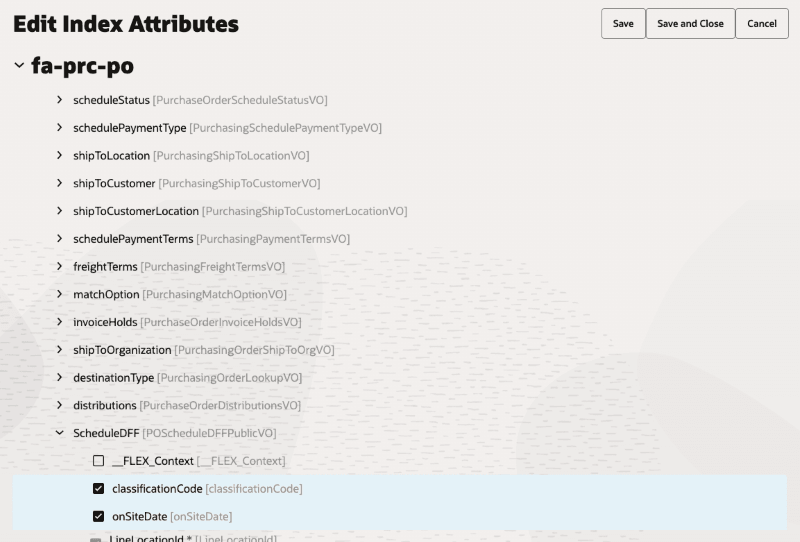
Enable flexfield segments
-
For purchase orders and purchase agreements, enable a header or child-level segment in the corresponding section of both the header and child indexes. For example, enable a schedule-level segment in the Purchase Orders Schedules index and in the Schedule section of the Purchase Orders index.
-
Run the ESS job to create the index definition and perform the initial ingest to OSCS scheduled job for the applicable indexes.
-
After the job completes, open the applicable search view and enable the segments for keyword search or filters.
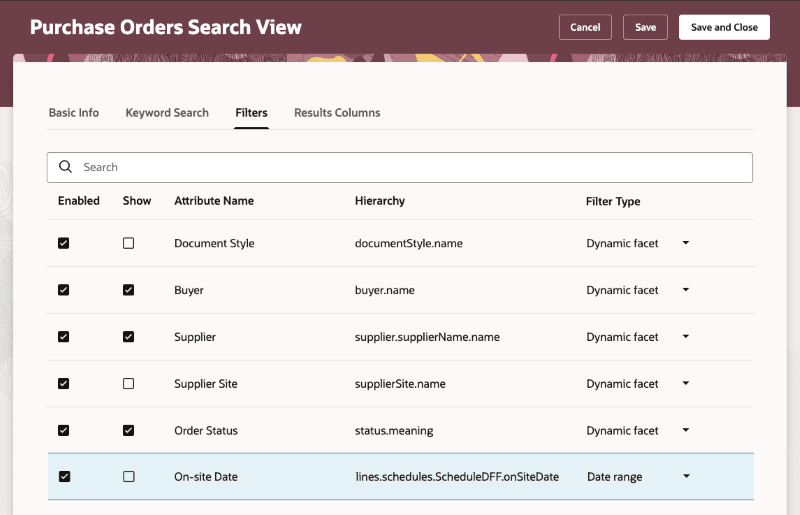
Enable flexfield segments in the Search view
For purchase order and purchase agreement flexfields, you can enable header and child-level segments for search and filter on the header search views. You don't need to enable them for search and filter on the child search views. The child search views are only used to display the segment in the results. For example, if you want to filter on a schedule-level segment, enable the segment as a filter in the Purchase Orders Search view and as a result column in the Purchase Order Schedules Search view. The column will show up as a filter on the Purchase Orders page and as a result in the Schedules search results. In summary, enable segments for search and filtering in the header search view. In the child search view that corresponds to the segment's level, enable the segment only for display in the search results.
Tips and considerations
- Descriptive flexfield segments must be enabled in the keyword search and filters sections of the corresponding search view for the page. For example, to enable segments for search on the Purchase Orders for Supplier Portal page, you must enable the segments on the Purchase Orders for Supplier Portal Search view.
-
Keyword search supports descriptive flexfield segments with only the Number or Character data type and the Text Area or Text Box display type. Keyword searches use exact matches; partial matches aren't returned.
-
Filters support descriptive flexfield segments with these display types: Checkbox, Drop-down List, List of Values, Popup List of Values, Text Box, Date, and Datetime.
- Select a search view filter type for the filter to appear in the filters drawer. Supported search view filter types are Dynamic Facet, Checkbox, Text Input, Numeric Input, and Date Range. Other filter types are not supported.
- You can search or filter based on context-sensitive segments by enabling them in search views. However, the context segment itself isn’t supported in search views.
Key resources
- For details about configuring search views and adding flexfields to search indexes, refer to the Redwood: Configure Search Views for Purchase Orders, Purchase Agreements, and Process Requisitions feature, available in Oracle Fusion Cloud Purchasing What's New, update 26A.
Access requirements
No specific privileges are required to search and filter requisition lines, purchase orders, and purchase agreements using descriptive flexfields.