Supplier Portal Advisor - Improve response time and quality
Use the enhanced Supplier Portal Advisor agent to provide supplier representatives with faster, more accurate answers to policy, process, and how-to questions. This is powered by a new seeded workflow in AI Agent Studio which uses the existing Supplier Portal Document tool, but a new optimized prompt to provide brief, specific responses to general policy questions and detailed step-by-step responses to how-to questions. This helps supplier users find relevant guidance more efficiently and improves the quality of their self-service interactions.
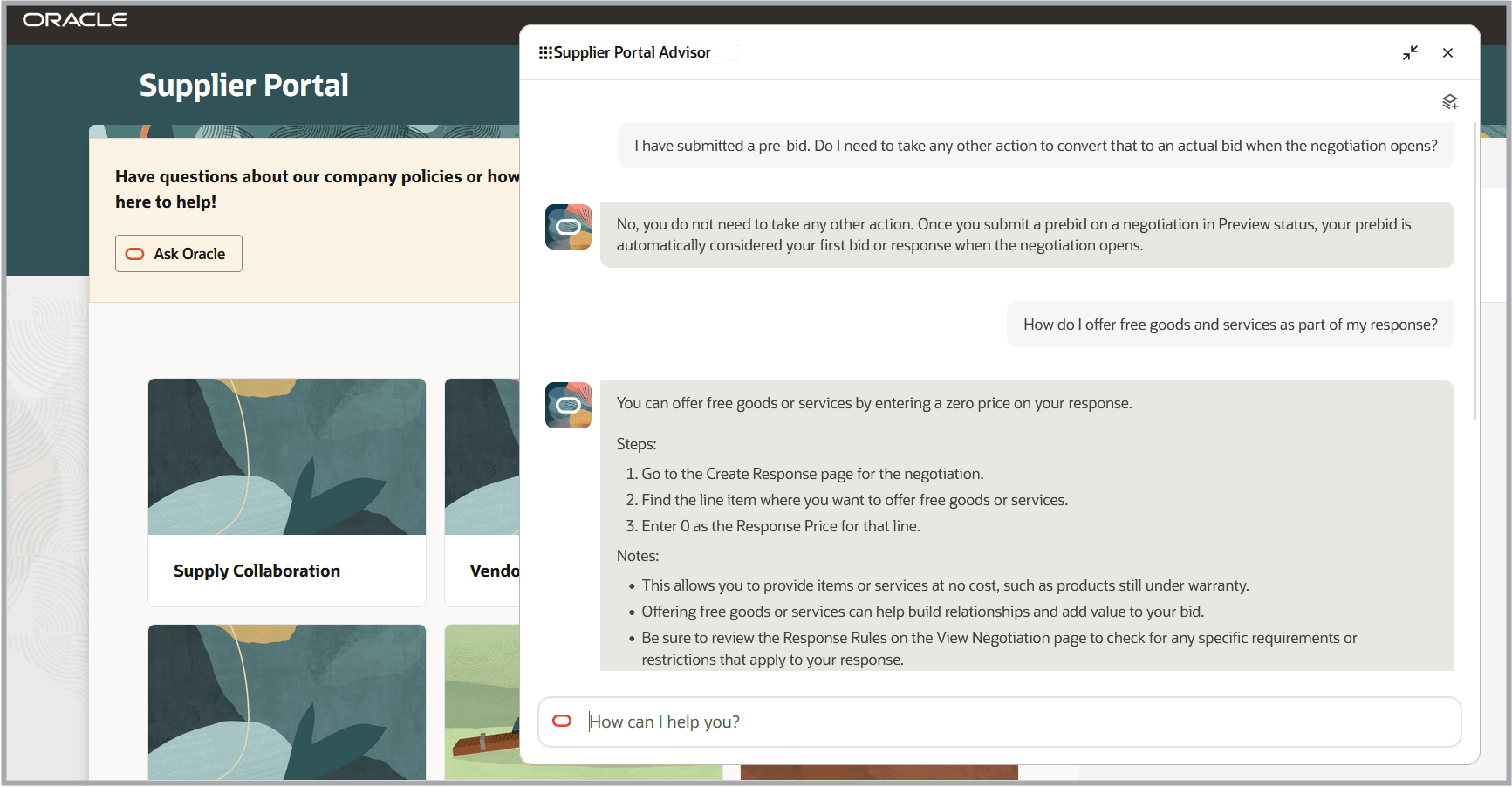
Supplier Portal Advisor on Supplier Portal Homepage
The agent can be accessed from guided journeys on the Supplier Portal pages, enabling suppliers to get answers in context while completing tasks.
Steps to enable and configure
The new seeded workflow agent is available under the Workflows tab of the AI Agent Studio.
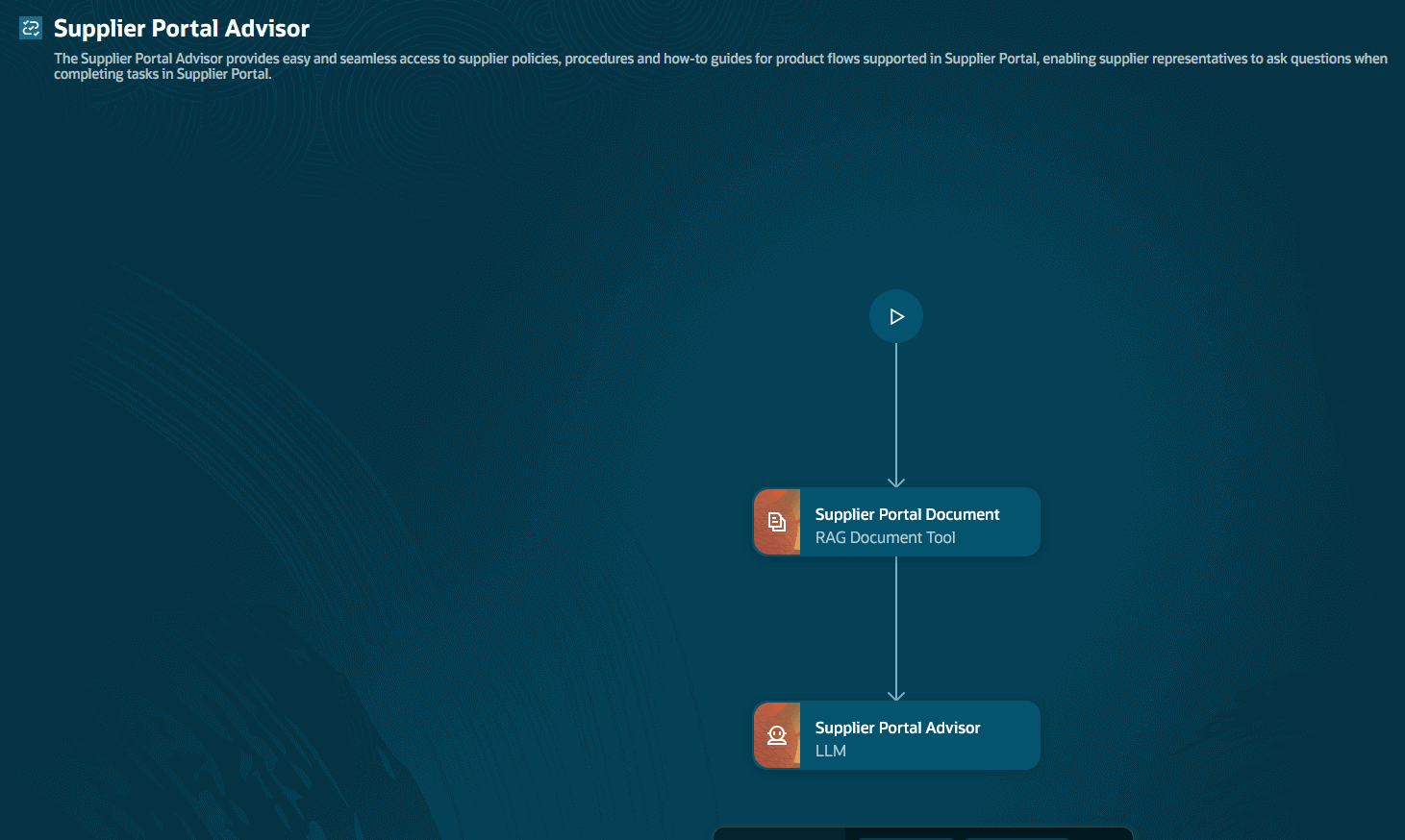
Supplier Portal Advisor (Seeded Workflow)
Follow the existing deployment steps if you deployed the 25C Supplier Portal Advisor. Otherwise, follow the new deployment steps.
1. Prepare the document tool
Existing deployment: Use the document tool from your current advisor.
New deployment:
- In AI Agent Studio, select Resources > Tools.
- Open the seeded Supplier Portal Document tool. Optionally, select Copy to create your own version.
- Select Add Document, enter a name and description, and attach your supplier-facing documents. This tool lets you add your organization specific documentation (e.g. user support documents, and other best practices documents) that the agent will use to generate answers to supplier questions.
- Change the document status to Ready to Publish.
- In Tools > Scheduled Processes, run Process Agent Documents.
- Confirm that the document status changes to Published.
2. Create and publish the advisor
-
In AI Agent Studio, select Workflows.
-
Find the seeded Supplier Portal Advisor workflow agent (should be displayed with a Seeded badge) and select Duplicate.
-
Enter a name and code, then select Create.
-
Open the Supplier Portal Document RAG Document Tool node.
- Existing deployment: Select the document tool used by your current advisor.
- New deployment: Select your copied document tool, if applicable. Otherwise, retain the seeded tool.
-
Select Settings > Security.
- Existing deployment: Add the roles assigned to your current agent.
- New deployment: Add the custom role that includes Fai Genai Agent Runtime Duty.
-
Publish the advisor.
3. Add the advisor to a guided journey
Existing deployment:
- In Guided Journeys, open the journey shown on the Supplier Portal page.
- Replace the current advisor with the new advisor, and save.
New deployment:
- In Guided Journeys, create a journey and enable Allow access for external users.
- Add a task, set Task Type to Workflow agent, and select the advisor.
- Activate the journey.
- In Configuration > VB Studio, select the Supplier Portal application page, enter the guided journey and task codes, and publish.
Suppliers can then select Ask Oracle to use the Supplier Portal Advisor.
To enable permission groups for roles, take these steps:
- In the Setup and Maintenance work area, search for the Manage Administrator Profile Values task using the search link in the Tasks panel tab.
- Search for the Enable Security Console External Application Integration (ORA_ASE_SAS_INTEGRATION_ENABLED) profile option and set the Site profile level to Yes.
Tips and considerations
- Your existing Supplier Portal Advisor will continue to work even if you choose not to adopt the enhanced version.
- You don’t need to make changes in Visual Builder Studio to uptake this enhancement.
- You can modify the prompt in the LLM node of the agent to align response formats with your organization’s business requirements and documents uploaded to the Supplier Portal Document tool.
- Use the checklist below if the guided journey does not appear on the Supplier Portal application page:
- Ensure guided journey is configured for supplier users by verifying the setting: Allow access for external users is enabled in Guided Journeys setup task.
- The guided journey has been activated and selected on the Supplier Portal page in VB Studio.
- Supplier users have the required role to interact with the agent. This can be verified by ensuring that the users have a custom role with the Fai Genai Agent Runtime Duty role. This custom role must appear under the Settings > Security tab of the Supplier Portal Advisor.
- Use the checklist below if the agent does not generate responses or generates inaccurate responses to supplier questions:
- Supplier Portal Document tool has your documents added as attachments, and the Document status is Published.
- The RAG Document tool node of the agent points to the correct tool (either the seeded Supplier Portal Document tool or the one you created as part of the setup).
- Supplier Portal Advisor has been published (i.e. do not leave in Draft status)
Key resources
- Access Requirements for AI Agent Studio
- How can I give users access to AI agents?
- Create AI Agents
- Refer to the What's New for details on deploying the Supplier Portal Advisor released in the Update 25C.
Access requirements
Users need all of the following duty roles to access Oracle AI Agent Studio for Fusion Applications and manage PRC AI agents:
| Duty role status | Duty role name and code |
|---|---|
| Previously delivered |
PRC Intelligent Agent Management Duty ORA_PO_PRC_AI_AGENT_MANAGEMENT_DUTY |
| Previously delivered |
PRC Intelligent Agent Management Duty ORA_PO_PRC_AI_AGENT_MANAGEMENT_DUTY_HCM |
| Previously delivered |
Fai Genai Agent PRC Administrator Duty ORA_DR_FAI_GENERATIVE_AI_AGENT_PRC_ADMINISTRATOR_DUTY |
Users need the following duty role to interact with AI agents in product pages:
| Duty role status | Duty role name and code |
|---|---|
| Previously delivered |
Fai Genai Agent Runtime Duty ORA_DR_FAI_GENERATIVE_AI_AGENT_RUNTIME_DUTY |
In the Security Console, filter by Roles and Permission Groups to find this duty role.
To allow users to interact with agents, you must also enable permission groups in the Security Console on those users’ custom job roles that contain the Fai Genai Agent Runtime Duty role. You can enable permission groups when you manage the basic information of your custom job roles.
Users’ custom job roles must also contain privileges that allow access to the pages where AI agents are enabled.
See Access Requirements for AI Agent Studio (for administrators) and How can I give users access to AI agents (for end-users) for more information.