Manage information templates
As a catalog administrator, you can now manage information templates using a new user experience. You can create, edit, and delete information templates. You can assign information templates to items or categories to capture additional details when authoring requisitions.
To find specific templates, search by information template name or display name using a single character Starts With search. You can also identify inactive templates in the search results for review. Search results are sorted in ascending order of Information Template name.
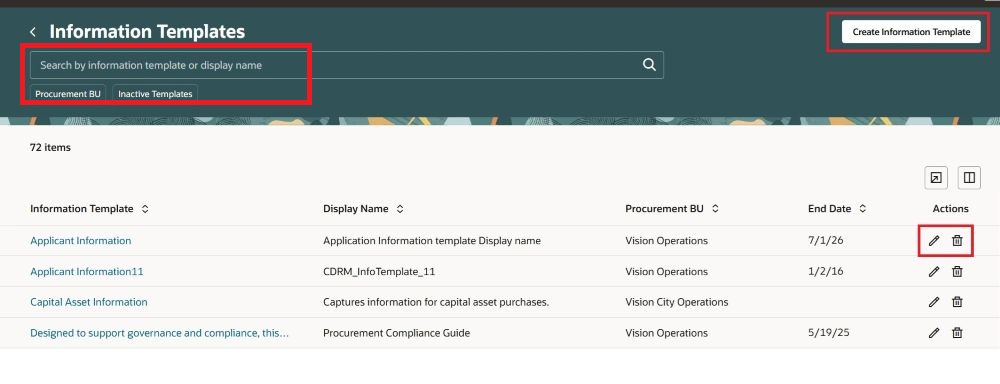
Manage information templates
Create and edit information templates
You can create a new template in any procurement BU to which you have access.
Select the Attribute List that relates to the additional details you want the requesters to provide when authoring requisitions. Attribute List values are sourced from context values configured for the seeded Information Template descriptive flexfield. Only active context values will be available to create the template.
Choose an Attachment Category to control who can access attachments uploaded with the requisition. The details that requesters complete in the information template are included as attachments and made available to the intended recipients, such as the supplier or buyer.
The instruction text you create here is visible to the requesters as detailed instructions or information they need when filling out the additional details.
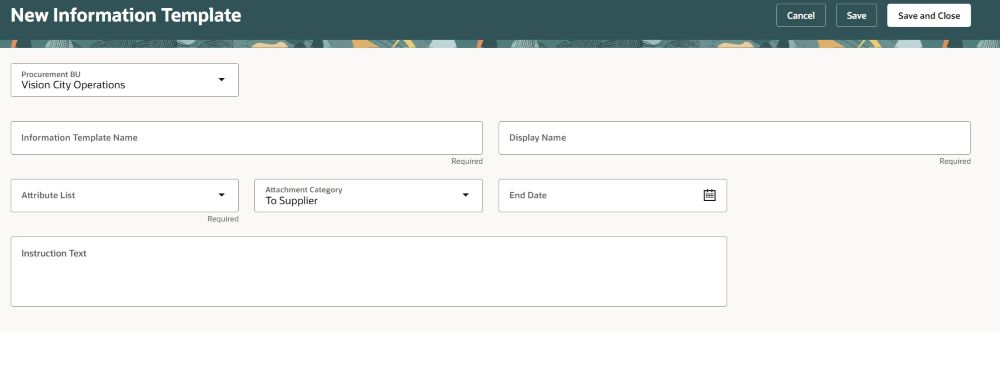
New information template
All details, except procurement BU, can be modified when editing an existing information template. When creating the template, using the Add Categories or Add Items actions automatically saves the template and opens it for editing. If there are any errors in the template, for example a required field is missing a value or a duplicate template name is provided, you must fix the errors to proceed to the add actions.
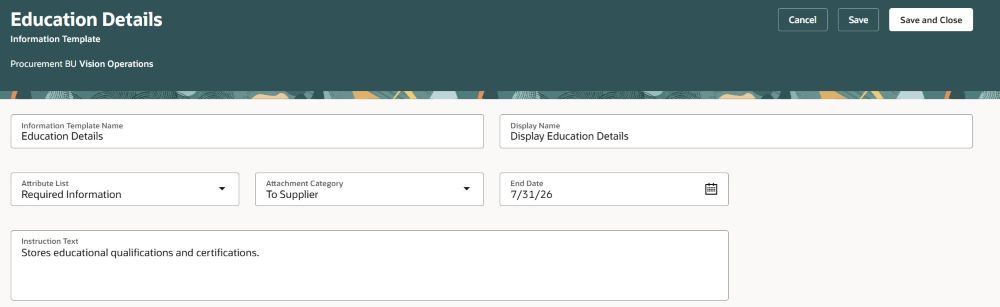
Edit an information template
Category and item associations
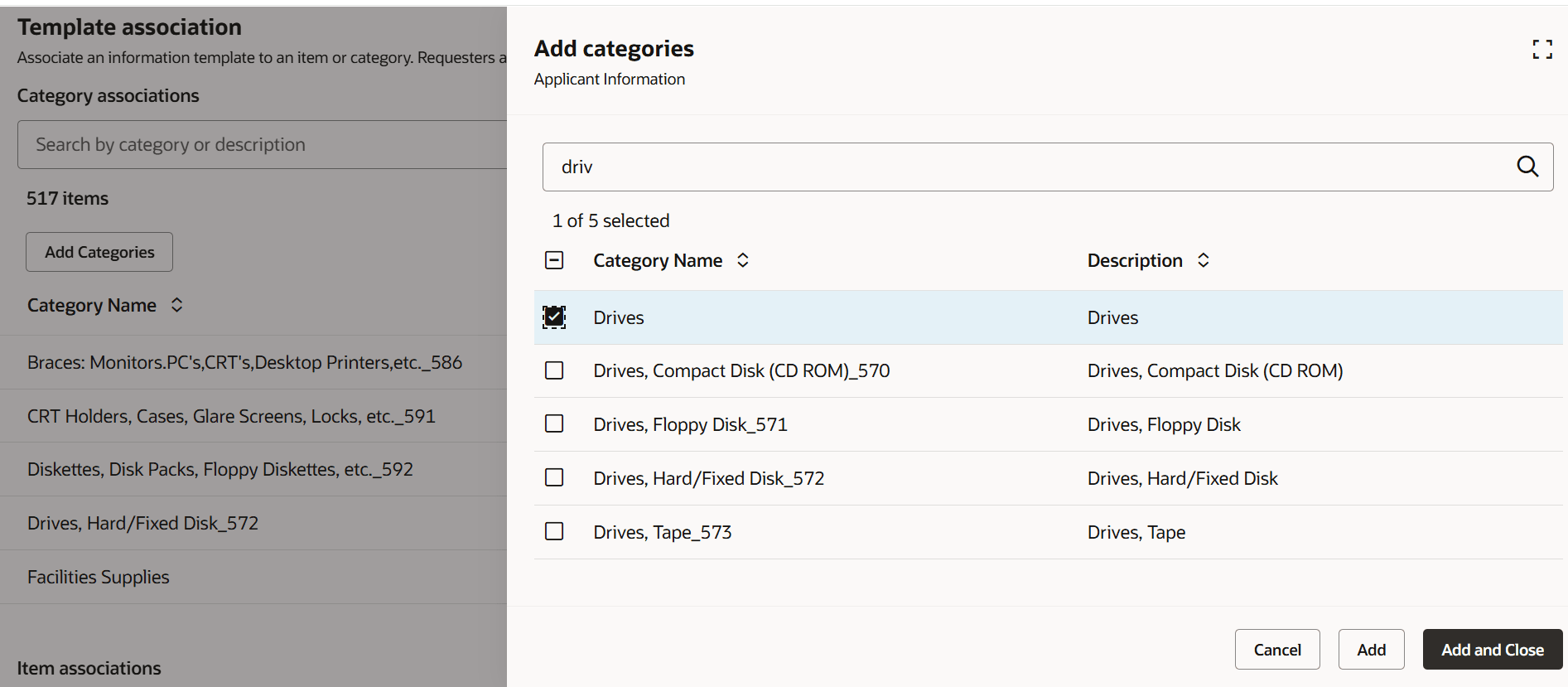
Associate categories to an information template. When a requester uses any of these categories to create a requisition, they will be prompted to provide additional details.
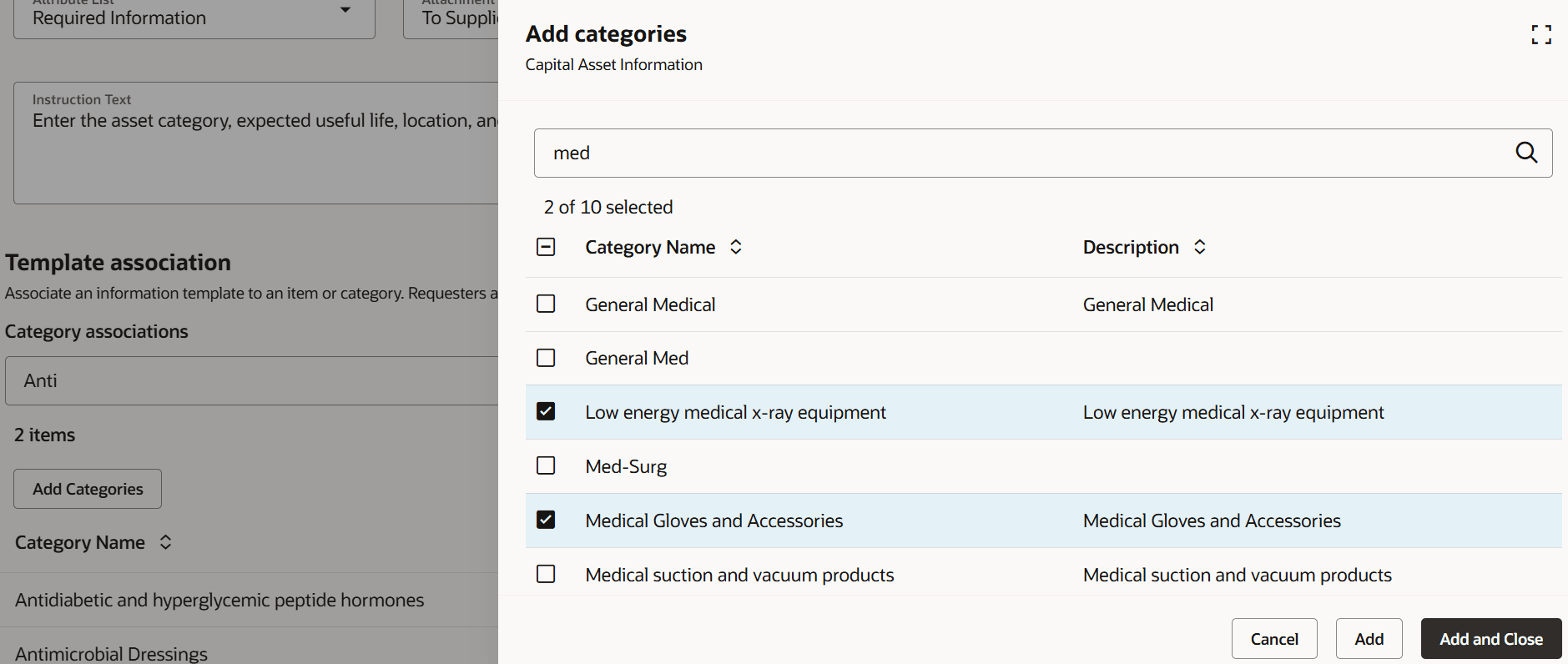
Associate an information template with item categories
Similarly, associate information templates with specific items to ensure additional details are requested during requisition authoring.
Associate an information template with items
Note: For both categories and items, you can use a single character Contains search to search for relevant results. You can add up to a maximum of 500 results at a time.
Steps to enable and configure
You must enable this profile option to access the feature:
- Redwood Catalog Setup Pages Enabled (ORA_POR_REDWOOD_CATALOG_SETUP_ENABLED). By default, this profile option is set to No.
To enable the profile option, follow these steps:
- In the Setup and Maintenance work area, search for and select the Manage Administrator Profile Values task.
- On the Manage Administrator Profile Values page, search for and select the Redwood Catalog Setup Pages Enabled (ORA_POR_REDWOOD_CATALOG_SETUP_ENABLED) profile option name or the code.
- Set Profile Value to Yes.
- Select Save and Close.
Note: The updated profile value takes effect the next time users sign in.
Tips and considerations
- Navigation: You can navigate to the Information Templates page:
- From the Catalog Administration landing page.
- Using the quick actions link in the APPS section of the Oracle Fusion Applications home page.
- Additional Considerations:
- You can delete an information template only when it isn’t referenced by a requisition or downstream transaction.
- The information template name is case-sensitive when determining whether a duplicate exists.
- In the categories and items association tables, you can search for specific categories or items, for example, when you want to delete one or more existing associations, using a single-character Starts With search.
- Newly added categories and items appear at the top of the table. When you refresh the page or return to edit the template, the table uses the default sort order.
- Any search or filter that you use to view information template results is retained when you return to the page after creating or editing an information template.
- Extensibility:
- Make the optional attributes on the template required using personalization (Instruction Text, Attachment Category, and End Date).
- Set a default value using extensibility for Procurement BU, Attribute List, or Attachment Category.
- Create guided journeys on the page using the Create-Edit Information Templates Guided Journey Code constant.
Key resources
- For information about using Oracle Visual Builder Studio to extend your Redwood application pages, see Oracle Fusion Cloud HCM and SCM: Extending Redwood Applications for HCM and SCM Using Visual Builder Studio.
- To know about the guided journeys, refer to the Overview of Guided Journeys topic.
Access requirements
If you're assigned a custom job role that contains these previously delivered privileges and meet all of the following data security conditions, then you can access this feature.
Data security conditions (both):
- Be a procurement agent for one or more procurement BUs.
- Have the Manage Catalog Content permission for each of those procurement BUs.
Privileges:
| Privilege status | Privilege name and code |
|---|---|
| Previously delivered | Manage Procurement Catalog Content POR_MANAGE_PROCUREMENT_CATALOG_CONTENT_PRIV |