Manage smart forms
As a catalog administrator, you can now manage smart forms using a new user experience. You can create, edit, duplicate and delete smart forms. You can assign them to categories for browsing, and associate information templates with smart forms to capture additional requisition details.
Search smart forms
To find specific smart forms, search by smart form name using a single character Starts With search. Use filters listed in the following table to refine your search. Use the Needs Attention filter to quickly find smart forms that reference inactive agreements.
| Filter | Details |
|---|---|
| Procurement BU |
Case-insensitive single-character Contains search. You can only search for BUs that are active and to which you have access. |
| Line Type | Case-insensitive single-character Contains search. |
| Agreement | Displays available agreements by default. You can use a Starts With search on the available attributes of agreement number, supplier, and site. |
| Content Zone | Case-insensitive single-character Contains search on name. |
| Needs Attention | Simply use the filter by selecting it. |
The search results are displayed in a table. You can choose which columns to hide or display using the Column selector and export the displayed data to Excel. If a smart form is assigned to multiple content zones, you can view assigned content zones using the hyperlink.
Note: When you return to the search page from the create or edit flow, your search keyword and filters are retained. They aren't retained when you open the page from the springboard or sign in to the application again.
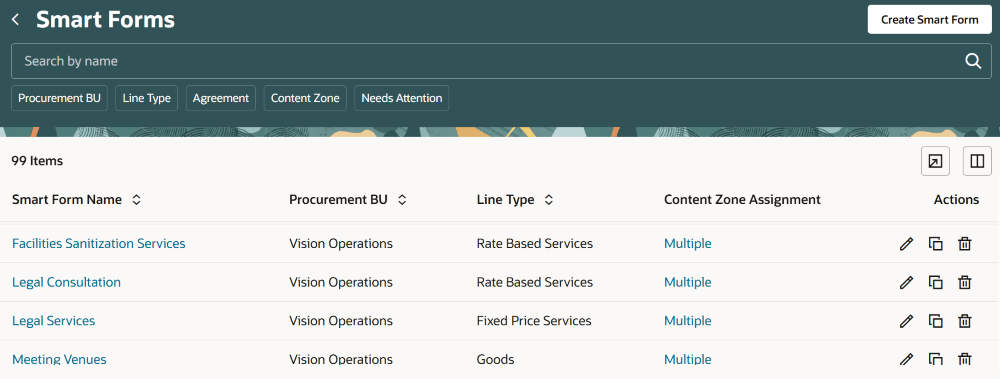
Search and manage smart forms
Create and edit smart forms
When you create a smart form, the procurement BU and line type details are selected by default. Both these fields are defaulted based on the first available value sorted by name in ascending order. Specify a smart form name and at least one keyword that the requesters can use to search during shopping, and then save the smart form to continue adding details. After you save the smart form, the procurement BU and line type fields can't be updated.
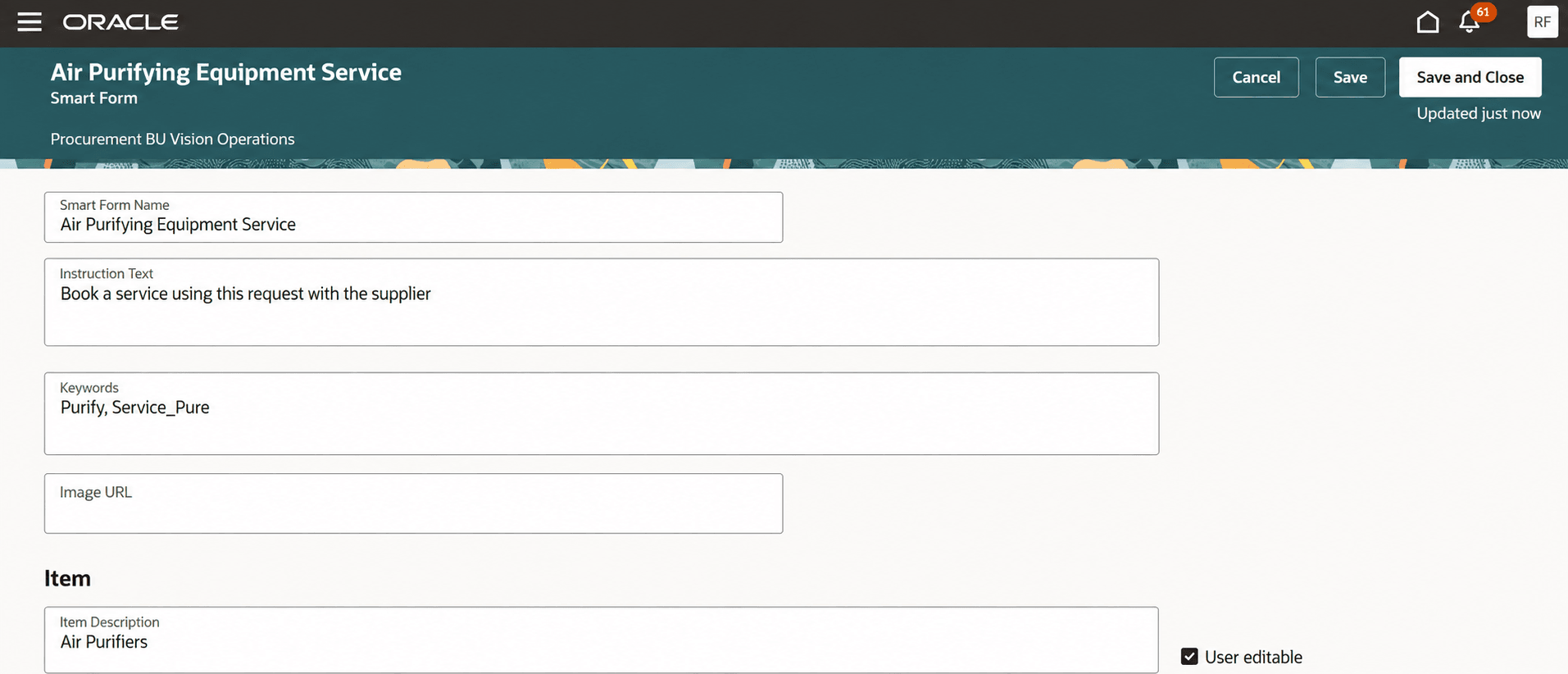
Create and edit a smart form
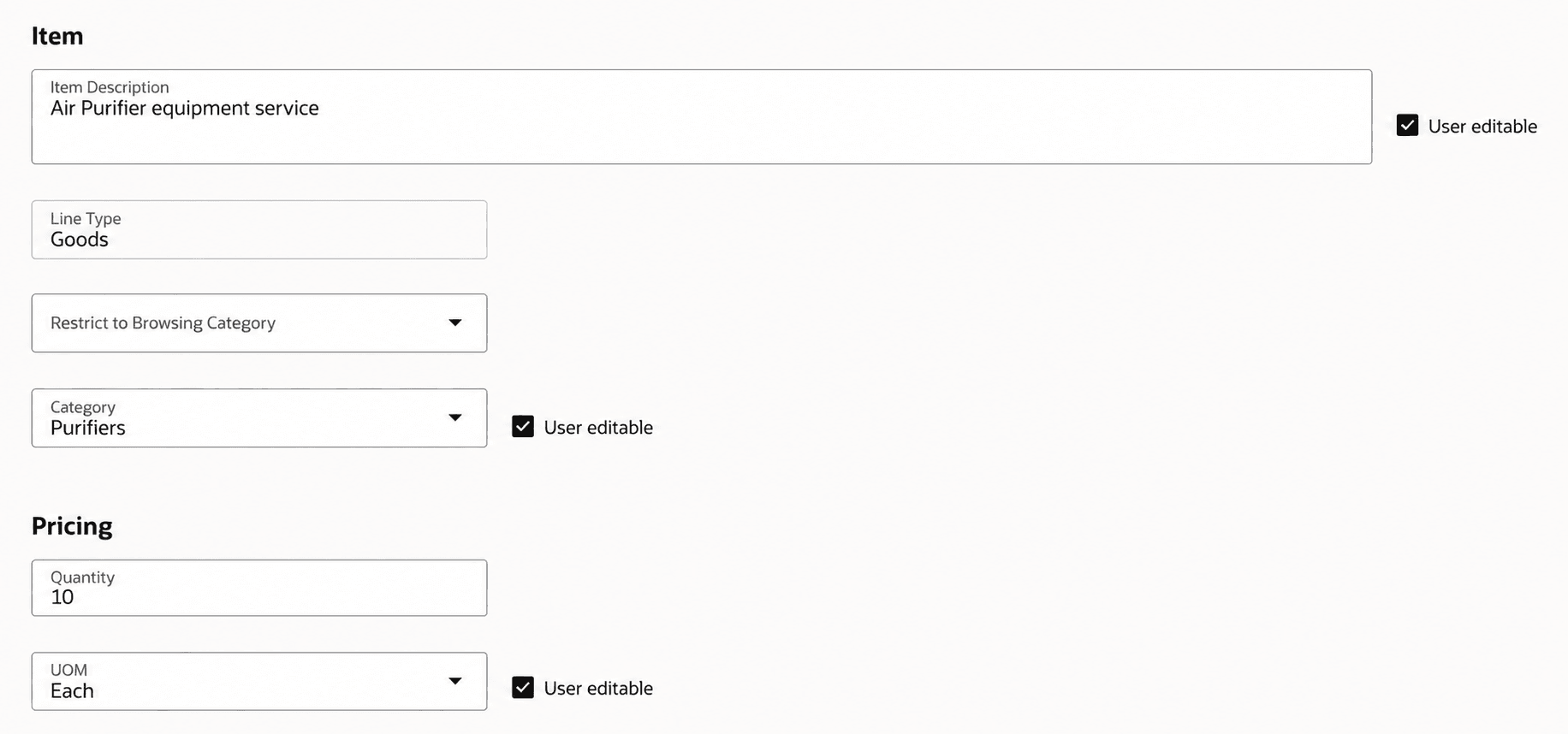
Add pricing and purchase details to a smart form
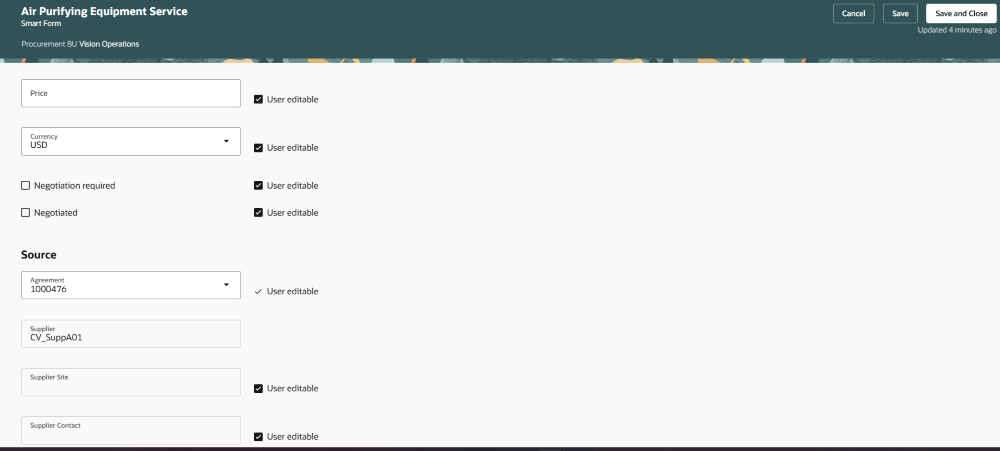
Add sourcing information to a smart form
Assign information templates and browsing categories
You can assign one or more browsing categories or information templates to the smart form. Requesters can browse and find the smart form using these categories and provide additional details required on the requisition as prescribed in the information templates.
Use the corresponding Add action to open a drawer where you can assign the browsing categories or information templates. The smart form is saved before the drawer opens. You must correct any incomplete or duplicate details before you can continue.
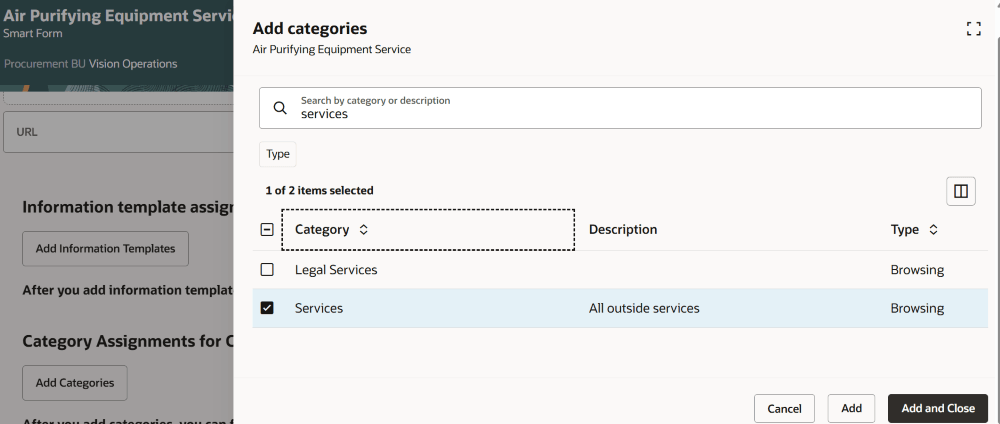
Add browsing categories to a smart form
Duplicate a smart form
You can duplicate a smart form within the same procurement BU or in a different BU. Duplicating a smart form in a different procurement BU will only copy the browsing category assignments. The information templates won't be copied over to the new smart form.
Steps to enable and configure
You must enable this profile option to access the Manage Smart Forms feature:
- Redwood Catalog Setup Pages Enabled (ORA_POR_REDWOOD_CATALOG_SETUP_ENABLED). By default, this profile option is set to No.
To enable the profile option, follow these steps:
- In the Setup and Maintenance work area, search for and select the Manage Administrator Profile Values task.
- On the Manage Administrator Profile Values page, search for and select the Redwood Catalog Setup Pages Enabled (ORA_POR_REDWOOD_CATALOG_SETUP_ENABLED) profile option name and code.
- In the Profile Values section set the value to Yes.
- Click Save and Close. Changes in the profile value will affect users the next time they sign in.
Tips and considerations
- Navigation: You can navigate to the Smart Forms page:
- From the Catalog Administration landing page.
- Using the quick actions link in the APPS section of the Oracle Fusion Applications home page.
- Additional Considerations:
- Smart form names are case-sensitive when the application checks for duplicate names.
- Changes that you make to the columns displayed in the assignment or drawer tables are retained even after you sign out and sign back in to the application.
- When you edit a smart form, use the Cancel button if you need to discard changes to the details including name or keywords, before you open the Add actions drawers on the page.
- Extensibility:
- You can make optional smart form attributes required.
- You can use personalization to set default values for Procurement BU and Usage.
- You can create guided journeys using these constants:
- Smart Forms Manage Guided Journey Code
- Smart Forms Create Page Guided Journey Code
Key resources
- For information about using Oracle Visual Builder Studio to extend your Redwood application pages, see Oracle Fusion Cloud HCM and SCM: Extending Redwood Applications for HCM and SCM Using Visual Builder Studio.
- For information about guided journeys, refer to Overview of Guided Journeys.
Access requirements
Users need all of the following privileges and meet all of the following data security conditions to access this feature.
Data security conditions (all):
- Be a procurement agent for one or more procurement BUs.
-
Have the Manage Catalog Content permission for each of those procurement BUs.
Privileges:
| Privilege status | Privilege name and code |
|---|---|
| Previously delivered | Manage Procurement Catalog Content POR_MANAGE_PROCUREMENT_CATALOG_CONTENT_PRIV |