Manage catalogs
As a catalog administrator, you can now manage local, punchout, and informational catalogs using a new user experience.
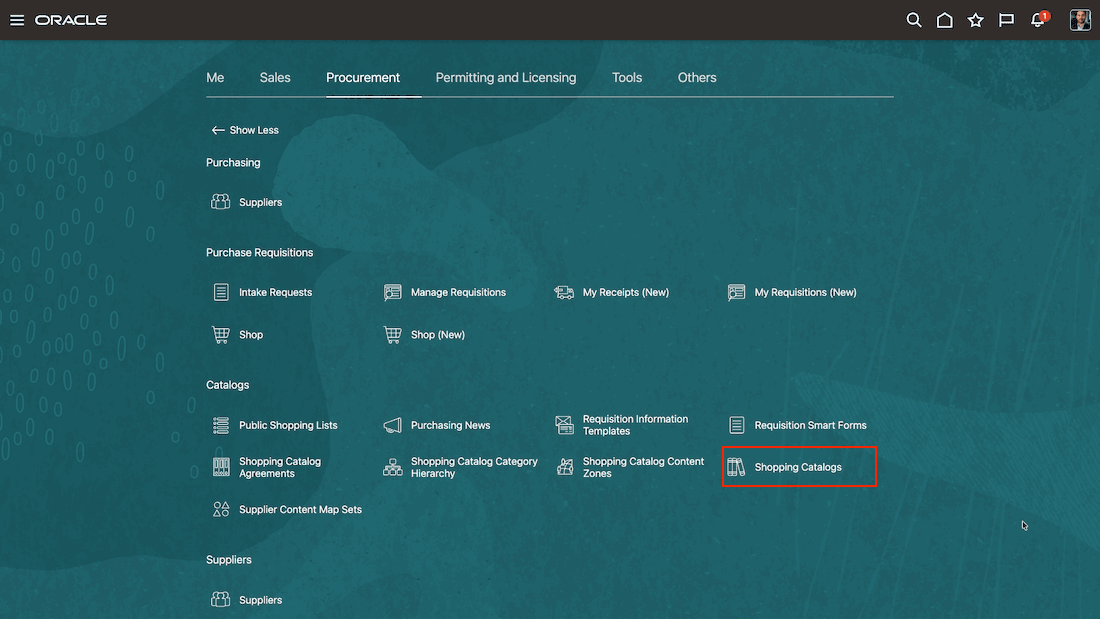
Access the new user experience to manage catalogs
This feature gives you easy access and convenient way to maintain shopping catalog content that requesters use to find approved products, services, supplier storefronts, and ordering guidance. You can search, create, edit, duplicate, delete, and review catalog content you manage for your procurement business units.
Manage your catalogs
Use the Catalogs page to search for catalogs by name. You can refine the results using filters such as Procurement BU, Catalog Type, Content Zone, and Agreement. The Agreement filter applies to local catalogs when the selected agreement is specifically included in or excluded from the catalog.
To find a specific catalog, enter one or more characters in the search field. The catalog name search uses a Starts With search. By default, search results are sorted in ascending order by catalog name.
Filters, when applied, work together with any name you have used in the search.
You can use the Catalog Type filter to narrow the search to specific local, punchout, or informational catalogs. The Content Zone filter uses a Contains search and shows content for the selected procurement BU or for all procurement BUs. The Agreement filter uses a Starts With search to find eligible blanket agreements by agreement number, supplier, and supplier site. The filter excludes draft, consigned, and outside processing agreements.
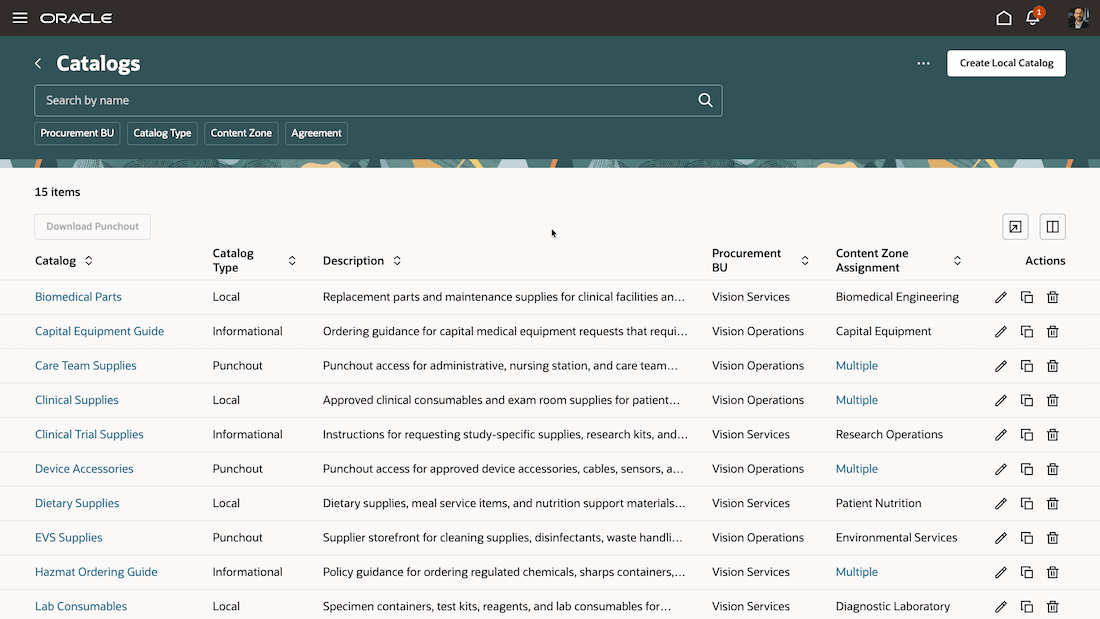
Manage catalogs
Create and maintain local catalogs
Use local catalogs when your organization maintains catalog content directly, such as master items, agreement lines, and related item attributes. Local catalogs are well suited for approved goods and services that should be available to requesters through organizational procurement policies and guidance.
You can change the procurement BU during catalog creation. After you save the catalog, the procurement BU becomes read-only as contextual information for the catalog.
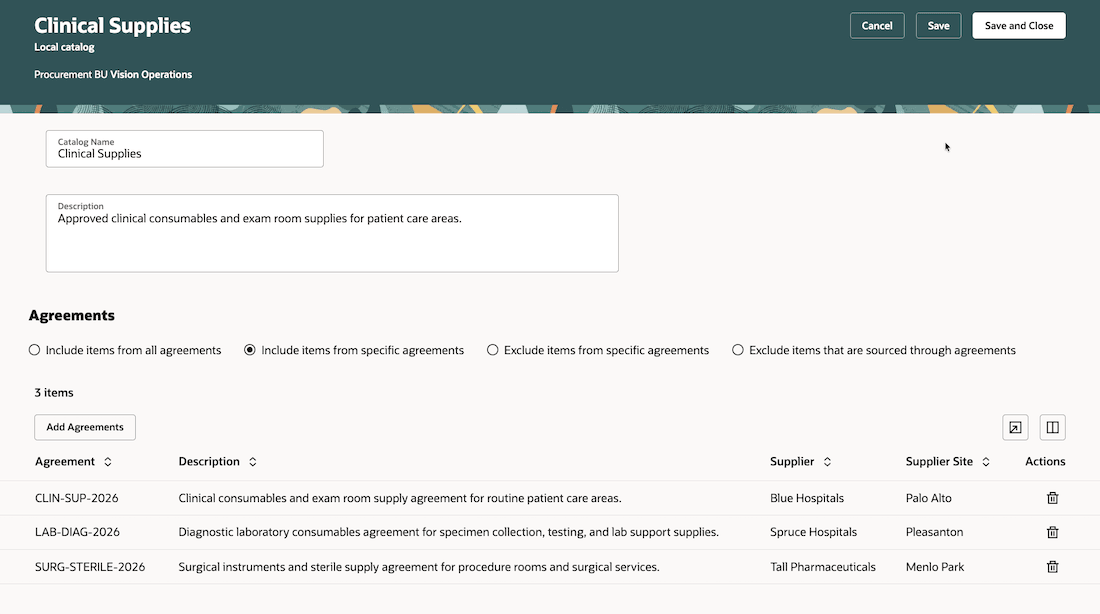
Local catalog
Use the Add Agreements and Add Categories drawers to add eligible agreements or categories.
When you add agreements or categories while creating a local catalog, the catalog is first saved before opening the drawer. If required information is missing or the catalog name is a duplicate, you can fix those to continue.
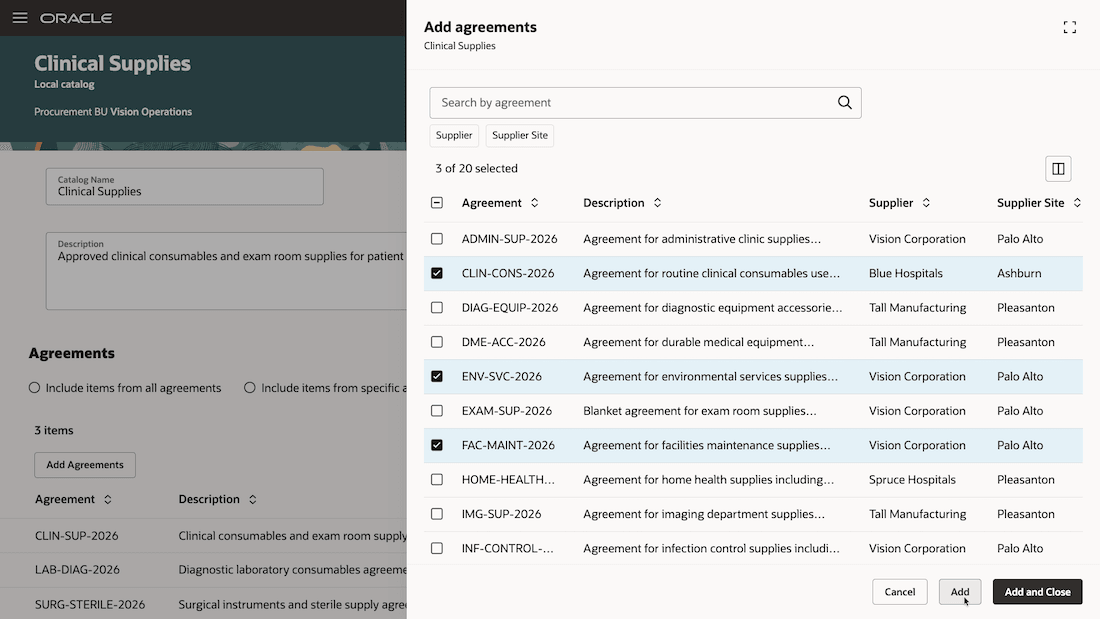
Add agreements
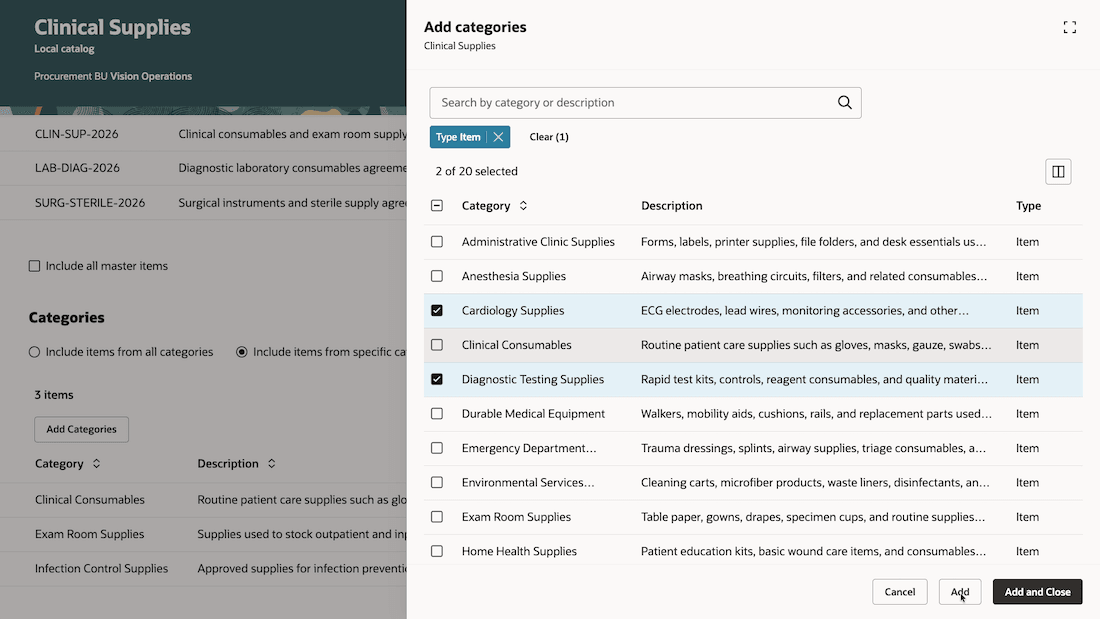
Add categories
Note: For both agreements and categories, you can use a single character search to search for relevant results. You can add up to 500 selected results at a time. Agreements or categories previous added aren't added again. Newly added rows appear at the top of the table until you return to the catalog later.
Create and maintain punchout catalogs
Use punchout catalogs to give requesters direct access to supplier-hosted storefronts. Requesters can navigate to the supplier site, search and shop in the supplier experience, and add selected items to the requisition.
Supported punchout configurations include direct cXML supplier punchout, direct Oracle native XML supplier punchout, and Oracle Business Network punchout flows, depending on your setup.
You must test your connection using the supplier punchout credentials to ensure it's working as expected and ready for requesters to use. If the connection fails, use the punchout log details to troubleshoot the supplier connection.
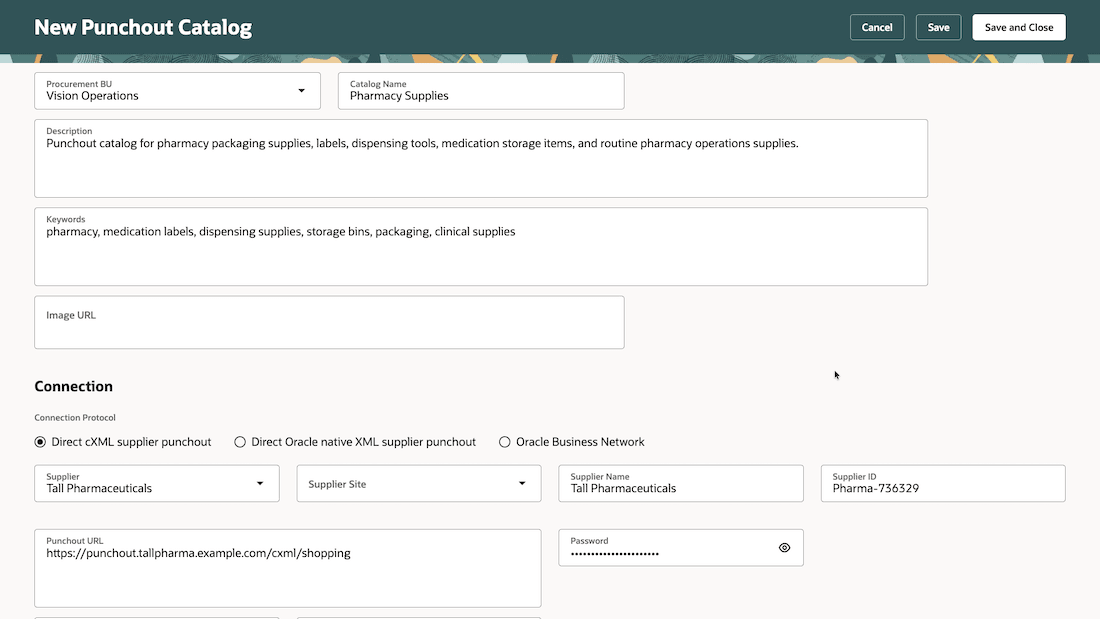
Create or edit punchout catalog
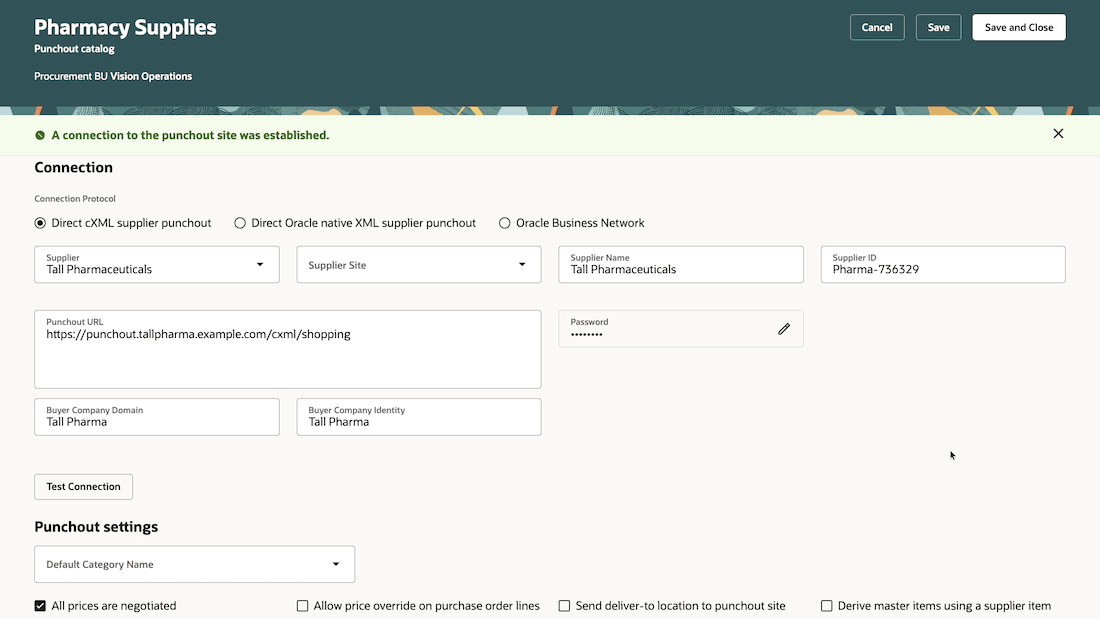
Test punchout connection
Upload punchout search items
You can upload punchout search items so requesters can review supplier catalog items while shopping, before navigating to the supplier storefront. Use the Upload Search Items drawer to begin the process. First, download the punchout search item template. Complete the required details and then upload the file. You can optionally enter an error threshold, and submit the upload process. The error threshold determines at what point the upload process terminates. If the number of errors exceed the threshold, no further processing will take place. You can review the errors and take corrective action.
When the process has a status of Error or Completed, open the status details to review file information, line errors, and uploaded items. You can export both successful and error results to Excel and for offline review.
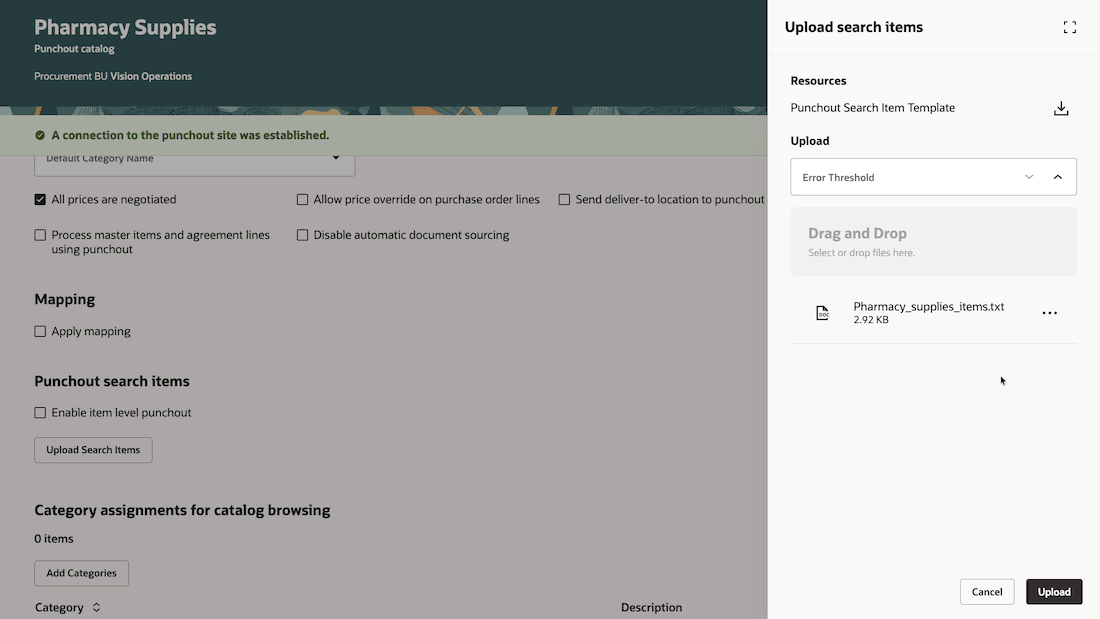
Upload punchout search items
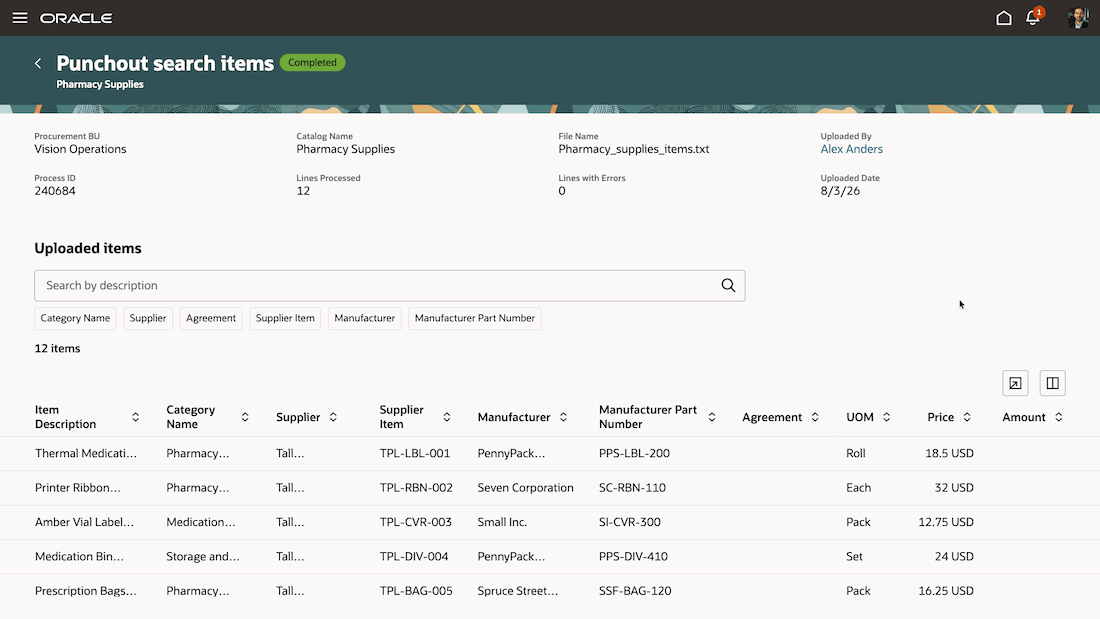
Review uploaded punchout search items
Note: For uploaded items, searches by description and the available filters use a Starts With search.
Create and maintain informational catalogs
Use informational catalogs to share procurement policies, guidance on how to order goods and services, and other procurement-related information to help requesters navigate your organization's procurement processes.
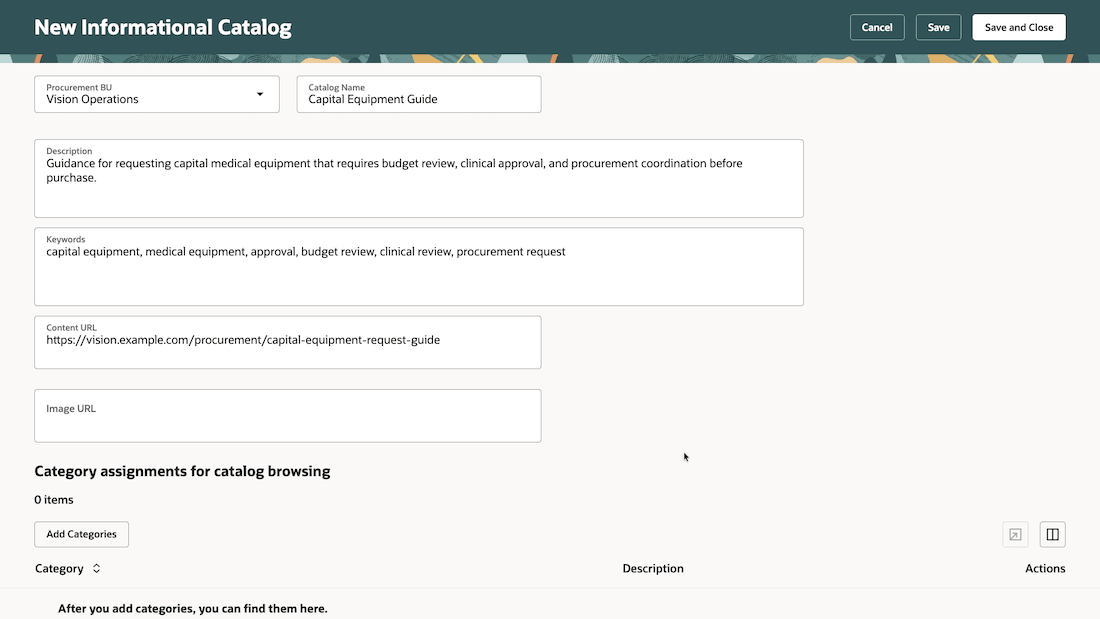
Create informational catalog
Download punchout catalogs from Oracle Business Network
For eligible Oracle Business Network punchout catalogs, use the Download Punchout action from the Catalogs page to retrieve and sync punchout content.
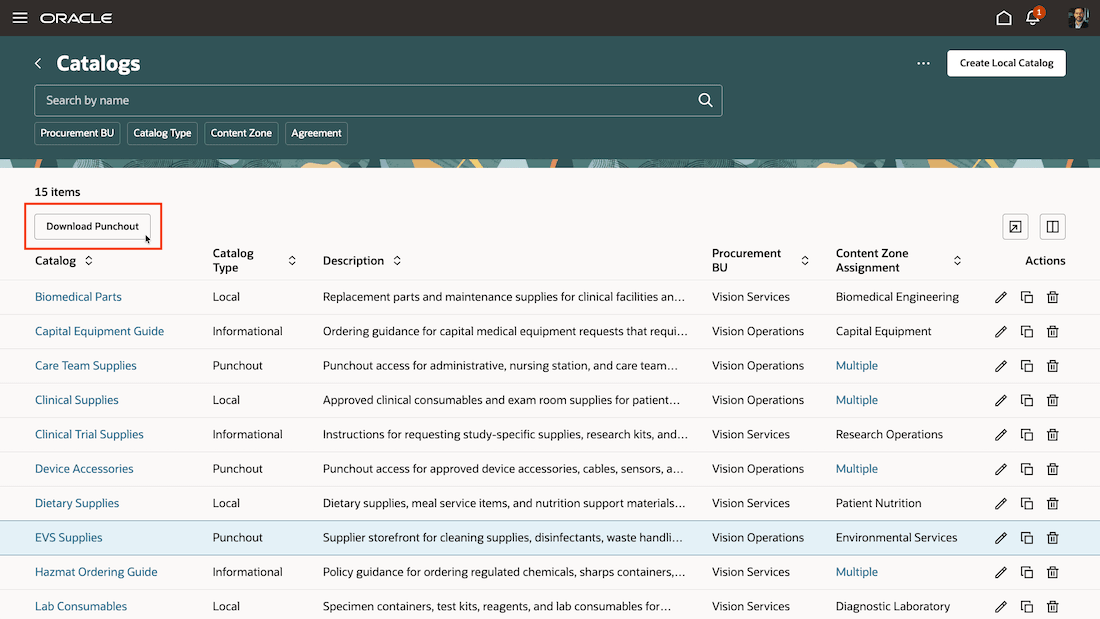
Initiate punchout catalog download
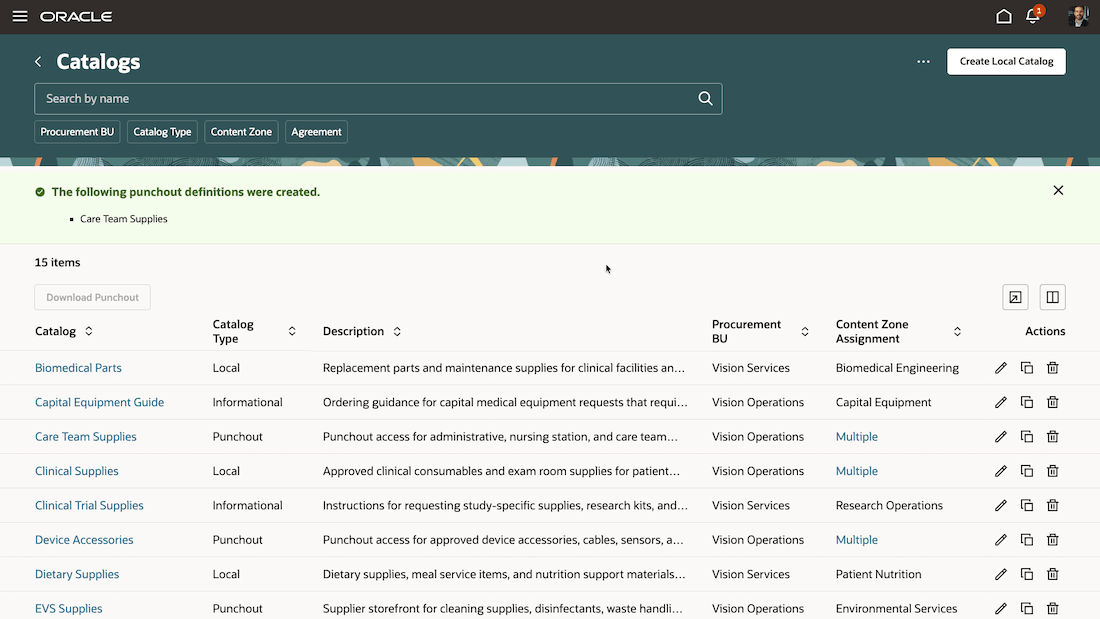
Download punchout catalog successfully
Note: For downloaded punchout catalogs, you can't change the connection protocol settings, but you can change the supplier and supplier site.
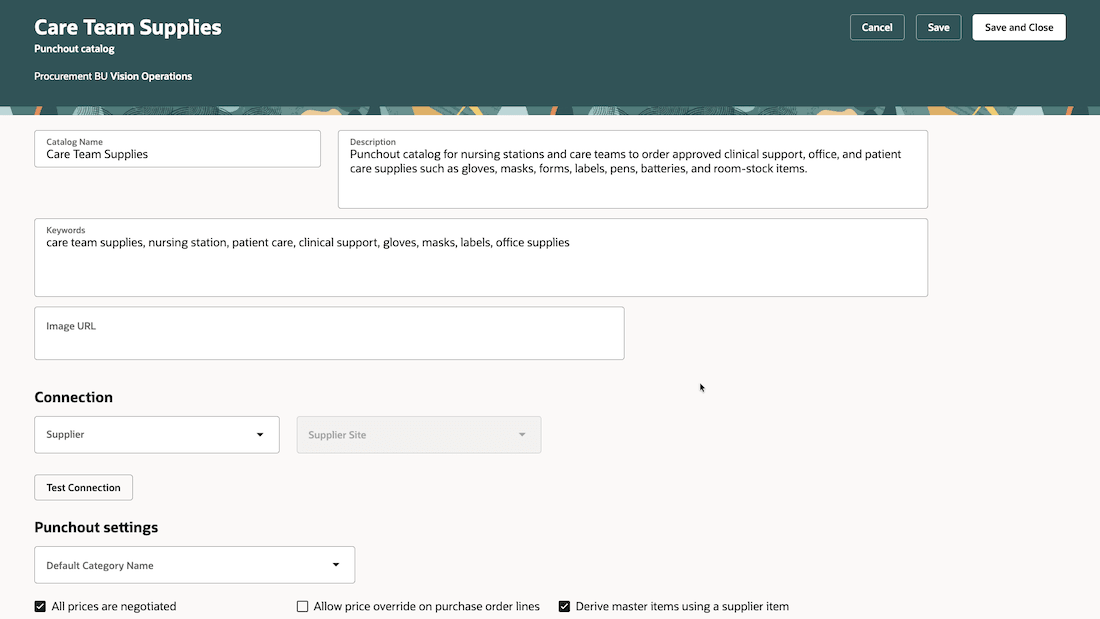
Edit punchout catalog downloaded from Oracle Business Network
This new user experience makes day-to-day catalog administration easier. Search and filtering help you find catalogs quickly, while export and duplicate actions help you work with existing catalog information. You can also review punchout upload status and test connections, which can reduce the effort required to investigate catalog issues or create a new catalog from an existing one.
Steps to enable and configure
You must enable this profile option to access this feature:
- Redwood Catalog Setup Pages Enabled (ORA_POR_REDWOOD_CATALOG_SETUP_ENABLED). By default, this profile option is set to No.
To enable the profile option, follow these steps:
- In the Setup and Maintenance work area, search and select the Manage Administrator Profile Values task.
- On the Manage Administrator Profile Values page, search for and select the Redwood Catalog Setup Page Enabled (ORA_POR_REDWOOD_CATALOG_SETUP_ENABLED) profile option name or the code,
- Set Profile Value to Yes.
- Select Save and Close.
Note: The updated profile value takes effect the next time users sign in.
Tips and considerations
- Navigation: You can navigate to the Shopping Catalogs page:
- From the Catalog Administration landing page.
- Using the quick actions link in the APPS section of the Oracle Fusion Applications home page.
- Additional considerations:
- The Catalogs page shows only catalogs that you can manage for your assigned procurement business units.
- Use the Agreement filter to find local catalogs where the selected agreement is included or excluded. Punchout and informational catalogs aren’t returned because they don’t have agreement associations.
- Catalog names must be unique within the selected procurement business unit. Duplicate-name validation is case-sensitive.
- When you change a punchout catalog’s connection protocol, applicable values are retained and protocol-specific values are cleared. These attributes are specific to each protocol:
Connection protocol Protocol specific attributes Direct cXML supplier punchout Supplier Name, Supplier ID Direct Oracle native XML supplier punchout Encoding Method Oracle Business Network User Name - You can upload punchout search items only when a prior upload process isn't Pending or Running. Use the Refresh action to retrieve the latest status for an active process.
- Item-level punchout is only applicable to the Direct cXML supplier punchout connection protocol.
- If you provide a valid image URL for a punchout or informational catalog, the page renders an image preview so administrators can confirm the requester-facing catalog image.
- Punchout catalogs sourced from Oracle Business Network aren't available for duplication.
- Table personalizations on the Catalogs page and create and edit pages are retained for future sessions.
- Extensibility:
- You can add page-level guided journeys to these pages using Oracle Visual Builder Studio and the corresponding page properties:
Page name in Oracle Visual Builder Studio Page property Catalogs Catalogs Guided Journey Code Create or Edit Local Catalog Local Catalog Guided Journey Code Create or Edit Punchout Catalog Punchout Catalog Guided Journey Code Create or Edit Informational Catalog Informational Catalogs Guided Journey Code
- You can add page-level guided journeys to these pages using Oracle Visual Builder Studio and the corresponding page properties:
Key resources
- To know how to provide the required privileges to your requesters to use your own configured role instead of the Requisition Self Service User role, refer to the Privileges Required for a Predefined Role for a Requisition Self Service User topic.
- For more information on how to enable a guided journey for Redwood pages, refer to the Enable a Guided Journey for Redwood Pages topic.
- For information about using Oracle Visual Builder Studio to extend your Redwood application pages, see Oracle Fusion Cloud HCM and SCM: Extending Redwood Applications for HCM and SCM Using Visual Builder Studio.
Access requirements
If you're assigned a custom job role that contains this previously delivered privilege and meet all of the following data security conditions, then you can access this feature.
Data security conditions (both):
- Be a procurement agent for one or more procurement BUs.
- Have the Manage Catalog Content permission for each of those procurement BUs.
Privilege:
| Privilege status | Privilege name and code |
|---|---|
| Previously delivered | Manage Procurement Catalog Content POR_MANAGE_PROCUREMENT_CATALOG_CONTENT_PRIV |