Manage catalog administration tasks using a new user experience
As a catalog administrator, you can now manage catalog administration tasks from a centralized Catalog Administration landing page. You can review recently modified catalogs, quickly access frequently used setup tasks, search for catalog objects, and personalize the landing page with KPIs and visualizations. This centralized experience helps you complete common catalog administration tasks more efficiently.
You can access the Catalog Administration landing page from the Shopping Catalog Administration tile in the APPS section of the Oracle Fusion Applications home page.
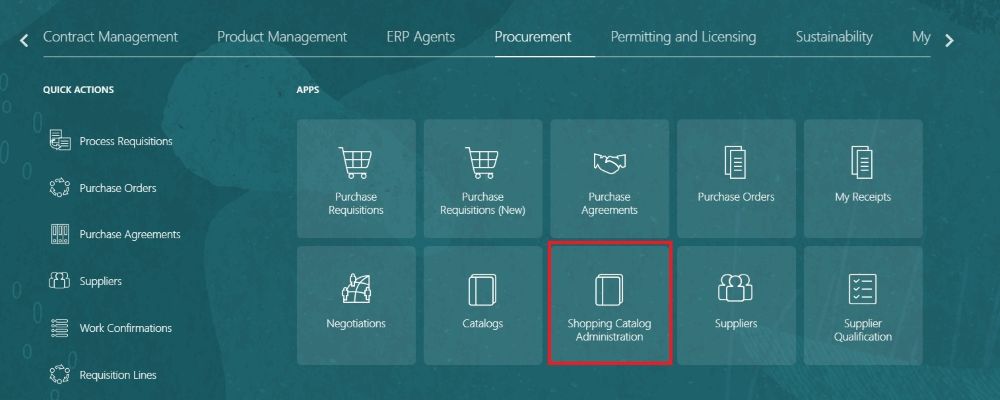
Shopping catalog administration tile
The Recent Catalogs section displays up to 25 catalogs, ordered by the date and time they were last modified. You can select a catalog to review or update it.
Use the Actions menu to open available catalog administration tasks. Use the Quick access section to search for and open a specific catalog, content zone, public shopping list, catalog agreement, information template, or smart form.
Note: Use the View more link to view all available quick actions and to add, remove or sequence the actions that you want to see on the landing page.
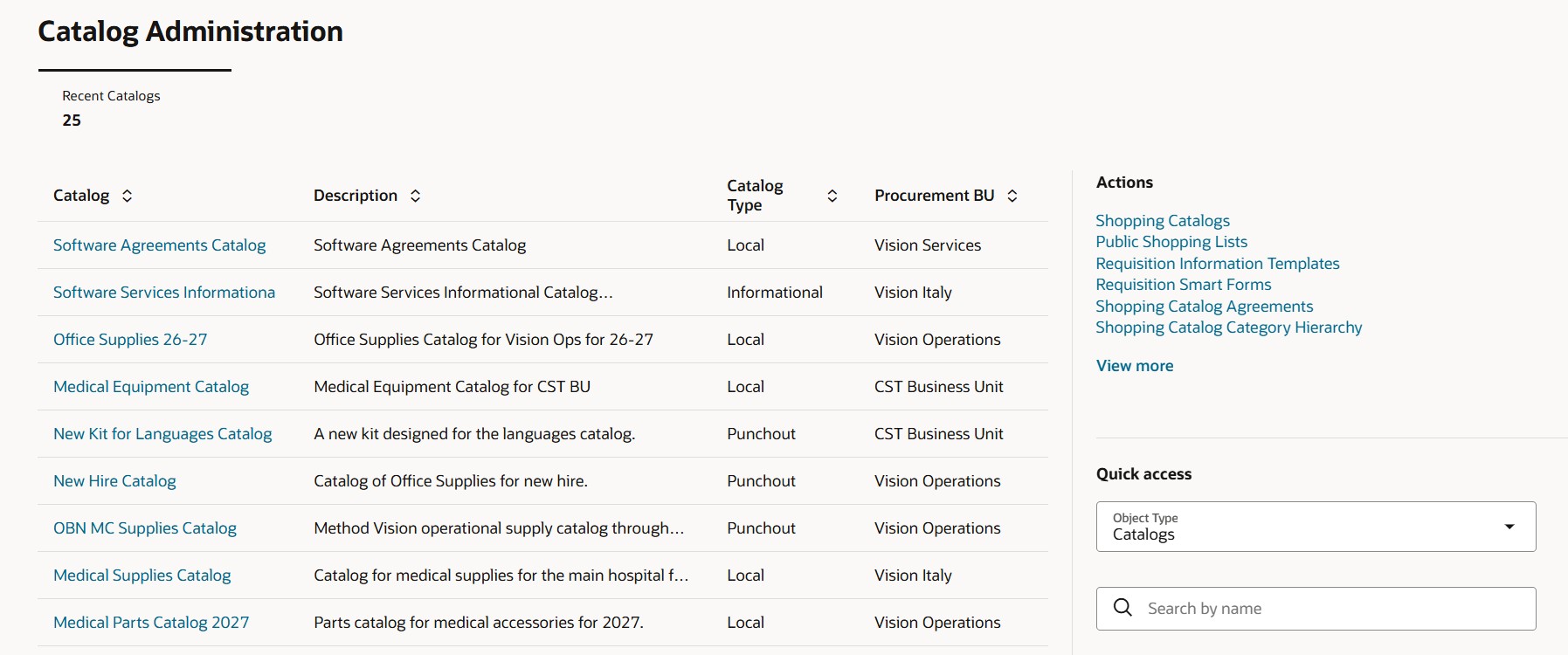
Catalog Administration landing page
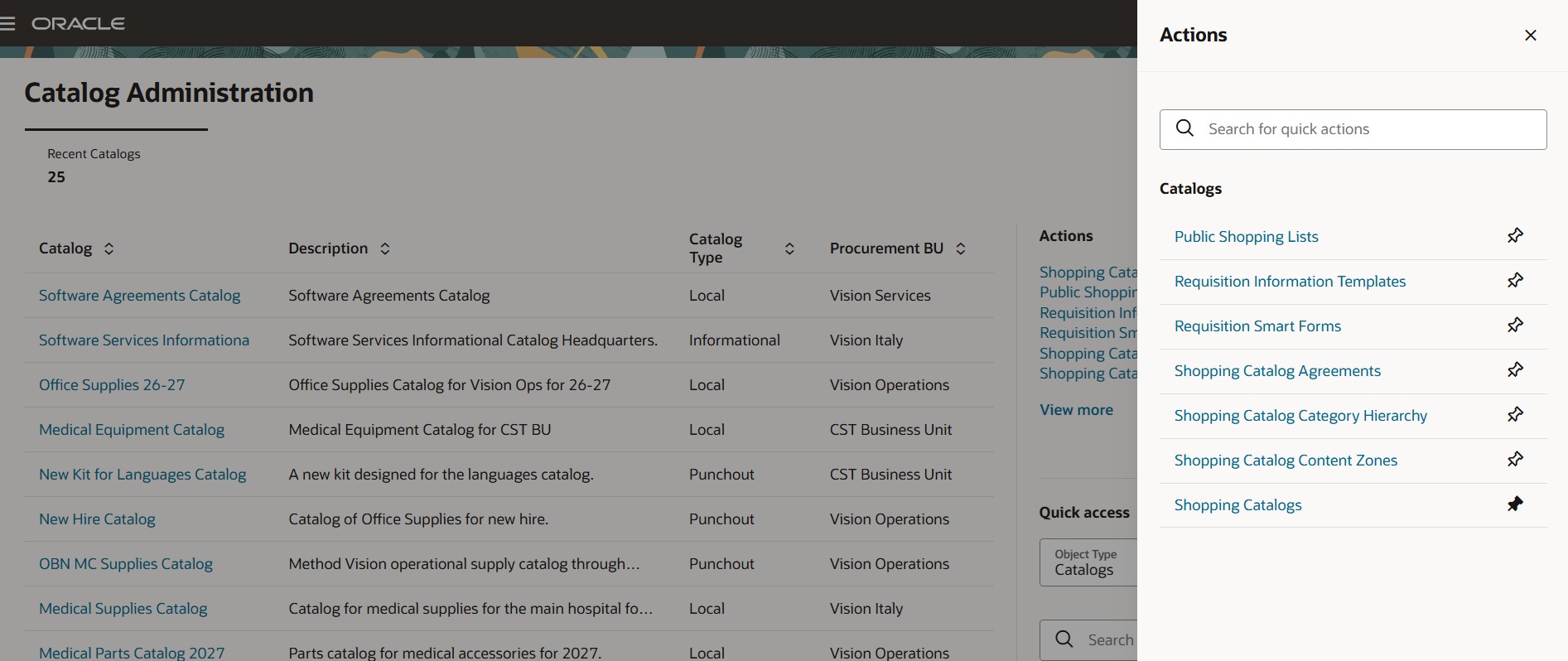
Action drawer for quick actions
Use Quick access section to search for and open a specific catalog, content zone, public shopping list, catalog agreement, information template, or smart form.
Note: You can search any supported catalog object by using a one-character "Starts With" search. The search returns up to 12 matching results.
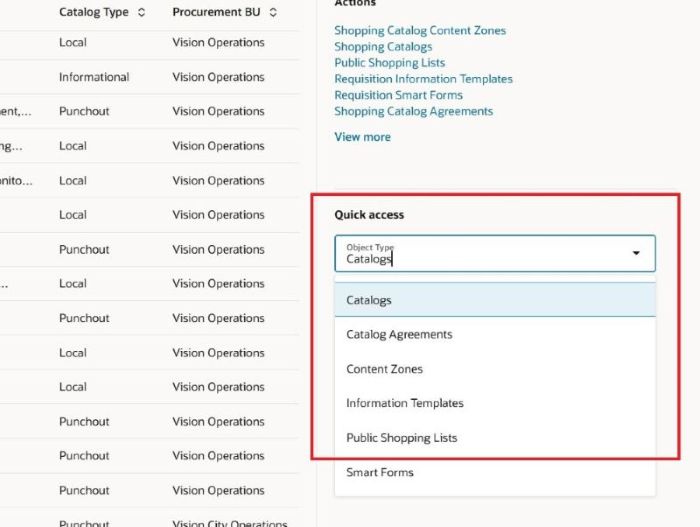
Quick access section on the landing page
If you have the required permissions, you can personalize the landing page by adding KPIs, visualizations, and KPI pages from the content library. You can create KPIs and visualizations by using Oracle Transactional Business Intelligence (OTBI) analyses as data sources, then save and share your personalized layout with other catalog administrators.
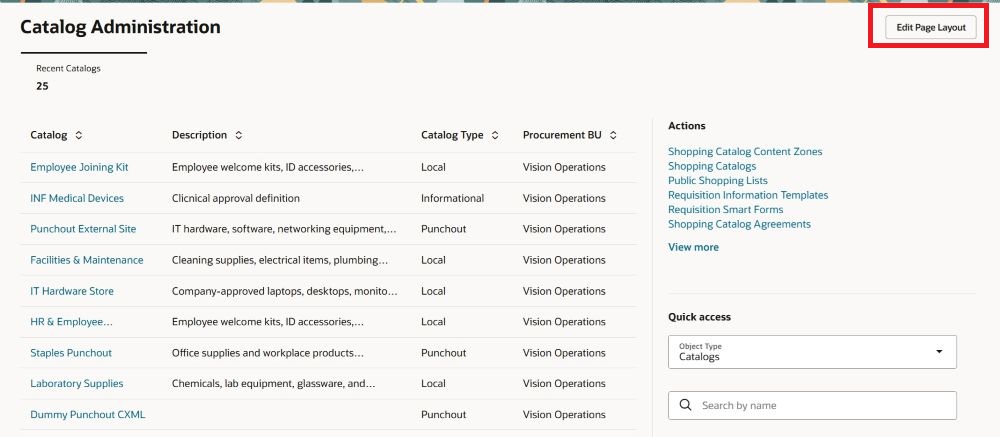
Edit Page Layout button
Shopping Catalog Agreements task
Before this update, you could access the Shopping Catalog Agreements setup task from the Purchasing landing page or from Quick Actions on the Oracle Fusion Applications home page. If this feature is enabled, you can now access the setup task from the Catalog Administration landing page or from Quick Actions on the Oracle Fusion Applications home page. This task is no longer available from the Purchasing landing page.
Shopping Catalog Category Hierarchy task
Before this update, you could access the Shopping Catalog Category Hierarchy setup task from the Setup and Maintenance work area or from Quick Actions on the Oracle Fusion Applications home page. You can now also access the setup task from the Catalog Administration landing page. When you select the Back arrow, you're returned to the page from which you launched the task.
Public Shopping Lists task
Before this update, you could access the Public Shopping Lists setup task from Quick Actions on the Oracle Fusion Applications home page. You can now also access the setup task from the Catalog Administration landing page.
Steps to enable and configure
You must enable this profile option to access the feature:
- Redwood Catalog Setup Pages Enabled (ORA_POR_REDWOOD_CATALOG_SETUP_ENABLED). By default, this profile option is set to No.
To enable the profile option, follow these steps:
- In the Setup and Maintenance work area, search for and select the Manage Administrator Profile Values task.
- On the Manage Administrator Profile Values page, search for and select the Redwood Catalog Setup Pages Enabled (ORA_POR_REDWOOD_CATALOG_SETUP_ENABLED) profile option name or the code.
- Set Profile Value to Yes.
- Select Save and Close.
Note: The updated profile value takes effect the next time users sign in.
Tips and considerations
- The delivered Recent Catalogs KPI can’t be removed from the landing page using the Edit Page Layout action.
- When adding KPIs and data visualizations to the Visualization Configurations page, the KPIs must have Visualization Type set to Metric Card.
- You can return to the Catalog Administration landing page by:
- Using the back arrow on the setup pages.
- Using the Cancel action when you navigate to the edit flow from the Recent Catalogs table.
- Extensibility:
- You can extend the Catalog Administration page in these ways:
- Personalize the Recent Catalogs table columns by using collection rules in Oracle Visual Builder Studio.
- Create a guided journey for the Catalog Administration page by using the Catalog Administration Guided Journey code.
- You can extend the Catalog Administration page in these ways:
- If you have users who are assigned just this one role: Procurement Catalog Administrator (ORA_POR_PROCUREMENT_CATALOG_ADMINISTRATOR_ABSTRACT), you must ensure they are also assigned this additional privilege without which the Action section on the landing page won't display the setup tasks:
Name Code Access Quick Actions PER_ACCESS_QUICK_ACTIONS_PRIV
Key resources
- For information about using Oracle Visual Builder Studio to extend your Redwood application pages, see Oracle Fusion Cloud HCM and SCM: Extending Redwood Applications for HCM and SCM Using Visual Builder Studio.
- To know about the guided journeys, refer to the Overview of Guided Journeys topic.
- For details about how to add your own key performance indicators (KPIs) and visualizations to your page, refer to the Flexible Reporting in Redwood Dashboards feature, available in the Oracle Fusion Cloud HCM Common What's New, update 25C.
- These setup tasks were already introduced in previous releases:
Access requirements
If you're assigned a custom job role that contains these previously delivered privileges and meet all of the following data security conditions, then you can access this feature.
Data security conditions (both):
- Be a procurement agent for one or more procurement BUs.
- Have the Manage Catalog Content permission for each of those procurement BUs.
Privileges:
| Privilege status | Privilege name and code |
|---|---|
| Previously delivered | View Data Visualization Configuration ZCA_VIEW_DATA_VISUALIZATION_CONFIGURATION_PRIV |
| Previously delivered | Manage Data Visualization Configuration ZCA_MANAGE_DATA_VISUALIZATION_CONFIGURATION_PRIV |
| Previously delivered | Manage System Searches HRC_MANAGE_SYSTEM_SEARCHES_PRIV |
| Previously delivered | Manage Procurement Catalog Content POR_MANAGE_PROCUREMENT_CATALOG_CONTENT_PRIV |