Display detailed error messages in requisition approvals
You can now see more detailed error messages when you view approver information for a requisition. When approver information isn't available, the application explains the reason and tells you what to do next.
For example, if the approval process hasn't started yet, the application indicates that approval information isn't yet available and recommends that you try again later. If the approval process encounters an error, the message tells you to contact your help desk. When diagnostic details are available, you can select the View details link to open the Approval error details drawer and provide the diagnostic information to your help desk.
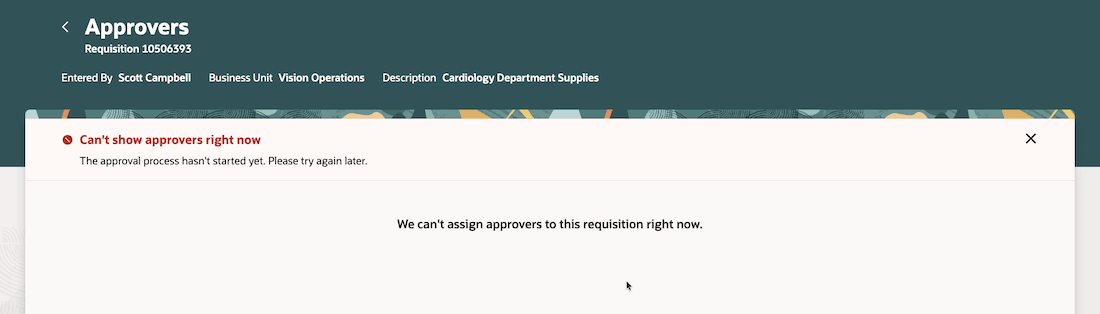
Clearer error message when viewing requisition approvers
The Approval error details drawer can display information such as the approval rule set, rule name, error, message, cause, and additional details. These details help your help desk or procurement administrator review the issue and determine the appropriate resolution.
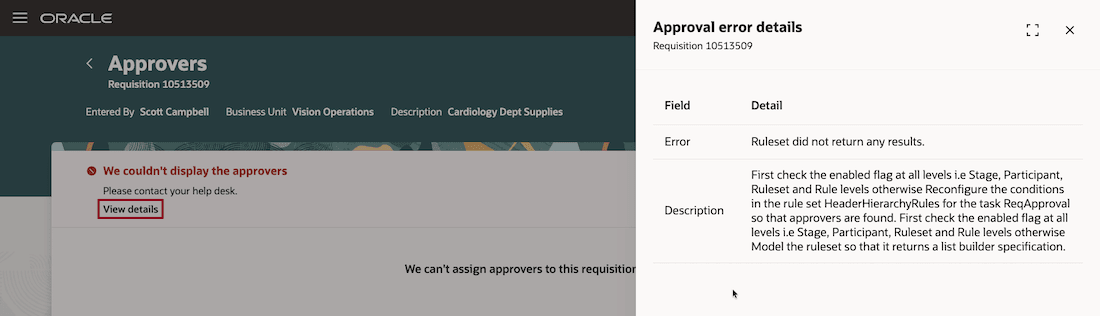
View more details on the error to share with the help desk
This feature improves the requester experience by providing detailed, actionable error messages. The additional diagnostic details help support teams and procurement administrators review and resolve approval issues more efficiently.
Steps to enable and configure
You don't need to do anything to enable this feature.
Tips and considerations
- The View details link appears only when diagnostic details are available for the approval error.
- The information displayed in the Approval error details drawer depends on the diagnostic details available. Some attributes might be unavailable if those details aren't returned in the error.