Save and reuse requisition searches
Save and reuse requisition searches in the application. Saved searches will be available in both requisitions and lines views.
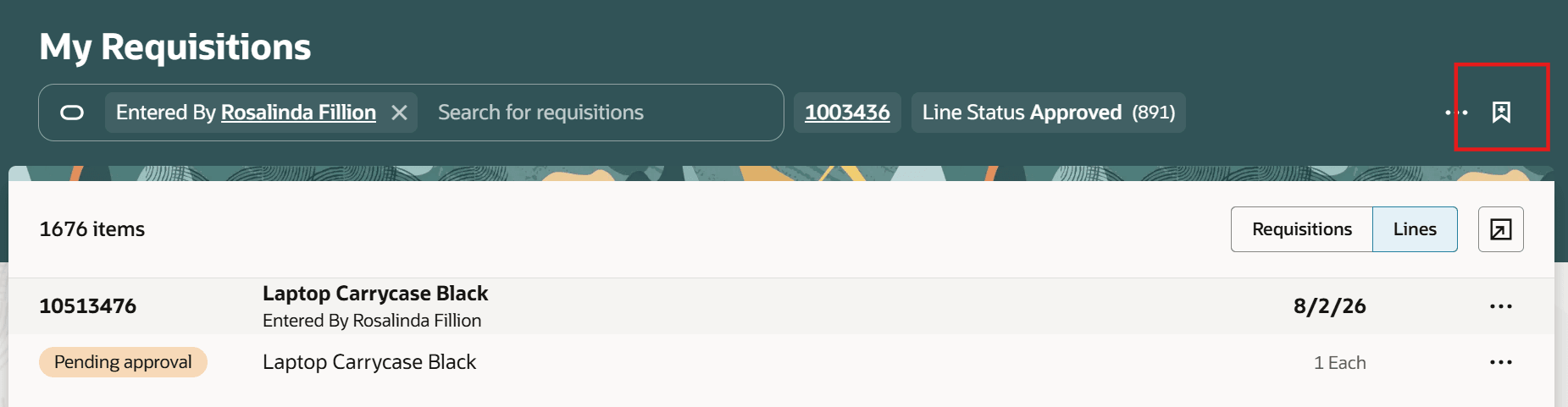
Saved search on My Requisitions
Use the Saved Views icon on the My Requisitions page to create a saved search.
You can create saved searches using various search keywords and filters and set any saved search as the default.

Create and save searches
The default saved search is used except under these conditions:
- If you used a different search most recently while managing your requisitions.
- The Entered By filter is applied by default for users who have the View All Requisitions privilege.

Recent searches are available
In addition to saved searches, you can also reuse your recent searches. You can search using a keyword, a filter, or a combination for reuse. The Ask Oracle drop-down and Smart Search component display the most recently used search value by default. When you use that search value in a search, the components update to display the previously used value, allowing you to quickly access your recent searches.
Note: To save a recent search, you must leave the search box and use an available action, such as drilling down to view requisition details.

Recent searches are available
Steps to enable and configure
You don't need to do anything to enable this feature.
Tips and considerations
- Extensibility: use the Enable Saved Search on My Requisitions Oracle Visual Builder Studio constant to control the saved search and recent search behavior. Set the constant to False to disable the feature. The feature is set to True by default.
Key resources
- For information about using Oracle Visual Builder Studio to extend your Redwood application pages, see Oracle Fusion Cloud HCM and SCM: Extending Redwood Applications for HCM and SCM Using Visual Builder Studio.