View billing details directly on requisition lines
You can now view billing details directly on the Requisition Details page for each requisition line. This helps requesters and approvers verify information across requisition lines before submitting a requisition.
A new Lines table is also available with this update. This helps provide a structured and easy to manage view of the line information. To view the Lines table, you must enable the Show the table view for lines on requisition details option in your requisition preferences.
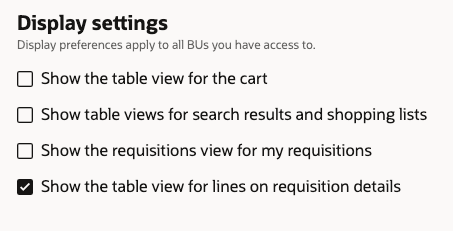
Show the table view for lines on requisition details
Lines table
The table displays these columns by default:
- Line Number (The column also shows associated notes or attachments as an icon. If the line has pending actions to create a change order for an overbilled invoice, or confirm a receipt, an additional icon is displayed.)
- Line Status (Badge)
- Line Description
- Order Number (Purchase Order or Transfer Order)
- Source (Supplier name or the internal transfer organization)
- Amount
- Quantity
- UOM
- Actions (Lists line-level actions based on the line status)
You can hide or show available columns using the Column selector.
These line details are displayed as links:
| Linked column | Action performed |
|---|---|
| Line Description | Launches the Line details drawer. |
| Order | Navigates to the Purchase Order or Transfer Order page. |
| Source | Launches the Additional information drawer, if a supplier is stamped on the line. |
| Deliver-to Location | Launches the Additional information drawer (for location). |
Billing Details table
Select a line to view the corresponding billing details.
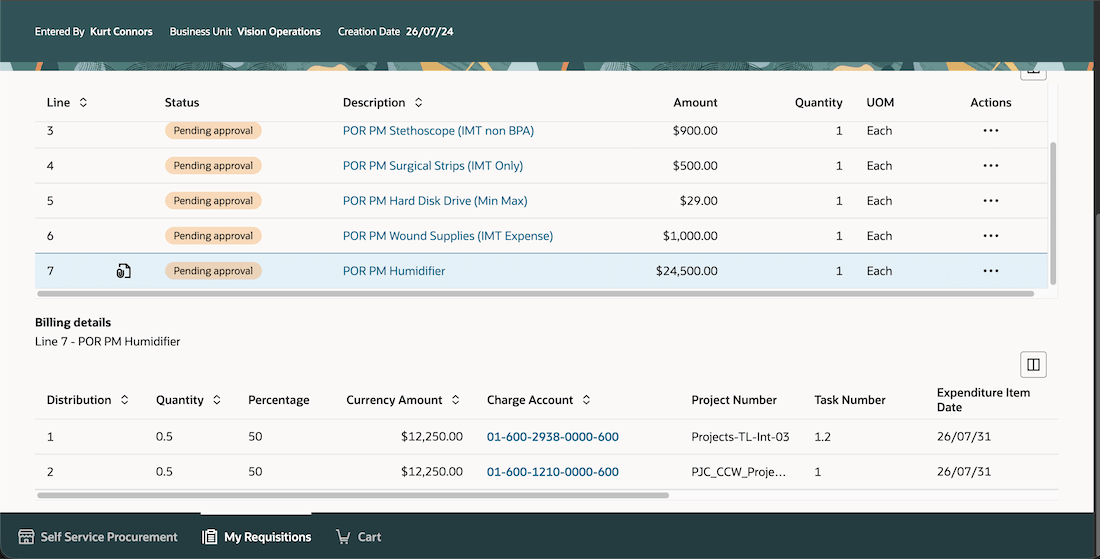
Line and billing details
You can view billing details, including the charge account and project information, in the table. Use the Column selector to show or hide available columns.
Steps to enable and configure
You must enable this profile option to access the feature if you want this feature to be available to all users:
- Table View Enabled for Requisition Details (ORA_POR_REQUISITION_DETAILS_TABLE_VIEW_ENABLED). By default, this profile option is set to No.
To enable the profile option, follow these steps:
- In the Setup and Maintenance work area, search and select the Manage Administrator Profile Values task.
- On the Manage Administrator Profile Values page, search for and select the Table View Enabled for Requisition Details (ORA_POR_REQUISITION_DETAILS_TABLE_VIEW_ENABLED) profile option name or the code.
- Set Profile Value to Yes.
- Select Save and Close.
Note: The updated profile value takes effect the next time users sign in.
Tips and considerations
- If you use REST services to create or modify user preferences and want to enable this feature for one or more users:
- Set the value for the RequisitionDetailsTableViewEnabledFlag attribute to true in /requisitionPreferences REST payload.
- Extensibility:
- You can hide the Billing details section using Oracle Visual Builder Studio.
- Edit the Requisition Details page and set the Hide the Billing Details Table on the Requisition Details page to true. The default value is false. You can also set this constant conditionally via the Configure Page Properties section in Oracle Visual Builder Studio.
- The lines and billing details tables can be personalized using collection rules in VB Studio.
- The public version of the Requisition Details page will only display the list view.
Key resources
- For information about using Oracle Visual Builder Studio to extend your Redwood application pages, see Oracle Fusion Cloud HCM and SCM: Extending Redwood Applications for HCM and SCM Using Visual Builder Studio.
- To know about the guided journeys, refer to the Overview of Guided Journeys topic.