Dates and numbers in knowledge articles
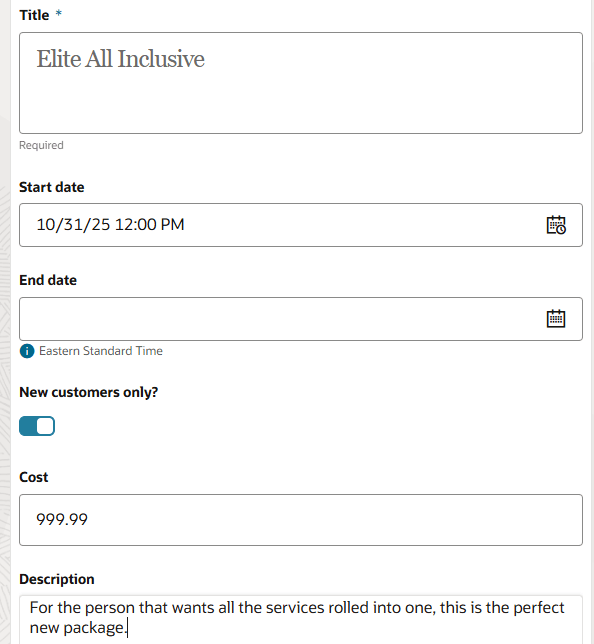
Creating a new article
As can be seen above, breaking numbers, dates, and toggles out into their own attributes in knowledge articles ensures consistent data entry. Additionally, it improves the readability of your knowledge, both for humans and AI agents. In addition to the rich text and text areas you have enjoyed for years, you can now add:
- Toggle - Use this to capture binary decisions. For example, maybe you have a content type that contains articles which describe known issues, maybe you want a toggle that captures whether or not there is a workaround.
- Integer - Accepts whole numbers between -2,147,483,648 and 2,147,483,647. This is a good fit when trying to capture a count of something there can only be a whole number of.
- Float - Accepts a very large range of whole or fractional numbers, such as 999.99. This is a more flexible type of number than the integer.
- Date - Use this to capture a single date, such as the day on which an offer is going to go live.
- Time - Use this to capture a time, such as the time of data a recurring things happens.
- Datetime - Accepts a single date and time, such as the moment of a planned outage.
Regional preferences
Fusion users are able to select their preferences for the formatting of numbers, dates, times, and timezone under Personalization > Set Preferences > Regional. UIs inside Fusion will obey whatever settings are present here. As can be seen above, this author has selected Easter Standard Time, which means that the date being entered is assumed to be in that timezone. All dates, times, and datetimes are saved in UTC and then converted when displayed to conform to the user's regional preference. Below is the same article being viewed by someone in Japan, note that it is the next day and the differences in how the date is formatted.
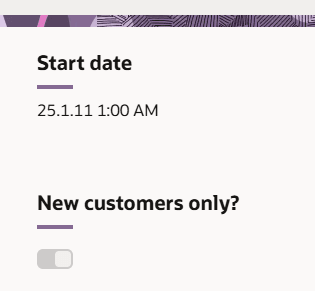
Viewing an article that contains a date
By typing the inputs available to authors you increase ease and consistency of their work. Additionally, for key bits of information expressed as dates and numbers these can be easier for your users to quickly scan when broken out into their own attributes.
Steps to Enable and Configure
- Enter Setup and Maintenance
- Navigate to either the Service or Help Desk offering
- Under the Knowledge Management functional area, select "Manage Knowledge Content Types Redwood"
- Edit any custom content type that already exists (or create a new one) and add as many attributes as you need under the Content Schema, selecting from the new attribute types described above.
Tips And Considerations
- Display only - In this release none of these new attribute types will be matched in search. This means that searching for "2025-10-15" in My Help (for example) won't match articles with a date attribute that contains 2025-10-15.
- Filtering - In a future release these attributes may become available as filters both inside and outside knowledge authoring, but they will not be available for this use case in 26A.
- Reporting - These attributes do not show up in reporting.