Global Function for AI Agent Integration in Oracle Fusion Service
You can now launch custom Agent UIs, built with Oracle AI Agent Studio, directly from Fusion Service. This new extensibility allows system implementors to embed AI-powered agents in the Service Center work area. Your custom agents can automate workflows, help with knowledge retrieval, and guide service reps through complex tasks—all within the familiar Fusion Service environment.
- Customer Empowerment: Customers and partners can design AI-driven agents to suit their unique business requirements.
- Process Automation: Reduce manual, repetitive work and speed up service case handling with guided, automated workflows.
- Redwood & AI Adoption: Seamlessly integrates AI extensibility into the Redwood experience
- Efficiency Gains: Service representatives can handle requests faster with automated suggestions and guidance, lowering average handle time (AHT).
- Customer Success: Accelerate time-to-value and improve customer satisfaction with faster, AI-assisted service resolution.
Steps to enable and configure
Steps to Enable
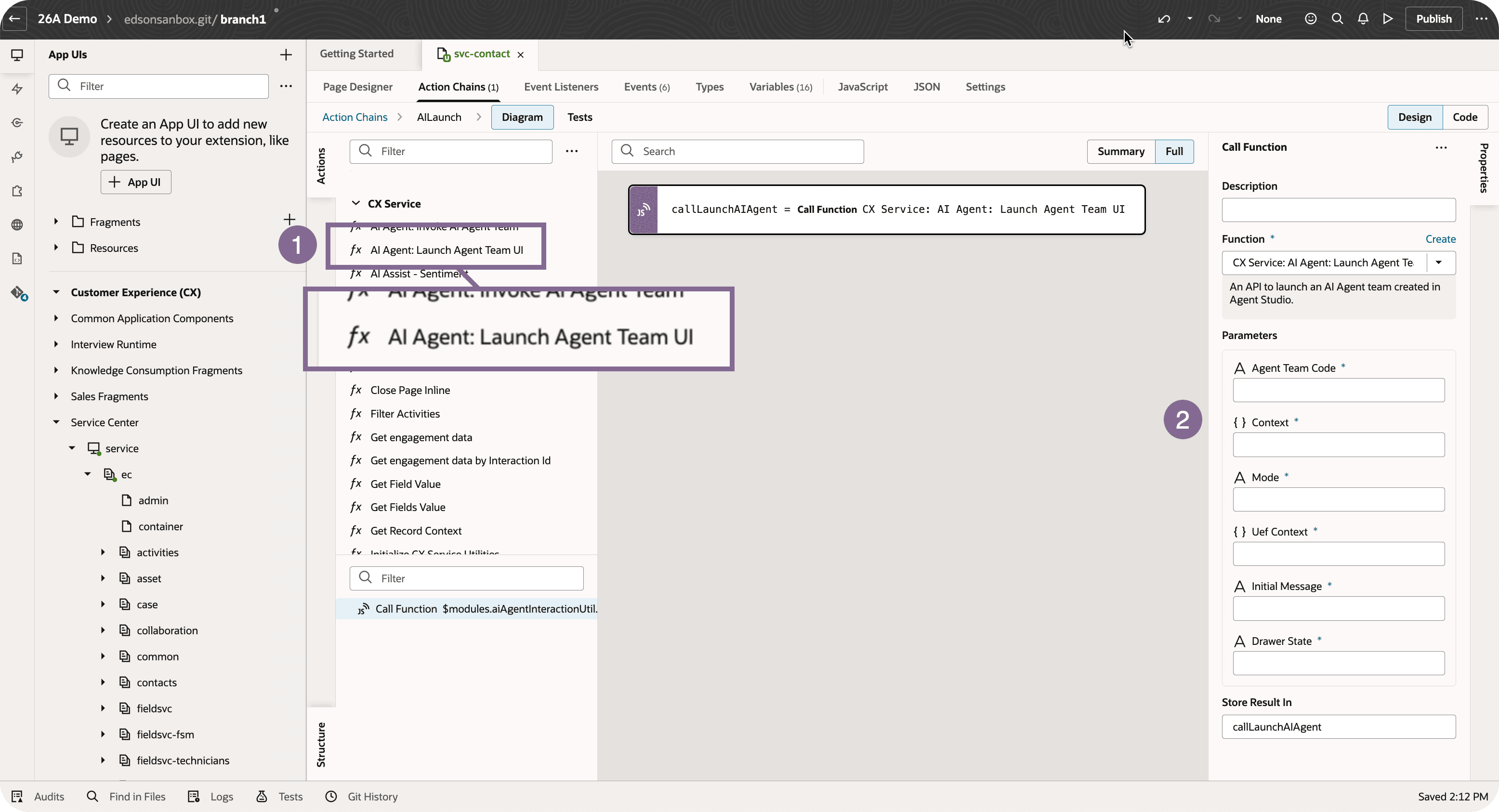
Paramenters
AGENT_TEAM_CODE |
Agent Team Code designed in Agent Studio, follow: https://docs.oracle.com/en/cloud/saas/fusion-ai/aiaas/overview.html |
| Context | Context required for the Agent team |
| Mode | Drawer | Inline |
uefContext |
page level uefcontext |
| Initial message | Optional: for auto launch AI studio |
1. Prerequisites
- Assign the role: CX_AI_AGENT_STUDIO_ADMIN_ROLE_CUSTOM to agents who need to use this capability.
2. Create and Configure Your AI Agent Team
- In AI Agent Studio, create an AI Agent team based on your use case.
- Copy the Agent Team Code for later use.
3. Grant Roles & Privileges
- Make sure your agent has the appropriate roles and privileges to launch AI Agents in the service console.
4. Integrate in Fusion Service (Example Workflows)
a) Add a Launch Button to Contact Page:
- Open Visual Builder Studio and add any required dependencies.
- Navigate to: service center/service/ec/sr/svc-contact
- In Page Designer, create a new section under Custom Action Layout.
- Drag and drop a button into this section. Label it as desired.
- Under the button's Events tab, select oj-action.
- In the action chain, drag the function: Launch an Agent Studio Team.
- Set parameters:
- Agent team code
- Context
- Mode (Drawer or Inline)
- Uef Context
- Optional: Initial message
- Preview your changes.
b) Launch from Smart Action in SR Details:
- Create and enter a sandbox.
- In App Composer, define a new smart action; copy its ID.
- Set up role/privileges and agent team (as above).
- In Visual Builder Studio, add any necessary dependencies.
- Go to: service center/fragments/cx-svc-sr-details
- Add an event listener:beforeInvokeSmartActionEventListener
- In the action chain, drag Launch an Agent Studio Team and configure parameters.
- Add an IF condition:
if (event.detail.smartAction === '<smart action ID>') {
// Launch action
} - Preview.
5. Use the Global Function (For Advanced Scenarios)
You can launch the AI Agent Studio programmatically using:
$modules.agentStudioUtils.launchAIAgent(AGENT_TEAM_CODE, Context, Mode, UefContext, [Initial message])
Tips and considerations
n/a
Key resources
Access requirements
- Oracle Visual Builder Studio for Fusion Application Extension
- Oracle AI Agent Studio