Message Management in Collaboration
Starting with 26B, the enhanced Collaboration experience enables you to interact with conversations in a more flexible and contextual manner. You can edit or delete messages that you have sent to individual users or groups, giving you greater control over shared information. You can also reply directly to specific messages to maintain conversational clarity.
These capabilities support message correction, removal, and contextual replies. They improve communication accuracy, reduce misunderstandings, and help you engage more effectively in one-to-one and group conversations, especially in fast-paced operational environments where timely and precise collaboration is critical.
Edit Messages
Collaboration allows you to edit messages that you have sent to individual users or groups. You can edit a message within 15 minutes of sending it.
Desktops
On desktop devices, hover over a message to display the available action icons next to it.
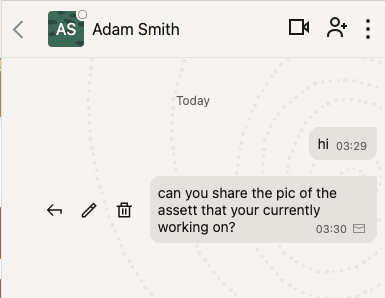
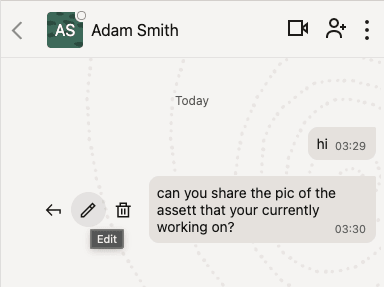
Click the Edit icon to modify the message that you previously sent.
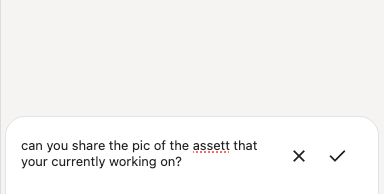
The input box is populated with the original text. Edit the message as required, then click the tick icon to send the updated message. Click the cross icon to cancel the action.
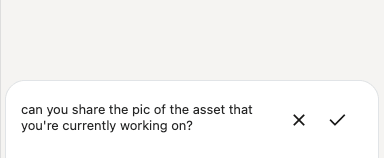
After you edit the message, the updated text replaces the original message. The timestamp continues to reflect the time when you originally sent the message. An (edited) label appears next to the message text to indicate that the message has been modified.
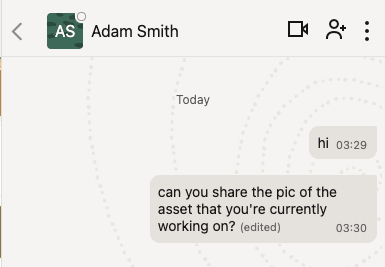
Mobile Devices
On mobile devices, long-press a message to display the Edit, Delete, and Reply options in a drawer at the bottom of the screen.
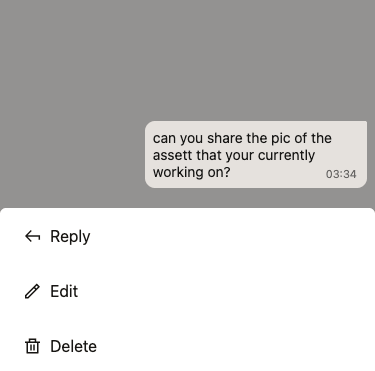
Select Edit to modify the message. The behavior is similar to the desktop experience.
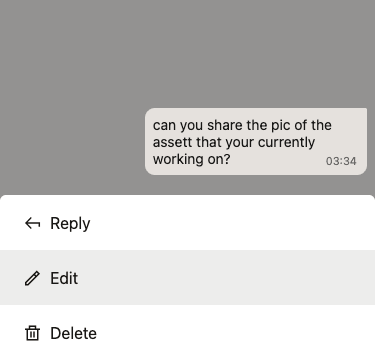


Reply to a Message
You can reply to any message within a conversation, including your own messages and messages sent by other users.
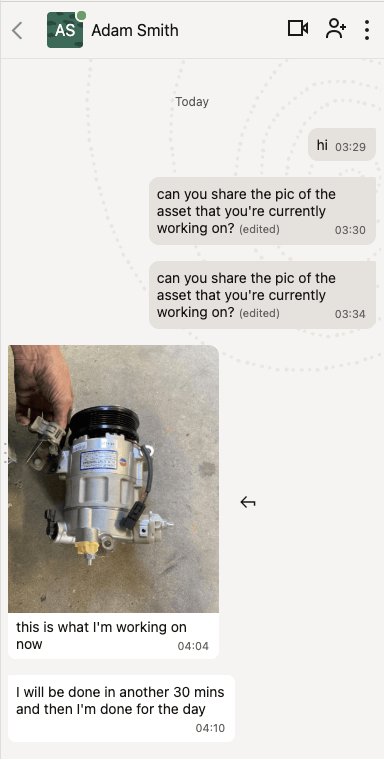
Click Reply to respond to a specific message. The original message appears in a smaller format above the input box while you compose your reply.
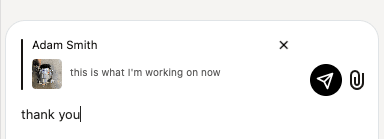
After you send the reply, the original message snippet appears together with your response.
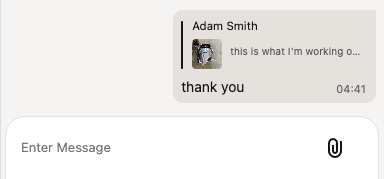
Click the original message snippet to navigate directly to that message in the conversation.
The behavior is similar on mobile devices.
Delete Messages
You can delete messages that you have sent to individual users or groups. You can delete only your own messages and only within 15 minutes of sending them.
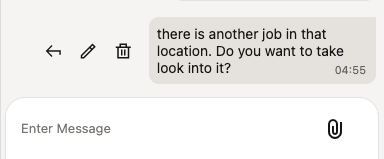
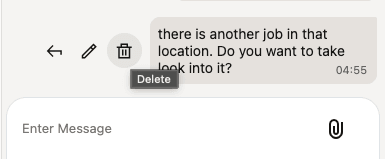
On mobile devices, access the Delete option from the bottom drawer.
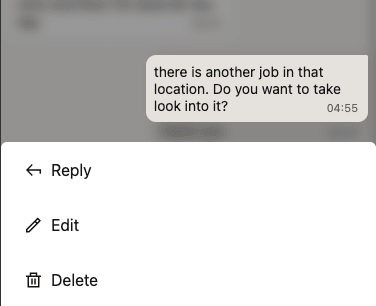
Click Delete to display a confirmation dialog.
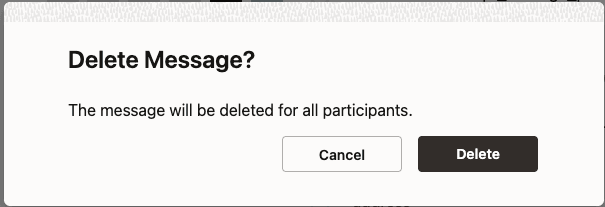
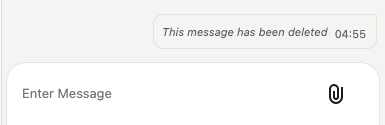
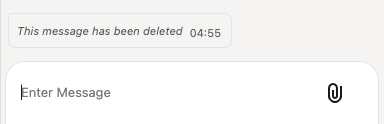
Confirm the action to delete the message for all users. The application replaces the original message with a notification indicating that the message was deleted.
For sender:
For the recipient:
Business Benefit
- Improved clarity and accuracy: You can edit or delete sent messages, reducing the risk of miscommunication and ensuring that information remains clear and up to date.
- Enhanced efficiency: The ability to modify or remove messages after sending reduces the need for excessive double-checking, allowing conversations to proceed more quickly and confidently.
- Streamlined group discussions: Replying to specific messages helps you organize conversations, especially in group chats where multiple topics may be discussed simultaneously, resulting in clearer and more coherent communication threads.
- Improved context management: You can respond directly to earlier messages, making it easier to switch contexts or revisit previous points in ongoing discussions.
Steps to enable and configure
You don't need to do anything to enable this feature.
Tips and considerations
You can edit or delete a message only within 15 minutes of sending it. Review and verify your messages promptly after sending them.