Use the Improved Employee Self Service Assistant to set Product and Category
The Employee Self Service Assistant has been significantly improved.
The My Help employee user interface has not changed and still includes an option to Get AI Assistance that gives employees the opportunity to have a conversational question and answer session with an AI Agent.
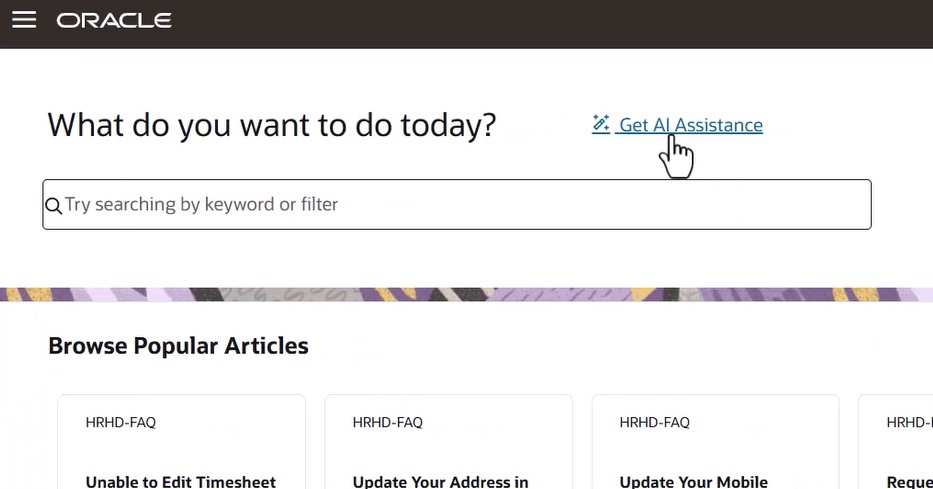
AI Assistance in My Help
At the end, if their question has not been answered, it can also open a help desk request on their behalf, with the information that has been provided thus far.
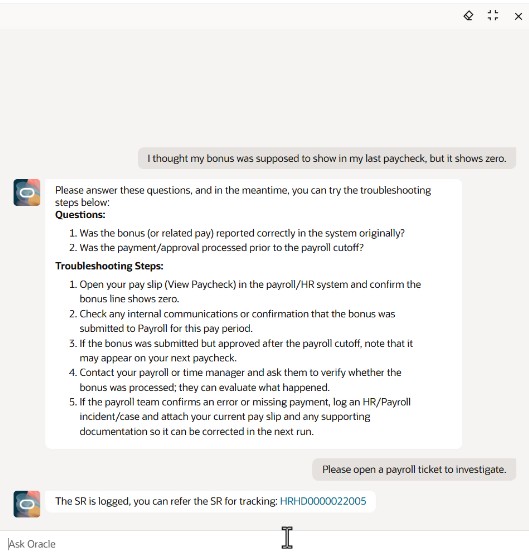
Employee Help Desk Self Service Assistant Creating a Request
However, the 26B Employee Self Service AI Agent expands on the functionality of the current Employee SelfService AI Agent so that:
-
The single AI agent converted to a workflow agent, which is more deterministic. First, the appropriate AI sub-agent is used after determining the intent, and then a search is done for Content Intelligence (Knowledge) and similar SRs (in parallel). This makes output both faster and more reliable/consistent.
-
A check is now done to ensure Help Desk is enabled before offering to create a Help Desk request. This will avoid an error if trying to create a help desk request when it is not enabled.
-
If there is no AI sub-agent that is appropriate for the intent, no error is given, and it proceeds to try to answer the question in a different way.
-
If products and categories have been set up in RAG, the Self Service Assistant will set the category and/or product that is inferred.
-
The definition of which embedded AI sub-agents to use has moved from a VBS constant to the workflow agent in AI Agent Studio.
-
An AI Agent that is associated with the page context can be set as the sub-agent to use when cloning the Employee Self Service agent. The above allows this agent to be introduced ANYWHERE within Fusion, since it can be cloned and modified to a preferred AI Agent within a particular context.
-
Help Desk request creation functionality has been split into a separate runnable AI Agent.
-
The name of the Employee Self Service Agent now has a space between Self and Service.
The Employee Self Service Assistant:
- Is more deterministic, making output more consistent.
- Is faster.
- Utilizes the runnable Help Desk Request Creator which can be used by other agent teams.
- Does not offer to create a help desk request unless help desk is enabled.
- Can now set the category and product appropriately, when provided with appropriate RAG input.
- Can be adopted and used in multiple contexts.
Steps to enable and configure
There are a number of steps required to get your Employee Self Service Assistant AI agent configured:
- Set up Permissions
- Load Products and/or Categories
- Customize the AI Agent
- Decide upon and register the Agents for the Team
- Configure the Profile Option to indicate the AI Agent team to be used
Set up Permissions (only applicable if you are NOT currently using Employee SelfService Assistant)
For those not already using the Employee SelfService Assistant, you should first create a custom role that will allow employees to use AI Features. If you have already completed this previously, you can skip this step.
These instructions assume that you have a custom role set up based on Next Gen Human Resource Help Desk User that will be enhanced with the new role created below.
- Create a new Custom Role for your Employee AI User.
- Navigate to Tools -> Security Console.
- Under the Roles tab, click Create Role.
- Create a custom Role using the following recommended values:
Recommended Values for Custom Role
Field Recommended Value Role Name Help Desk Employee AI User Role Code HELP_DESK_EMPLOYEE_AI_USER Role Category Common-Abstract Roles Enable Permission Groups Yes Description Allows Help Desk Employee Users to use AI Assistance for Employee Self Service. - Click Next.
- Click Add Function Security Policy.
- Search for Access Intelligent Agent Chat.
- Select the option and click Add Privilege to Role.
- Click Cancel to return.
- Click Next to navigate to Permission Groups.
- Add following permission group: oraCommonFusionAIAgents_Workflow_read
- Select the permission group and in details, go to Security views -> add security views -> AllRowsAllFields
- Click on add security view.
- Click Next to get to the Data Security Policy page.
- Click on Create Data Security Policy using the values below.
Recommended Values for Data Security Policy
Field Recommended Value Policy Name Grant on AI Agent Workflow Data Resource AI Agent Workflow Policy Description Grants ability to use AI Agent Teams for Self-Service Data Set All values Actions - Manage AI Agent Workflow
- View AI Agent Workflow
- Save the changes.
- Associate the Custom Role to your custom role for Help Desk Users (based on the default Next Gen Human Resource Help Desk User or Internal Help Desk User roles).
- Find and edit (or create) the custom role used for Employee users of Help Desk.
- Click Next until you've reached Role Hierarchy.
- Click Add Role.
- Search for HELP_DESK_EMPLOYEE_AI_USER (or whatever code you used in place of this value given in the table Recommended Values for Custom Role).
- Select this role and click on Add Role Membership.
- If your employees do not already have the Service Generative AI User role (ORA_SVC_GEN_AI_USER), search for this value, then select this role and click on Add Role Membership.
- Click Cancel.
- Click Next until you reach Users.
- If you have created a brand new custom role and would like to add the users who will be testing,
- Click Add User.
- Search for the username, and Add User to Role. If you are adding these new roles to an existing custom role, then you may skip this step. Click Cancel.
- Click Next.
- Click Submit and Close.
- Click OK.
- Click on the Administration Tab.
- Click on Role Status to see that your new Role has been updated and is Complete.
- Run the processes to update the Security Roles.
- Navigate to Tools -> Scheduled Processes.
- Run each of the Jobs listed below in sequential order, allowing the previous one to complete before continuing:
- Click Schedule New Process.
- Click the drop-down for the Name field and click Search...
- Search for and select the appropriate job to be run (in the order given).
- Import User and Role Application Security Data
- Send Pending LDAP Request
- Retrieve Latest LDAP Changes
- Click OK, OK.
- Click Submit.
- Copy the Process ID, and click OK.
- Monitor the progress.
- Expand the Search section.
- Enter the copied Process ID into the Process ID field and click Search.
(You may also want to clear out the Submission Time values if nothing is returned.) - Occasionally Refresh the process status until you see that it Succeeded (or failed).
(This job can take a long time. If it fails, please open an SR with Tech Support.)
- Return to Step 2 to run the next job, until all have been completed successfully.
Load Products and Categories (if not done previously)
The category and product are set automatically when the user logs a ticket only if they are present in RAG. If this has not yet been done, instructions to Load Contextual Data are found here:
If you've already completed this in support of some other AI Agent (such as the Triage Agent), it doesn't have to be done again, if the products and categories have not changed.
Customize the AI Agent
Because of the name change, anyone wanting the latest version will need to do the following instructions, unless otherwise noted.
- Navigate to Tools -> AI Agent Studio.
- Use the search bar to find the "Employee Help Desk Self Service Assistant" agent.
- Copy the AI Assistant.
- Click Copy Template on the Employee Help Desk Self Service Assistant.
- Enter HD (for Help Desk) for the Agent Team Suffix.
- Click Continue.
- Click Publish.
- Click on the Agent Teams tab at the bottom of the AI Agent Studio.
- Click on the Published button on the right hand side of the page.
- Use the search bar to find the new copy of the AI Agent that you just created.
- Note the Agent Team Code for future reference. It is likely EMPLOYEE_HELP_DESK_SELF_SERVICE_ASSISTANT_HD.
- Now click on the Pencil icon to edit the AI Agent.
- Click on the Agent Teams Settings wheel on the top left-hand side.
- In the pop-up, click the Security sub-tab.
- Click Add.
- For the Role, select the Help Desk User role(s) being used.
- Click Apply.
- Click Update.
- In the first node of the AI agent, setAgentCodes, click on the dots and choose to Edit.
- Set the workflowCodes by editing the variable agentcodes to include any AI Agents that should be used for responding to the employee.
- IMPORTANT: Agents defined for use MUST have proper description, since that description is used by the Employee Self Service Assistant to pick the appropriate agent(s) to resolve the user query.
- Note: You can generally find employee-facing AI Agents by searching for published agents by searching for "employee" or "worker."
-
Remove the registered AI Agents previously included on the Team (only applicable if you are currently using Employee SelfService Assistant)
- Navigate to Configuration -> Visual Builder.
- Under App UIs, navigate to Customer Experience (CX) -> Help Desk -> helpdesk -> employee.
- Under the Variables tab, select the Constant ESSRoutingAgentCodes.
- Click on the Function Editor.
- In the Expression Editor, remove all values.
- Click Save.
- Publish your changes after all other steps are complete.
- Click Apply.
- Click Update.
- Publish the AI Agent.
Configure the Profile Option to indicate the AI Agent team to be used
- Go to Setup and Maintenance.
- Click on the Tasks icon.
- Click Search.
- Search for Manage Administrator Profile Values.
- Click the resulting link.
- Enter the Profile Option Code ORA_SVC_HELP_DESK_SUPERVISOR_AGENT_TEAM_CODE.
- Enter the Site Profile Value to be the Agent Team Code that you created in the setup section Customize the AI Agent. This is likely EMPLOYEE_HELP_DESK_SELF_SERVICE_ASSISTANT_HD.
- Click Save and Close.
- Click Done.
Once you log out and back in, you should be able to test your changes.
Tips and considerations
For this Agent to be most useful, you will need to:
- Have knowledge articles available to address most commonly asked questions / policies.
- Upload Similar SRs, Products, and Categories to RAG.
- Register the AI agents that are generally most helpful.
This agent does not take into consideration any intents you may have in Oracle Digital Assistant (ODA), but the OOTB ODA intents are supported by this AI Agent:
- Search Knowledge
- Create a Request
- Update a Request
Limitations:
- The AI Agent might offer to create a help desk request even if the individual is not privileged to create a help desk request. This will result in an error when the AI agent attempts to create the request.
- Search Content Intelligence (Knowledge) does not currently support BU restrictions.
Key resources
After this feature is generally available, videos showing how to configure your environment and a demonstration of the functionality will be found on Oracle Video Hub: Fusion Help Desk.
To learn more about AI Agent Studio, consider these resources:
- Load Contextual Data (documentation)
- Oracle AI for Fusion Applications (documentation)
- Introduction to AI Agents in Oracle Cloud HCM and SCM (recorded presentation, account required)
- Oracle AI Agent Studio for Fusion Applications Foundations Associate (training and certification, account required)
Access requirements
All Help Desk Users must be using a custom role that includes the Service Gen AI User and Help Desk Employee AI User roles, as defined in the setup steps.