Multi-task more naturally across SRs and interactions while conversing with AI agents
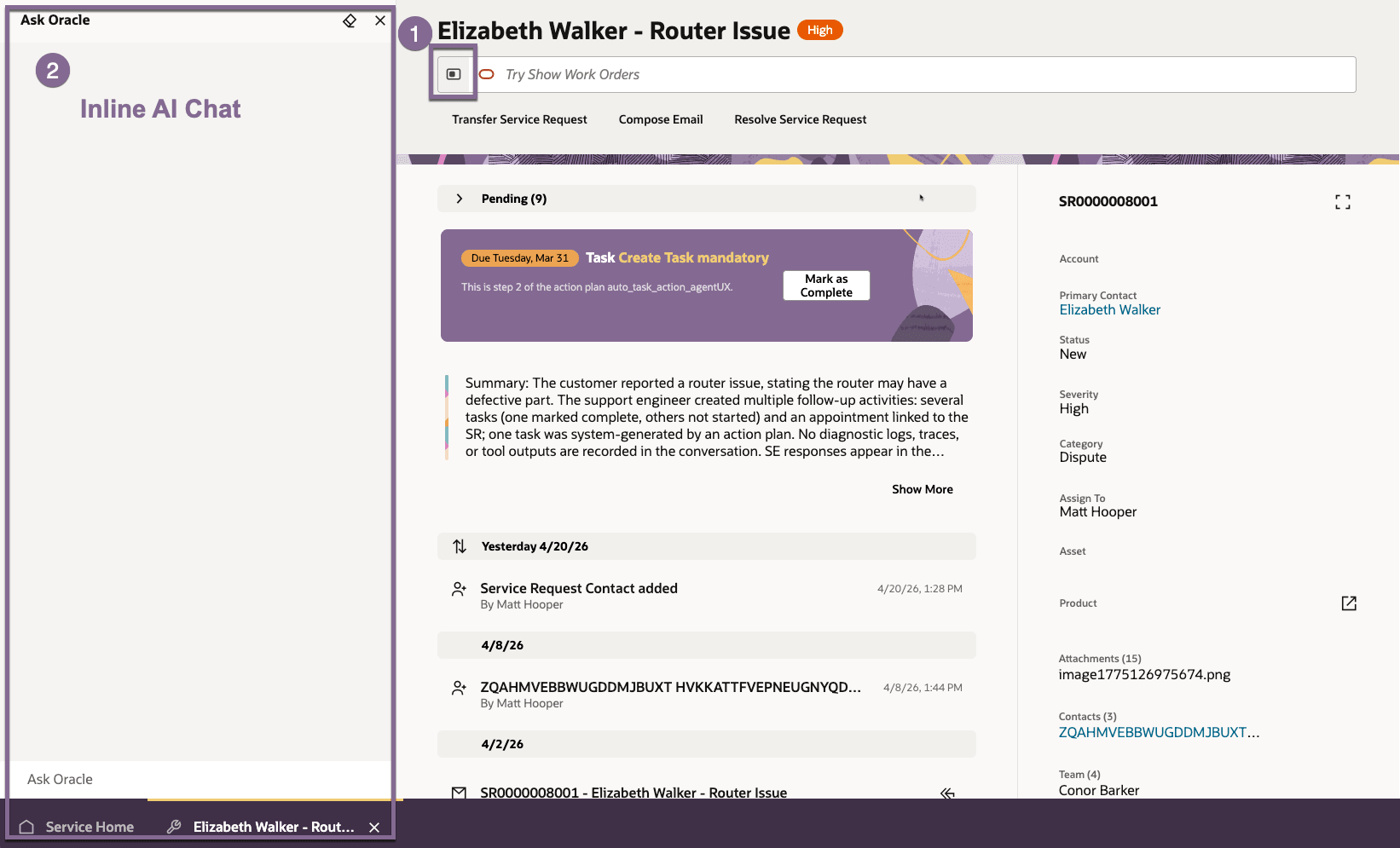
This enhancement enables service representatives to interact with the AI Agent chat in a persistent, non-modal panel embedded directly within the Service Console. Instead of opening in an overlay drawer. The AI conversation panel is now displayed inline within each tab, allowing agents to continue their work without interruption.
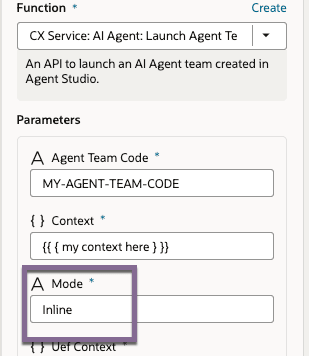
Also, you can now use Inline mode when configuring the CX Service: AI Agent – Launch Agent Team UI action chain in Oracle Visual Builder Studio.
The experience is designed for multitasking across multiple Service Center workspace tabs:
- The AI chat is embedded within each tab, providing a contextual experience
- Chat context is preserved per tab and per customer interaction, ensuring continuity
- Service reps can switch between tabs without losing conversation history, improving efficiency and reducing repeated inputs
This results in a more seamless, focused, and productive interaction model when interacting conversationally with AI Agents.
Example Use Cases
- A service rep works on multiple Service Requests in different tabs and interacts with the AI Agent in each tab without losing conversation context
- An service rep pauses a conversation with the AI Agent on one customer record, switches to another tab, and later resumes the same conversation seamlessly
- Organizations enable AI assistance directly within the Service Console to support real-time decision-making without disrupting workflows
- Service reps use the inline AI conversation panel alongside ongoing tasks (for example, reviewing SR details or updating fields) without navigating away from the current page
- Developers configure AI Agent launch behavior to provide a consistent, embedded experience across all Service Center interactions
- Improves user productivity by removing context switching friction
- Reduces repetitive inputs by preserving AI conversation history
- Enables faster issue resolution with continuous AI assistance
- Supports true multitasking across multiple customer interactions
Steps to enable and configure
Steps to Enable / Use
-
The AI Inline Chat Panel is enabled by default—no setup is required
-
In any Service Center page, locate the Oracle AI Assistant icon in the action bar
-
Click the AI Assistant icon to launch the panel
-
The AI Inline Chat Panel opens on the left side of the screen
-
Start interacting with the AI Agent directly within the panel
Extensibility Option:
-
Open Oracle Visual Builder Studio
-
Navigate to your Service Center extension project
-
Locate or create an Action Chain
-
Add the action: CX Service: AI Agent – Launch Agent Team UI
-
In the action properties, select Inline mode as the display option
-
Save and publish your changes
-
Run the application and trigger the action:
-
The AI Agent will open inline within the current page instead of a separate view
-
Tips and considerations
n/a
Key resources
n/a
Access requirements
- Oracle Visual Builder Studio for Application Extension