Survey Notification Assistant
Simplify post-service survey notifications with the Survey Notification Assistant. Configure a workflow action to automatically send a survey email when a Service Request is closed. The assistant uses the configured DCS survey link, while the email content can be customized in Application Composer without requiring custom development.
Easily create survey notifcations without groovy script.
Steps to enable and configure
This feature requires workflow automation rules:
https://docs.oracle.com/en/cloud/saas/fusion-service/famsr/enable-workflow-automation.html
Tips and considerations
The following steps walkthrough configuring Survey emails using the Survey Notification Assistant
STEP 1: Configure Dynamic Link: SURVEY_CRM. See https://docs.oracle.com/en/cloud/saas/fusion-service/farik/manage-dynamic-links.html#Create-a-Dynamic-Link
1.1. In the Setup and Maintenance work area, go to the Manage Service Request Dynamic Links task:
Offering: Service
Functional Area: Productivity Tools
Task: Manage Service Request Dynamic Links
1.2. In the Manage Dynamic Links page, click Add, and enter the following information:
Object Type: The link type that will be displayed in Authoring when the user tries to insert a link.
Generate Pattern: Select the check box.
1.3. Click Ok.
A new custom object and a corresponding pattern is created.
1.4. In the Manage Dynamic Links page, select the custom object that you added.
1.5. In the second half of the page, click Add and enter the following information:
External URL: The URL that needs to be constructed when the dynamic link is in place.
Note that the external URL must contain {0} which is the parameter that's replaced with the text or number adhering to the pattern.
For example, if the link you want to generate is:
https://appname.oraclecloud.com/pls/info_top?surveyRequestId=1234
Enter the External URL as:
https://appname.oraclecloud.com/pls/info_top?surveyRequestId={0}
1.5.4. Business Unit name: The business unit for which this URL will be used. You could add different URLs for different Business Units.
If Business unit is not mentioned it will be used as the default URL.
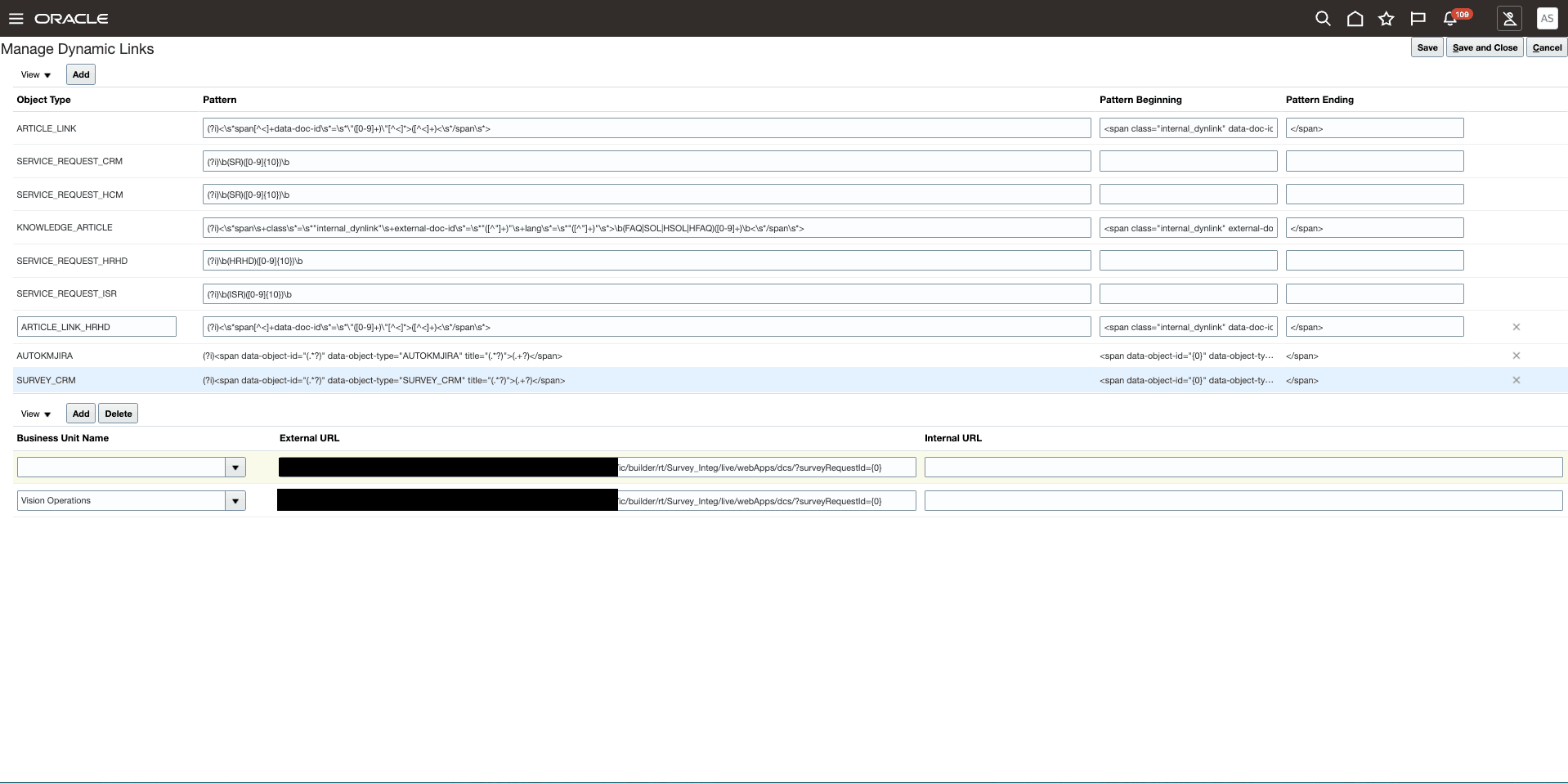
Business Unit Name
STEP 2: Create an Email Template (Application Composer)
See:
https://docs.oracle.com/en/cloud/saas/fusion-service/fairs/define-email-templates.html
2.1. Navigate to Application Composer:
2.1.1. Sign in as an administrator.
2.1.2. Navigator > Configuration > Application Composer.
2.2. Access Email/Message Templates:
2.2.1. In the Application dropdown, select CRM Cloud.
2.2.2. Under Common Setup, select Email Templates or Message Templates (based on your version).
2.3. Create a New Template:
2.3.1. Click the Plus (+) icon or Actions > Create.
2.3.2. Object: Select the business object (Service Request). Note: The template is restricted to its assigned object.
2.3.3. Name: Provide a unique name. This value will be used in SourceObjTemplateName in your API payload if you choose to reference a template by name.
2.4. Compose Template Content:
2.4.1. Subject: Enter the desired subject line.
2.4.2. HTML Body: Use the editor to design your message.
2.4.3. Mandatory Tag: Insert #MessageContent# where you want the URL to appear.
2.4.4. Merge Fields: Use the Attributes list to insert tokens such as [SRNumber], [Title], etc., from the associated object.
2.5. Activate and Save:
2.5.1. Ensure Active is selected.
2.5.2. Click Save and Close.
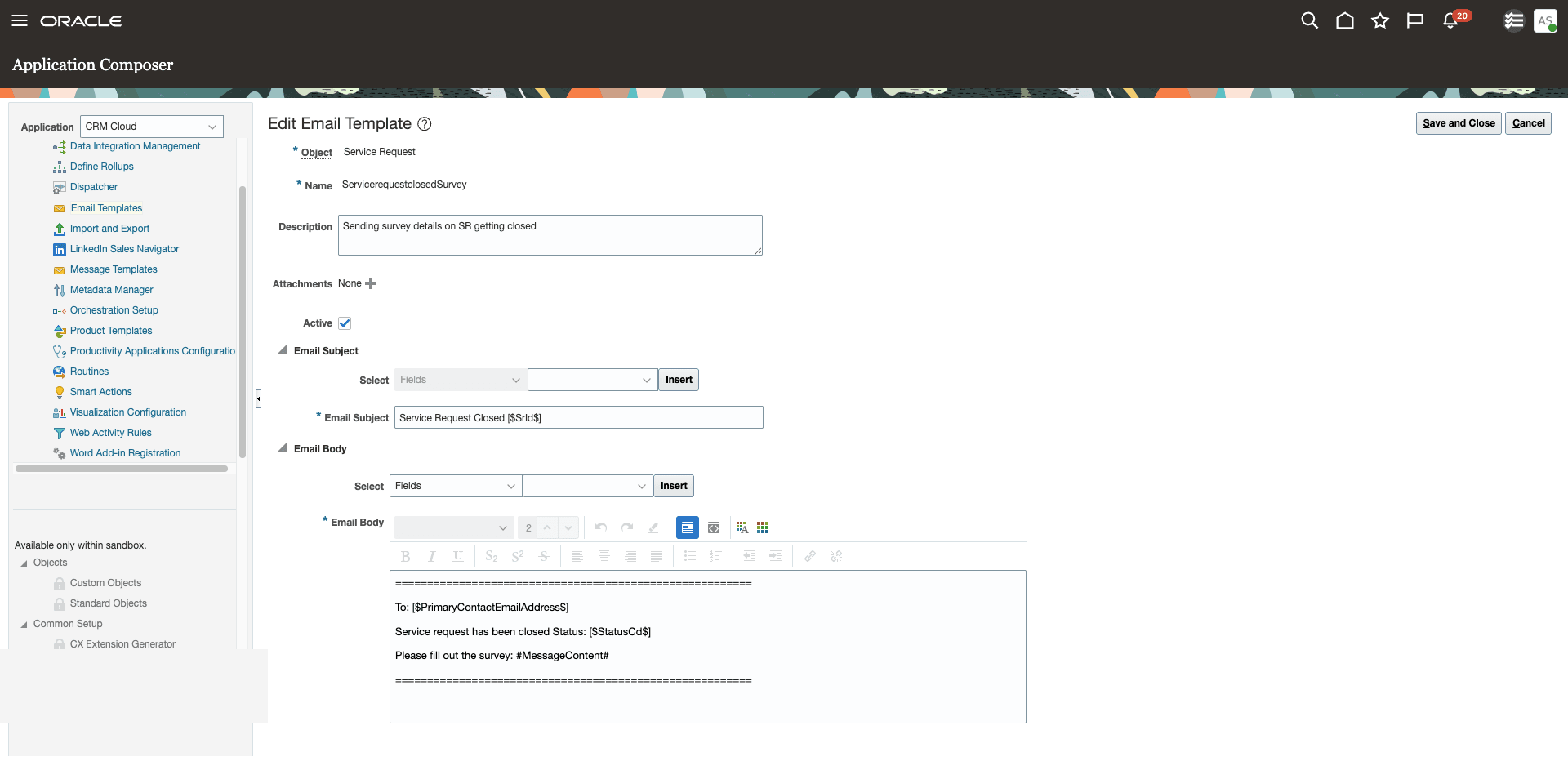
Activate and Save
STEP 3: Create an Email Channel for Survey Notification
3.1. Configure an Outbound Email Channel as per the documentation:
https://docs.oracle.com/en/cloud/saas/fusion-service/fairs/configure-an-email-channel.html
Channel id can be retrieved via either of the two steps below.
3.1.1. REST GET call with agent auth:
{{base_url}}/crmRestApi/resources/latest/channels?q=ChannelTypeCd=='ORA_SVC_EMAIL'
3.1.2. DB search:
select * from fusion.svc_channels_b where channel_type_cd='ORA_SVC_EMAIL'
STEP 4: Create an Automation Rule
4.1. Navigate to Service Center Administration:
4.1.1. Sign in as an administrator (ORA_SVC_WORKFLOW_ADMINISTRATOR_JOB).
4.1.2. Navigator > Service > Service Center Administration.
4.2. Navigate to Create/Manage Automation Rule:
4.2.1. Productivity > Create/Manage Automation Rule > Create.
4.3. Create Automation Rule:
4.3.1. Give a name for Automation Rules Template, say "Survey Notification Workflow".
4.3.2. Select "Service request" for Parent Entity Name.
4.3.3. Give a description.
4.3.4. Configure the triggering condition, for example: When Status Changes to Resolved.
4.3.5. Click + under workflow editor.
4.3.6. Select Action Catalog.
4.3.7. Click on "Create Action".
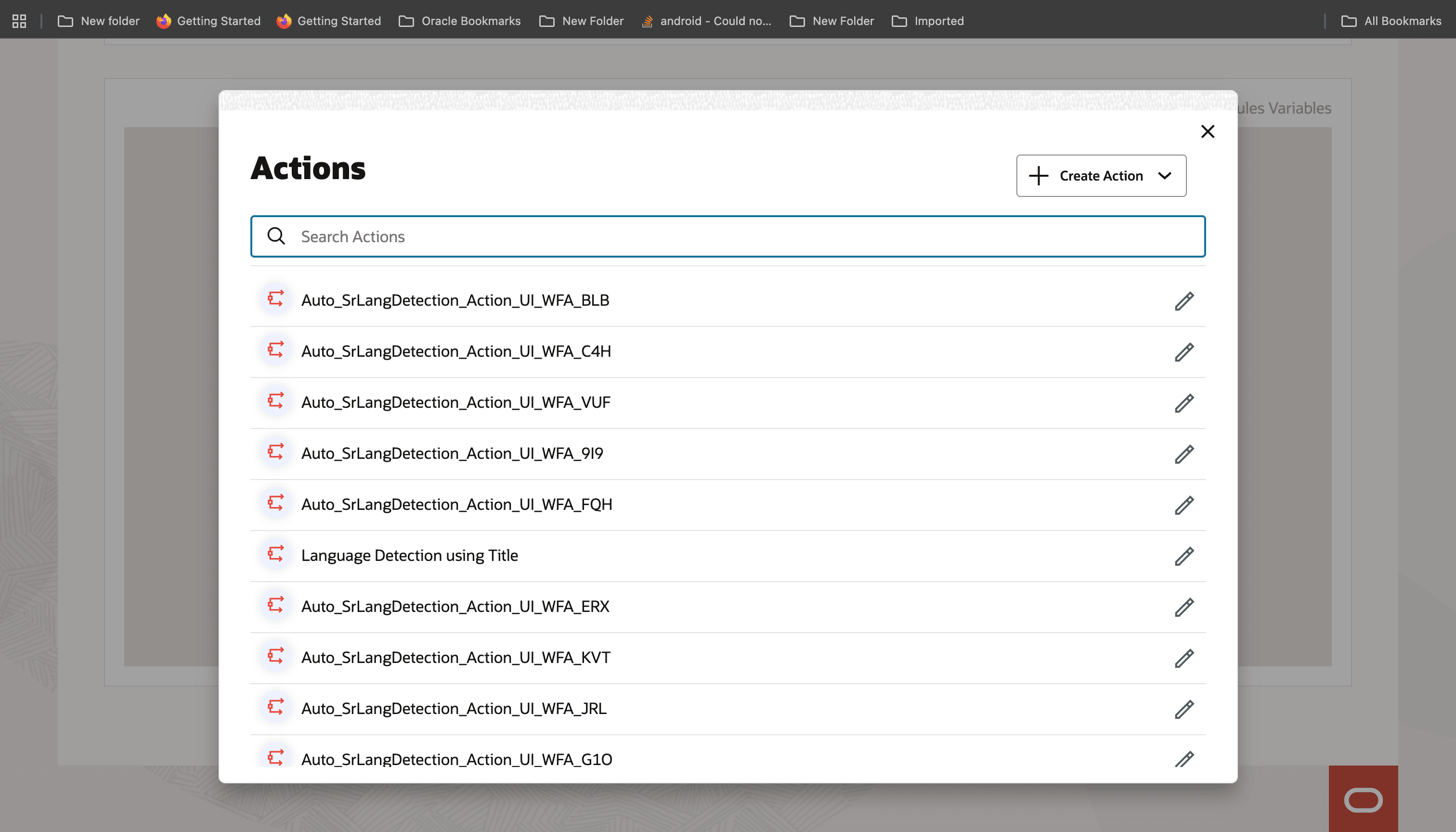
Create an Action
NOTE: If the "Create Action" button is not present, set this profile option value to 'Y':
ORA_SVC_WORKFLOW_TRANSITION_TO_AI_STUDIO
4.3.8. Select the "AI Agentic Action" option.
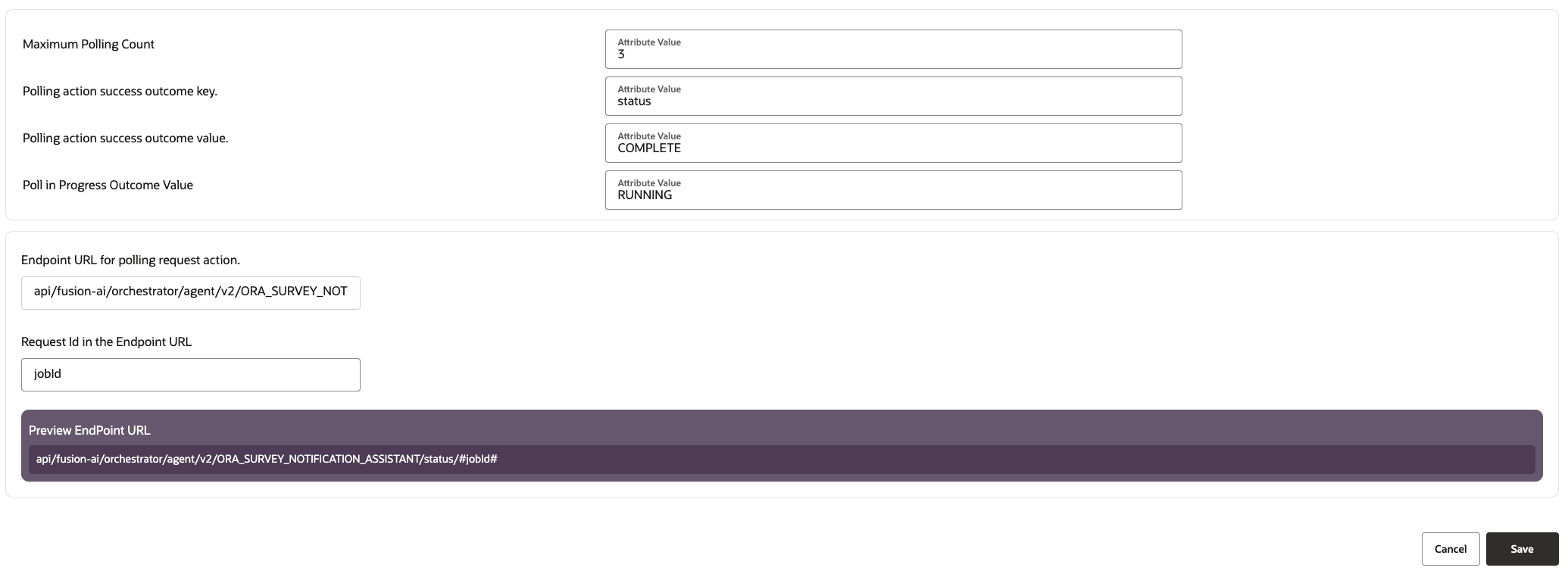
4.3.9. Configure the Action as shown in the reference image:
4.3.9.1. Give an Action type name, e.g. Survey Notification Action.
4.3.9.2. Family: CX
4.3.9.3. Product: Service
4.3.9.4. AI Agent Teams: Survey Notification Assistant
4.3.9.5. Select "Integration User" for API User Type Code.
4.3.9.6. Key in an Integration user that has Service Administration Role.
4.3.9.7. Click Next.
4.3.10. Populate the following parameters as input for AI Agent:
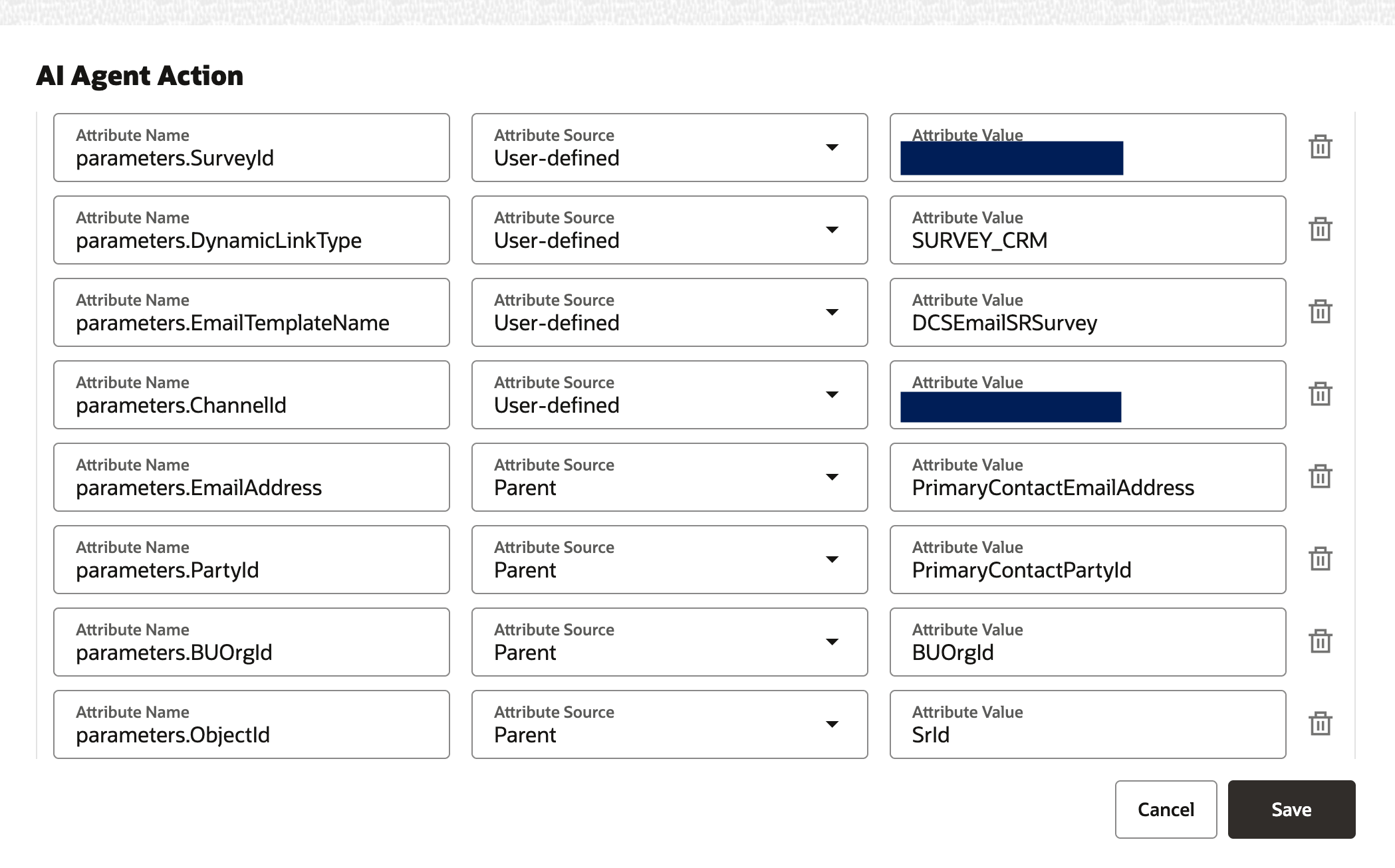
Parameters
Parameters
| Attribute Name | Attribute Source | Attribute Value |
|---|---|---|
| parameters.ObjectId | Parent | SrId |
| parameters.PartyId | Parent | PrimaryContactPartyId |
| parameters.EmailAddress | Parent | PrimaryContactEmailAddress |
| parameters.BUOrgId | Parent | BUOrgId |
| parameters.SurveyId | User-defined | Survey Id for which the survey needs to be sent |
| parameters.DynamicLinkType | User-defined | SURVEY_CRM or whatever Object Type was used in Step 1 |
| parameters.EmailTemplateName | User-defined | Template Name created in Step 2 |
| parameters.ChannelId | User-defined | Use the email channel Id from which the email has to be sent, created in Step 3 |
4.3.11. Leave all other values as they are.
4.3.12. Click Save.
4.3.13. Click Save And Deploy.
NOTE: Please enable the profile option ORA_SVC_WORKFLOW_SIGNALS_ENABLED by setting it to 'Y' for the workflow automation rule to be triggered.
There is no replay ability for the events triggered. The workflow service just ignores the event if that profile option is set to 'N'.
STEP 5: Trigger Notification
5.1. As per the condition configured in Step 4.3.4, select a Service Request and resolve it.
5.2. An email will be sent out to the Primary Contact's email address, with the selected email template having the Dynamic URL built for the Business Unit of the Service Request.
5.3. Sample email:
To: *.*@*.com
Service request has been closed Status: ORA_SVC_RESOLVED
Click here to launch the survey: https:/********/ic/builder/rt/Survey_Integ/live/webApps/dcs/?surveyRequestId=300100655769973