Enable and Configure the AI Powered Word Add-In
You must have the required privileges to create a secure connection between Microsoft Word and Oracle using OAuth authentication. You must also create and set profile options so that Enterprise Contracts can recognize and use the add-in. You can then register the add-in in Oracle and download the manifest file.
Prerequisite
Before you can start to configure the AI Powered Word Add-In to help author contract terms, you'll require:
- Access to Oracle Identity Cloud Service (IDCS)
- Admin permissions for:
- Security roles
- Profile options
- Application Composer
- Access to Microsoft Admin Center (Azure)
Security and Privileges
| Privilege Name | Privilege Technical Name | Description |
|---|---|---|
| Access Mobile CRM | ZMM_MOBILE_ACCESS_PRIV) | Functional privilege providing access to CRM data using mobile applications. |
OAuth Authentication
-
Using a new browser or new incognito window, sign in to Oracle Identity Cloud Service (IDCS) as an administrator user.
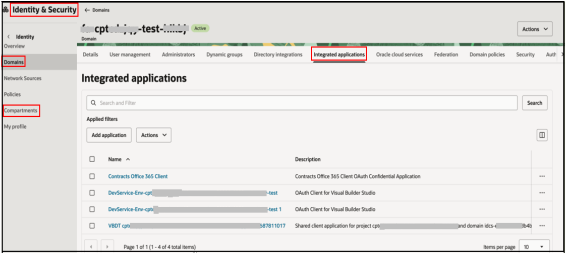
- Select Domains.
- Ensure you're in the correct compartment before you select the Domain for that compartment.
- From the Identity & Security UI, select
Integrated applications in the navigation bar as
highlighted:
- Select Add application, and from the Add application UI select the Confidential Application tile and then select Launch workflow.
- Enter the name, for example
Oracle Enterprise Contracts Office 365
                            Client
and description such asOracle Enterprise Contracts Office 365 Client OAuth Confidential Applicationfor the confidential application and select Next. - Select the OAuth configuration tab and then select
Edit OAuth configuration to display the following
UI.
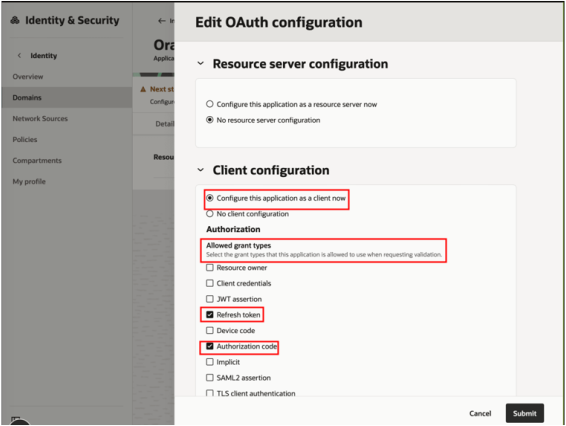
- Select the Configure this application as a client now
toggle in the Client configuration section.
Select both the Refresh token and Authorization code checkboxes for Allowed grant types in the Authorization section.
-
Select Allow non-HTTPS URLs toggle as follows.
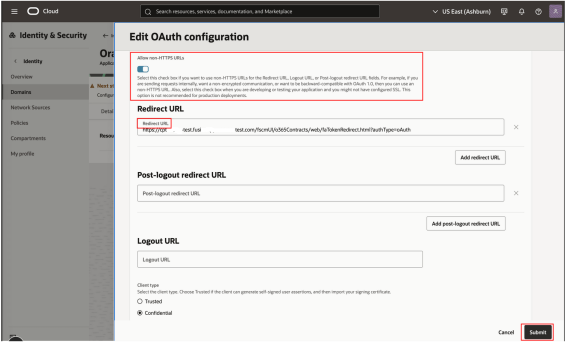
- Enter a Redirect URL as per the following sample
format:
{FaHostUrl}/fscmUI/o365Contracts/web/faTokenRedirect.html?authType=oAuth. - For the Client type, select the Confidential toggle.
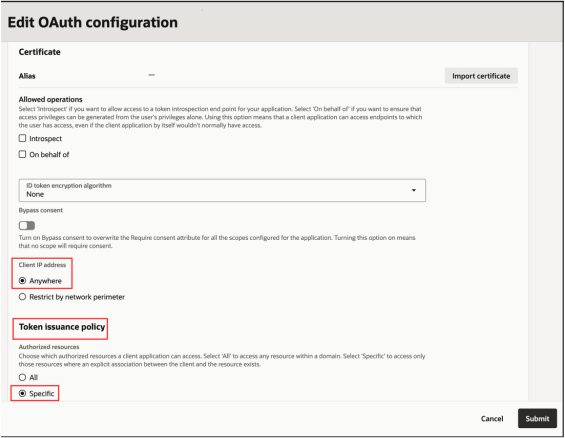
- For the Client IP Address select the Anywhere toggle.
- For the Token Issuance Policy select the
Specific toggle.
- Select the Add Resource toggle and then select
Add Scope from the Resources region to display
the following UI:
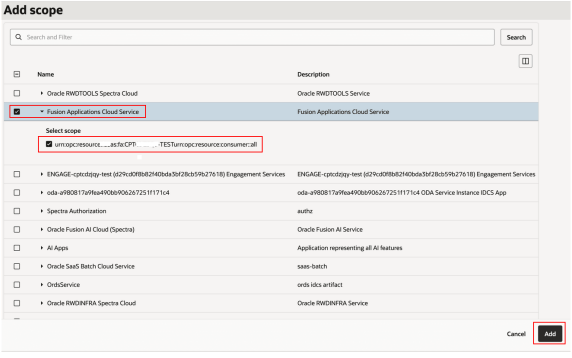
- Select the Fusion Applications Cloud Service checkbox.
- From the Select scope region, select the checkbox and also make a note of the scope details for later reference.
- Select Add.
- Select Submit and show the Client secret as
shown:
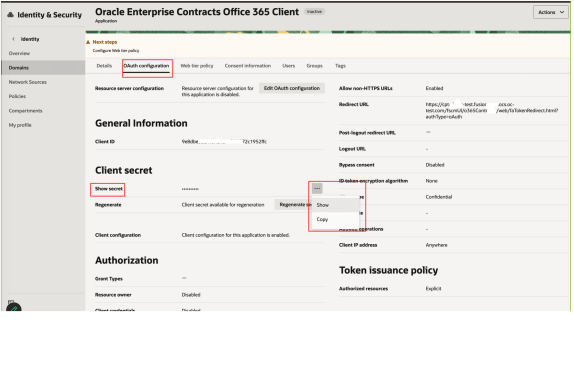 Note: Make a note of the client secret for later reference.
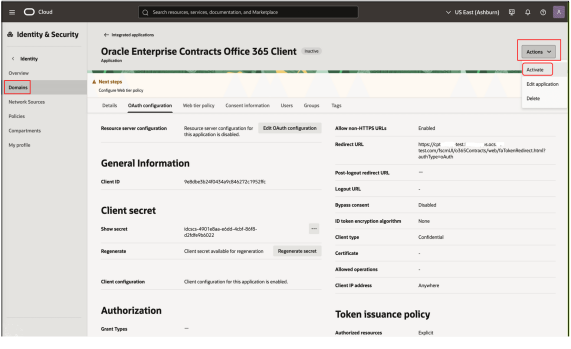
 - Activate the application by selecting Activate from
the Actions drop-down list as follows:
Create and Set Profile Options
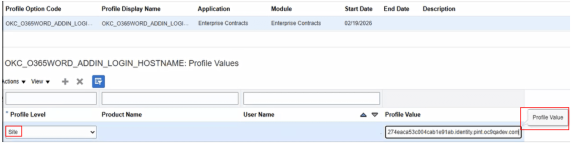
Next, you must create two profile options, one to specify the ID of the Word Add-In user (OKC_0365WORD_ADDIN_ID) and the other (OKC_0365WORD_ADDIN_HOSTNAME) to specify the sign-in host name of the application environment. Using the Manage Administrator Profile Values task from Setup and Maintenance, you can:
- Create the profile options for the ID and sign-in host name
- Set them at the site level and select Enabled and Updatable
- Set the value of the sign-in host name profile option to the IDCS environment details.
Here's an example of what the profile options might look like:
Register and Download Manifest File
- From a sandbox, navigate to the OAuth Settings page from Application Composer.
- Enter the Client ID, Client Secret, Topology URLand Scope values you noted from steps 16 and 18 from the OAuth Authentication setup section.
- Enter the Topology URL as the IDCS environment link.
- Enter an identifiable name for the Add-in Display Name and select Save Configuration.
- Select Download Manifest.
- Save the manifest file to your local folder.
- Navigate to
admin.cloud.microsoft.comand from Settings select the Integrated apps tab. - Select Upload custom apps and the following page is
displayed:
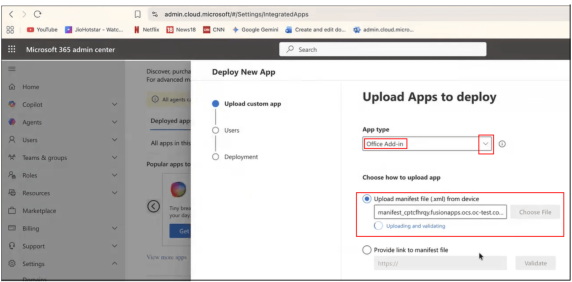
- From the App type drop-down list, select Office Add-in and select Upload manifest file (choose file from the previous setup) and select Next.
- From the Assign users section, select the Entire organization toggle to give access to all users in your organization. Or, to enter specific users one by one, select the Specific users/groups toggle.
- Select Next. Permission requests are processed during the deployment.
- Select Done when the manifest is deployed to complete the Azure setup.
For more details, see Author Contract Terms with AI Powered Word Add-In