Using Word Add-In Powered by AI to Author Contract Terms
Once enabled, you can use the AI powered Word Add-In feature to author contract terms.
- Unlocking, closing, refreshing and suggesting text for structured terms
- Viewing contract advisor and analyzing contract details
- Uploading and downloading contracts and searching recent contracts by keyword
- Editing and refreshing system variable values
- Importing revisions and exporting to external parties
Sign In to Word Add-In
- Open Microsoft Word.
- Select the Add-In icon from the Word toolbar as highlighted in the screenshot.
- Select the contract you want from the list on the Recent
Contracts pane.
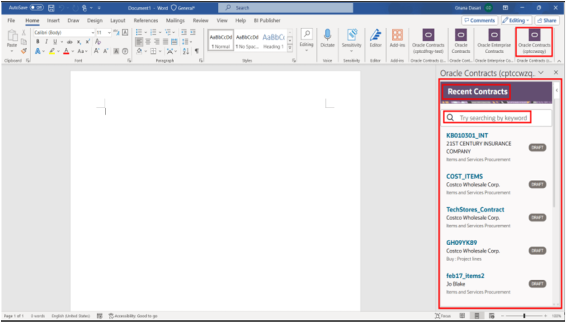
- You can also narrow down your search by entering a keyword for the search.
Download a Contract Using AI Word Add-In
The downloaded contract opens in two modes depending on whether it's locked by another user or not. If the contract isn't previously locked by another user, it will be opened in an edit mode with all the (header and node level) actions enabled. If it's locked by another user, the contract will be opened in a read-only mode with the Edit Contract action that enables you to unlock the contract for you to make the changes as shown.
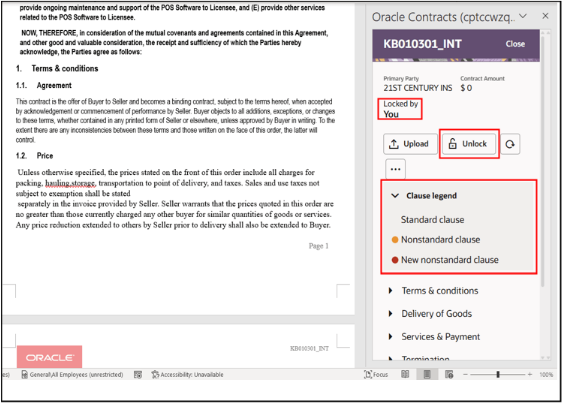
- Standard clause
- Nonstandard clause
- New nonstandard clause
Depending on whether a clause is Standard, Nonstandard, or New nonstandard, the actions that can be performed on these clauses vary. For example, for a Nonstandard clause, you can use Revert to Standard action, whereas for a New nonstandard action you can use Suggest Text action.
Upload a Contract Using AI Word Add-In
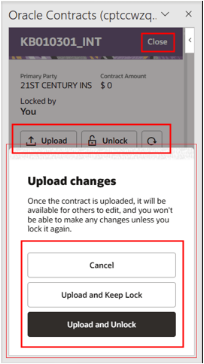
- Cancel
- Upload and Keep Lock
- Upload and Unlock
Using Word Add-In Features to Author Contract Terms
| Action | Description | Sample Image |
|---|---|---|
| Unlock |
In case you don't intend to make any changes to the contract, you can unlock the contract so that it's available for edits by another user. When you unlock the contract, it's displayed in Read-Only mode until you select Edit Contract action again. |
 |
| Refresh | You can refresh to update the section or clause hierarchy tree to view any changes done directly in the Word document. | |
| Close |
Once you're done with the changes for a specific contract, you can navigate to another contract by selecting the Close action that's on the top right-hand corner of the add-in. This will take you to the Recent Contracts pane from where you can search the new contract and go forward from there. |
|
| Edit Variable Values | You can edit variable values of the contract. Use the Show pending variables toggle to switch between seeing only the pending variables or all the variables. | 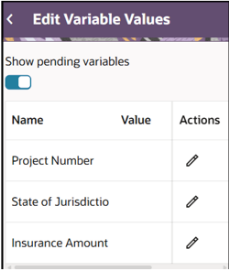 |
| Refresh System Variable Values | You can refresh the system variable values periodically to ensure that updates made in the Contracts application are reflected in the Word document within the Word Add-In. | |
| View Contract Advisor | You can request AI help to ask more questions about the contract and take an informed decision on the changes that must be made. | 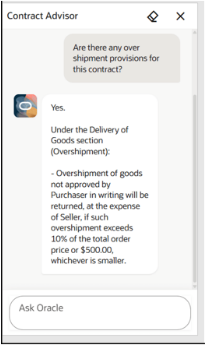 |
|
View Contract Details: |
You can view more details such as Primary Party, Contract Type, Intent, Business Unit, and Terms Template of the contract. | 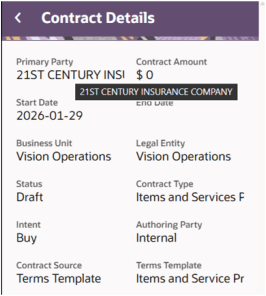 |
| Export to External Party | You can export and make a copy of the contract that can be shared with the external party for their review. | 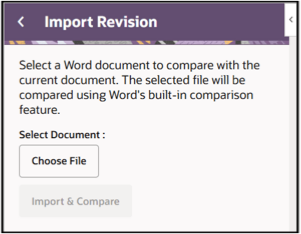 |
| Import Revision | You can import the revision sent by the external party and compare the changes with your version of the contract. | |
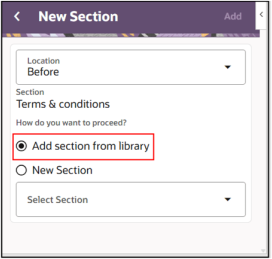
| Add and Delete Sections | You can add a new section after, before, or within an
existing section. You can add a section from the library or add
a new section from scratch. You can delete an existing section. |
 |
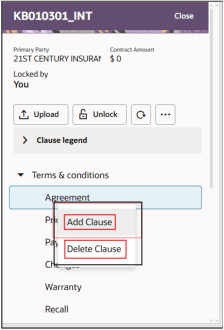
| Add and Delete Clauses | You can add a new clause from the standard library or a net
new nonstandard clause. You can add a clause to a section
without any clauses. You can add a clause before or after a
specific clause. You can delete an existing clause. |
 |
| Revert to Standard | You can revert a clause to standard clause in cases where a standard clause has been changed to a nonstandard clause because of changes made it. | 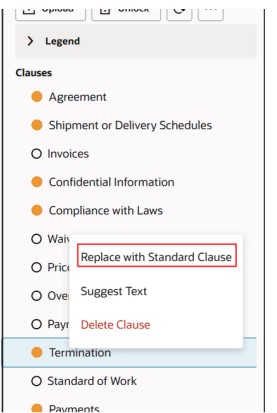 |
| Replace with Standard Clause | For clauses that are present in both the document and the template, you can choose to replace the document text with the standard clause text by using Replace with Standard Clause action. | |
| Analyze Document | You can ask AI to analyze an attached document (received from the external party) and compare it with the reference terms template that has a list of clauses associated with it. Based on the analysis, Word Add-in displays a list of clauses with a classification for each of the clauses. | 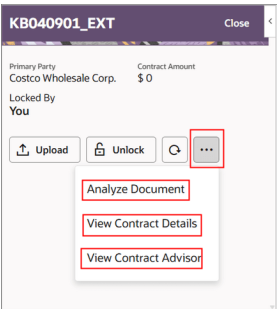 |
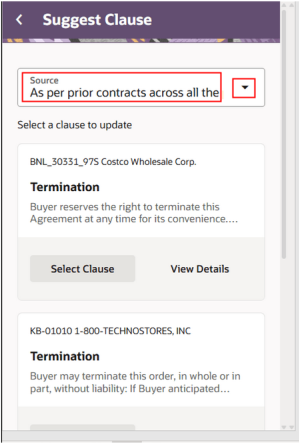
Suggest Text using Contract Advisor
You can use the AI Contract Adviser agent help to provide suggestions for the clause language as per the following options:
- As per standards: AI suggests the clause modifications
based on the clauses available in the terms library.
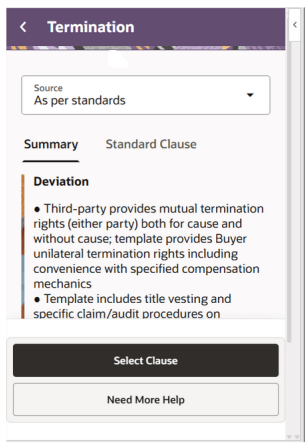
- As per prior contracts of this party: AI looks into the prior contracts of this party and comes up with clause suggestions from that party
- As per prior contracts across all the parties: AI looks
into the prior contracts across all the parties and comes up with the clause
suggestions
For more details, see Author Contract Terms with AI Powered Word Add-In