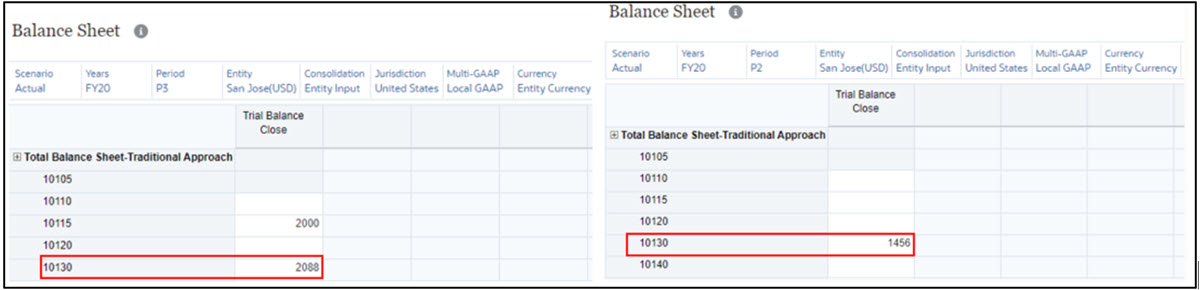
Usecase Example: Loading Flat File Data to Tax Reporting using Data Integration
Example data flat file:
"Entity","Consolidation","Data Source","Currency","Intercompany","Account","Movement","Scenario","Years","View","Multi GAAP","Jurisdiction","Period"
 Feb,Mar
 "LE103","FCCS_Entity Input","FCCS_Data Input","Entity Currency","FCCS_No Intercompany","10130","TRCS_TBClosing","Actual","FY20","FCCS_Periodic","FCCS_Local GAAP","TRCS_Domicile_Input",1456,2088
See also, Creating File-Based Integrations in Administering Data Integration
To load the flat file data, follow the steps below:
- Navigate to Data Management → Setup (using older data management UI)
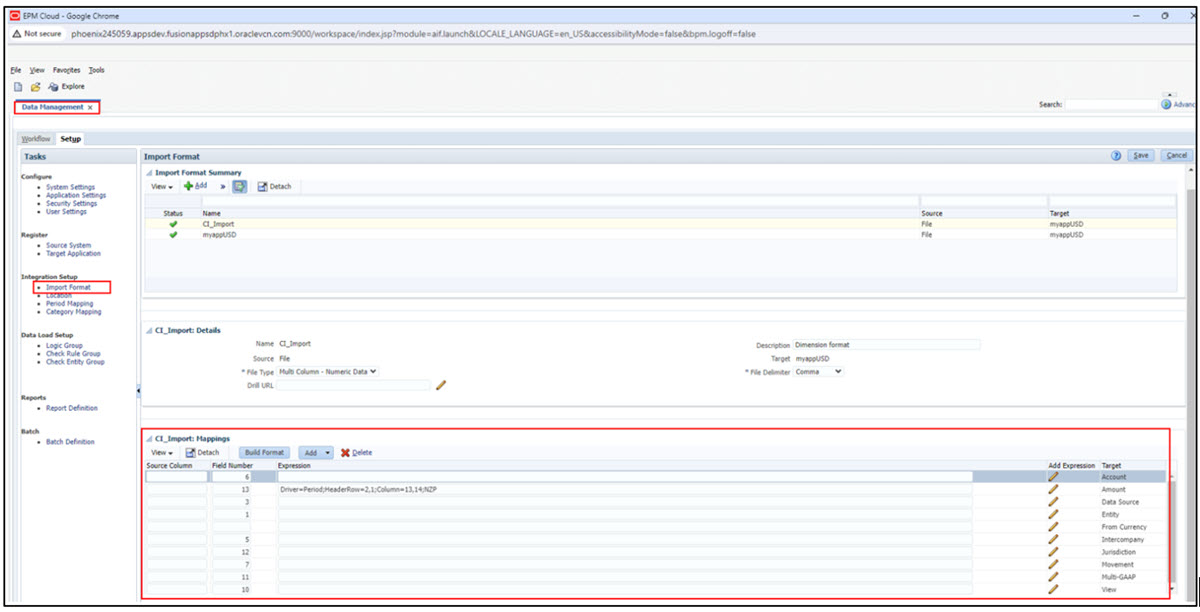
- Create Import Format according to data load file. Specify the field number of
each dimension on the data input file.
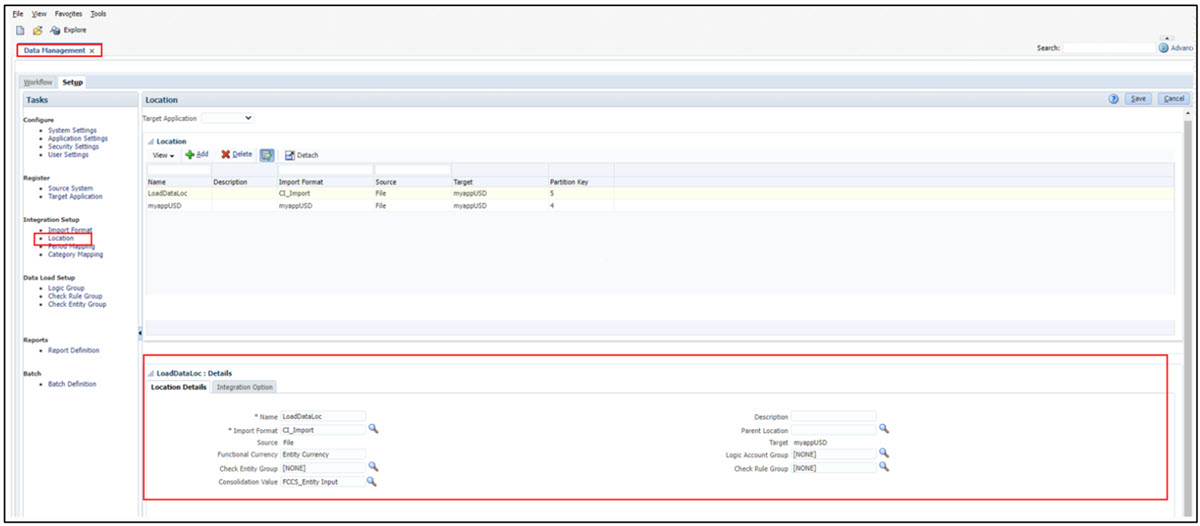
- Create Location with import file.
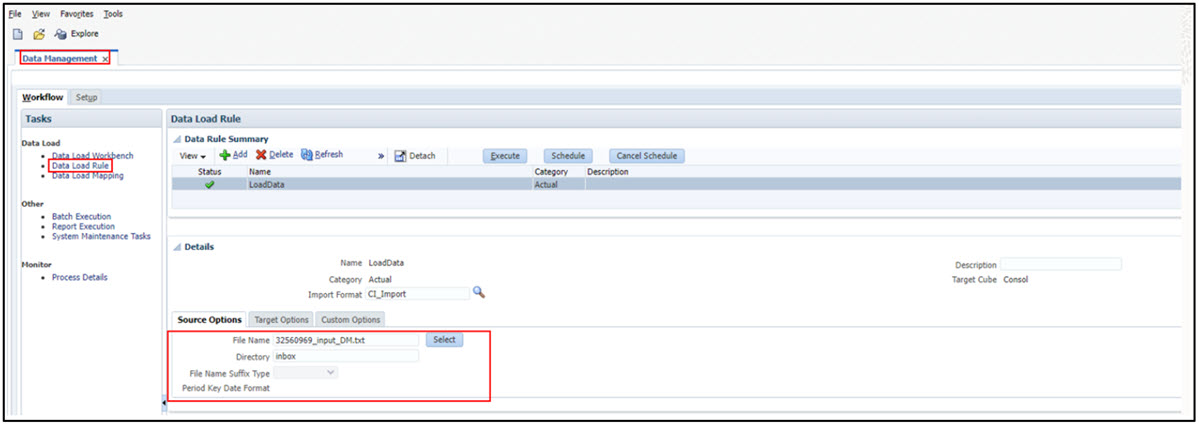
- Create Data Load Rule.
- Map Period between Financial Consolidation and Close and
Tax Reporting since
periods are declared differently in each Cloud EPM application. To do so, switch to
the new user interface for Data Integration and select
Application → Data Exchange → Actions → Period
Mapping

- Execute Data Integration after the
mappings are complete.
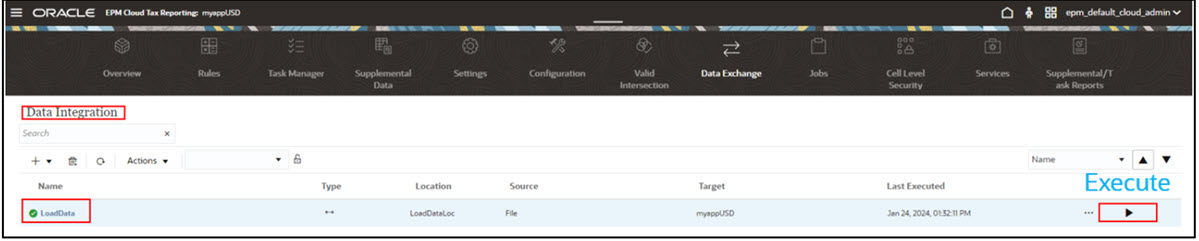
With the flat file example, data should now be loaded to LE103 entity and US jurisdiction.