Importing a Certificate into IDCS of OTM

  1. Sign in to the Admin Console in the IDCS of OTM.
  2. Go to the Security tab of the default domain.
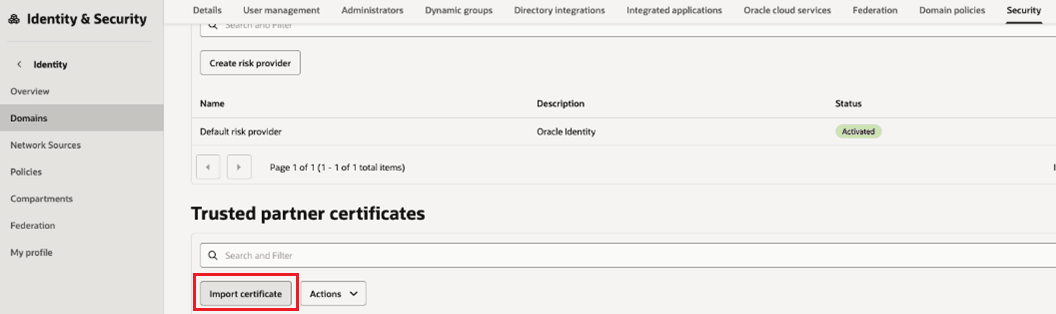
  3. Select Import certificate.

    The image shows a screen shot of the Security tab of the default domain. The Import certificate button is highlighted in red.

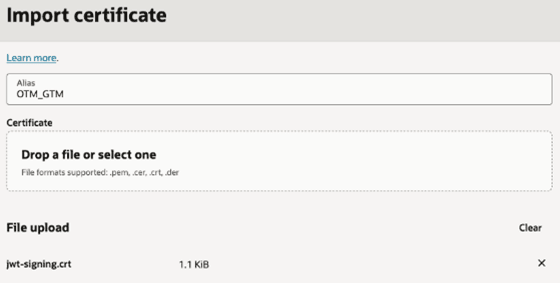
  4. For the name enter the same Alias created previously.
    Remember: Use the value that you wrote down for the IDCS of OTM confidential app certificate Alias in Prerequisites.
  5. Select Drop a file or select one.
  6. Select the file used in the previous section.
    Remember: Import the certificate that you created earlier. Generating Public/Private Keys with a Certificate
  7. Select Import.

    This image is a screen shot of the Import certificate screen. The Alias has the value of OTM_GTM and the File upload section has an entry of jwt-signing.crt.

Adding Users

Your OTM user needs to access AI Agent Studio. So you can create a user in Fusion IDCS identical to the user in OTM IDCS.

The usernames field on Fusion IDCS and OTM IDCS must match with the Nickname field on the OTM user manager. Usually, this is an email address, but it can be any other unique string.

All all of the following must match exactly:

  • Fusion IDCS username
  • OTM IDCS username
  • Nickname of the OTM user